Set up Calendly to capture and persist UTM parameters and marketing attribution

Capture channel and campaign data into every Calendly submission and see where you customers and leads are coming from.
Start a free trial
Attribution is broken

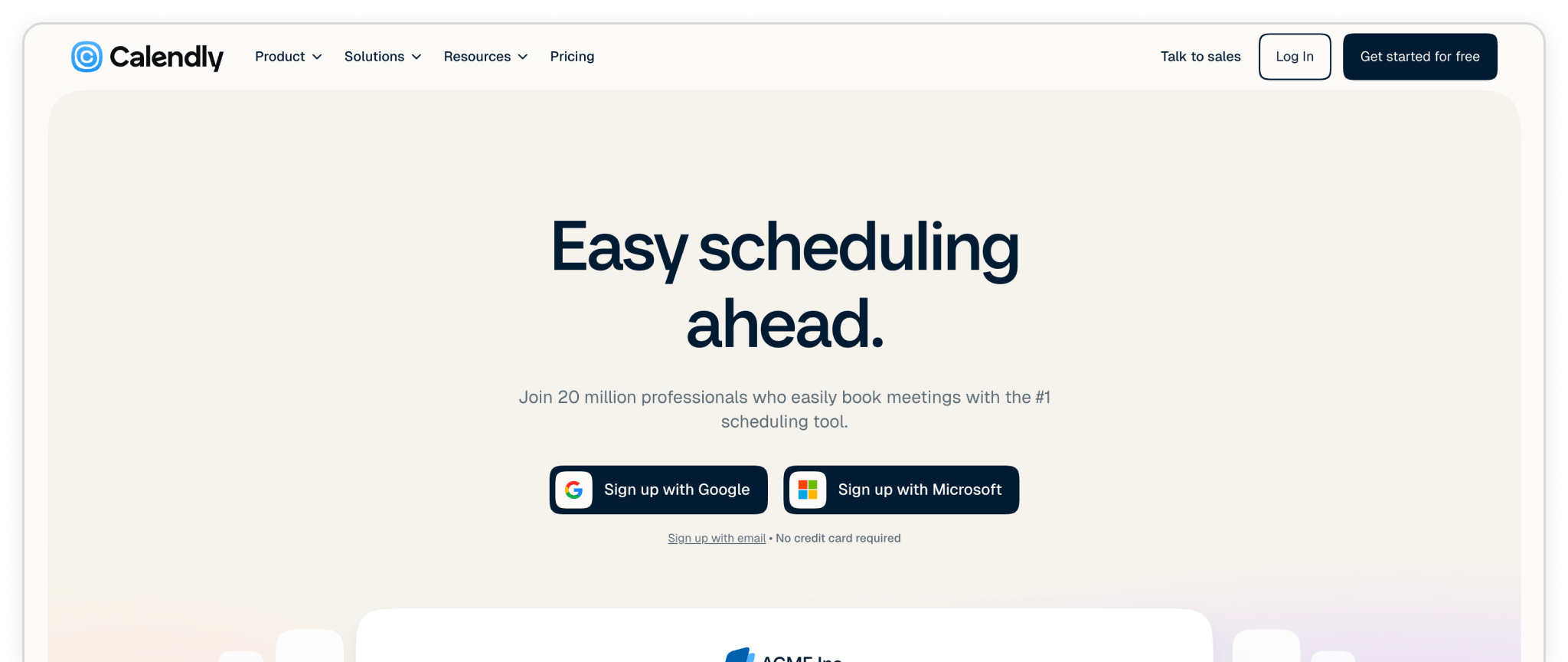
Calendly makes it simple for leads to book a call with you. But a booking alone doesn't tell you which ad, email, or search click led to it.

Madlitics fills that gap by capturing the visitor's source, medium, and campaign, and pasing them to Calendly so each booking arrives with its marketing context.

In this article, you'll set up Calendly to capture that data. You'll configure Calendly, embed your booking on your iste, and install the Madlitics script. Then you can see which channels bring in booked calls and send that data to your CRM.

Create new or use an existing event

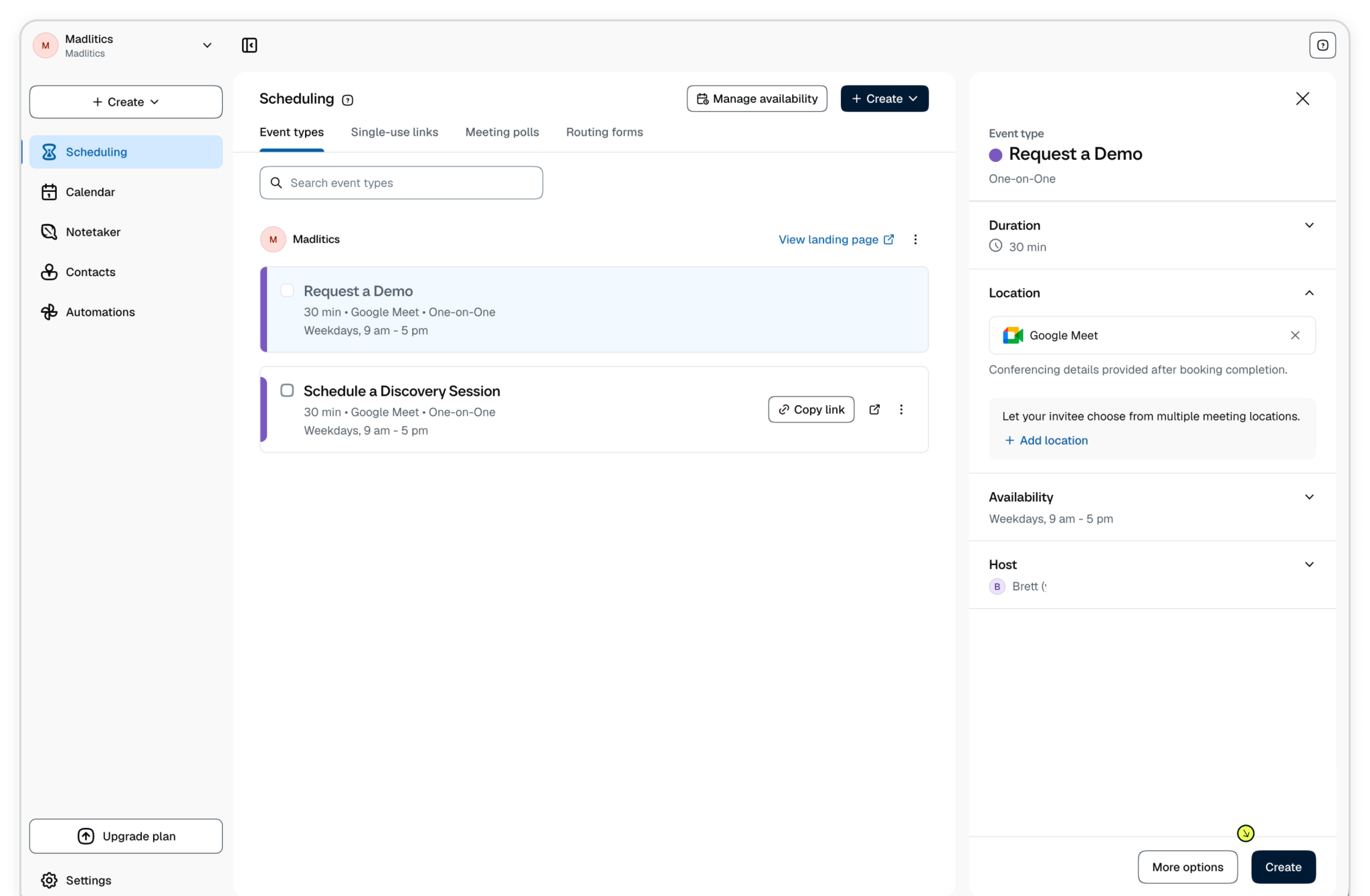
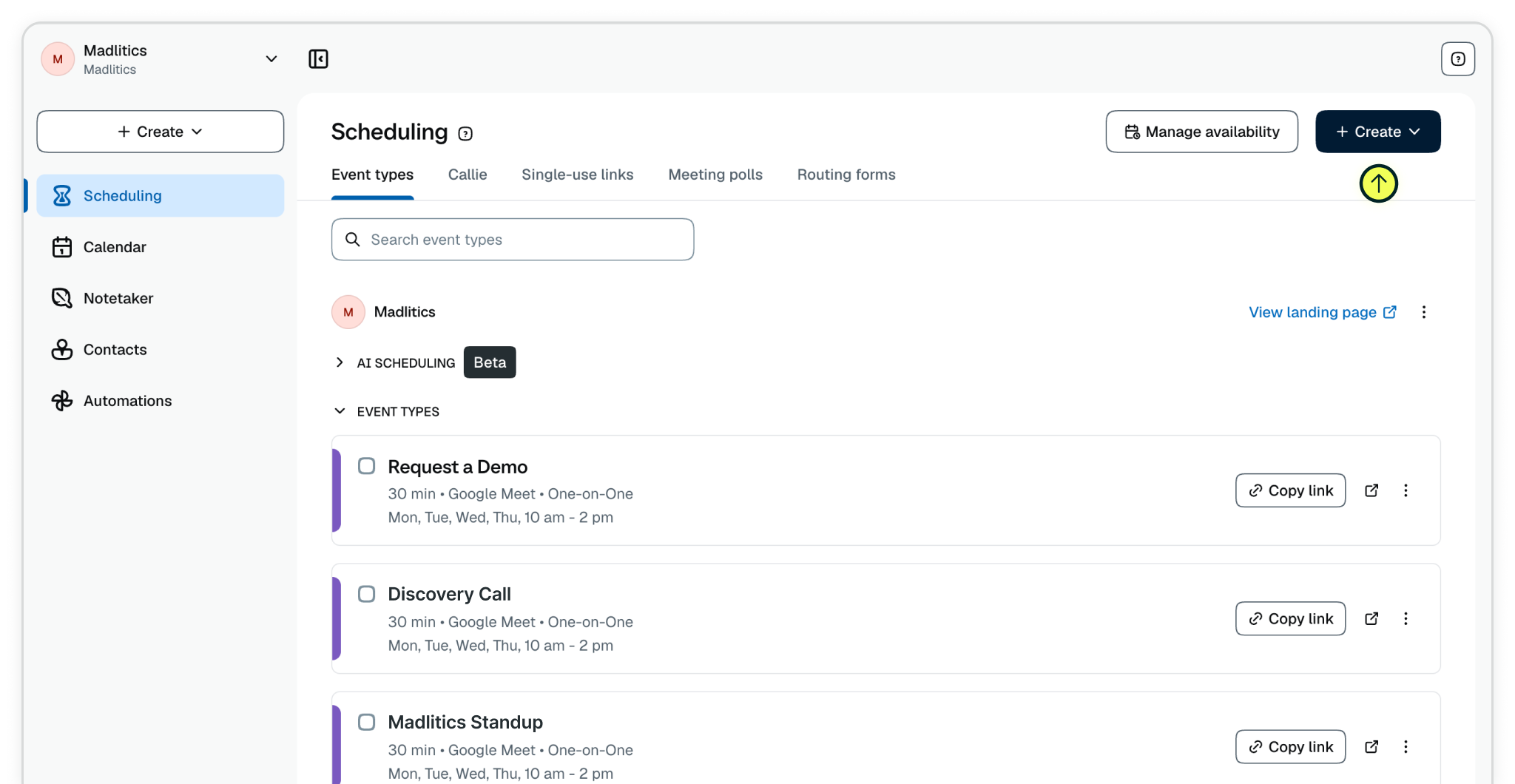
Step 1: Start with a new event, select your event type, and and other details. You can also use an existing event from the Scheduling page‍. Create Calendly events as usual, editing name, duration, location, scheduling details, etc.
‍

Start with a new event or use and existing booking.

‍

Create Calendly events as usual and click 'Create' when you're finished.

Embed Calendly on your site

Step 2: To make sure attribution data comes through with every submission, you’ll need to embed your Calendly booking on your website. Madlitics work behind the scenes, automatically pulling in details and persisting attribution like channel and campaign data without adding anything extra for your visitors to fill out.

‍

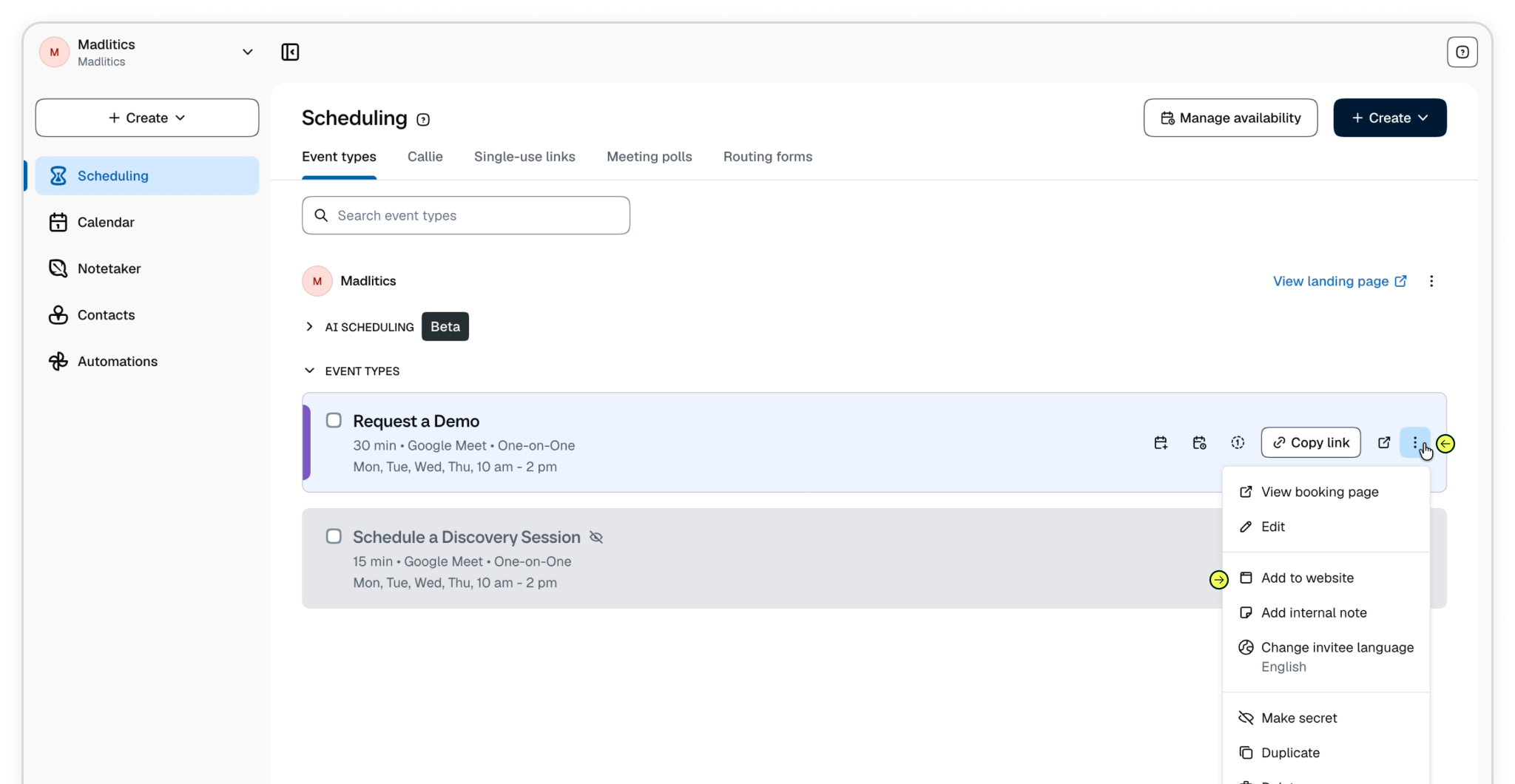
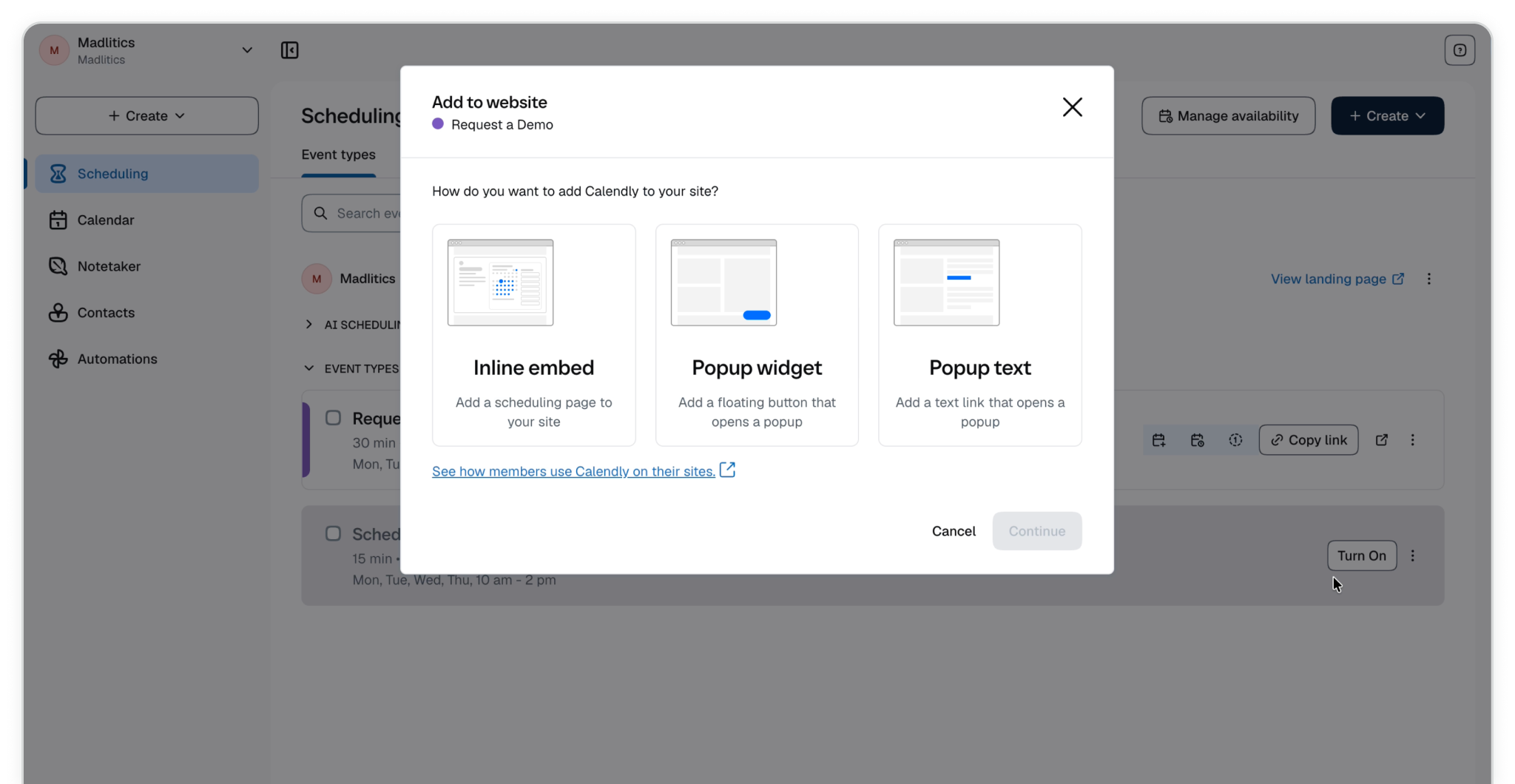
Access Caldenly's embed options from the overflow menu, by clicking on the 3-dots icon from the event you want to add attribution tracking; Click 'Add to Website' from the overflow menu. Choose Inline, Popup Widget or Popup text from the embed options and click 'Continue' when you're ready.
‍

  1. Begin by clicking the 3-dots menu, and select 'Add to Website' from the overflow menu.
  2. Choose an embed type — Inline embed, Popup Widget, or Popup Text
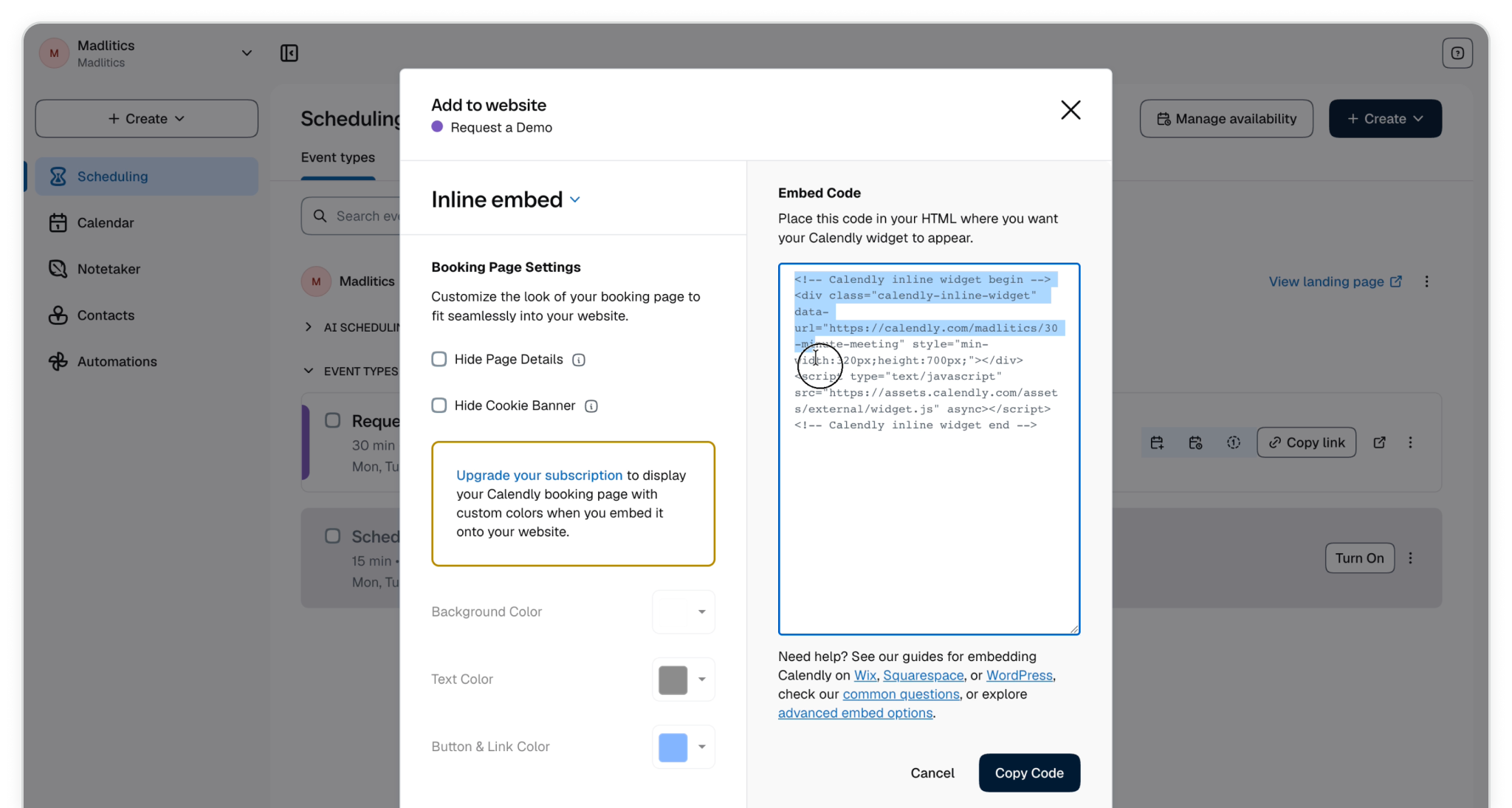
  3. Past the Embed Code on your site where you want the booking to appear
  4. Publish your site to activate.

‍

Select 'Add to Website' from the overflow menu

‍

Choose how you would like embed your Calendly booking

‍

Copy the Embed Code to your website and publish to activate.

‍

Additional Madlitics fields configurations available — clickIDs, etc.

Publish and test submission data

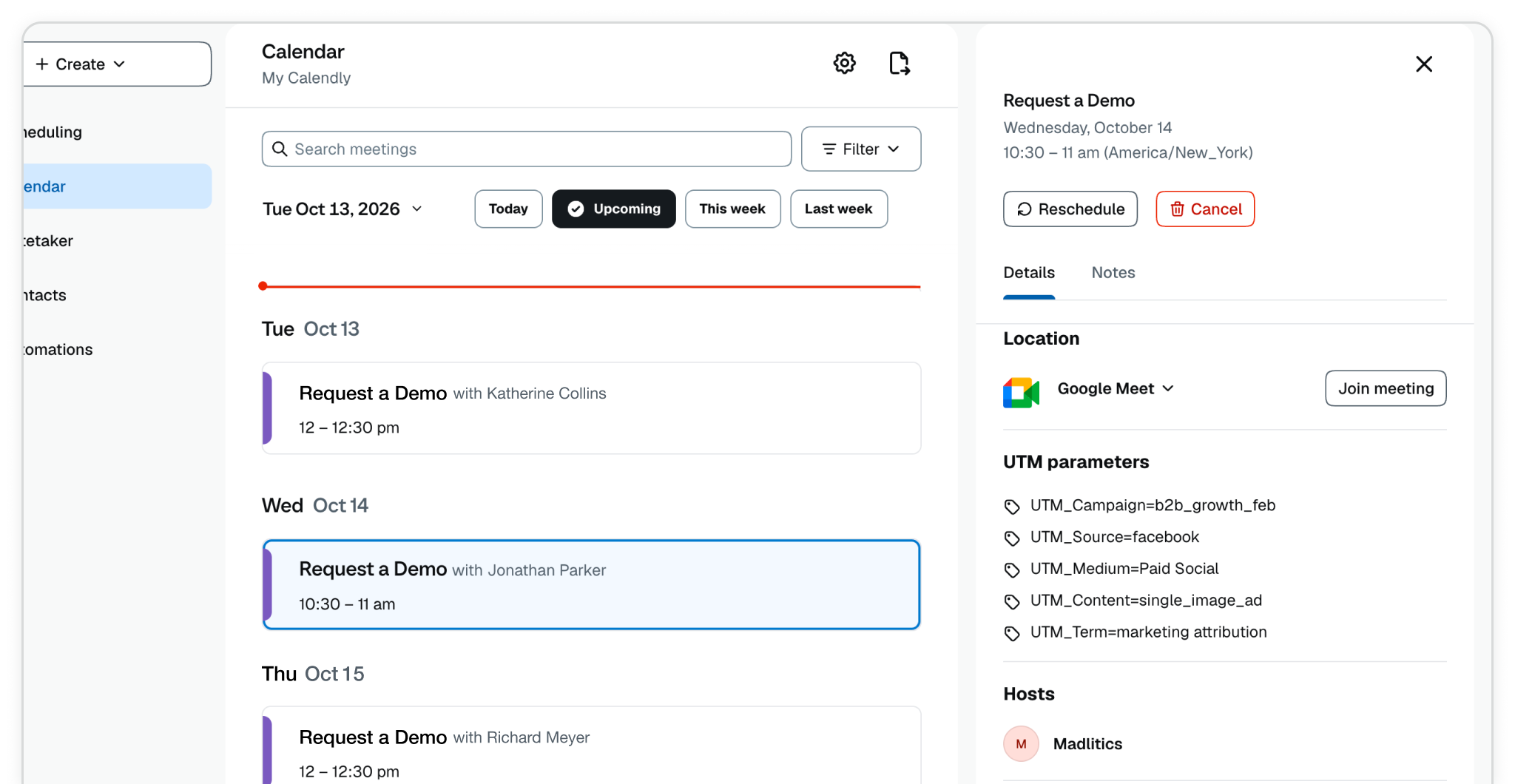
Test your event by visiting your site, using a url with unique utm parameters. The captured attribution data will appear in your Calendly Calendar page, showing details like channel and campaign details. Data can be pass into any of Calendly connected tools, CRM, analytics platform, etc. giving you full visibility for reporting and optimization.
‍

View attribution details along side lead data.

Don't forget to install Madlitics

Signing up for a Madlitics account is quick, and you can get started collecting attribution data in a matter of minutes. Madlitics installs in minutes across popular platforms and builders (Wordpress, Traditional Websites, Zoho CRM, HubSpot, Webflow, etc.). For specific installation instructions check out the articles.
  1. Head over to Madlitics.com and up for a free trial to get started.
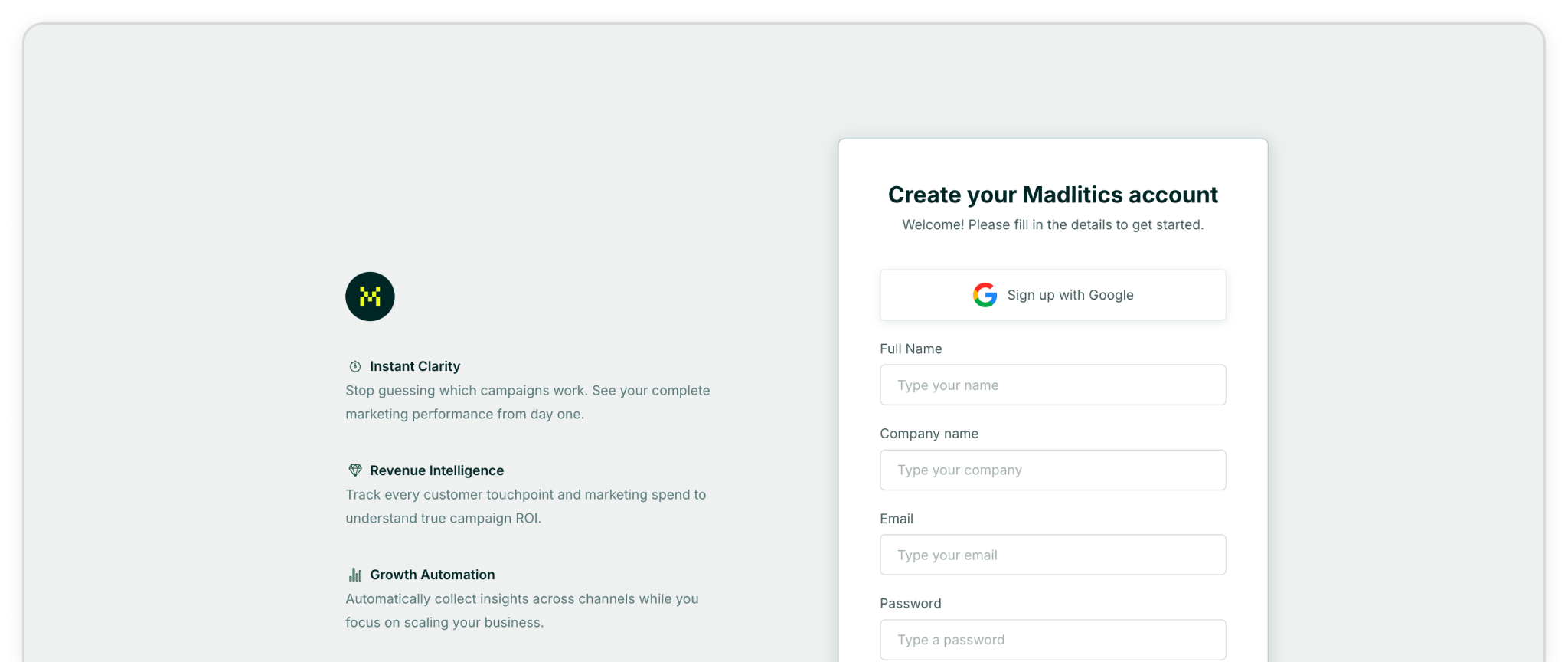
  2. Fill out the registration form to get an account
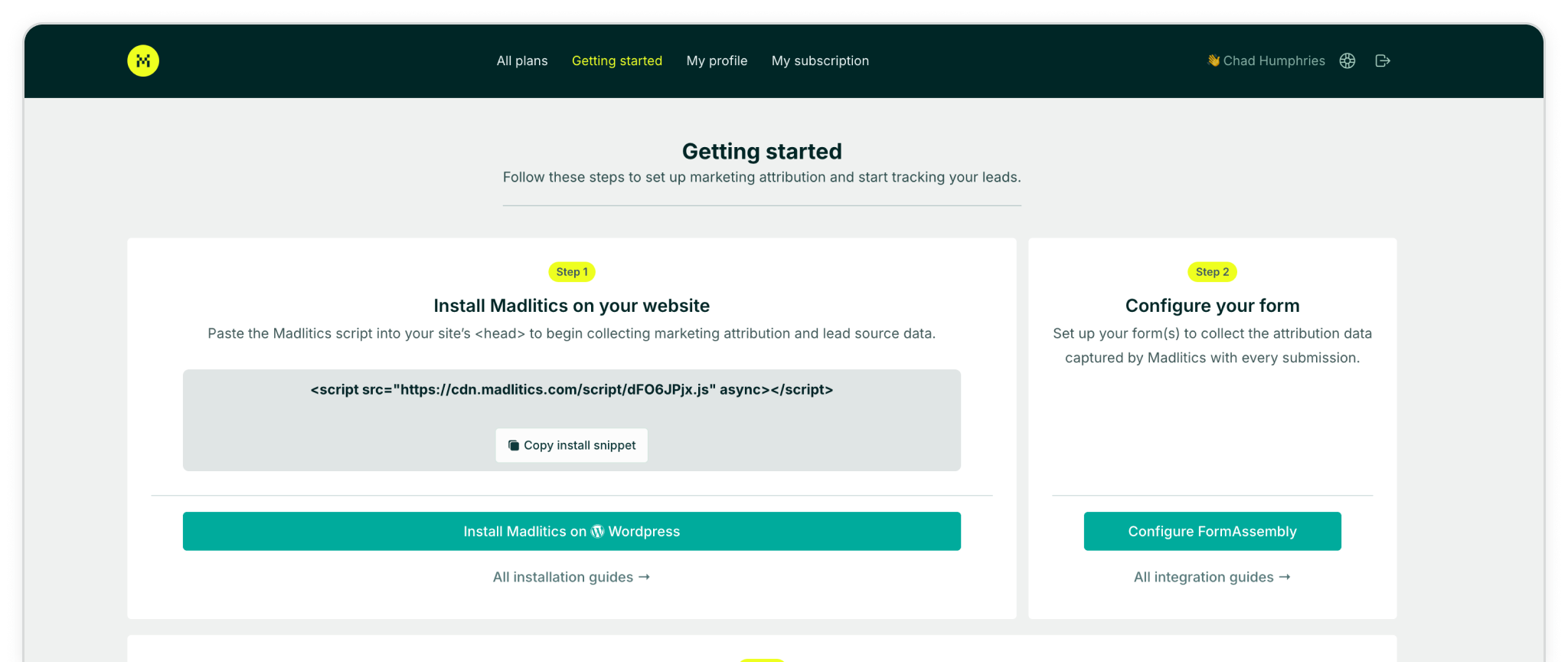
  3. Locate the Madlitics Code Snippet, on your dashboard
  4. Copy that snippet on your site within the <Head> tag
  5. Publish you site to active Madlitics

‍

Head over to Madlitics.com

‍

Register for an account

‍

Copy the snippet, and install it on your site in the <head> section, before the closing </head>
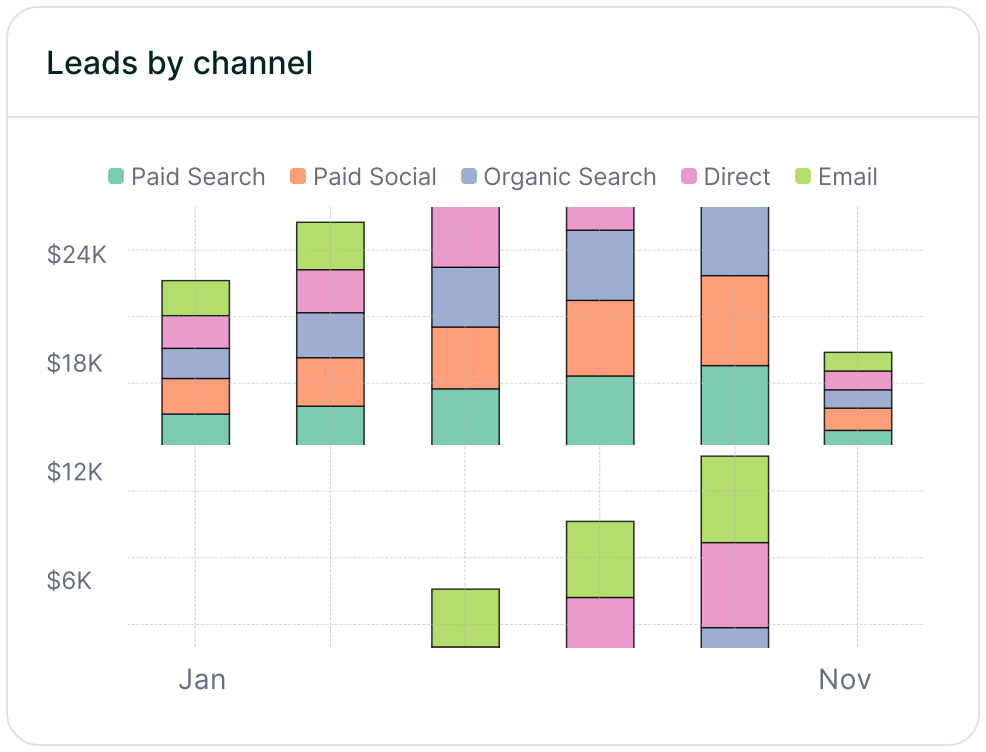
Stacked bar chart showing lead generation by marketing channel over time, comparing sources like Paid Search, Paid Social, Organic Search, Direct, and Email. Helps visualize which channels drive the most traffic.
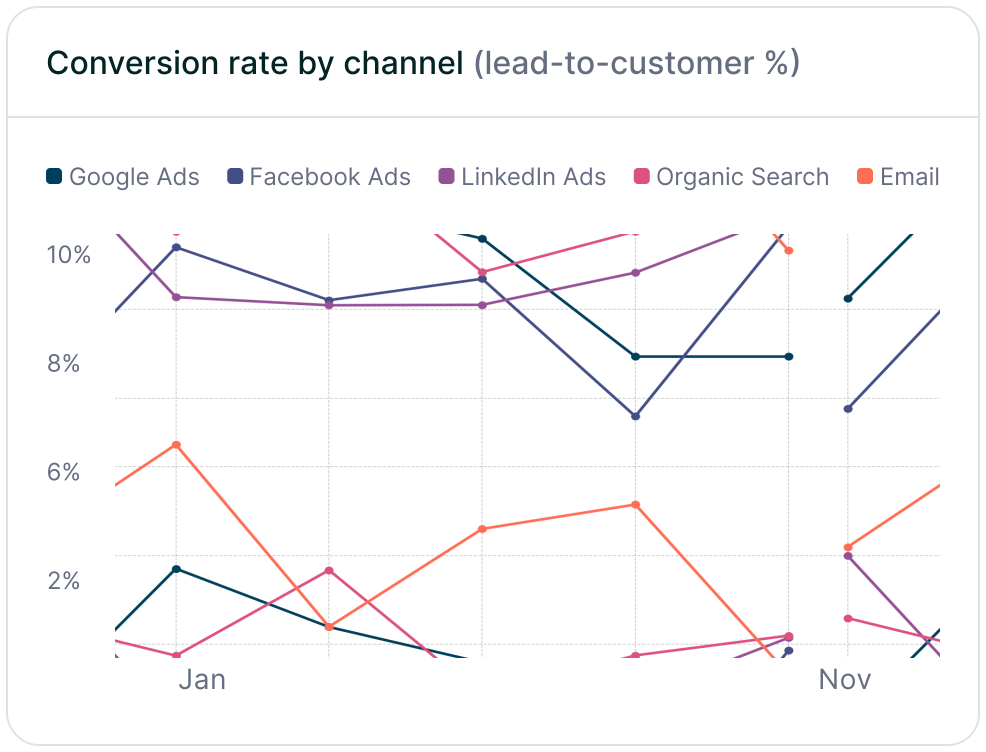
Line chart displaying lead-to-customer conversion rates by channel, comparing Google Ads, Facebook Ads, LinkedIn Ads, Organic Search, and Email. Shows how different sources drive qualified leads over time.
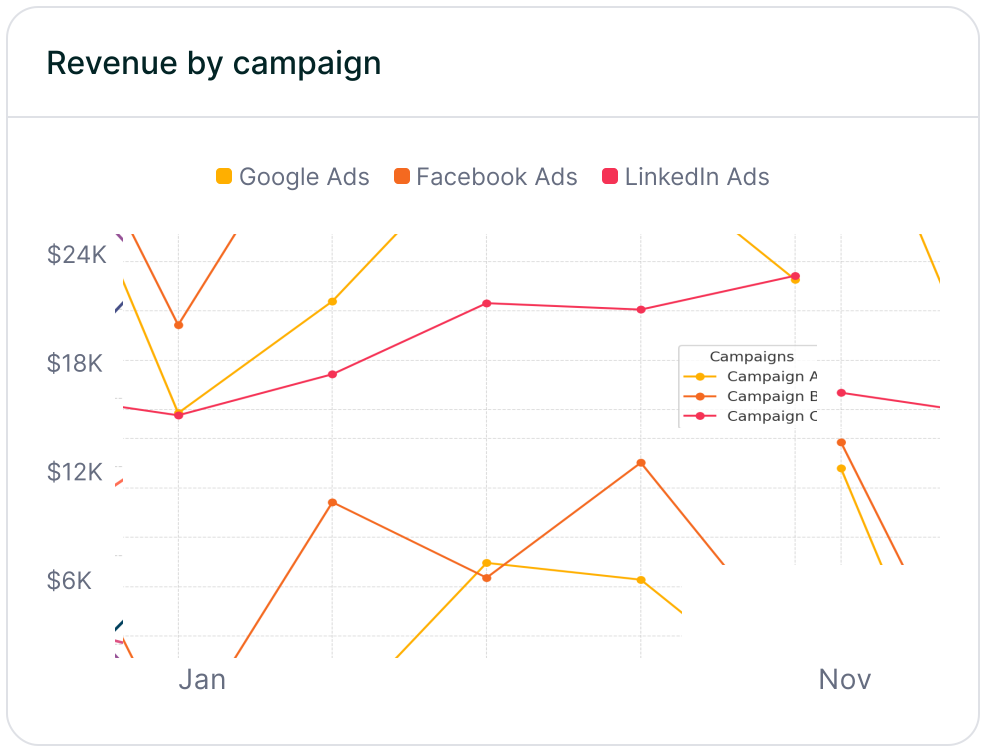
Line chart showing revenue performance by marketing campaign, comparing Google Ads, Facebook Ads, and LinkedIn Ads. Helps identify top-performing and underperforming campaigns.

Related articles

With Madlitics now activated and your events ready to accept marketing attribution data, and start tracking valuable insights immediately to pass attribution data into your CRM, email marketing platform, business intelligence tool, for advanced reporting.

Frequently Asked Questions

Answers to common questions about setting up tracking with Madlitics and Jotform

Everything you need for reliable lead attribution
Accurate, persistent, and automated tracking — so your campaigns perform at their best.
Performance icon symbolizing marketing campaign effectiveness and results tracking.
Outperforms basic UTM tracking
Madlitics captures, categorizes, and persists attribution data across sessions, giving you a complete, structured view of what’s working in your marketing. Say goodbye to losing attribution when users navigate your site, struggling with formatting inconsistencies, and ingored non-UTM traffic.
Capture icon indicating data collection from various marketing channels and sources.
Capture all traffic
Madlitics categorizes all inbound leads — whether they have UTM parameters or not — so every conversion is accounted for, and you won't miss out on Organic Search, Organic Social, and Referral traffic.
Routing icon representing the flow of marketing data and attribution pathways.
Attribution across pages and sessions
A LinkedIn ad click should be attributed correctly—even if the visitor signs up on a different page later. If someone clicks an ad, browses multiple pages, then submits a form later, Madlitics persists attribution data across sessions, ensuring your reports reflect true performance.
List icon representing structured marketing data, reports, or campaign breakdowns.
Cleaner, more reliable data
Duplicate UTMs and inconsistent formatting break reports and mislead teams. Madlitics cleans and organizes attribution data before sending it to your CRM, giving you accurate insights.
Target icon symbolizing precise audience targeting and marketing campaign focus
See which content converts
Attribution isn’t just about where visitors came from—it’s about what convinced them to convert. By capturing landing page data alongside UTM parameters, Madlitics shows you which blog posts, case studies, or pricing pages drive the most revenue, helping you scale content that works.
Action icon representing campaign execution, optimization, and engagement.
Transform form submissions into actionable insights
Madlitics connects marketing touchpoints to lead generation, ensuring every form submission is fully attributed — optimize ad spend by identifying high-ROI channels, refine messaging based on what content drives engagement, make data-driven decisions with clean, structured reports, and more.