Support

Installing custom code on a Zoho Sites

Add scripts like Madlitics to the header of every page in Zoho Sites.
Start capturing attribution →
Attribution is broken
Automation icon indicating hands-free marketing attribution and data flow.
Analytics report icon, indicating data insights and reporting.
Impact measurement icon, symbolizing marketing effectiveness.
Personalization icon, representing customization features.

Zoho is a popular website builder designed for entrepreneurs, small businesses, and teams looking to launch branded websites without touching a line of code. But for marketers who rely on third-party tools—like analytics, advertising platforms, or attribution services—Zoho also includes built-in features that let you add custom code across your site.

In this guide, we’ll walk you through how to add a custom code snippet—like the one used by Madlitics—into the <head> tag of your Zoho Sites project. This ensures that scripts like tracking pixels or attribution tools run on every page, right when the site loads.

📝 Note: If you're on a limited plan, check your access to the Header and Footer Code section.

Adding Custom Code to the Header in Zoho Sites

To start, log in to your Zoho Sites dashboard and select the project you want to update.

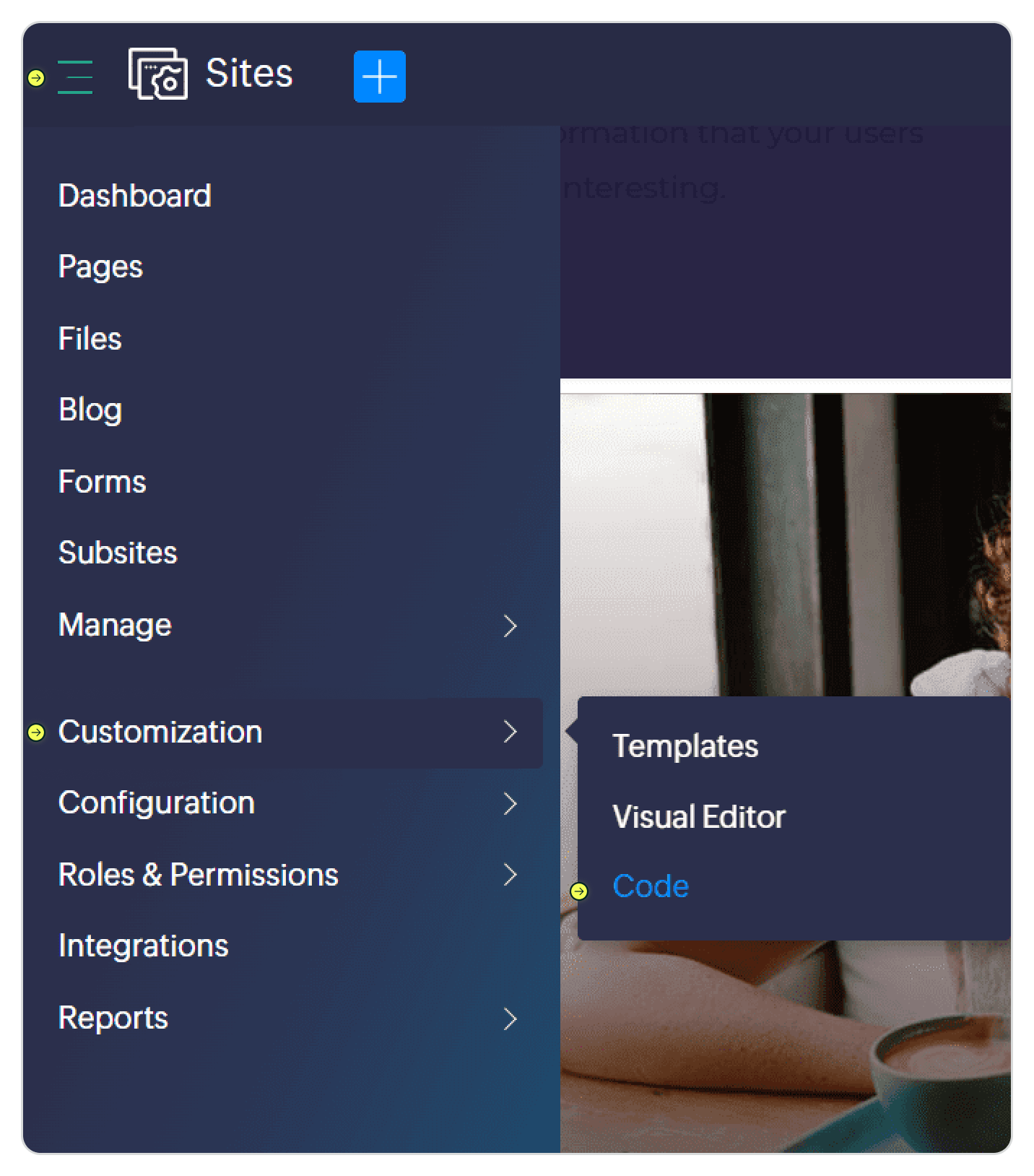
From the dashboard, navigate to the Customization section using the left-hand sidebar. Then select Code. This opens up the interface where you can insert header and footer scripts.

Within this editor, you’ll see two primary fields: Header Code and Footer Code. To install Madlitics — or any script that needs to load in the <head> — paste your snippet directly into the Header Code box.
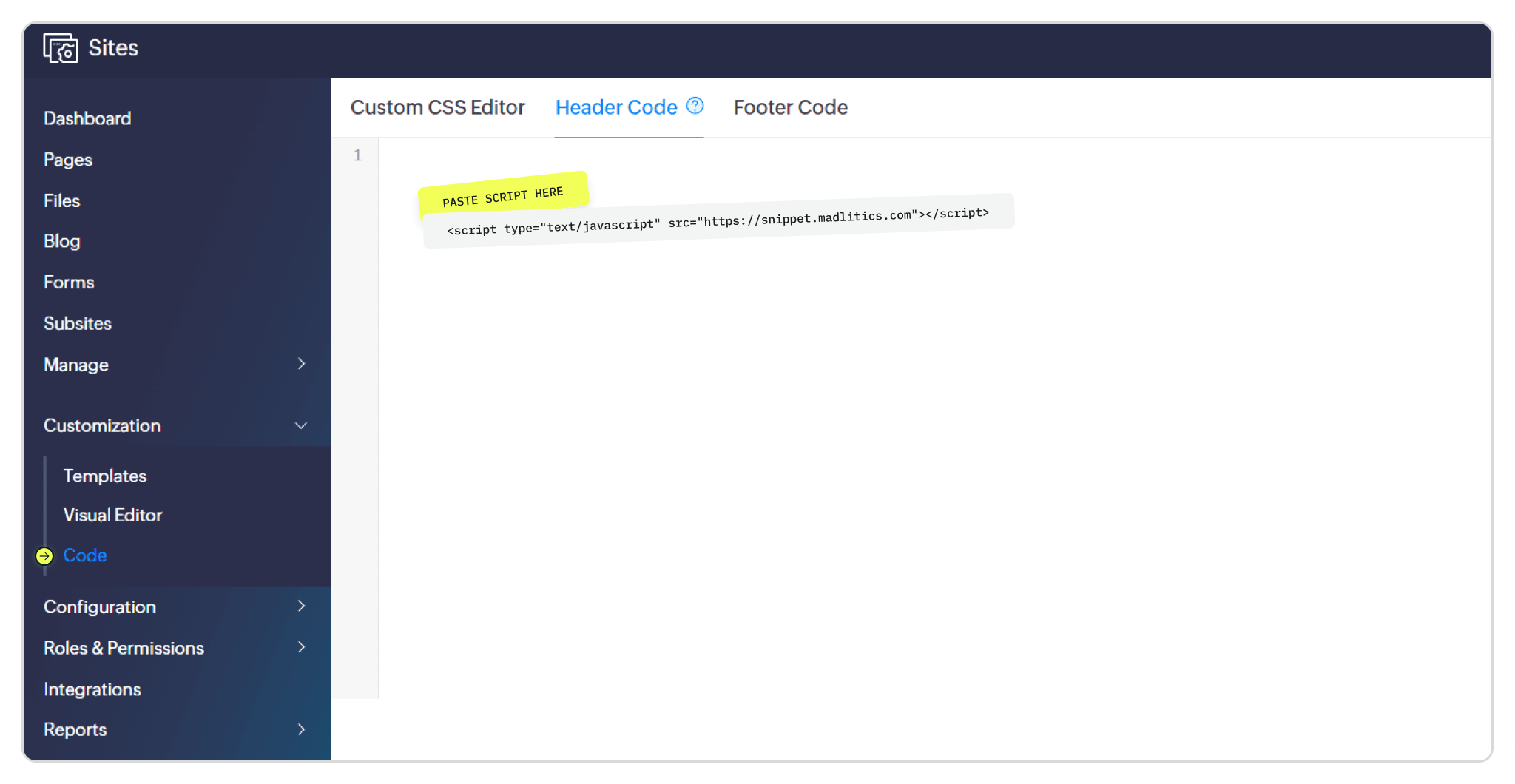
Once your code is added, click Save to apply the changes. Then hit Publish to push those changes live across your entire site.

Navigate to Customization > Code from the Zoho Sites dashboard to access the header and footer code editor.
Paste your custom script—like the Madlitics snippet—into the Header Code tab. Then click Save and Publish to apply changes site-wide.
Madlitics multi-channel attribution visualization, showing marketing platforms like TikTok, Instagram, Google, and Facebook. The graphic highlights how different sources contribute to high-performing marketing channels.
Screenshot of a form builder interface with a highlighted 'Hidden Input' field. Accompanied by text explaining how to install and set up Madlitics by adding hidden fields to capture marketing attribution data.
CRM interface showing a detailed view of captured attribution data, including marketing channels, segments, and landing pages. A business profile of a lead is displayed, highlighting how Madlitics enriches lead data for sales and marketing teams.
Graph showing new customer growth from TikTok, Instagram, Snapchat, and Google over time, with social media icons surrounding the chart and a callout for social revenue impact.

Verifying your Madlitics installation
To confirm your installation, open your site in a browser and right-click anywhere on the page, then select Inspect (or use Cmd + Option + I on Mac / Ctrl + Shift + I on Windows). In the Elements tab, scroll to the <head> section and look for your code snippet — such as the madlitics.com script URL. If it’s there, your injection is active and ready to collect data.
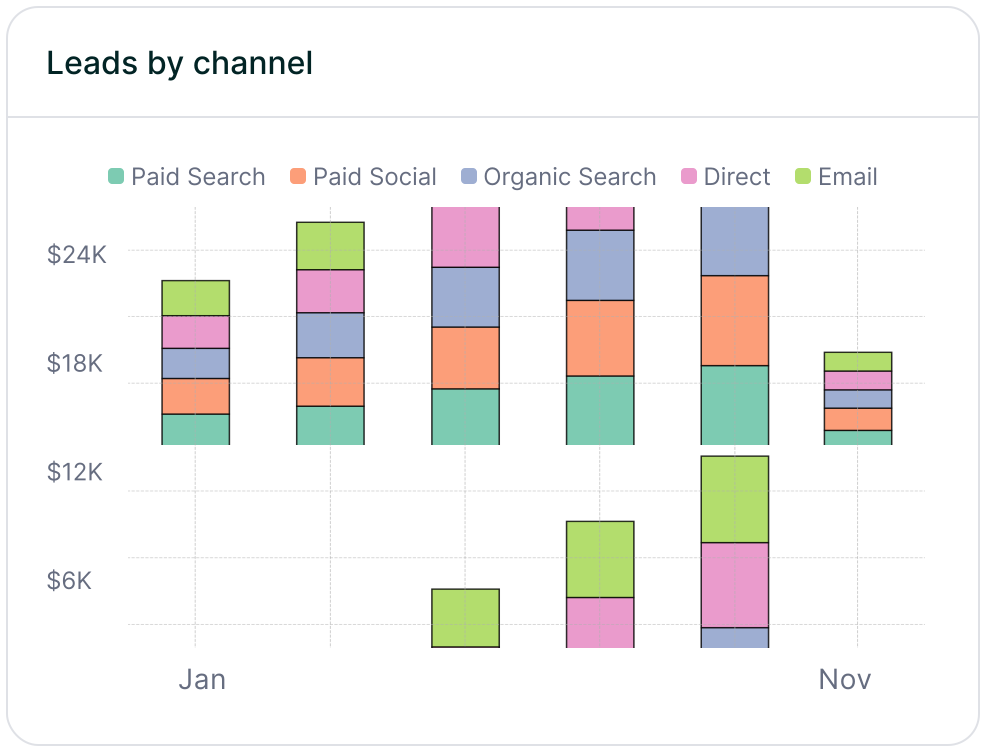
Stacked bar chart showing lead generation by marketing channel over time, comparing sources like Paid Search, Paid Social, Organic Search, Direct, and Email. Helps visualize which channels drive the most traffic.
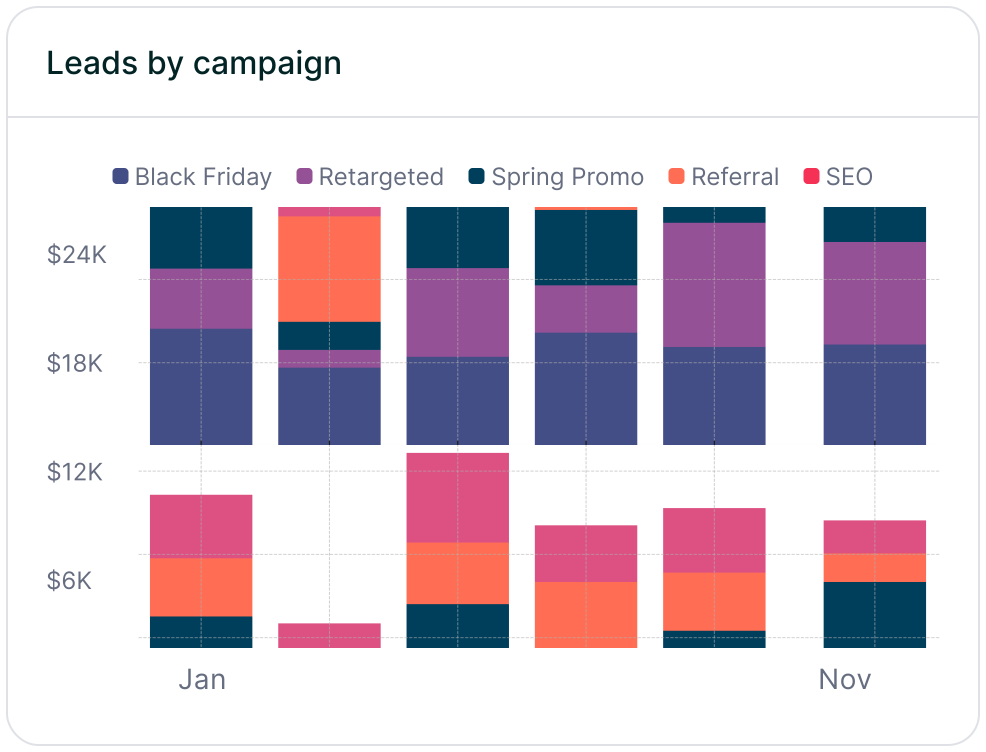
Stacked bar chart illustrating lead volume across different marketing campaigns, including Black Friday, Retargeted, Spring Promo, Referral, and SEO. Highlights trends in campaign effectiveness.
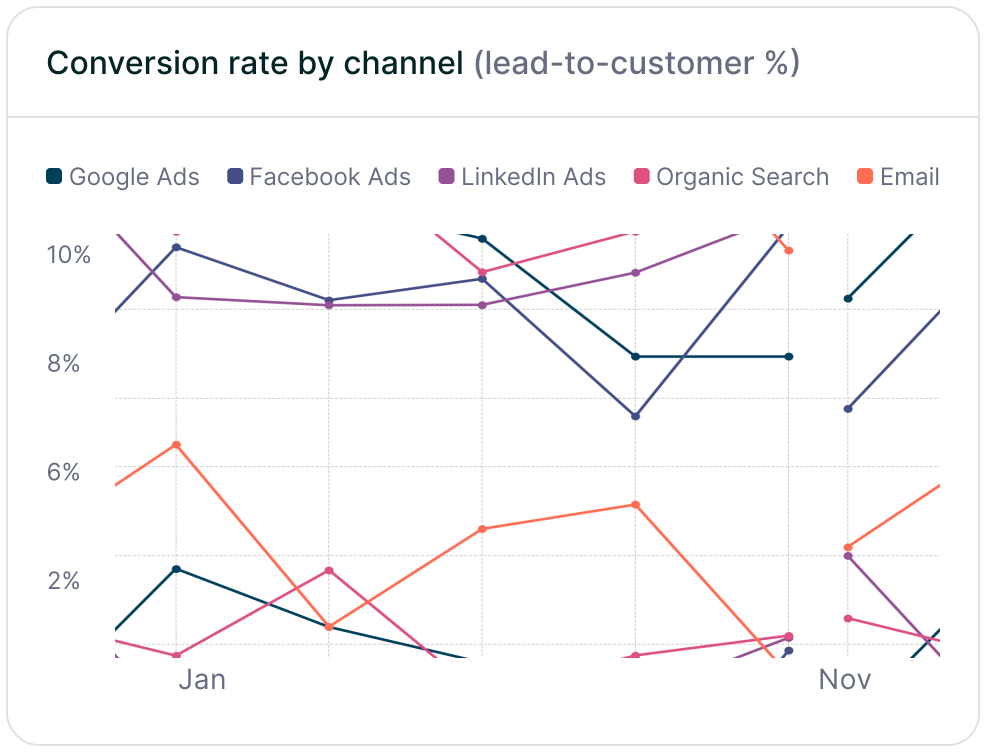
Line chart displaying lead-to-customer conversion rates by channel, comparing Google Ads, Facebook Ads, LinkedIn Ads, Organic Search, and Email. Shows how different sources drive qualified leads over time.
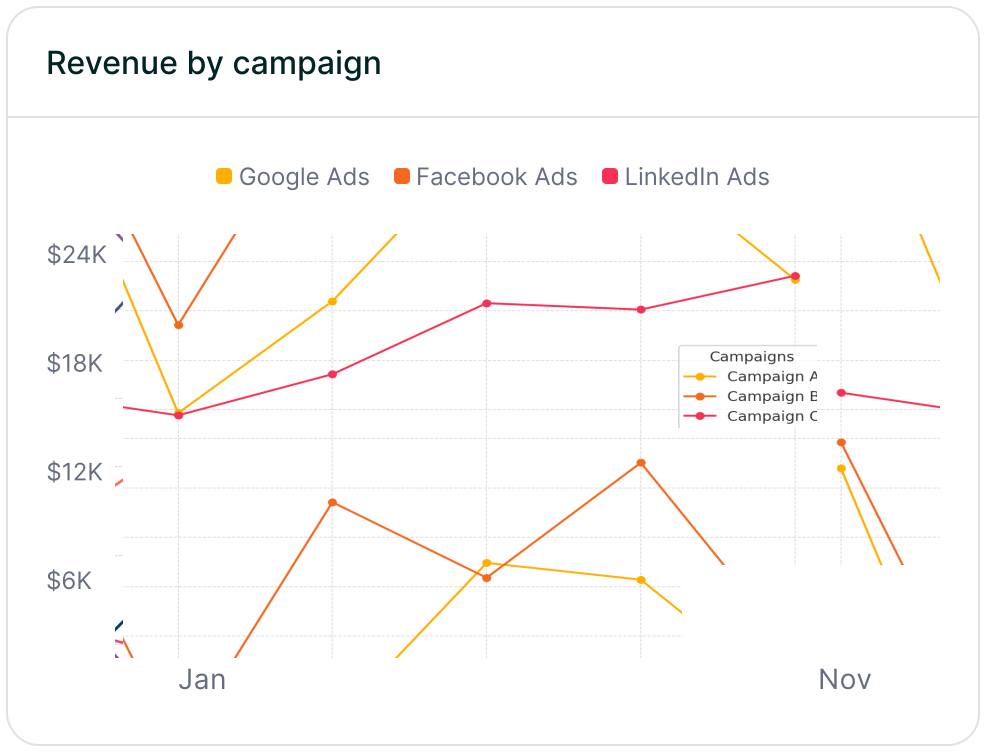
Line chart showing revenue performance by marketing campaign, comparing Google Ads, Facebook Ads, and LinkedIn Ads. Helps identify top-performing and underperforming campaigns.

Need Help? 
If you're having trouble or want someone to walk through your setup, reach out to our team. We’re happy to help confirm your Madlitics installation or troubleshoot any issues with your custom script.

Related articles to get you started with Madlitics

Frequently asked questions

Answers to your top questions about our UTM parameters
Everything you need for reliable lead attribution
Accurate, persistent, and automated tracking — so your campaigns perform at their best.
Performance icon symbolizing marketing campaign effectiveness and results tracking.
Outperforms basic UTM tracking
Madlitics captures, categorizes, and persists attribution data across sessions, giving you a complete, structured view of what’s working in your marketing. Say goodbye to losing attribution when users navigate your site, struggling with formatting inconsistencies, and ingored non-UTM traffic.
Capture icon indicating data collection from various marketing channels and sources.
Capture all traffic
Madlitics categorizes all inbound leads — whether they have UTM parameters or not — so every conversion is accounted for, and you won't miss out on Organic Search, Organic Social, and Referral traffic.
Routing icon representing the flow of marketing data and attribution pathways.
Attribution across pages and sessions
A LinkedIn ad click should be attributed correctly—even if the visitor signs up on a different page later. If someone clicks an ad, browses multiple pages, then submits a form later, Madlitics persists attribution data across sessions, ensuring your reports reflect true performance.
List icon representing structured marketing data, reports, or campaign breakdowns.
Cleaner, more reliable data
Duplicate UTMs and inconsistent formatting break reports and mislead teams. Madlitics cleans and organizes attribution data before sending it to your CRM, giving you accurate insights.
Target icon symbolizing precise audience targeting and marketing campaign focus
See which content converts
Attribution isn’t just about where visitors came from—it’s about what convinced them to convert. By capturing landing page data alongside UTM parameters, Madlitics shows you which blog posts, case studies, or pricing pages drive the most revenue, helping you scale content that works.
Action icon representing campaign execution, optimization, and engagement.
Transform form submissions into actionable insights
Madlitics connects marketing touchpoints to lead generation, ensuring every form submission is fully attributed — optimize ad spend by identifying high-ROI channels, refine messaging based on what content drives engagement, make data-driven decisions with clean, structured reports, and more.