
Digital Marketing
How to capture UTM parameters and marketing attribution data in Webflow
Turn Webflow responses into full attribution records ready for your marketing tools, and see what drives leads, not just form fills.
Start a free trial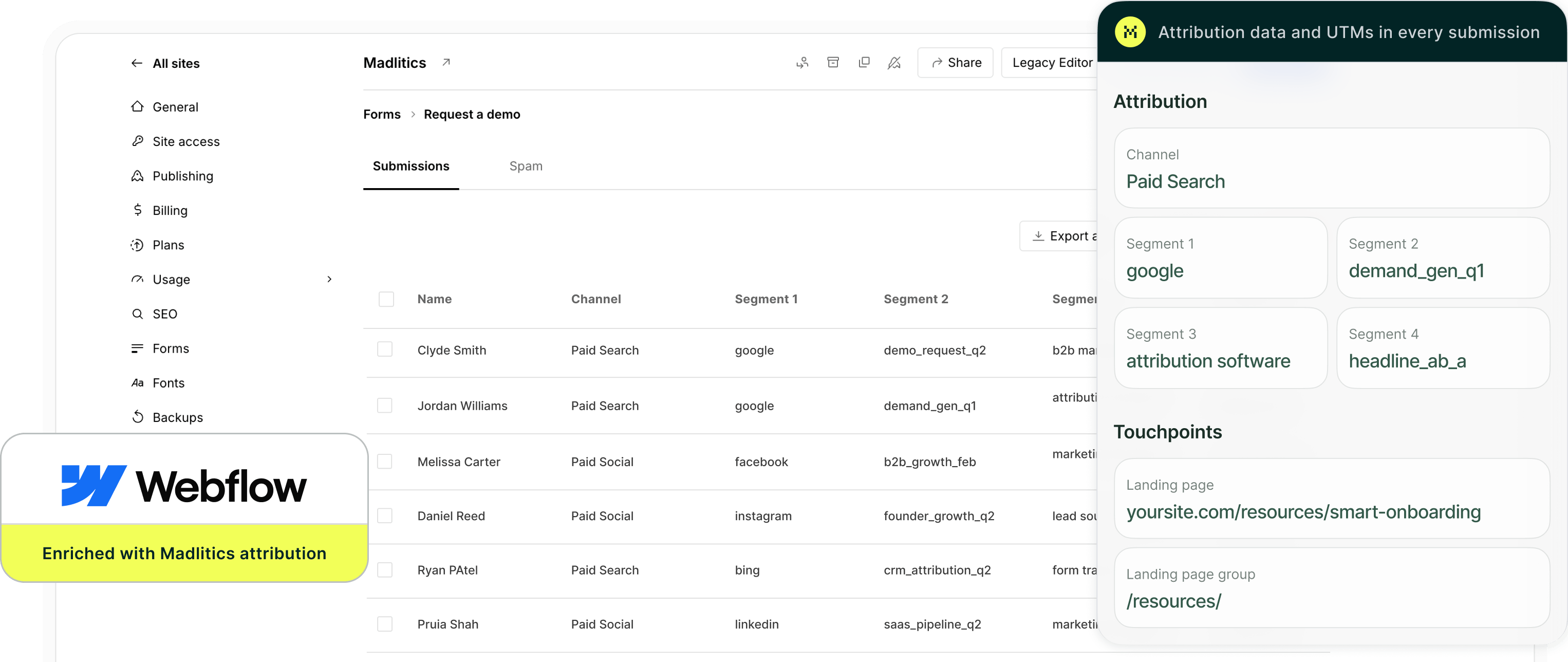
Webflow makes it easy to design and publish high‑converting forms. Getting reliable attribution data from those submissions is the hard part. UTM parameters often go missing, break when visitors click around, or only appear on a small share of responses, which leaves you with “Direct” or incomplete data in your CRM and reports and makes it difficult to see which campaigns, pages, and channels are actually driving results.
Madlitics fixes this by making sure every Webflow form submission includes accurate, persistent attribution data. It captures UTM parameters, source, medium, campaign, and landing page details when visitors first arrive, then keeps that information attached across pages and embeds until they submit a form.
In this article, you’ll learn how to use Madlitics with Webflow to capture complete attribution data on every submission and send it into your CRM, marketing tools, or data warehouse. With that in place, you can clearly see which channels, campaigns, and forms are driving leads, pipeline, and revenue, and invest more confidently in what works.
Accurate marketing attribution starts with capturing where leads come from. Madlitics works with Webflow to automatically capture UTM parameters, channel data, and first-touch attribution, then writes it into every form submission for your CRM and reporting workflows.
Add UTM parameters to every marketing link you use, including paid ads, email, social, and organic search results. Use the Madlitics URL builder to create consistent UTM parameters so every click sends clean attribution data into your Webflow forms.
An example URL with UTMs: yoursite.com/webflow-form?utm_source=google &utm_medium=cpc &utm_campaign=demo_q2 &utm_term=marketing-automation &utm_content=hero_ad

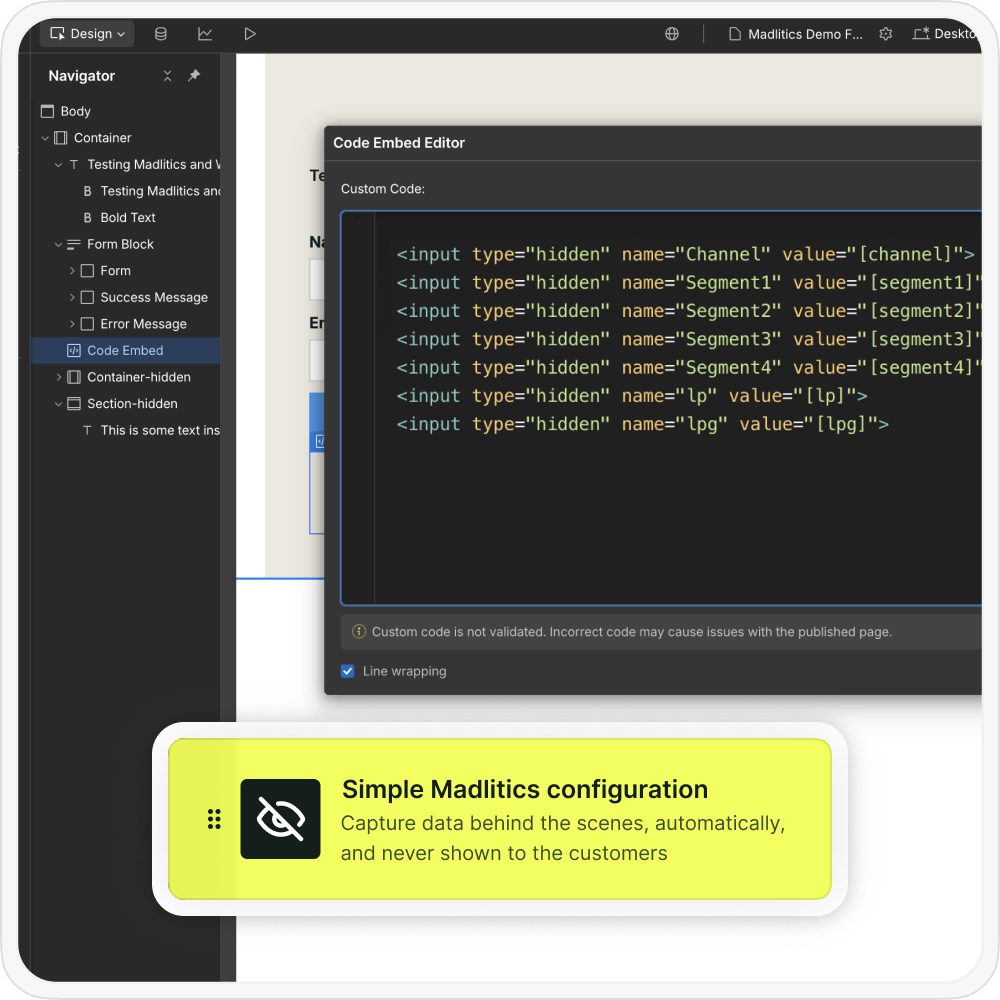
Once UTM tracking is added to inbound links, the next step is configuring your Webflow forms to collect attribution data automatically. Madlitics automatically collects campaign and session data behind the scenes, then passes it into Tally fields at submission time so every lead includes complete marketing context.
When a visitor submits a Webflow form, Madlitics automatically writes the captured UTM parameters and attribution data into the configured fields, turning each submission into a complete record that includes both customer details and the full marketing context in one place.
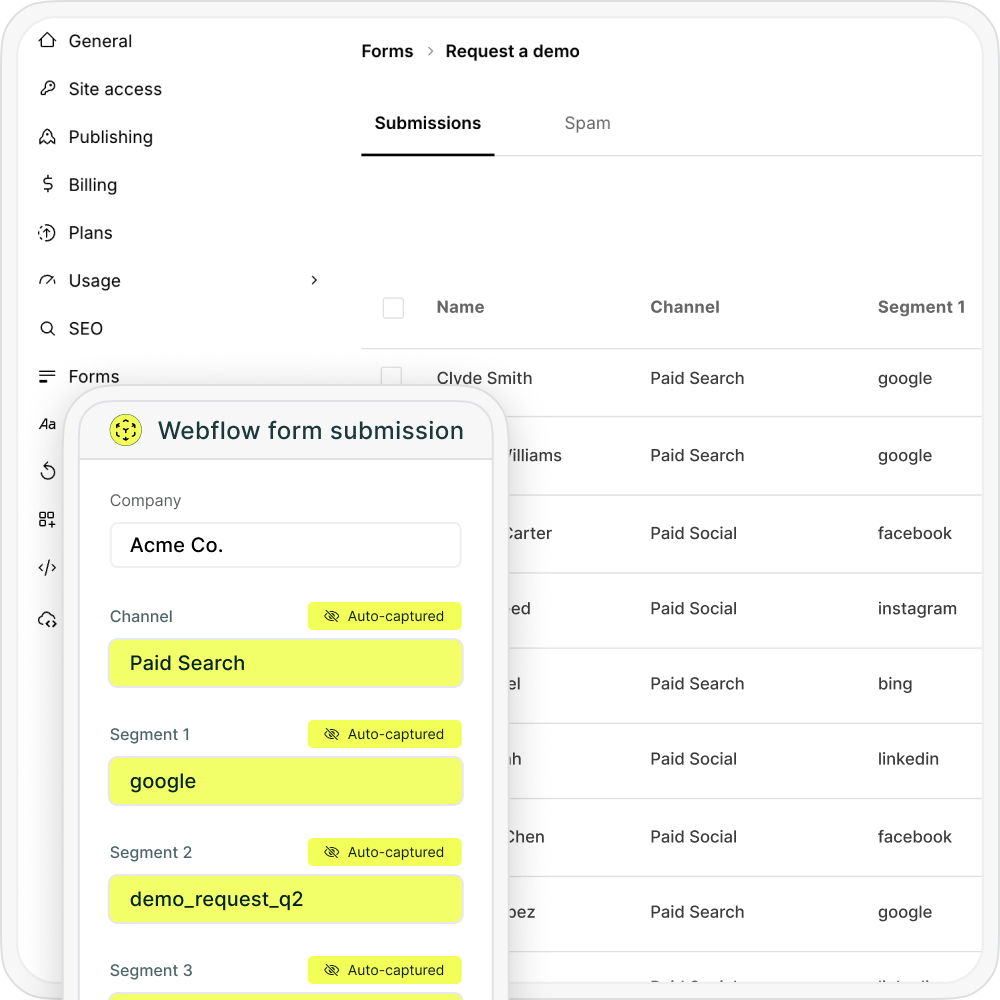

When a lead comples a submission, Webflow sends customer details plus full UTM and attribution data into your CRM, marketing automation platform, spreadsheets, or BI tools just like any other lead record. With attribution connected directly to submissions, you can finally see which channels, campaigns, and pages are driving real pipeline and revenue.
Madlitics adds a persistent attribution layer in front of Webflow so that every submission inherits clean, consistent tracking data — regardless of which page the user converts on.
When a visitor lands on your site, Madlitics captures first-touch data such as channel, source, campaign, medium, keyword or ad content (if available), and landing page details. That data is stored client-side and associated with the visitor’s session and subsequent sessions, so if they move from a campaign landing page to a blog article and then finally to a “Request Demo” Webflow, the original context is still available.
When Webflow sends complete UTM and attribution data into your CRM, you can report on more than just submission counts. Analyze which forms, traffic sources, and campaigns drive your best leads and customers, then double down on the workflows and pages that move the needle.
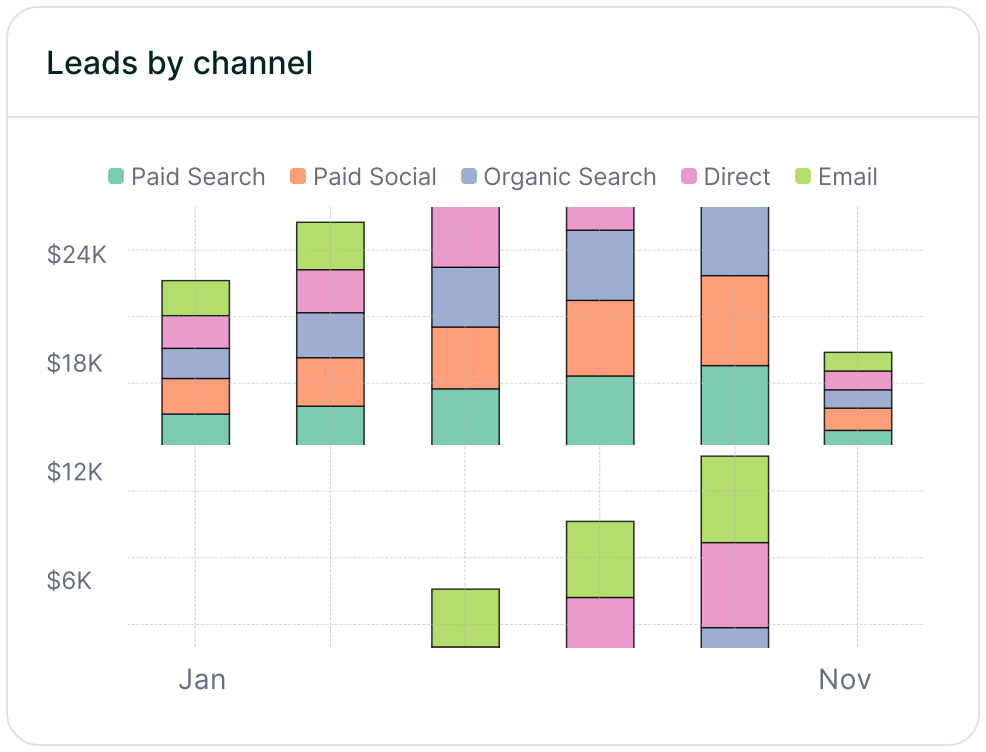
Leads by channel
Compare lead generation across Paid Search, Paid Social, Organic Search, Email, Referral, and Direct traffic. This makes it easy to see how each channel contributes to pipeline and revenue so you can prioritize the ones that perform best.
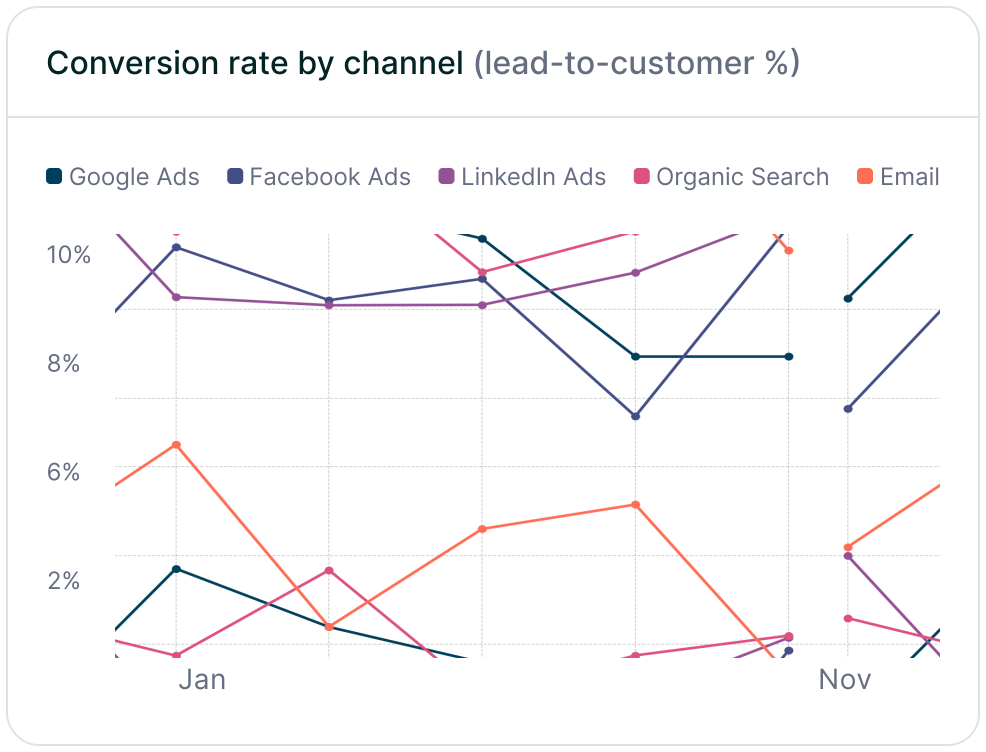
Conversion rate by channel
Measure which traffic sources convert leads into customers most effectively using the channel data captured in Webflow submissions. Some channels may drive lots of form fills but low-quality leads, while others consistently produce higher-value customers and stronger revenue.
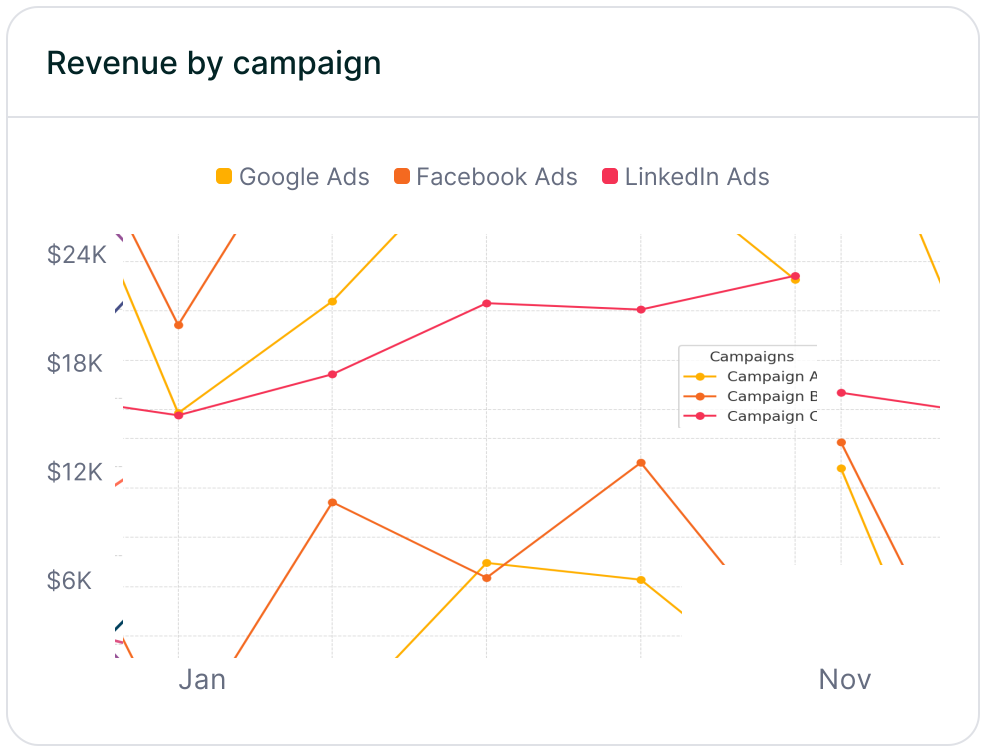
Revenue by campaign
Connect Webflow attribution data to customers and revenue to see which campaigns are driving real business impact. This makes it easier to optimize budget, scale the campaigns that perform best, and reduce spend on efforts that fail to turn leads into revenue.
Webflow is a powerful way to build fast, on-brand sites and high-converting forms for demos, trials, and content downloads. Its design flexibility and simple form embeds make it a favorite for growth teams that want to launch pages quickly without relying on engineering.
Pairing Webflow with Madlitics turns every form into a complete attribution record. Each submission carries persistent channel, campaign, keyword, click ID, and landing page data directly into your CRM and marketing tools. Instead of “Direct/Unknown” or manual spreadsheet stitching, you get clean, reliable insight into which Webflow pages and traffic sources are actually driving pipeline and revenue.
See which channels, campaigns, and content actually drive pipeline and revenue.
Turn attribution into decisions
Move beyond “Direct/Unknown” sources. Capture accurate attribution data to understand what's driving conversions, pipeline, and revenue.
Spot top channels
Break down leads by channel such as Organic, Paid Search, Paid Social, and referrals. Identify what is working and shift budget toward top performers.
Find campaigns that convert
Track performance by campaign, source, medium, and landing page. See which efforts generate qualified leads and customers, not just form fills.
Persistent attribution tracking
Keep UTM and session data attached to each lead, even if they return later or convert on a different page.
Answers to common questions about UTM tracking with Madlitics and Webflow