
Support
Set up HubSpot pages to capture UTM parameters and marketing attribution.
Step-by-step setup to capture marketing channel, campaign, and landing page attribution across HubSpot-hosted pages.
Start a free trial
HubSpot’s forms make it easy to capture leads directly on your HubSpot-hosted website or landing page, while keeping everything tied to your CRM and marketing workflows. With the right setup, you can also capture Madlitics attribution data alongside every submission, so you can see exactly which channels, campaigns, and landing pages are driving your highest-value leads.
In this guide, we’ll show you how to connect Madlitics with HubSpot forms on HubSpot-hosted pages. Once configured, every submission can include attribution details like channel, campaign, UTM segments, and landing page data, giving you cleaner reporting inside HubSpot and better visibility into what’s actually driving conversions.
💆 Heads-up: Make sure Madlitics is installed site-wide first (via script tag or tag manager). HubSpot need the Madlitics script running on the Hubspot-hosted websites and landing pages to populate attribution data into hidden fields. Installing Madlitics in Hubspot ->
With Madlitics installed and running on Hubspot, you're ready to build a form that captures both lead details and attribution data.
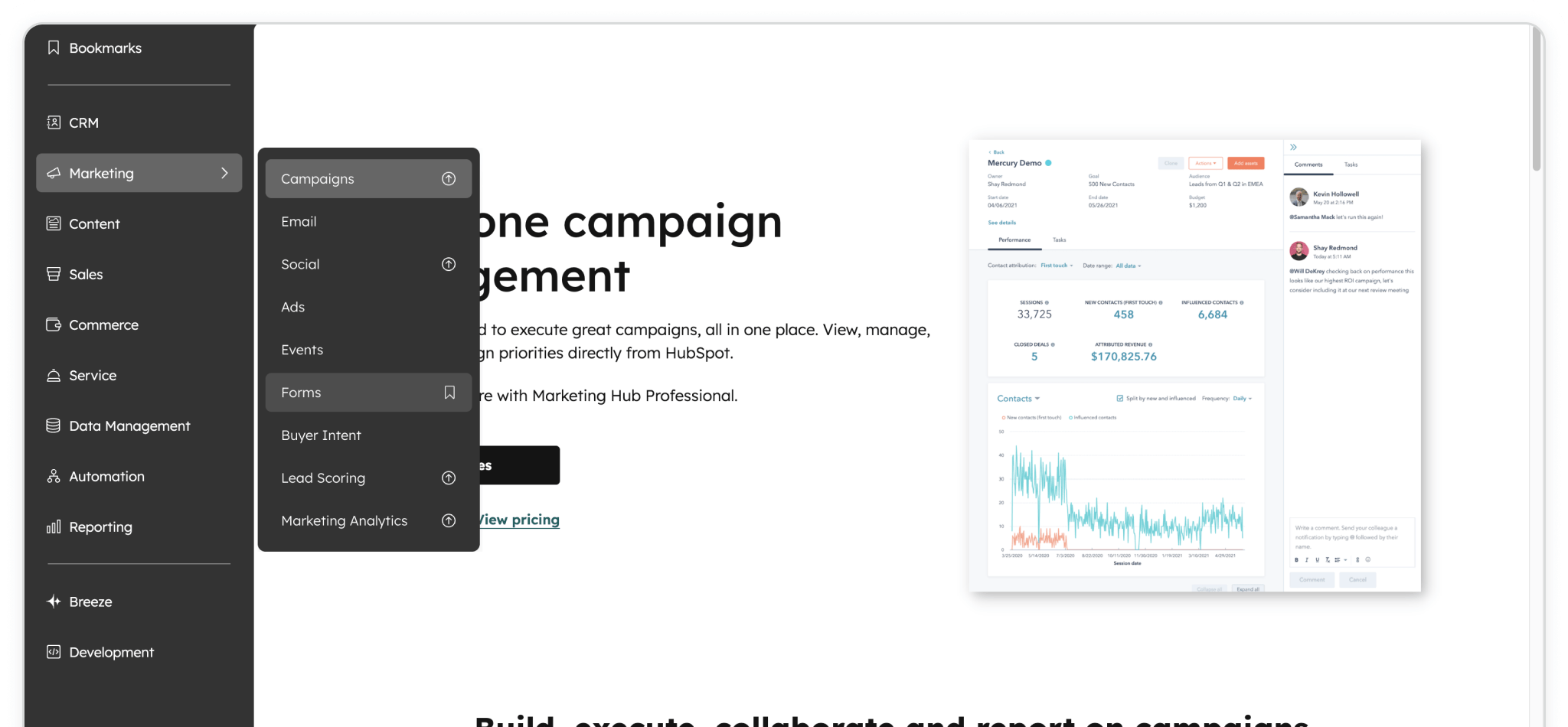
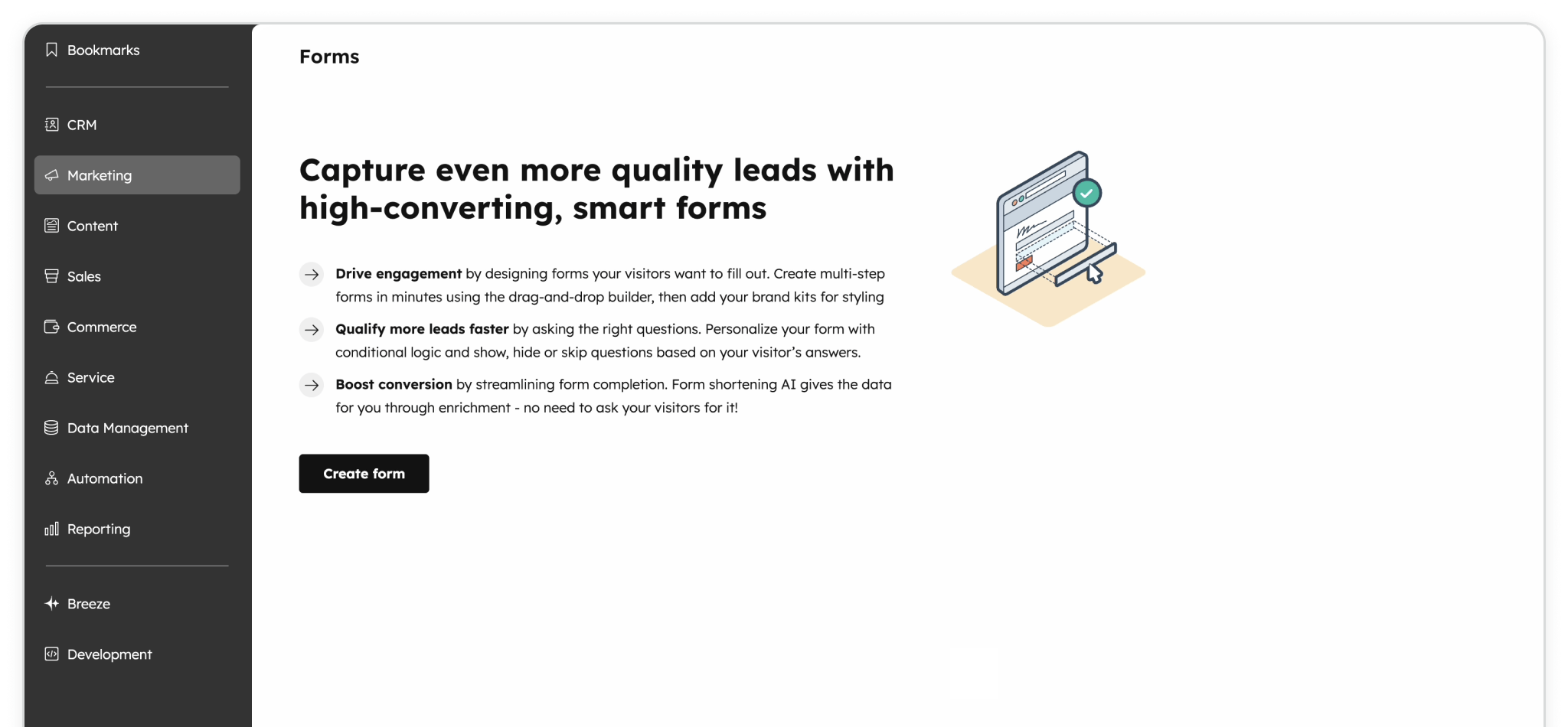
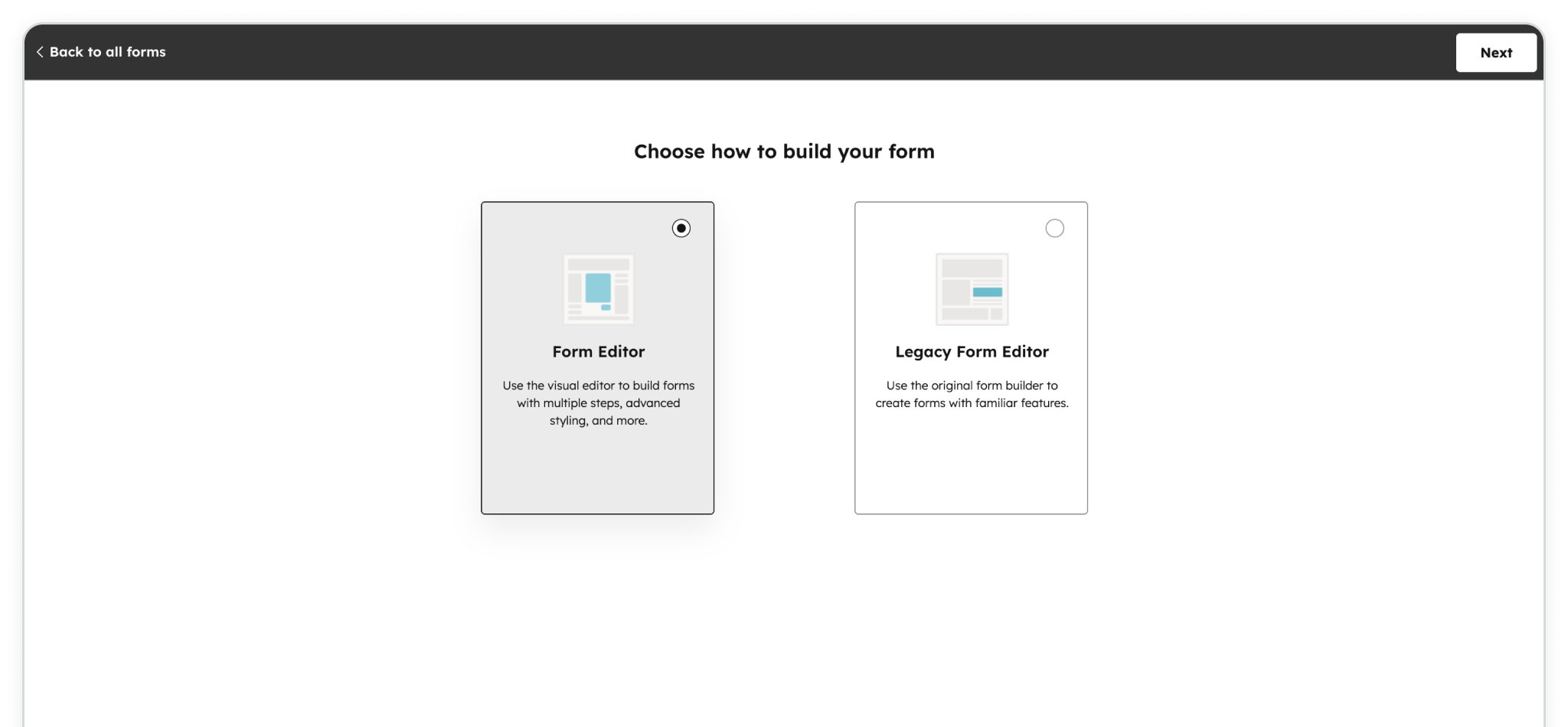
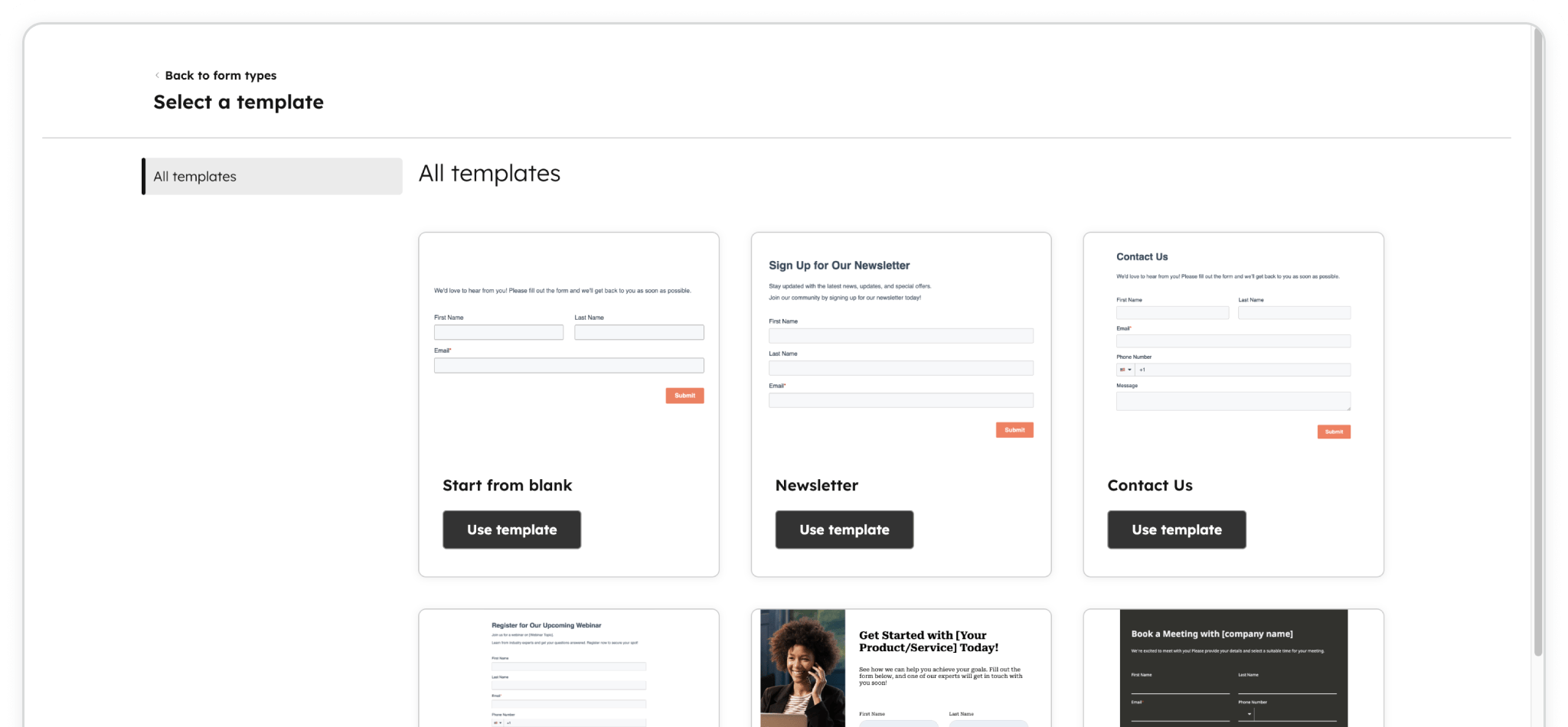
Step 1: In HubSpot, navigate to Marketing → Forms, then click Create form to start fresh, or select an existing form and click Edit.
Build your form however you like — add standard fields like Name, Email, Phone, or custom questions for your visitors. HubSpot's drag-and-drop editor makes this straightforward.
To enable Madlitics attribution tracking, you'll add seven Single-line text fields. These fields stay invisible to visitors but automatically populate with channel, campaign segments, landing page data, and more when the form submits. Get started by dragging a Single-line text field onto the form canvas.
Marketing → Forms → Create form → + Add → Fields → Single-line text
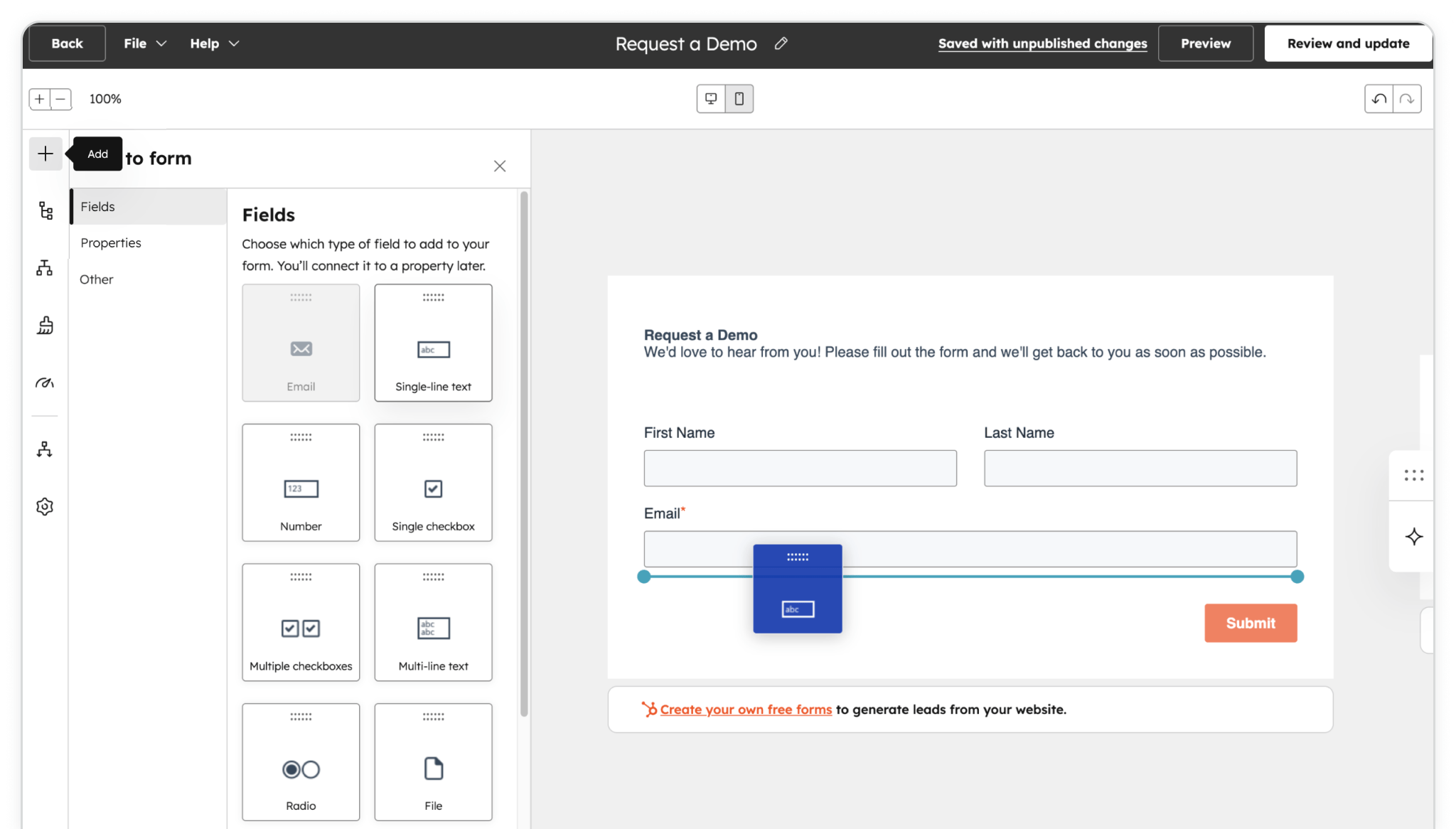
Step 2: To ensure attribution data flows into HubSpot contacts alongside every lead, you'll add seven text fields connected to custom properties, that automatically capture details like channel, campaign, UTM segments, and landing page without visitors seeing or interacting with them.
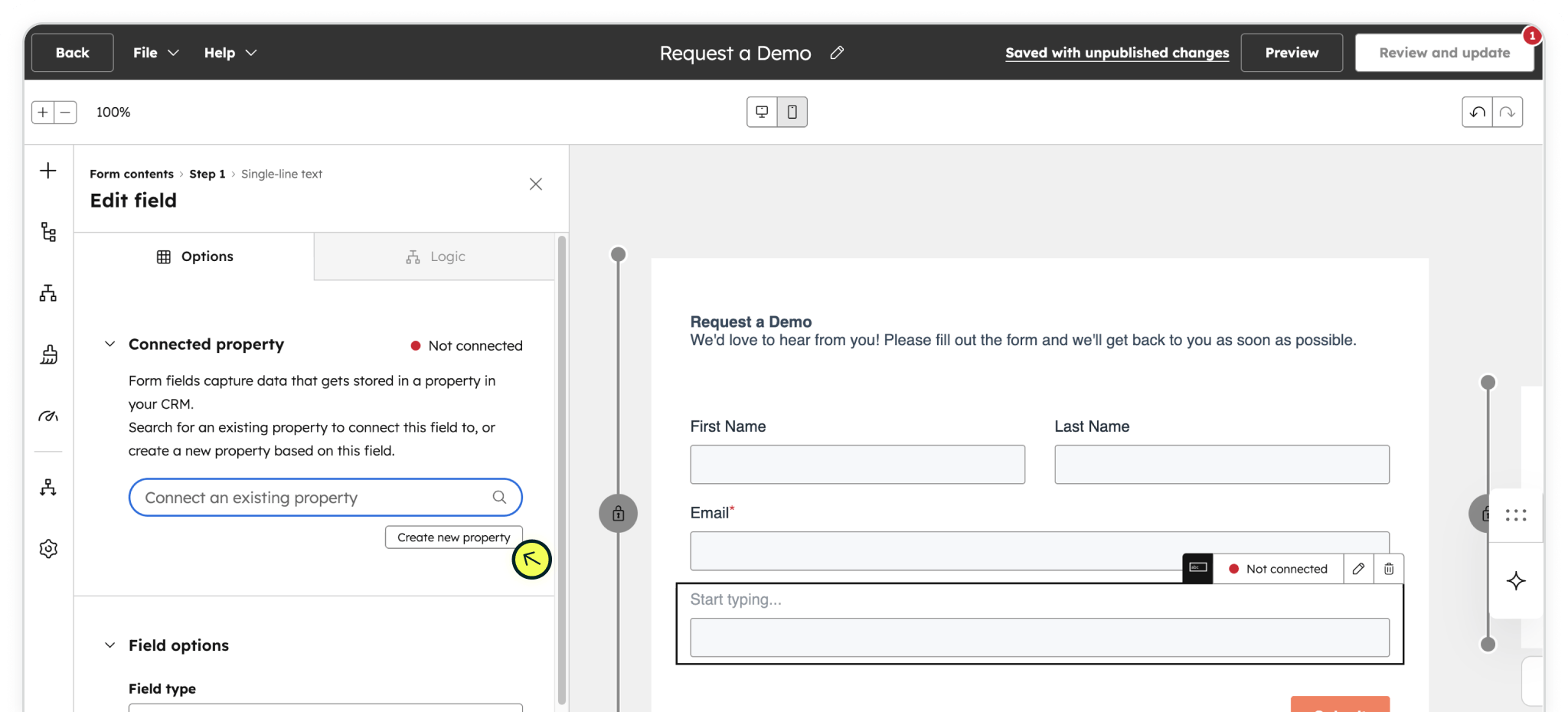
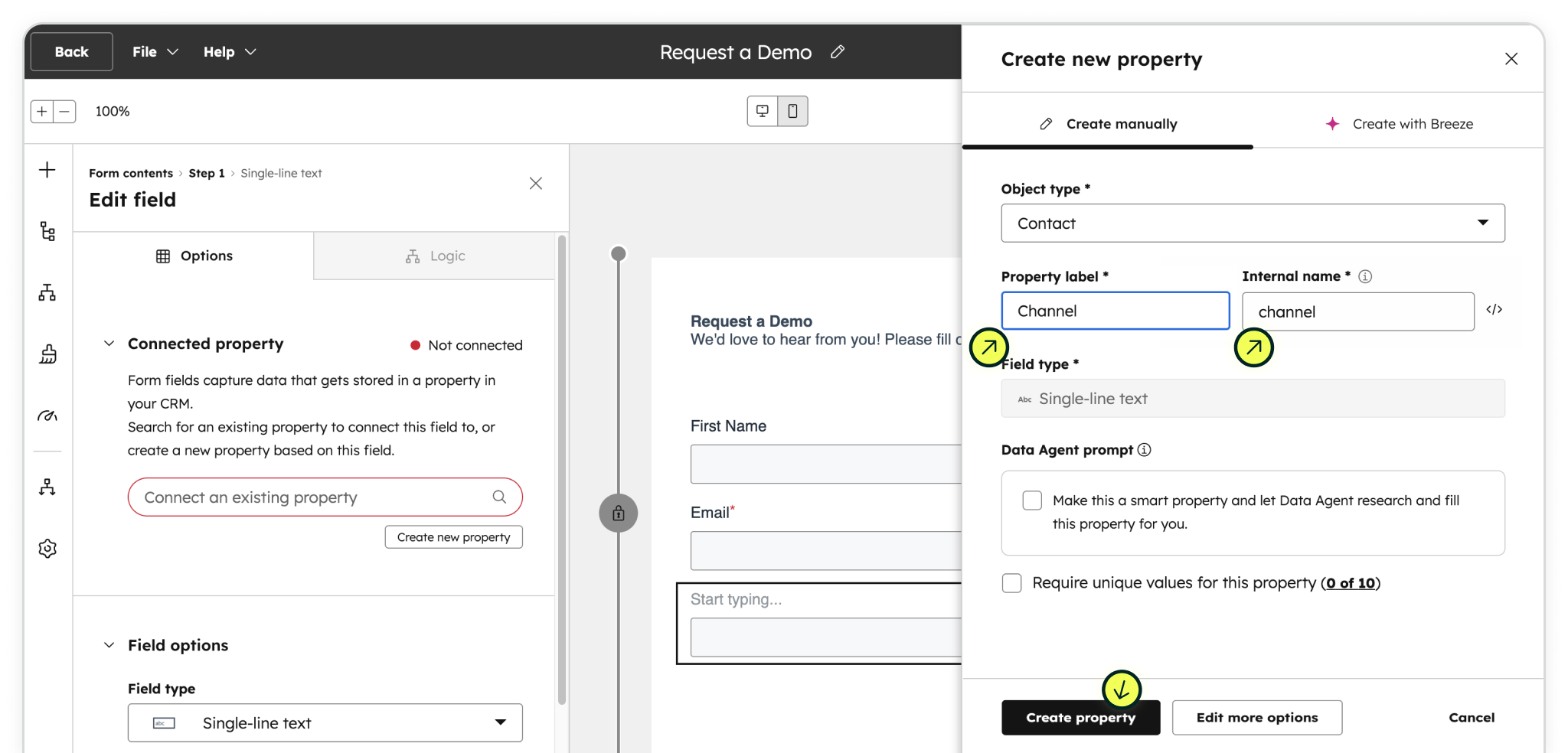
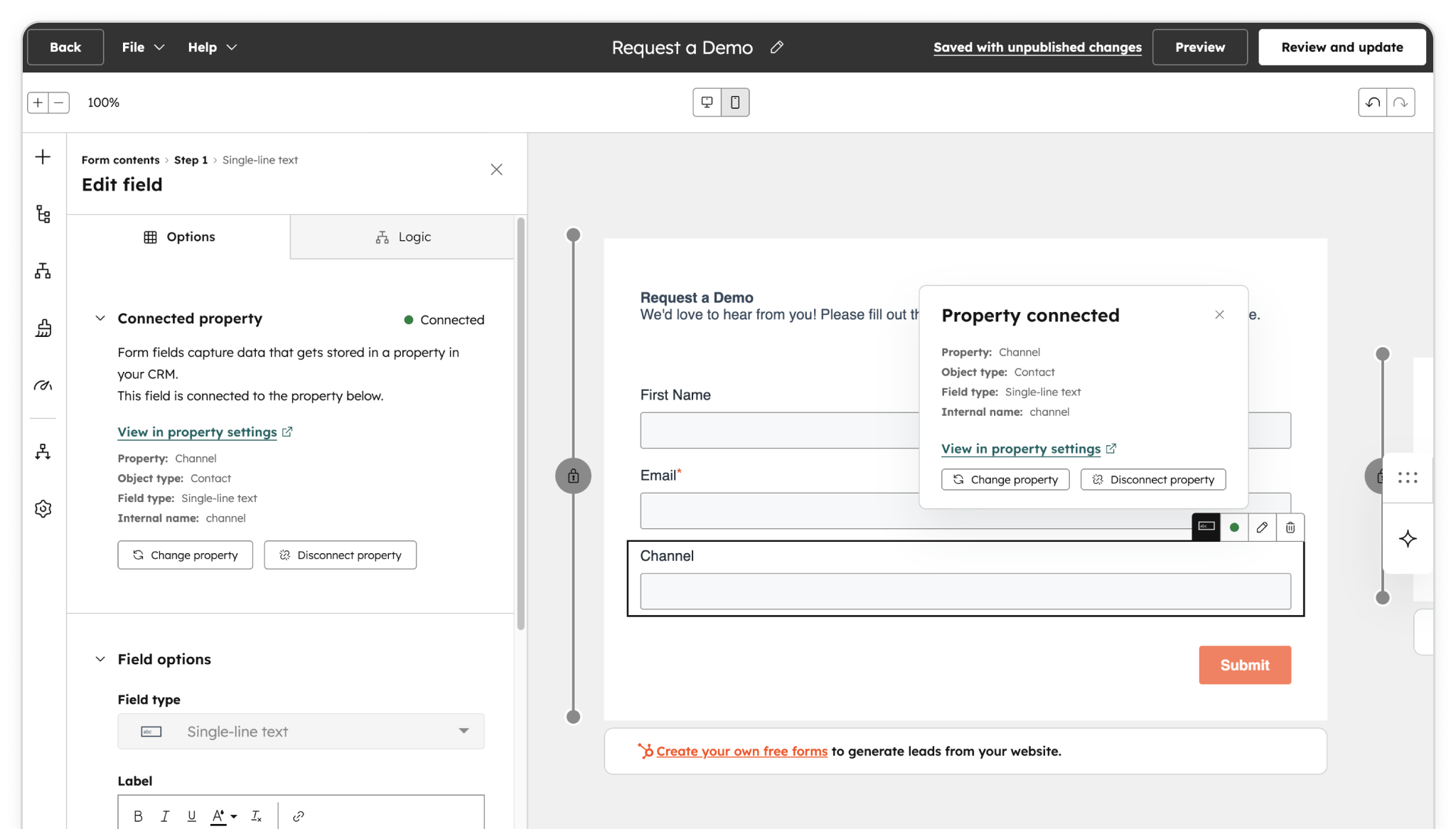
Create a custom property: Select the single-line text field and it's Edit field panel, under Connected property, click the Create new property button. Set the Property label to the first Madlitics field, Channel and the Internal name to channel (no spaces or underscores). Click the Create property button to save — you'll see a "Property connected" confirmation.
channel
Step 2b: Continue customizing the current single-line text field in its Edit field panel → Field options and align with Madlitics values (below):
[channel]
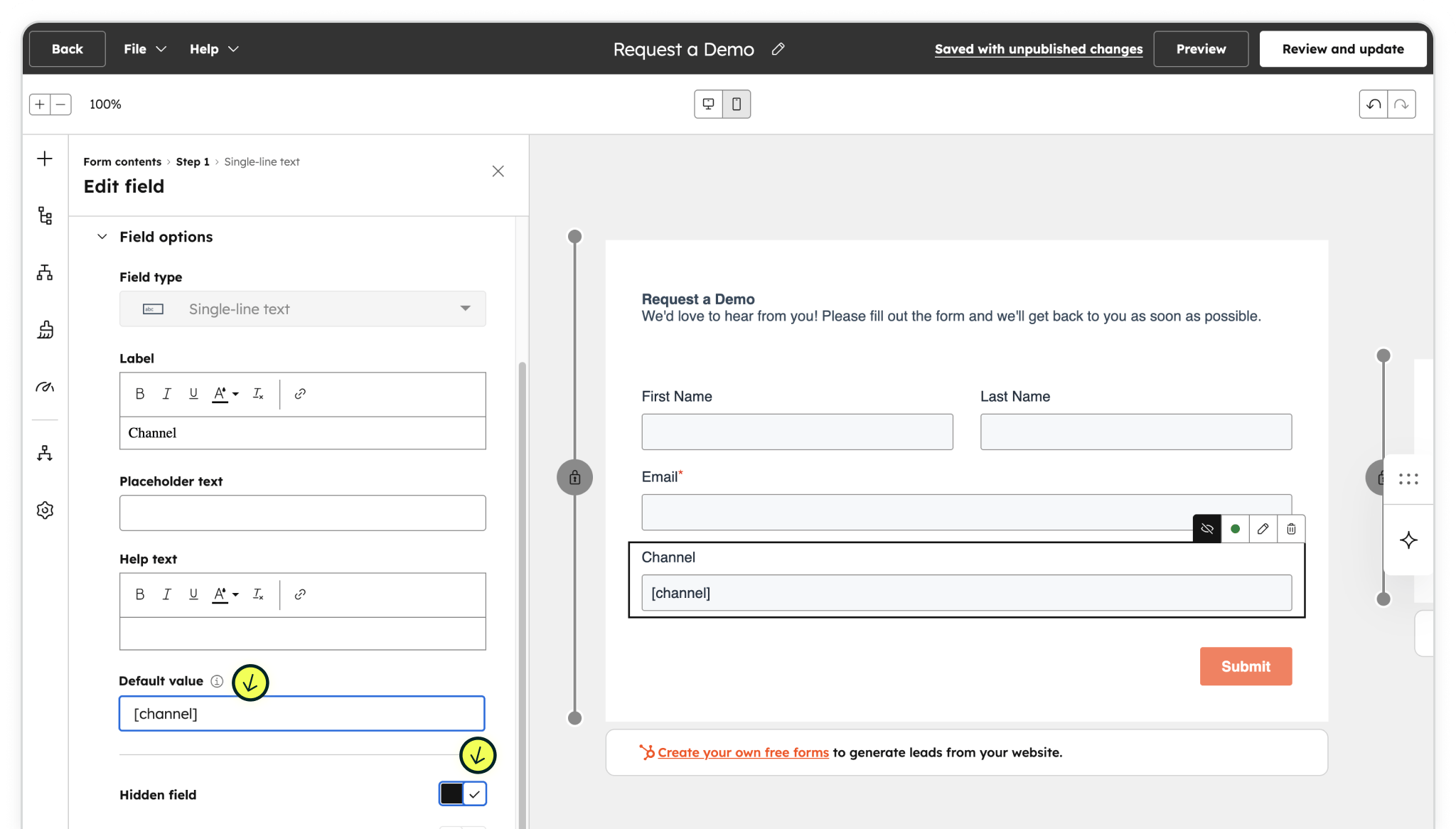
Repeat this process for all seven Madlitics fields — Adding additional text fields, creating/connecting Hubspot properties, and updating field options to align with Madlitics values. Each field maps to a HubSpot custom property and pulls the corresponding attribution data automatically when Madlitics is running on the page.
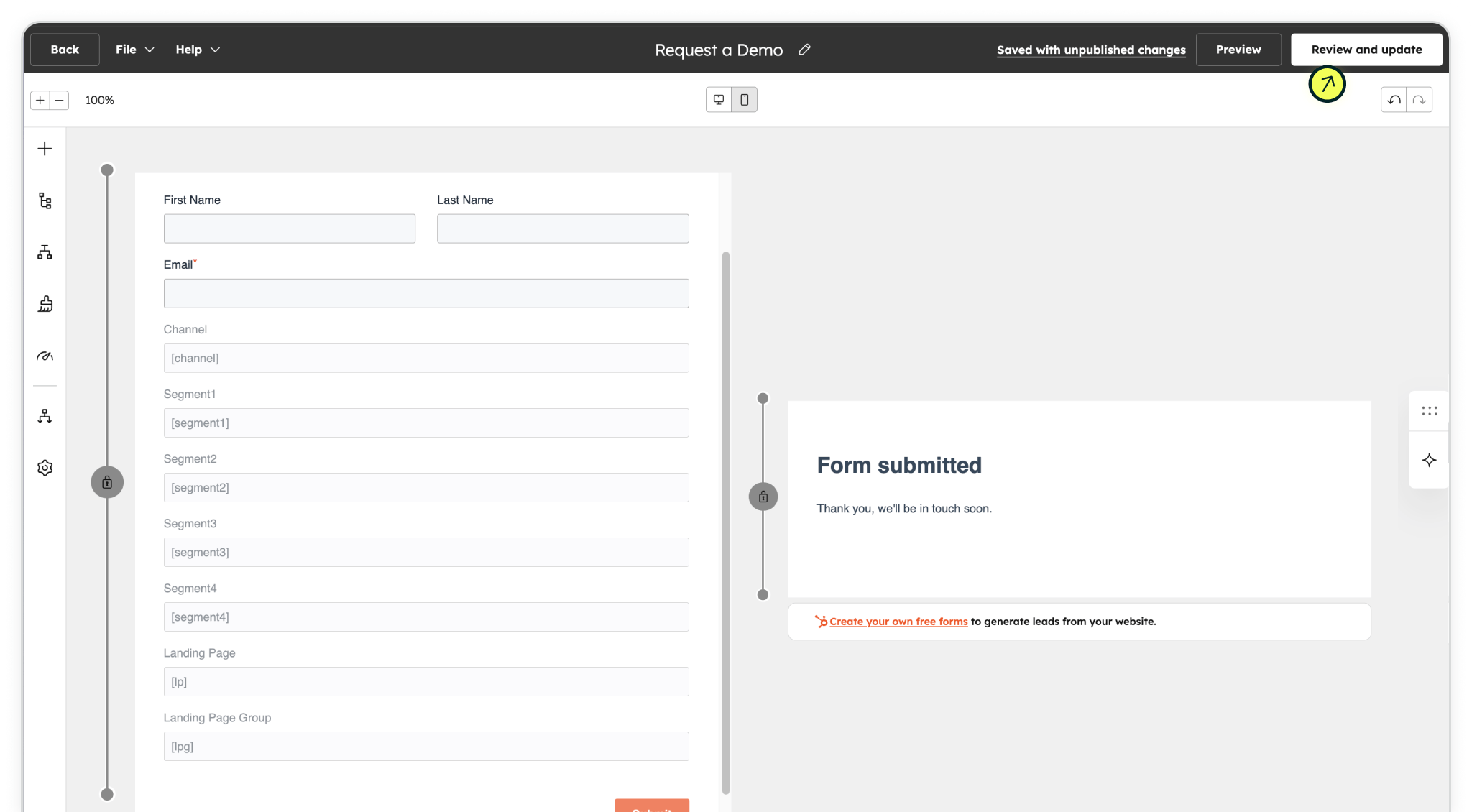
For additional fields and values including clickIDs (gclid/fbclid) or extra parameters, see Madlitics field values pairs.
Marketing Channel Category
Categorizes the visit’s marketing channel based on multiple signals, including traffic type, referring domain, and known platforms.
Property label: Channel
Internal name: channel
Default value: [channel]
Hidden: yes
Segment 1
Captures the source of the traffic, identifying the specific platform, publisher, or partner that sent the visitor to your site; for paid traffic, this field records the utm_source, for organic traffic the platform, for referrals the referring domain, and for direct traffic no value is captured.
Property label: Segment1
Internal name: segment1
Default value: [segment1]
Hidden: yes
Segment 2
Captures the campaign-level details associated with the visit, identifying which campaign, promotion, or initiative led the visitor to your site; for paid traffic, this field records the utm_campaign, for organic traffic the referring domain, and for direct traffic no value is captured.
Property label: Segment2
Internal name: segment2
Default value: [segment2]
Hidden: yes
Segment 3
Captures the keyword, creative variation, or content-level detail that influenced the visit, such as a paid search term, specific ad, post type, or format; for paid traffic, this field records the utm_term, for organic traffic the full referring URL when available, and for direct traffic no value is captured.
Property label: Segment3
Internal name: segment3
Default value: [segment3]
Hidden: yes
Segment 4
Captures the audience, ad group, or offer associated with the visit, showing how the traffic was segmented within a campaign; for paid traffic, this field records the utm_content, and for organic and direct traffic no value is captured.
Property label: Segment4
Internal name: segment4
Default value: [segment4]
Hidden: yes
Landing Page
Captures the exact page where the visitor first entered your site, recording the original entry point of the session.
Property label: LP
Internal name: lp
Default value: [lp]
Hidden: yes
Landing Page Group
Captures the category or logical grouping of the landing page, allowing multiple related entry points to be analyzed under a shared identifier.
Property label: LPG
Internal name: lpg
Default value: [lpg]
Hidden: yes
HubSpot will not collect marketing attribution data without the Madlitics script installed in the <head> of your HubSpot‑hosted website or landing page. Madlitics must be running on the page so it can populate your fields with attribution data. Install Madlitics in Hubspot ->
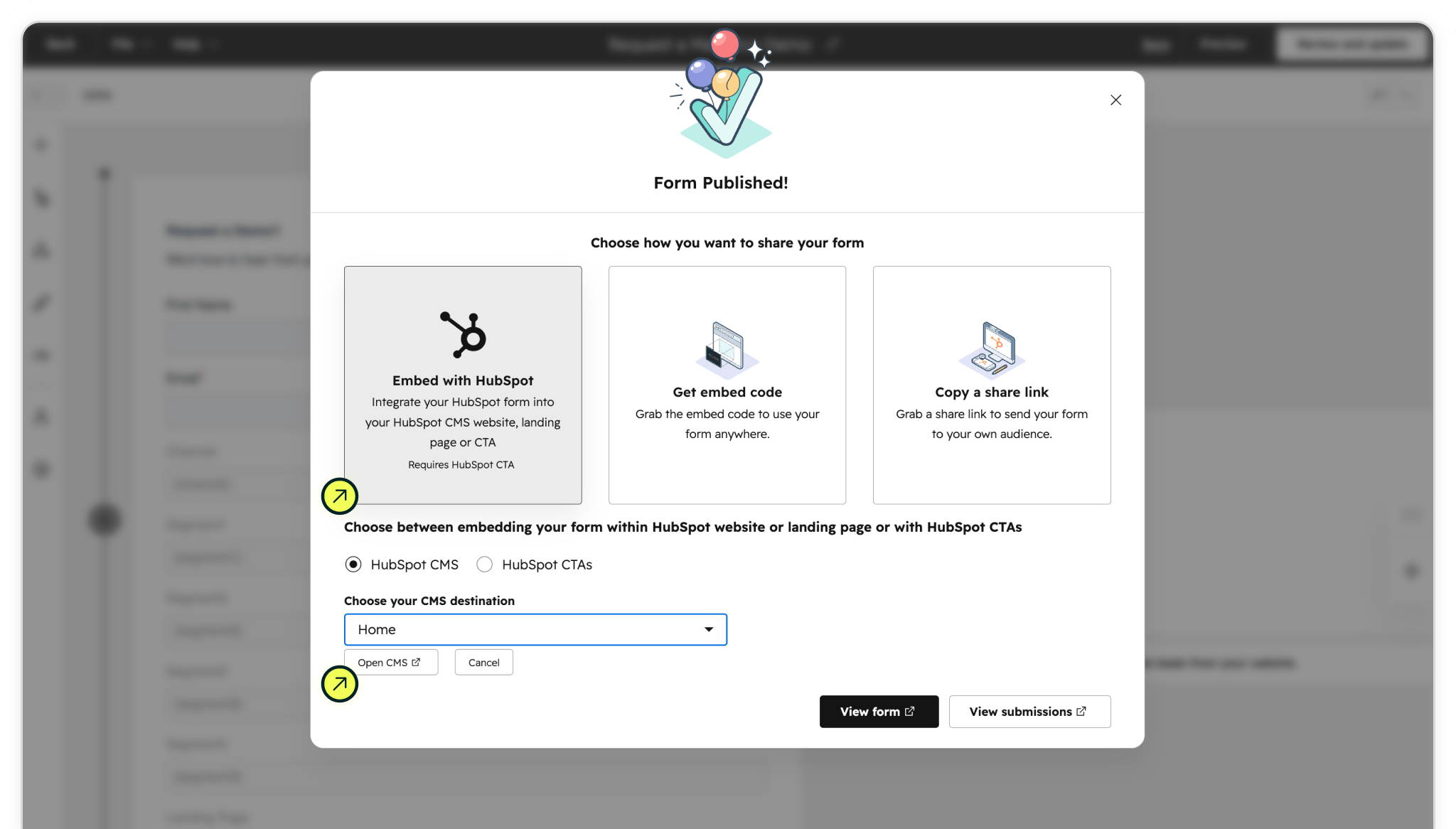
Step 3: Once your form is finished, click Review and update to publish it. You’ll then see the option to embed your form; choose Embed with HubSpot so it’s placed directly on a HubSpot‑hosted page or landing page.
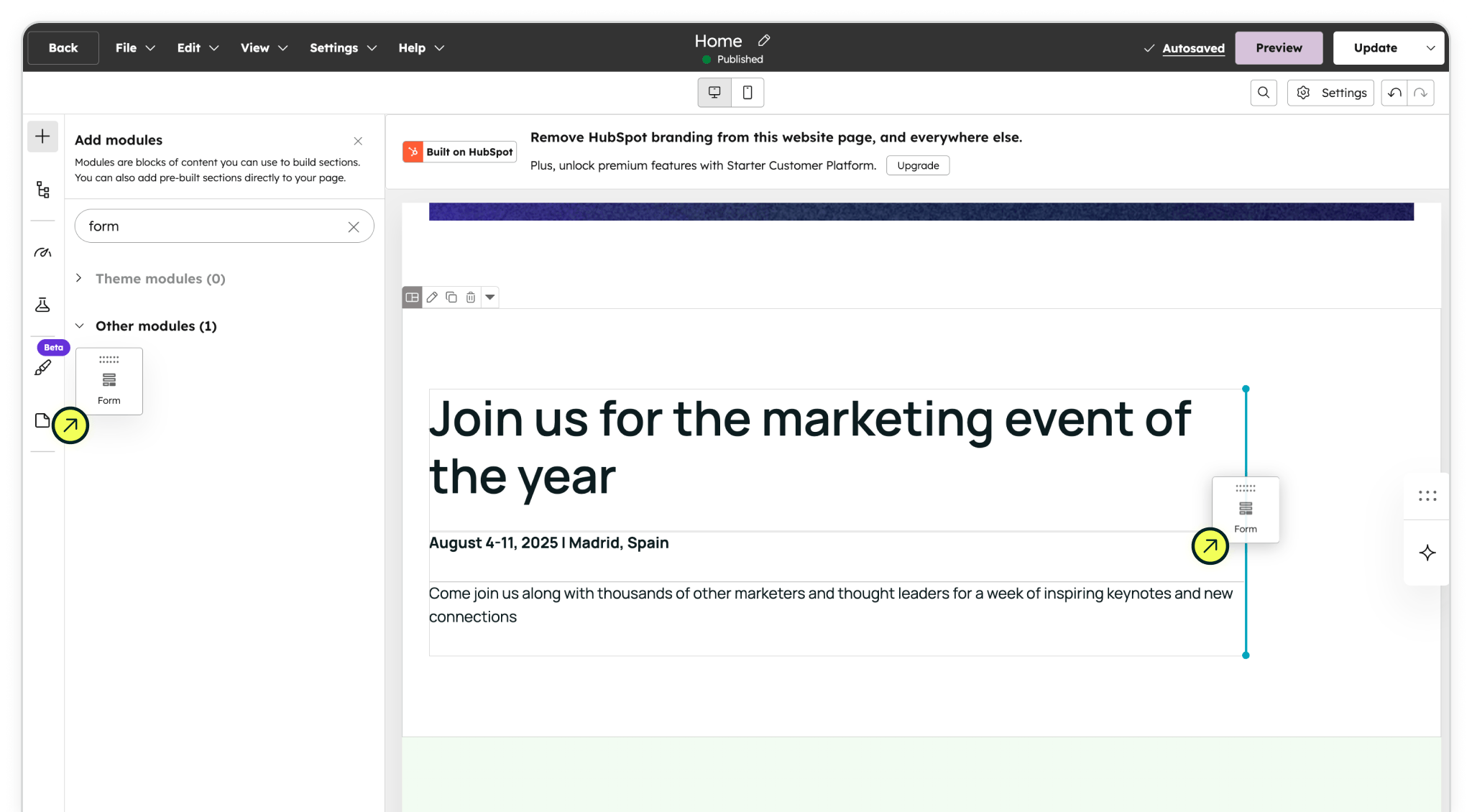
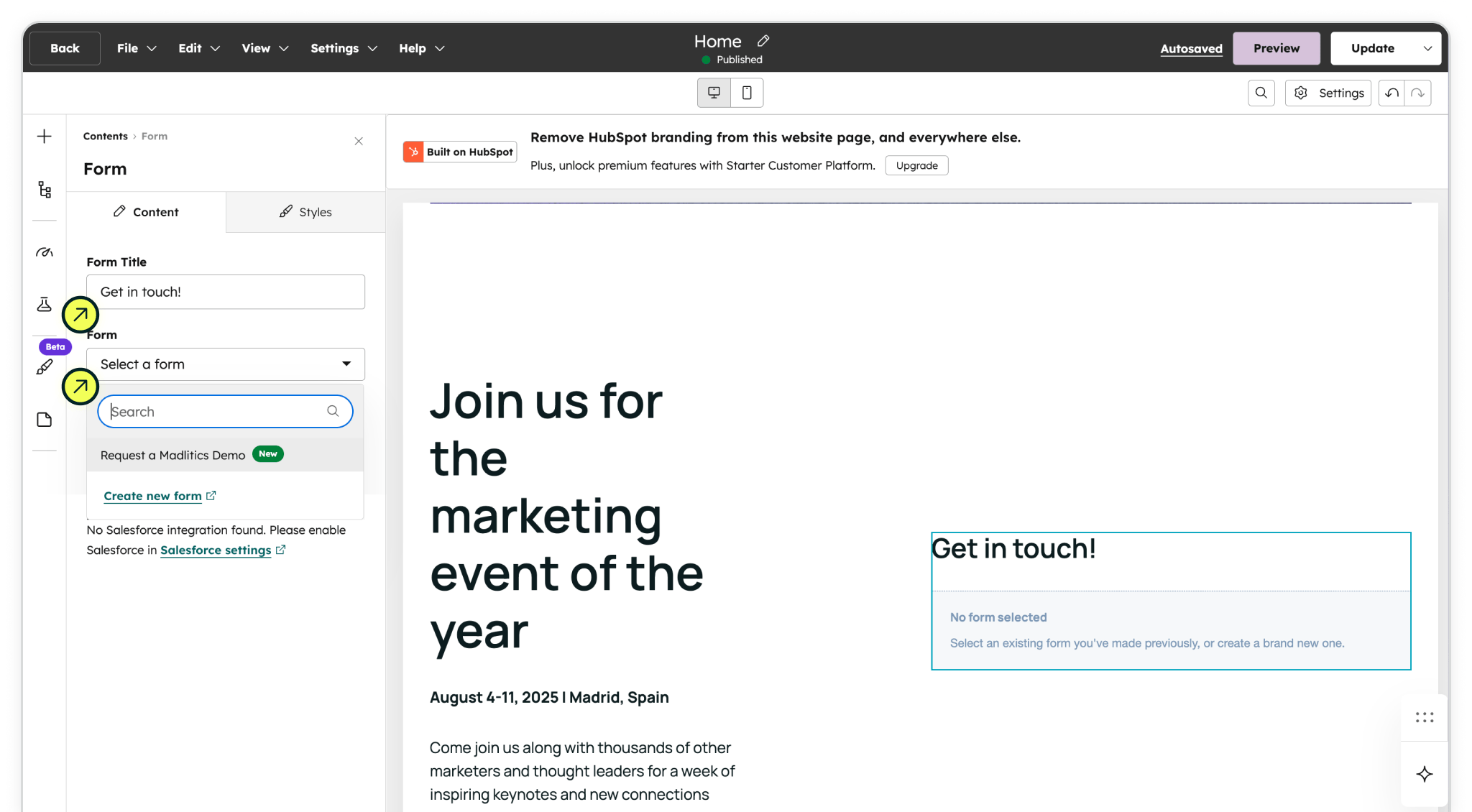
Select 'Open CMS' from the form embed modal or open the page where you want the form to appear using the HubSpot page editor. From the left‑hand panel, locate the Form module and drag it into the section where you want the form to live.
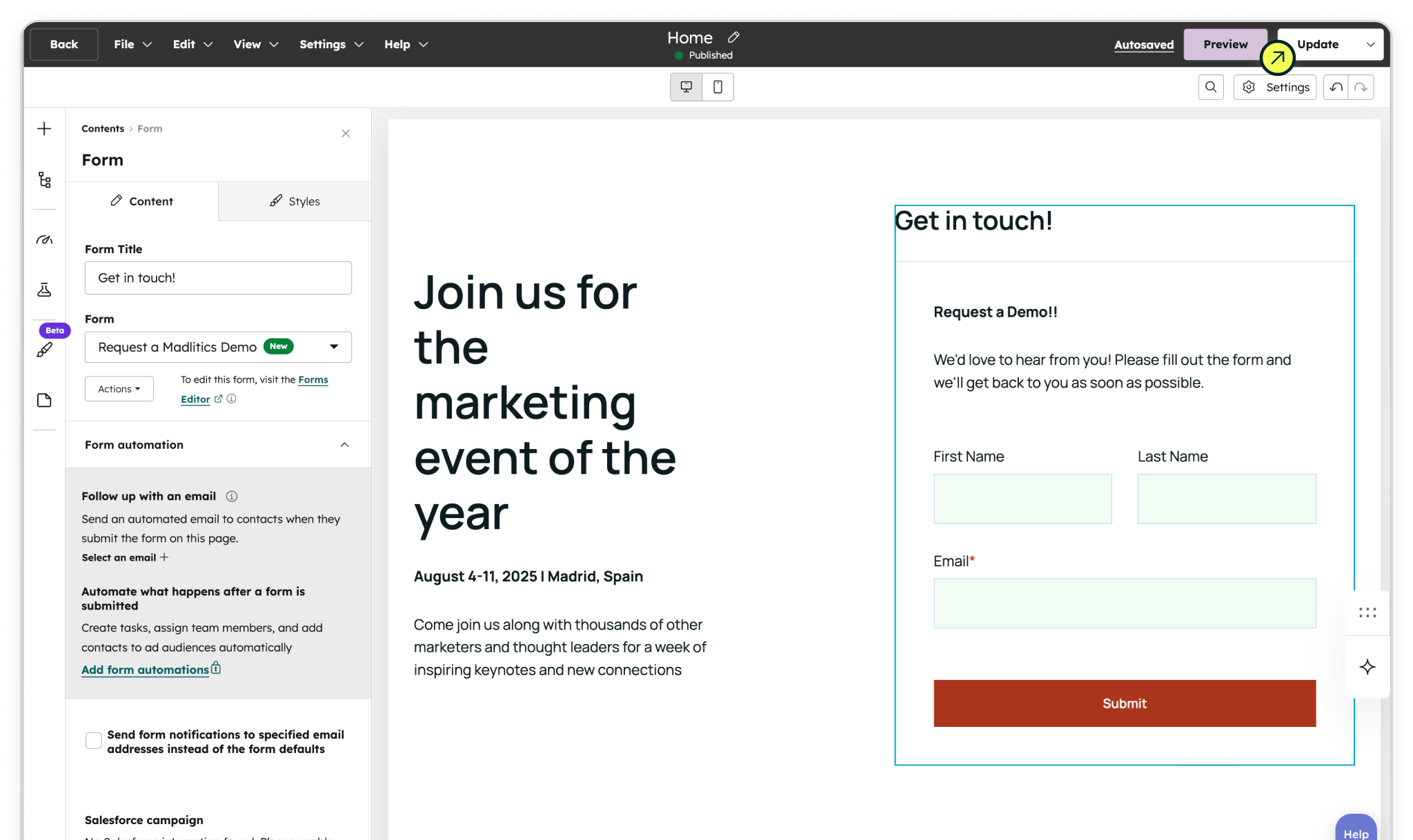
With the module selected, choose your newly created form from the dropdown. The form will immediately render in the page preview, so you can adjust its placement and layout until it looks right.
Once everything looks good, click Update or Publish to make the page live.
Your HubSpot form is now active and capturing submissions. With the Madlitics fields in place, each submission will include complete attribution data directly inside the contact record, giving you clear visibility into which channels, campaigns, and pages are driving leads.
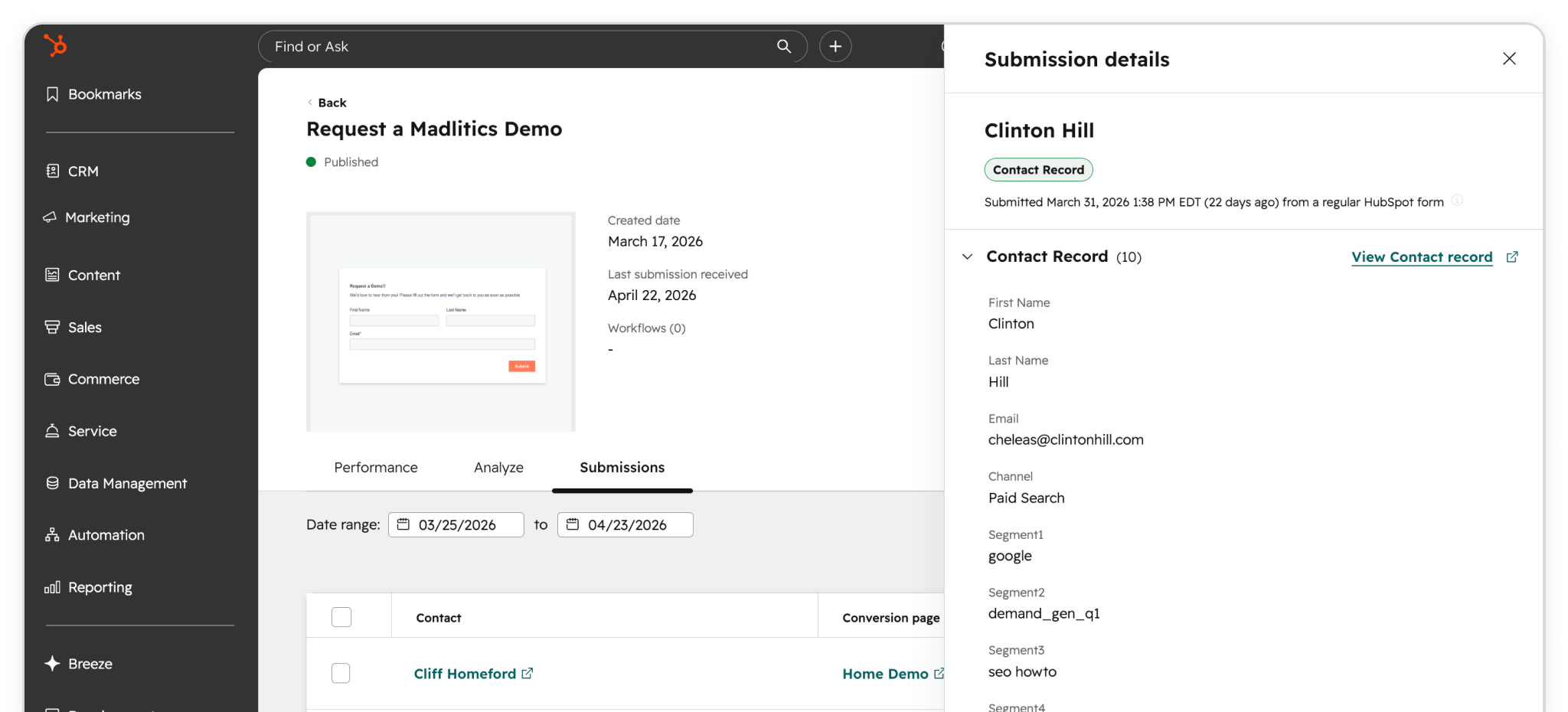
Before you start customizing layouts, take a moment to test your setup and make sure attribution data is flowing as expected. Form submission results can be seen in the submission tab of form details.
HubSpot form previews don’t run the Madlitics script, so you’ll need to test on a live page. Publish your page, then visit that URL with UTM parameters (e.g., ?utm_source=google&utm_medium=cpc&utm_campaign=hubspot-test). Submit the form as a visitor would. You should see values like channel: "Paid Search", segment1: "google", and landingpage: "/your-lp-url" alongside standard lead within form submissions.
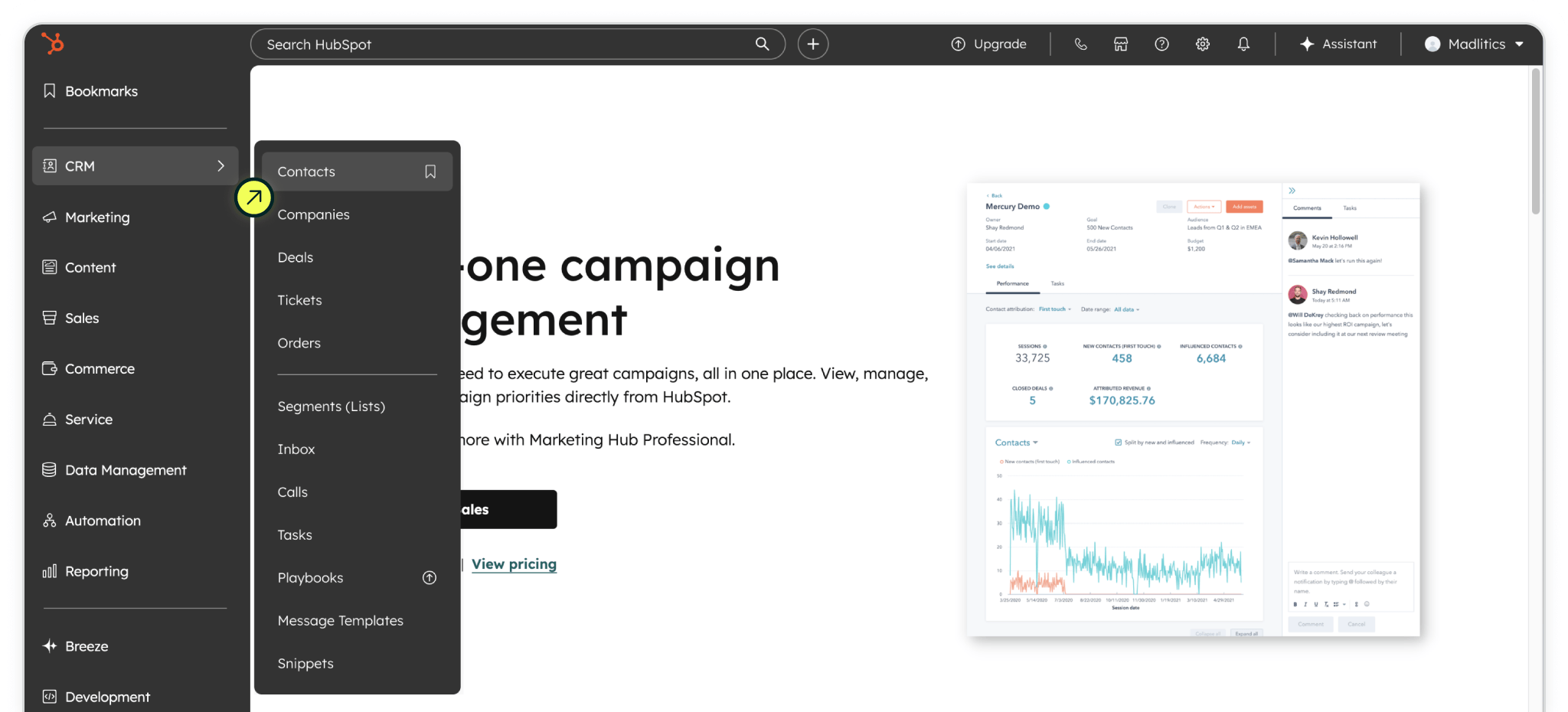
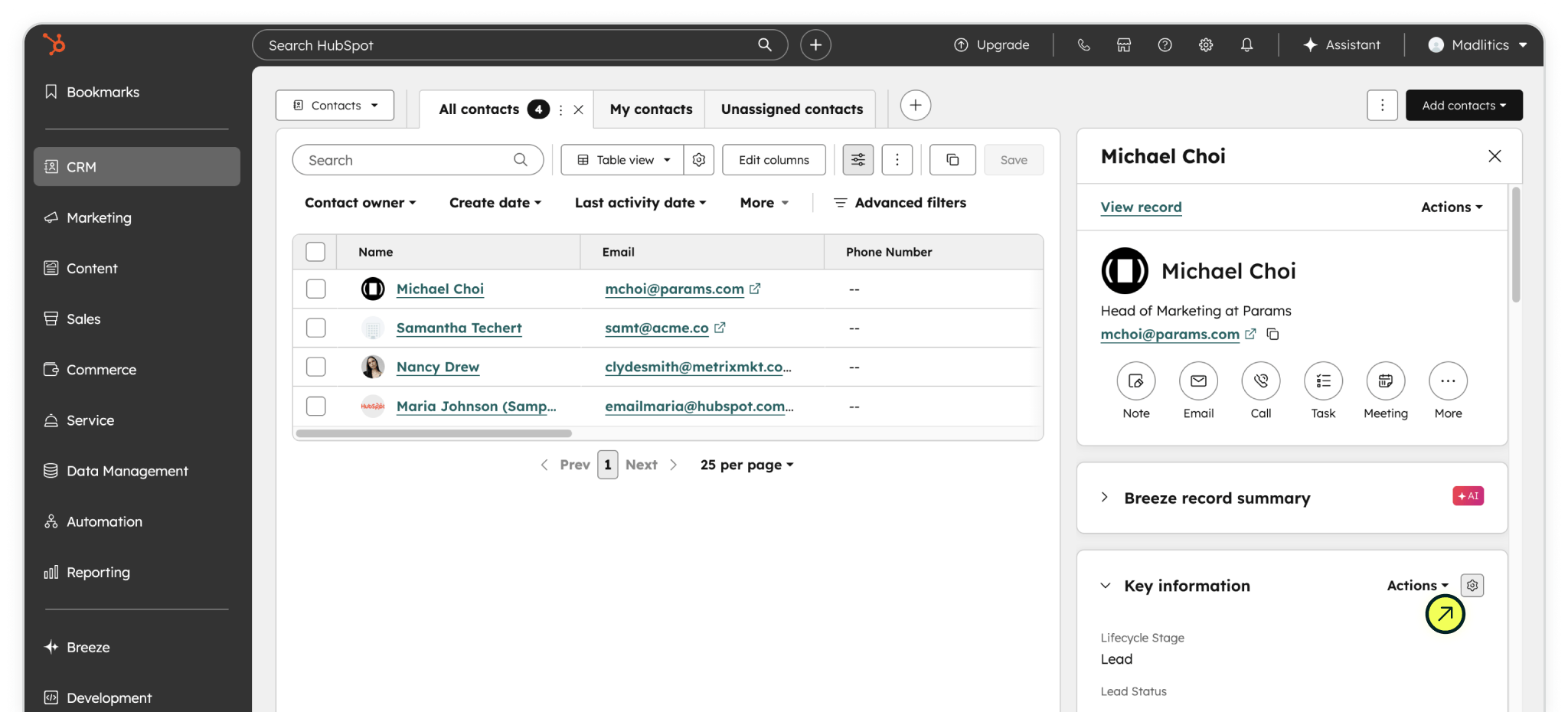
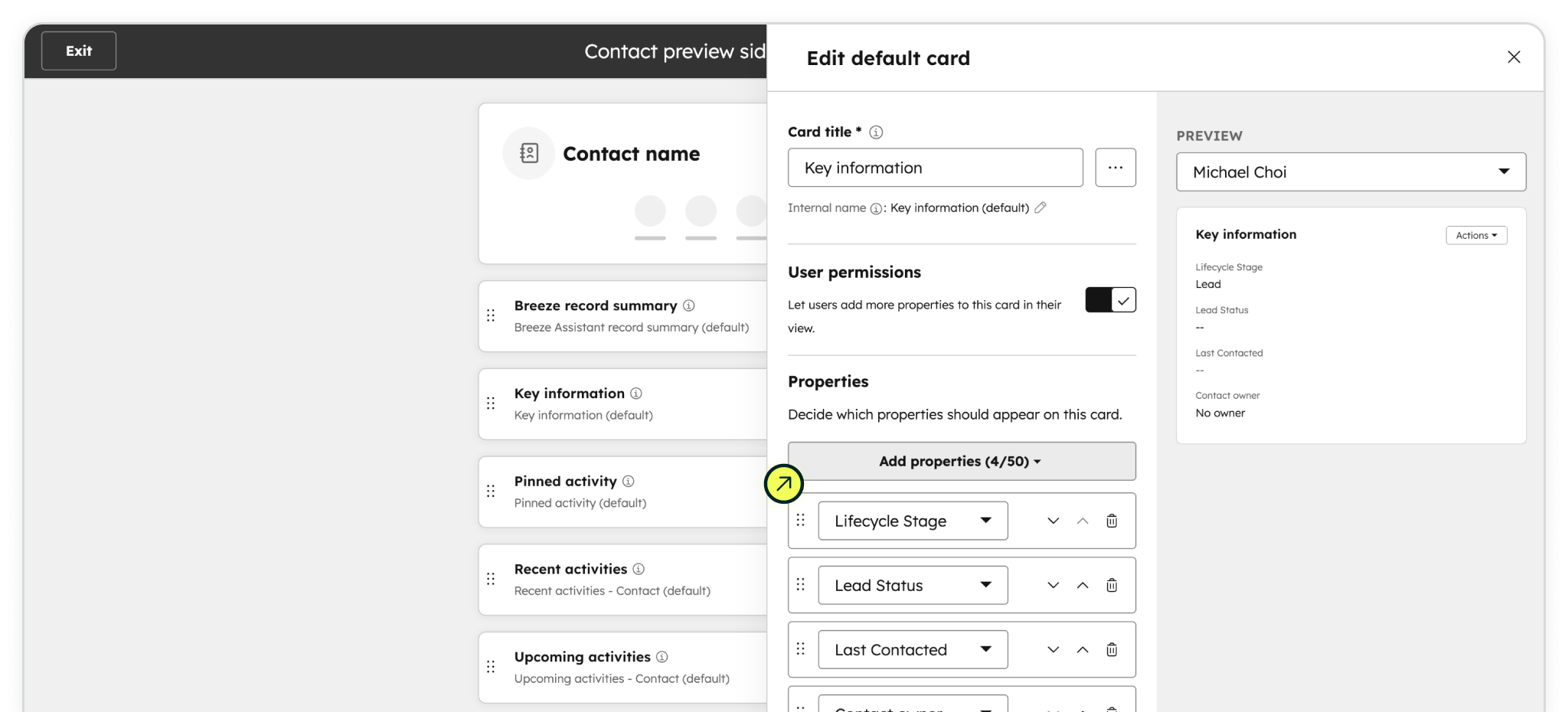
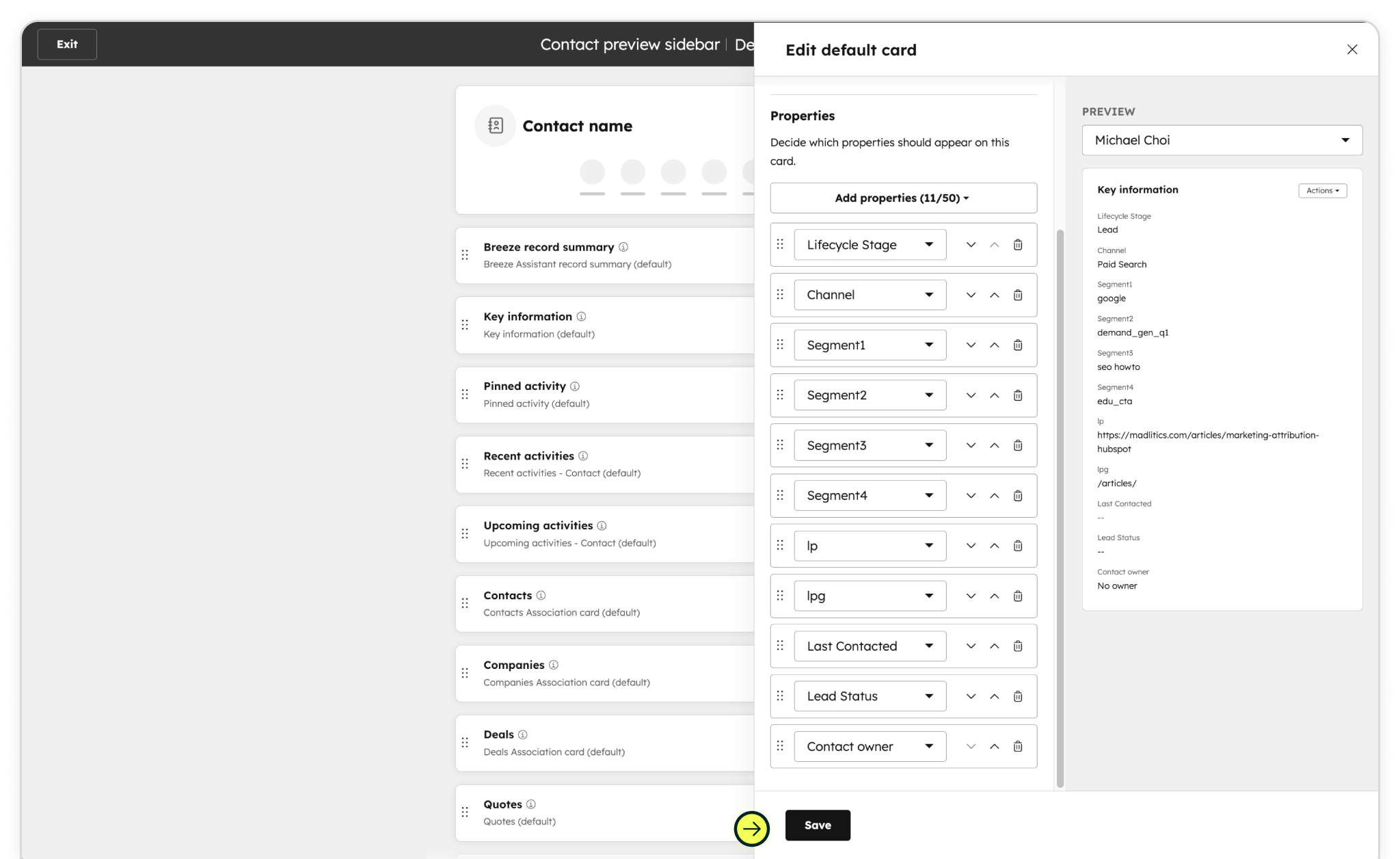
Once you’ve confirmed everything is working, you can tailor how the attribution data appears for your team. Go to your Contacts view, open a contact record, and edit the record sidebar or property cards to include your Madlitics attribution fields.
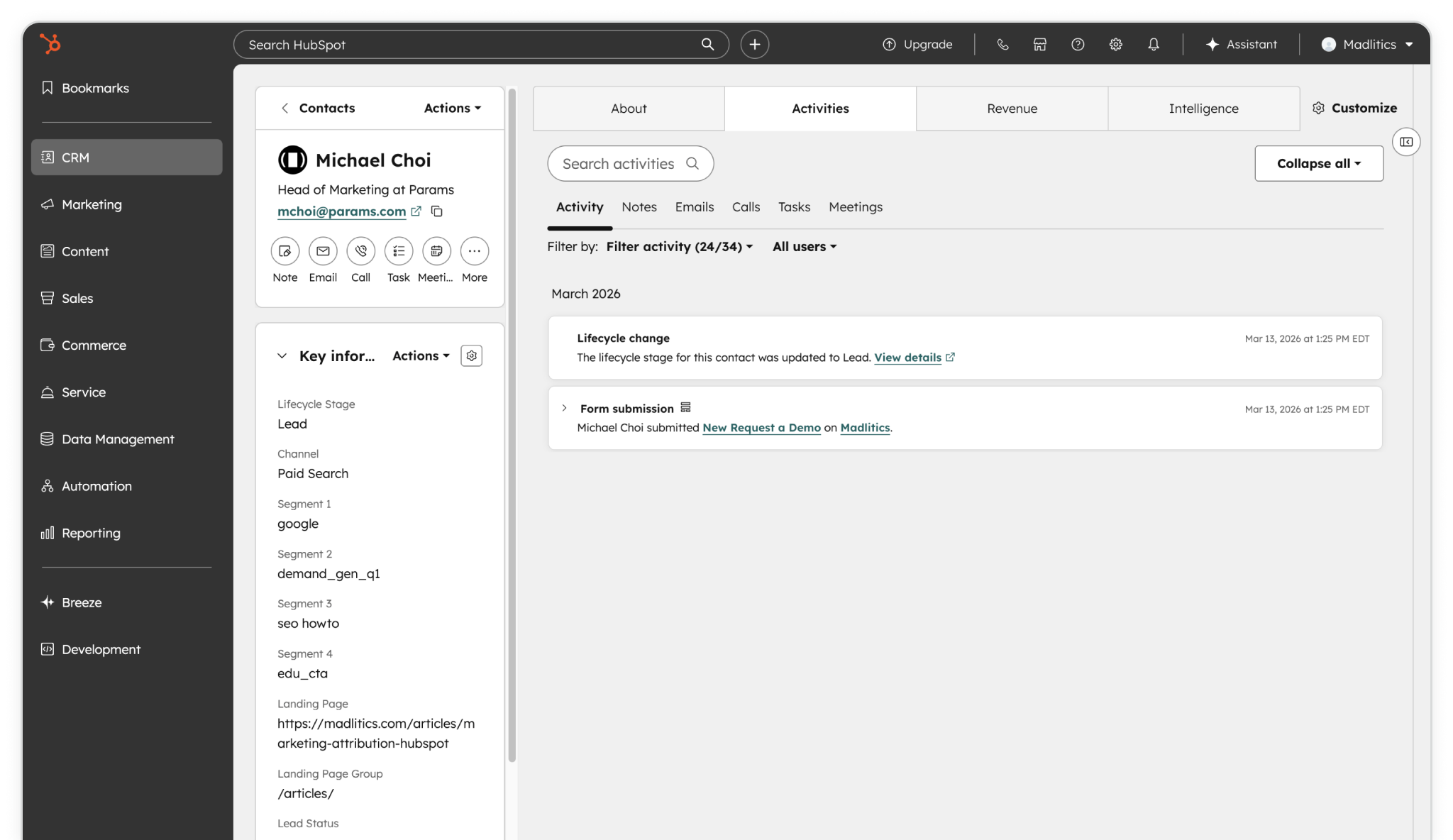
Add fields like Channel, Segment 1–4, LP, and LPG to your contact layout so anyone on your team, can see how each lead was generated.
With this setup in place, every new submission will include complete attribution data directly inside the contact record, giving you clear visibility into which channels, campaigns, and pages are driving leads.
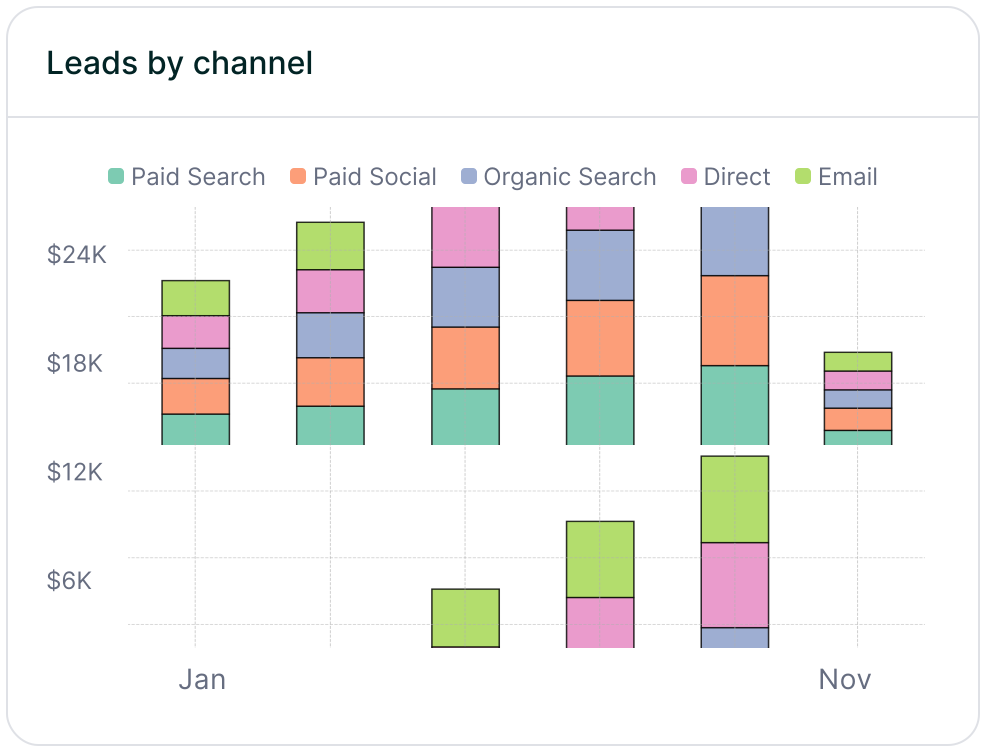
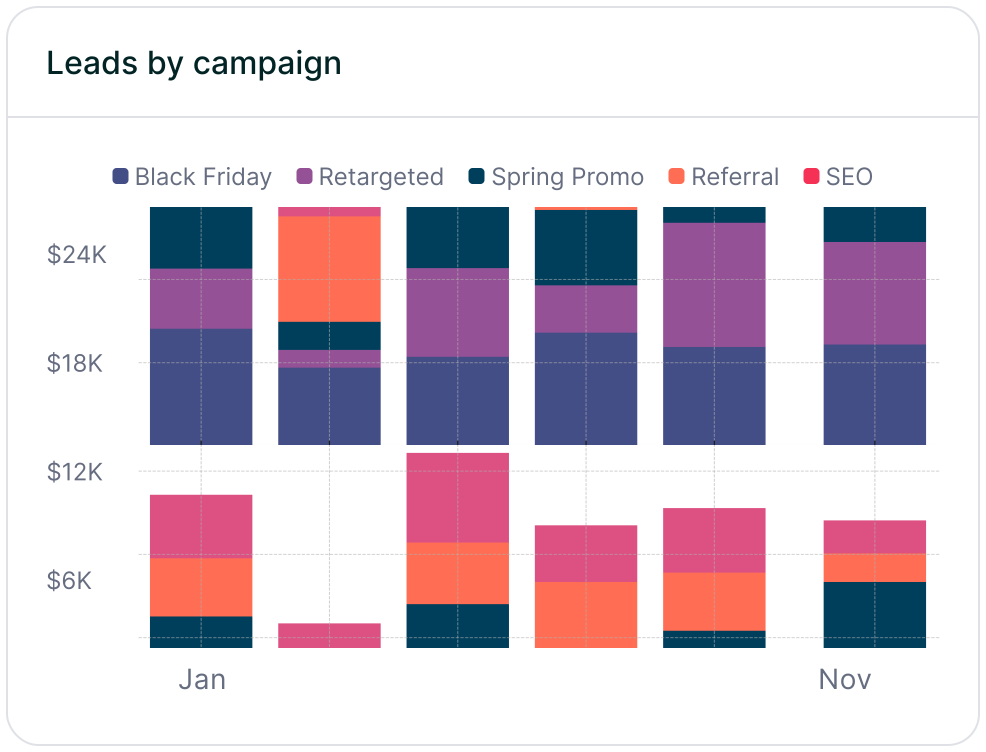
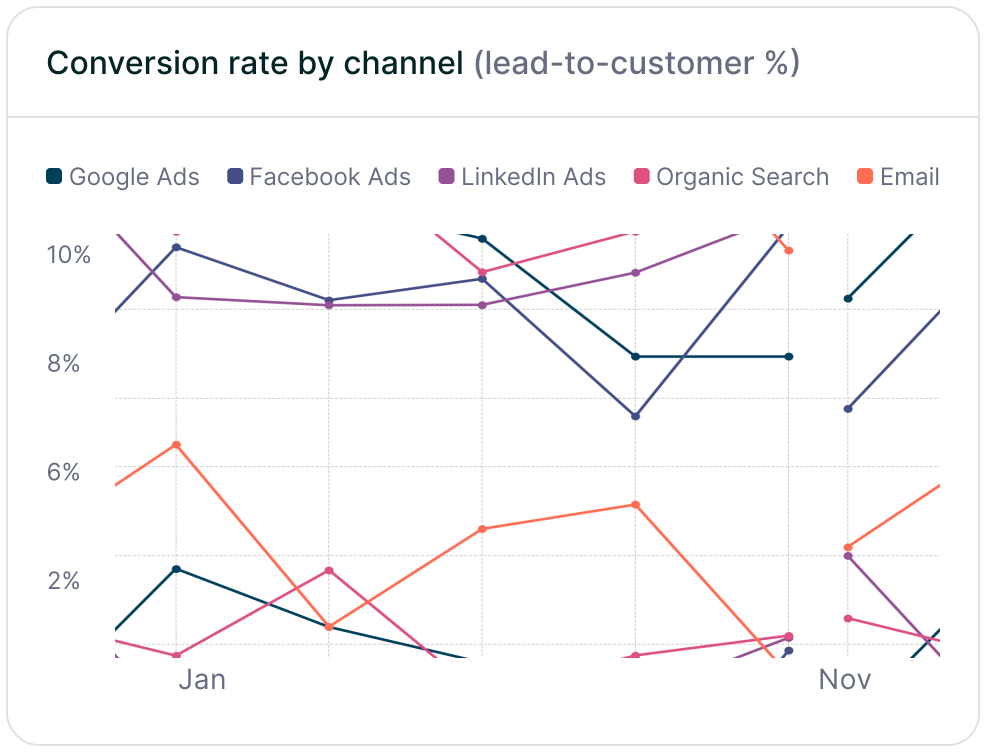
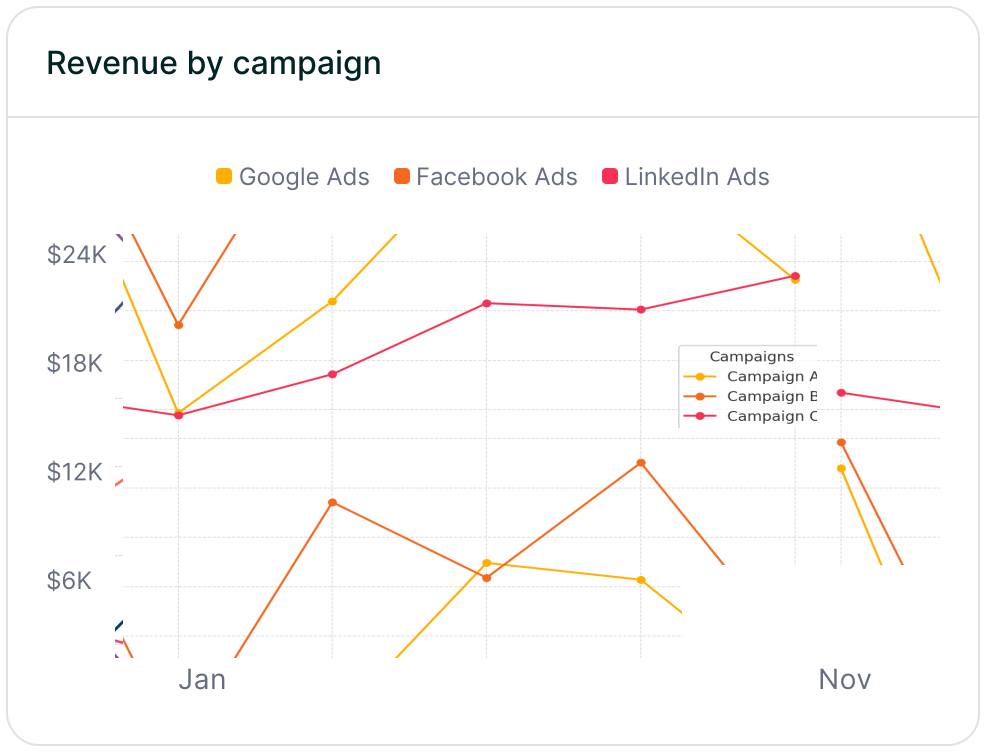
With Madlitics now integrated into your HubSpot forms, every lead submission on your HubSpot‑hosted websites and landing pages automatically carries precise first‑touch attribution data including channel, campaign, UTM details, and landing page directly into contact records and reports. This eliminates guesswork about what drives pipeline and empowers your team to optimize marketing spend, prove ROI, and close the loop between campaigns and revenue right inside HubSpot.
Answers to common questions about setting up tracking with Madlitics and HubSpot-hosted sites