
Support
Set up FormAssembly to capture UTM parameters and marketing attribution
Capture channel, campaign, and landing page data into every FormAssembly submission and see where you customers and leads are coming from.
Start a free trial
FormAssembly is one of the fastest ways to create powerful, customizable forms, and you don't need to code. Its drag-and-drop builder, rich templates, and flexible publishing options make it a favorite for teams who need to launch forms quickly.
Madlitics adds the attribution layer, recording where each visitor came from, including source, medium, campaign, and landing page. Every FormAssembly submission arrives with its marketing context, and FormAssembly can pass that data on to your CRM with the rest of the response.
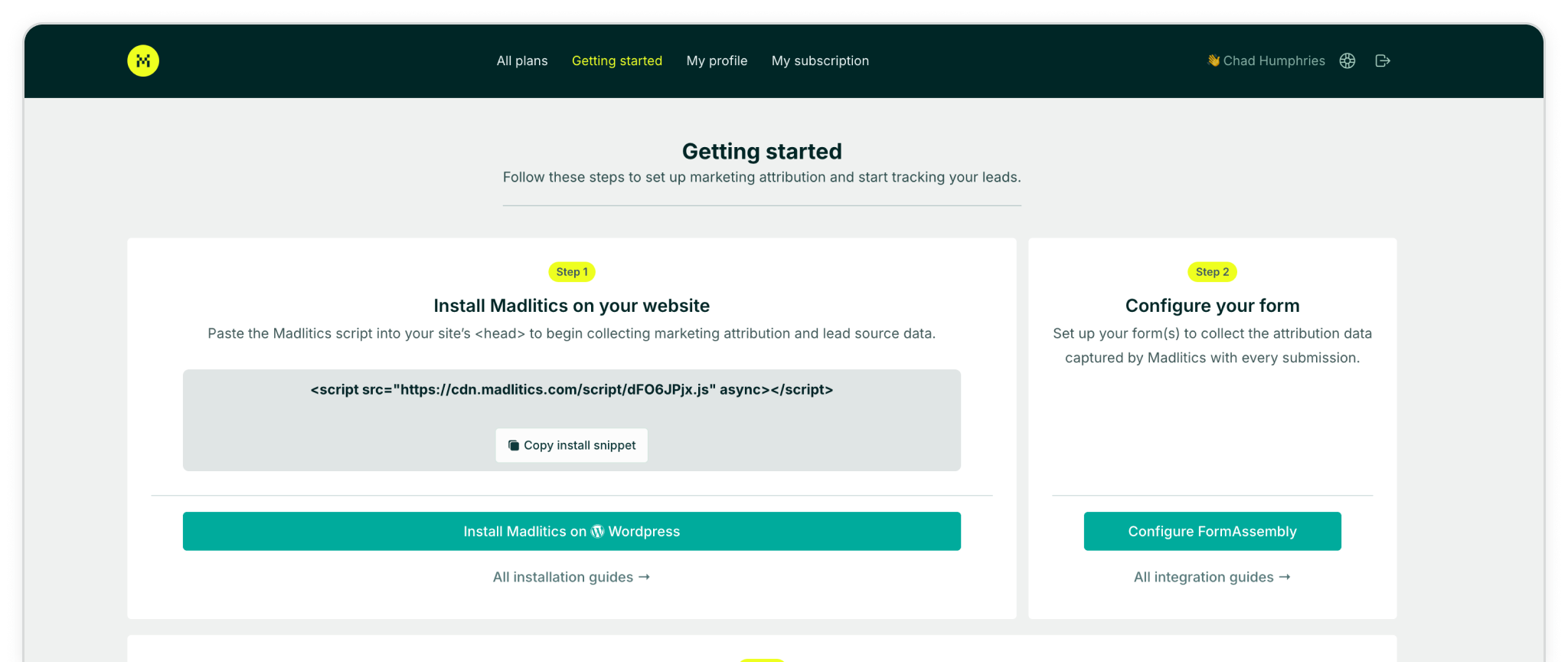
In this article, you'll configure FormAssembly to capture Madlitics attribution data with every submission, to see which channels and campaigns bring in your leads and customers, and send that data to your CRM.
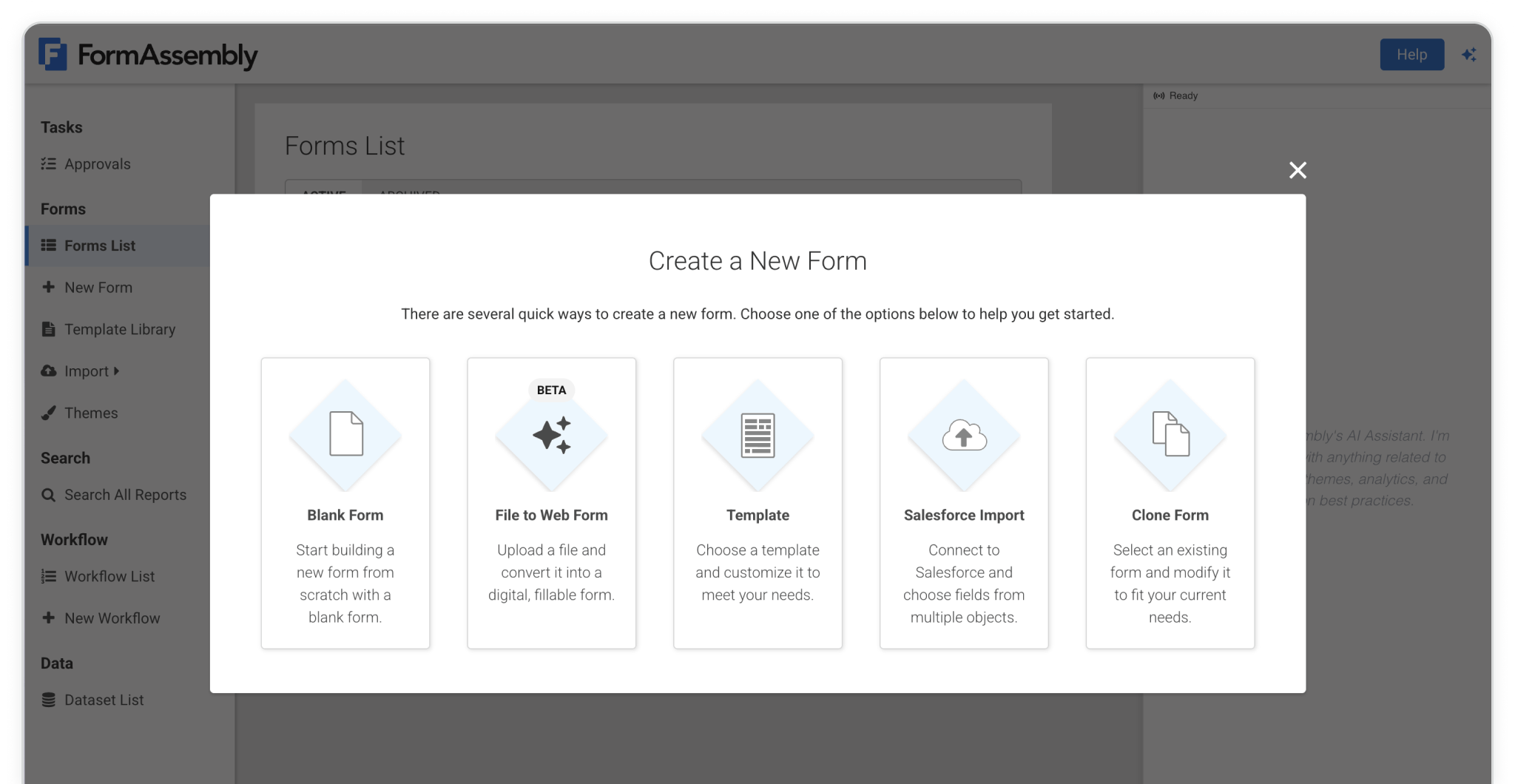
Step 1: Start with a new form and select your preferred creation method — Blank, template, etc. You can also use an existing form from your Forms List.
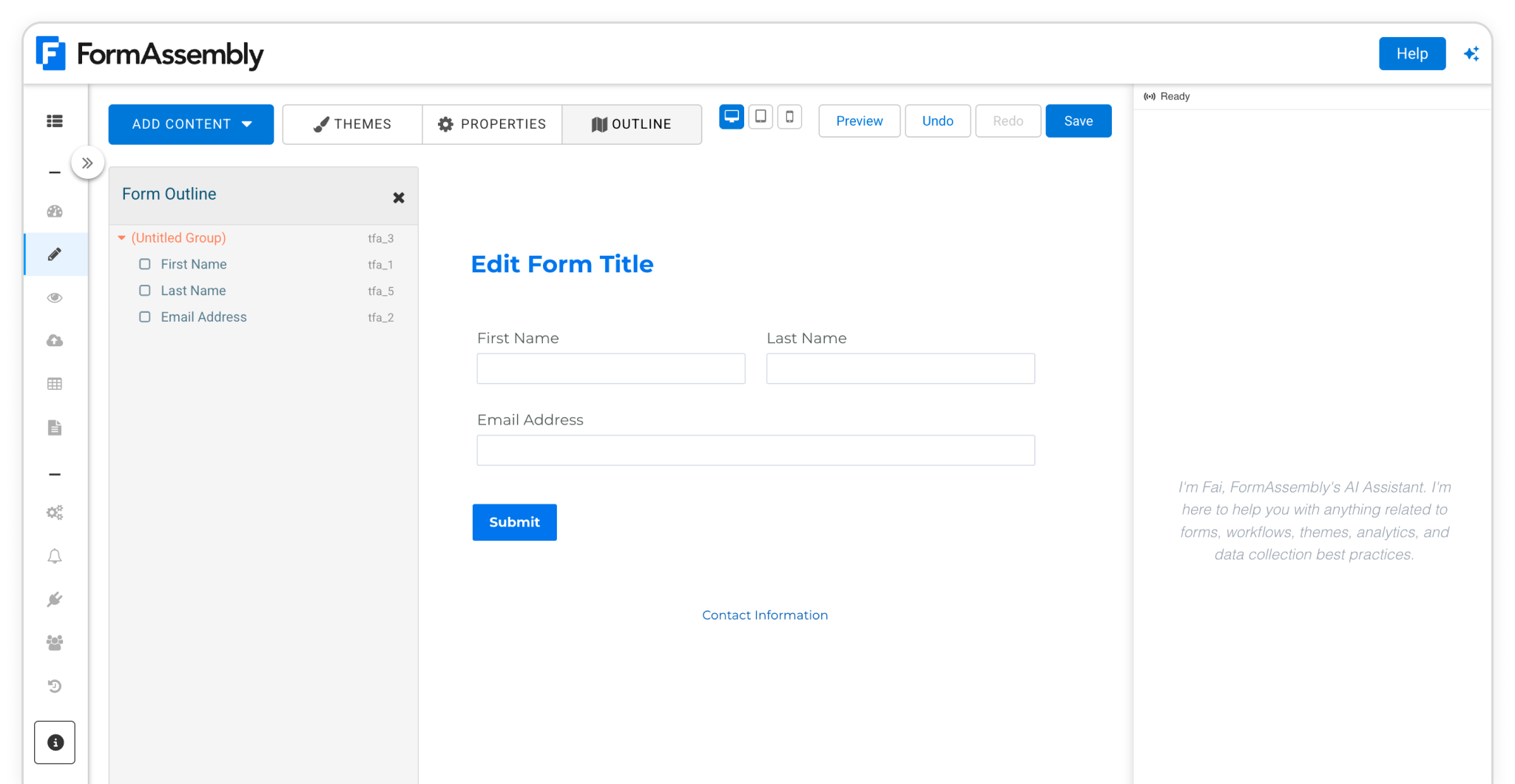
Step 2: To make sure attribution data comes through with every submission, you’ll need to drop in seven (7) fields powered by Madlitics. These fields work behind the scenes, automatically pulling in details like channel, campaign, and landing page details without adding anything extra for your visitors to fill out.
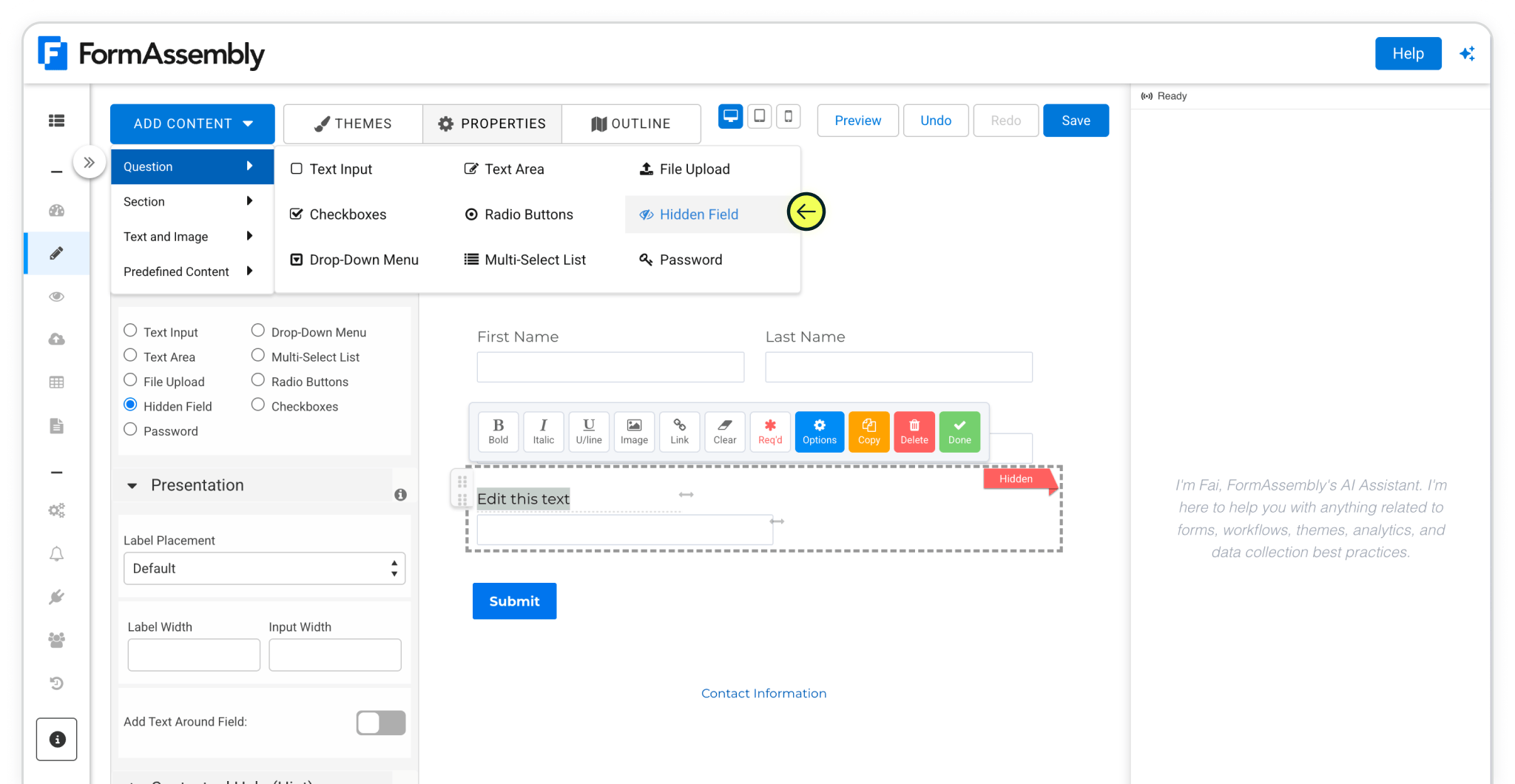
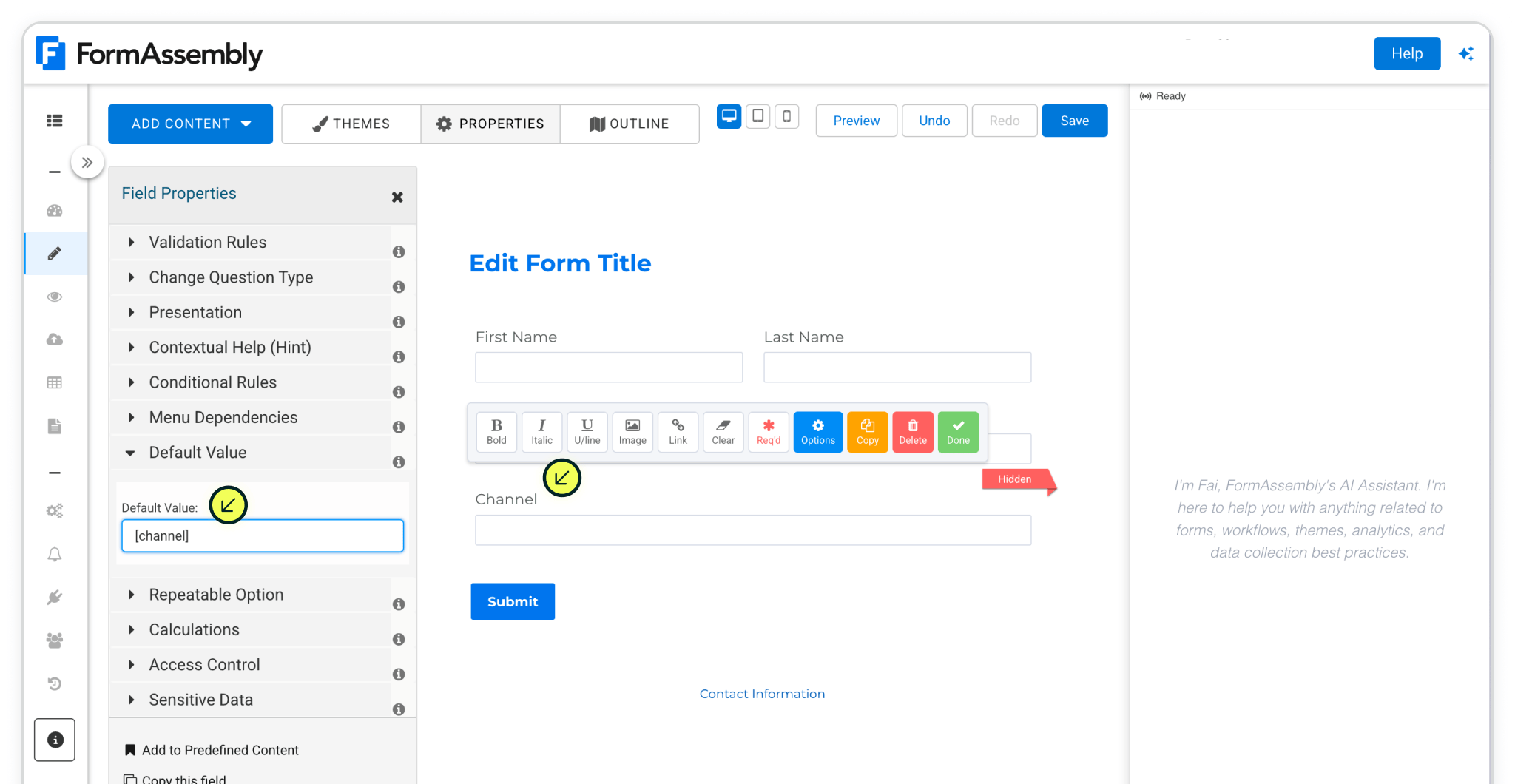
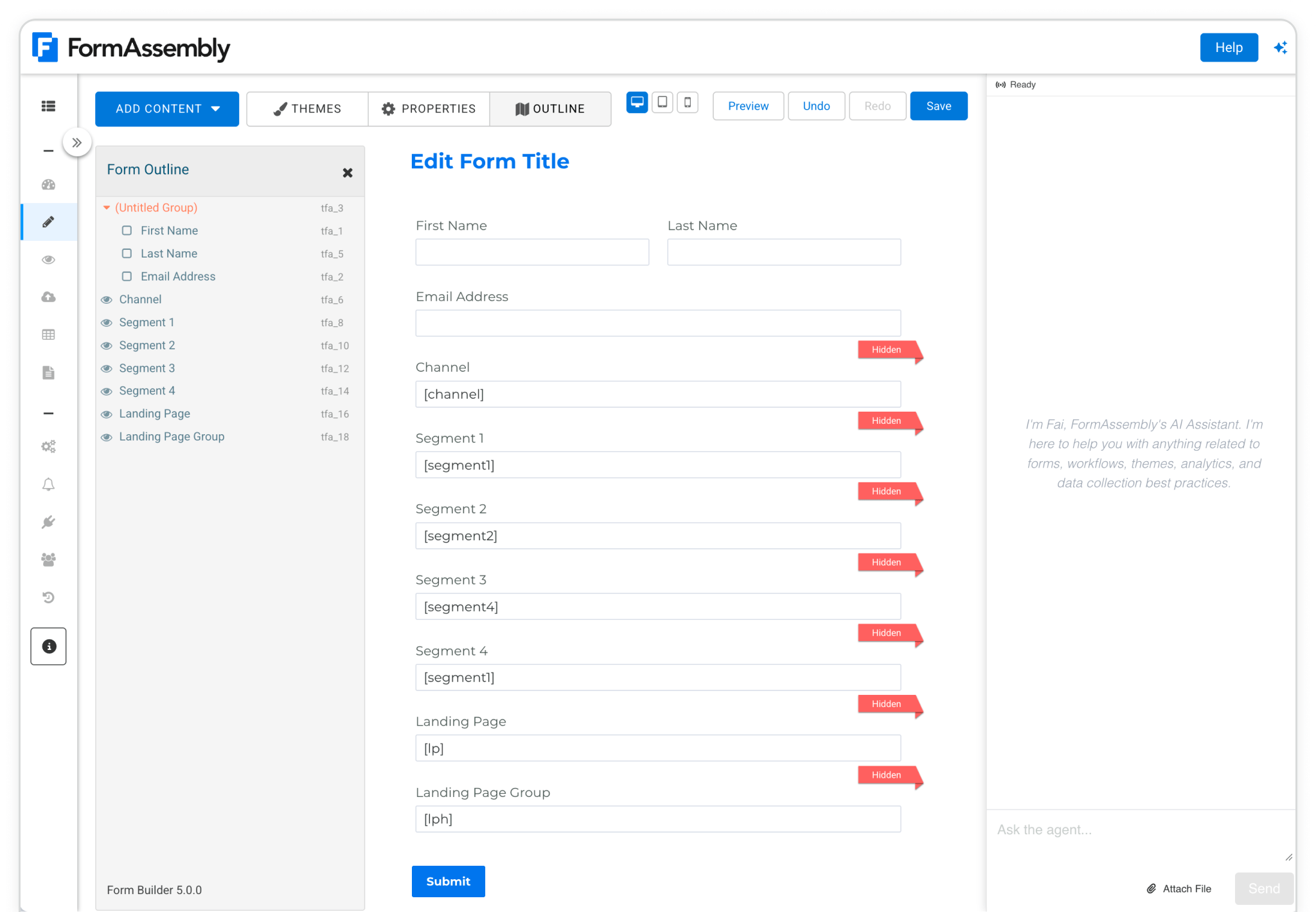
Channel Category
Categorizes the visit’s marketing channel based on multiple signals, including traffic type, referring domain, and known platforms.
Field label: Channel
Default value: [channel]
Segment 1
Captures the source of the traffic, identifying the specific platform, publisher, or partner that sent the visitor to your site; for paid traffic, this field records the utm_source, for organic traffic the platform, for referrals the referring domain, and for direct traffic no value is captured.
Field label: Segment 1
Default value: [segment1]
Segment 2
Captures the campaign-level details associated with the visit, identifying which campaign, promotion, or initiative led the visitor to your site; for paid traffic, this field records the utm_campaign, for organic traffic the referring domain, and for direct traffic no value is captured.
Field label: Segment 2
Default value: [segment2]
Segment 3
Captures the keyword, creative variation, or content-level detail that influenced the visit, such as a paid search term, specific ad, post type, or format; for paid traffic, this field records the utm_term, for organic traffic the full referring URL when available, and for direct traffic no value is captured.
Field label: Segment 3
Default value: [segment3]
Segment 4
Captures the audience, ad group, or offer associated with the visit, showing how the traffic was segmented within a campaign; for paid traffic, this field records the utm_content, and for organic and direct traffic no value is captured.
Field label: Segment 4
Default value: [segment4]
Landing Page
Captures the exact page where the visitor first entered your site, recording the original entry point of the session.
Field label: Landing page
Default value: [lp]
Landing Page Group
Captures the category or logical grouping of the landing page, allowing multiple related entry points to be analyzed under a shared identifier.
Field label: Landing page group
Default value: [lpg]
Additional Madlitics fields configurations available — clickIDs, etc.
Step 4: After you’ve finished building the form, the next step is to embed it on your site so Madlitics can record attribution data whenever someone submits and entry
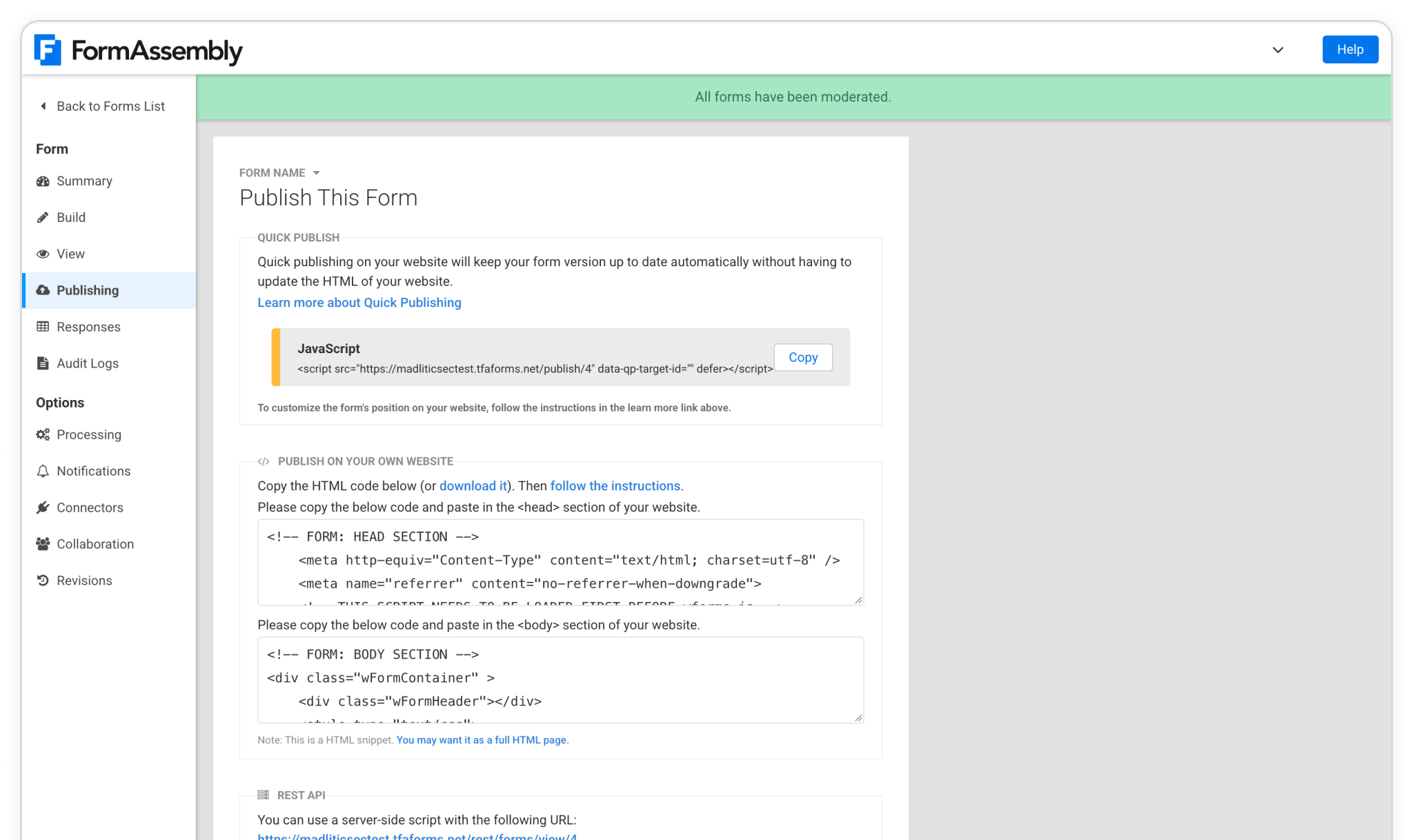
Go to Publish to see the embed options. Madlitics works with Javascript embeds, publishing on your own site, or using Wordpress
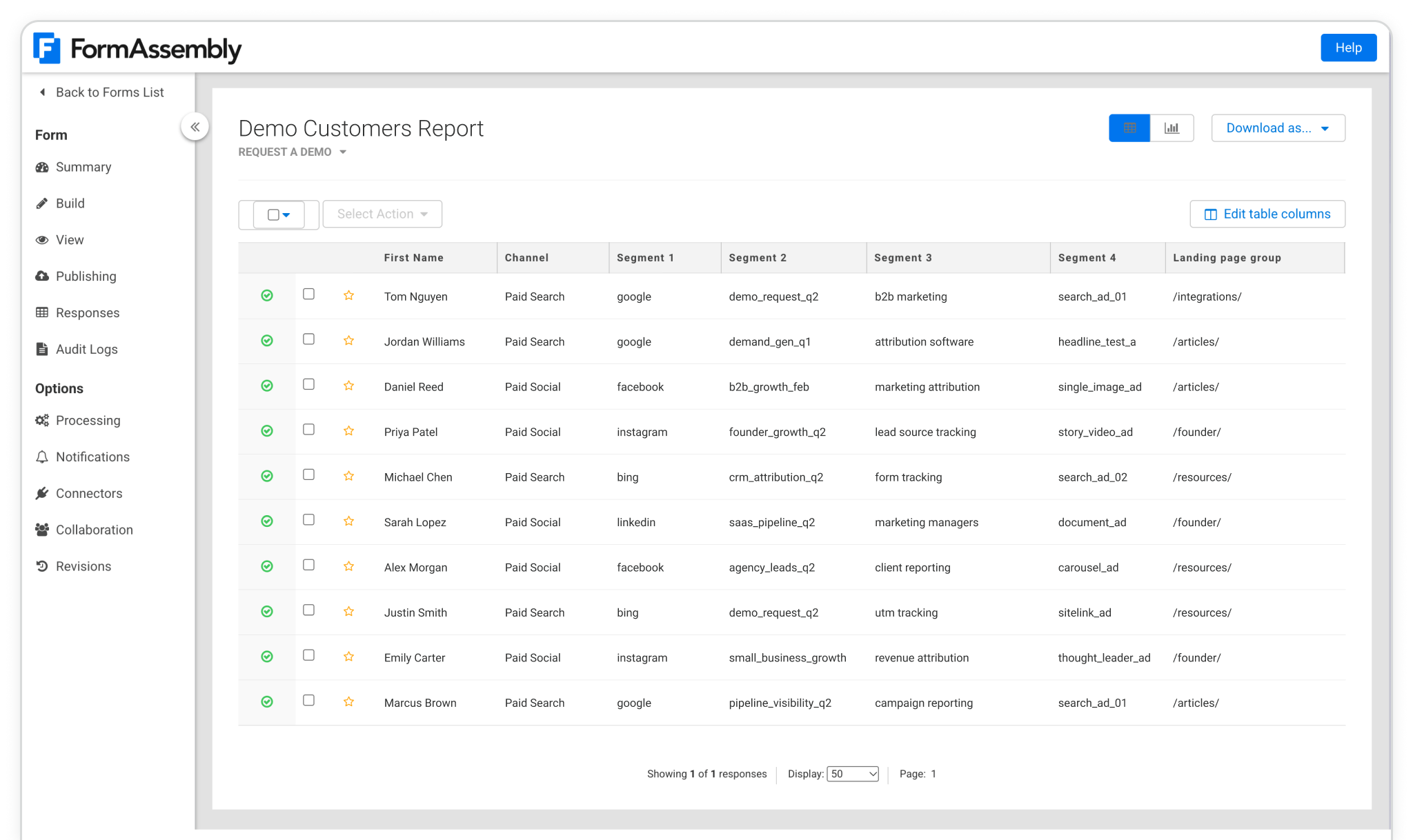
Test your form by visiting your site, using a url with unique utm parameters. The captured attribution data will appear in your FormAssembly Responces page, showing details like channel, campaign, and landing page. Data can be seamlessly pass into your connected tools, CRM, analytics platform, etc. giving you full visibility for reporting and optimization.
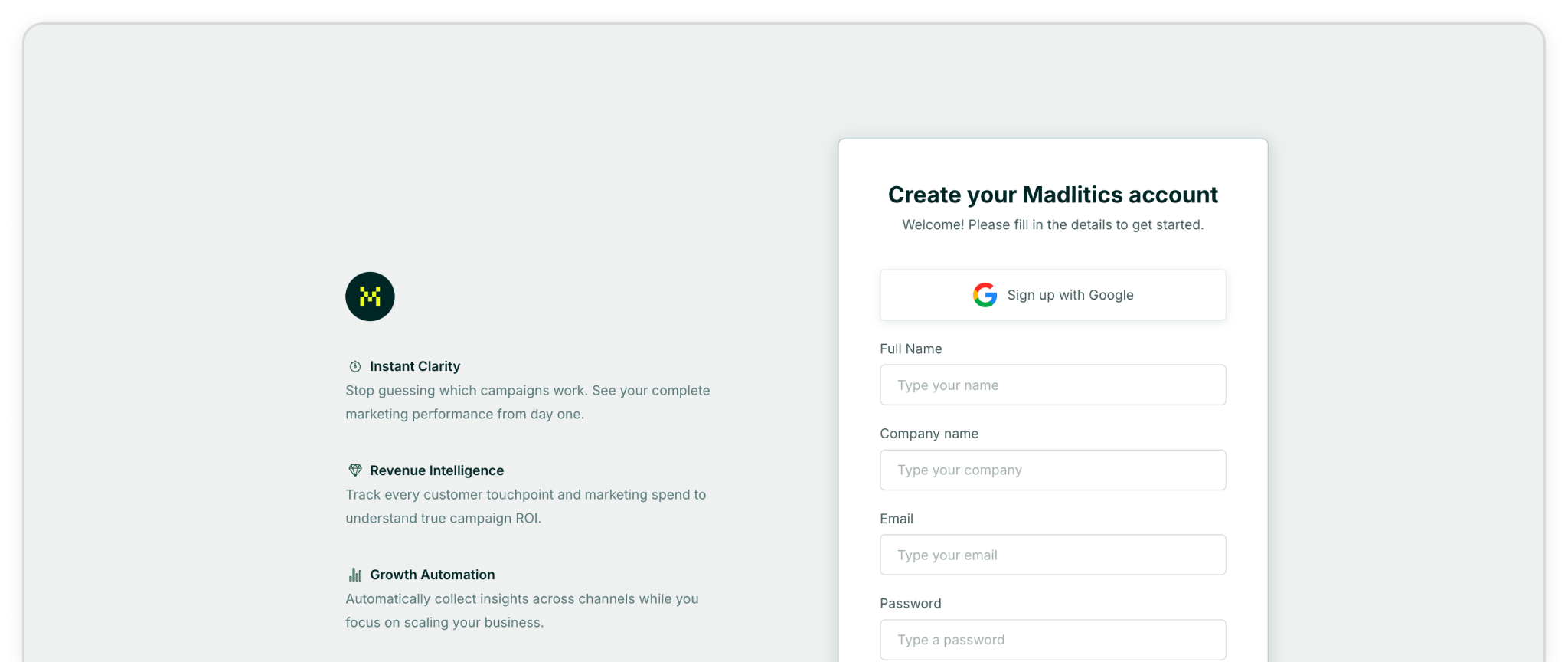
Signing up for a Madlitics account is quick, and you can get started collecting attribution data in a matter of minutes.

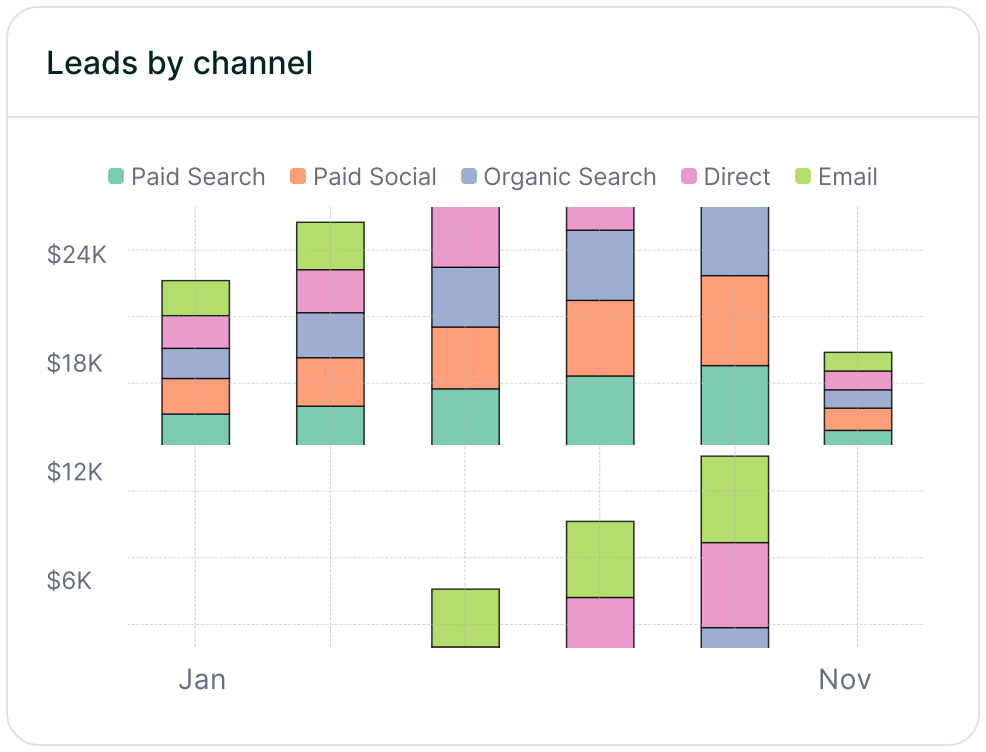
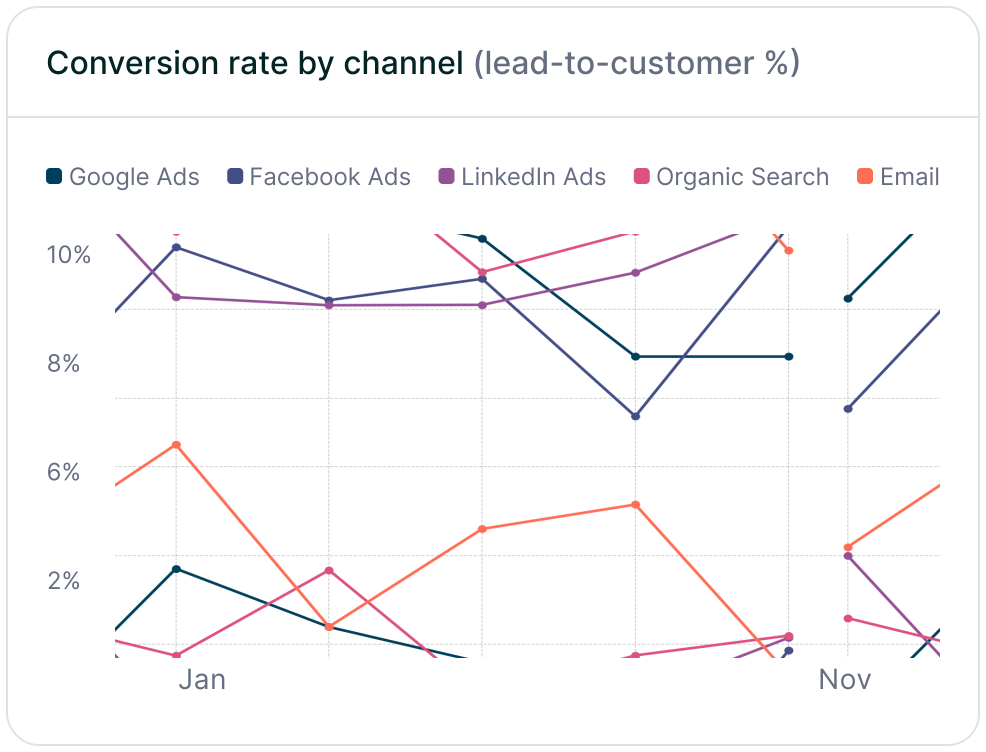
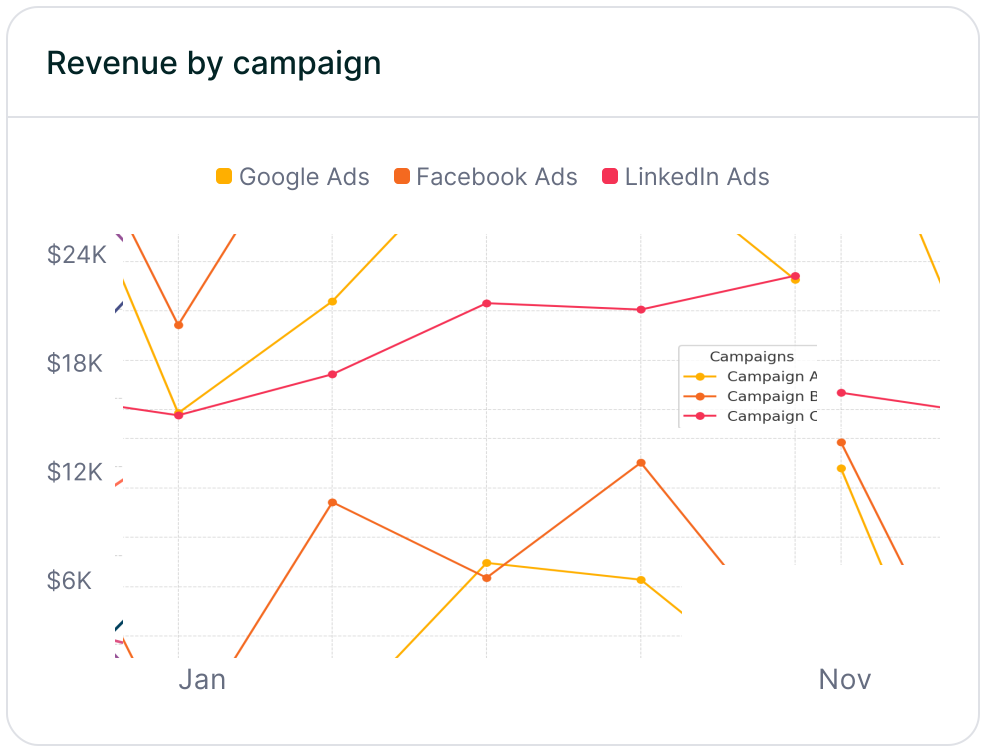
With Madlitics now activated and your forms ready to accept marketing attribution data, you can start tracking valuable insights immediately, and pass attribution data into your CRM, email marketing platform, business intelligence tool, for advanced reporting.
Answers to common questions about setting up tracking with Madlitics and Jotform