Support
Set up Apollo.io forms to capture UTM parameters and marketing attribution
Add fields to your embedded Apollo.io form so submissions include the visitor’s original marketing channel, campaign details, and landing page.
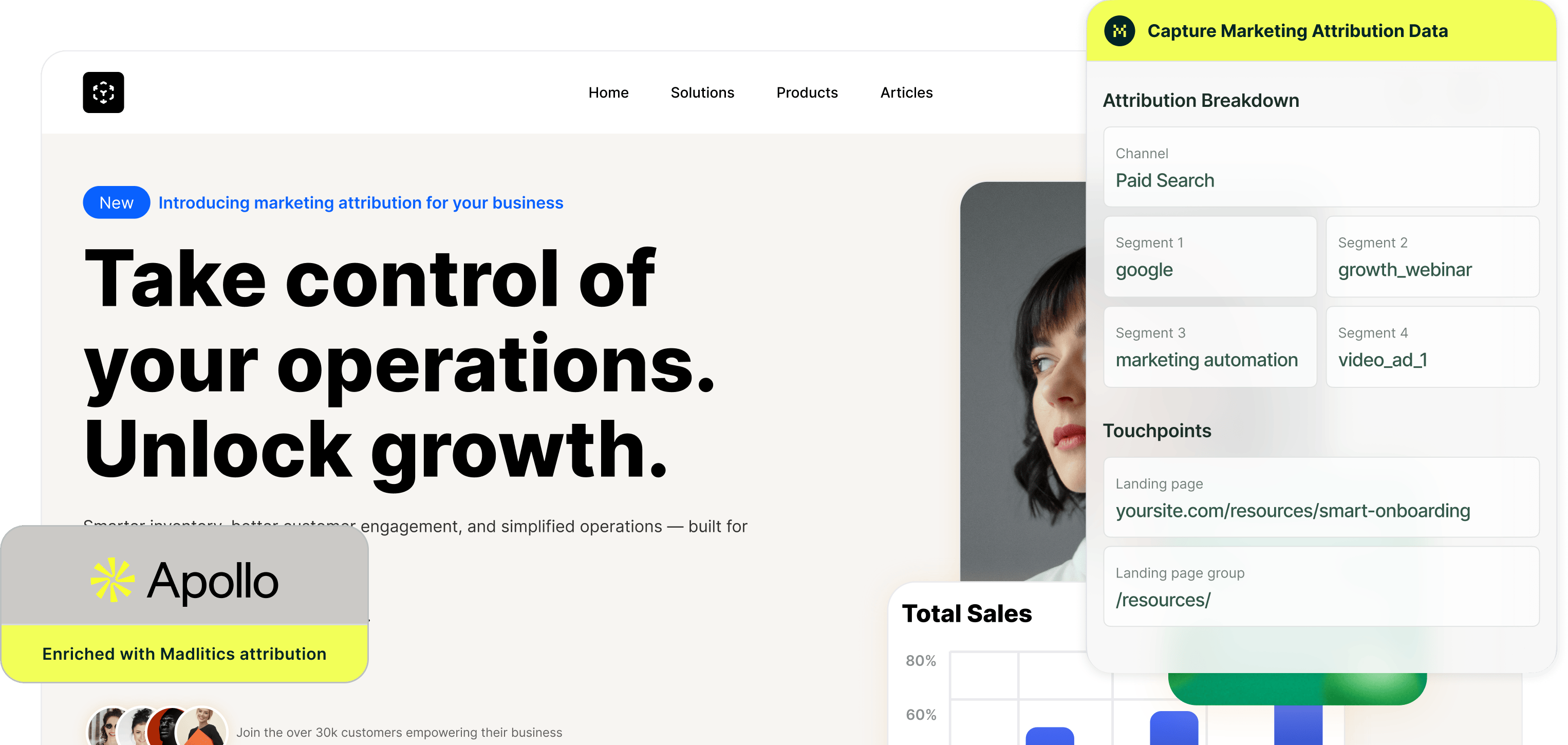
By the time an inbound lead reaches Apollo, the campaign that brought them to your website may be missing from the record. Visitors browse, leave, and return without the original UTMs in the URL. Unless you preserve that attribution, comparing which campaigns generate qualified leads becomes a reporting problem.
Madlitics captures the original marketing source, campaign details, and landing page, then passes that context into Apollo when the visitor converts. It also identifies sources such as organic search and referrals using available referrer data, so your reporting isn’t limited to tagged campaigns.
This guide walks you through setting up Madlitics with Apollo and checking that attribution reaches your lead records. You’ll configure the integration, run a test submission, and confirm the captured values before using them in your reporting.
Before you begin, install Madlitics on the website where you’ll embed your Apollo form. This guide covers forms built with Apollo’s Form Builder and embedded on your website.
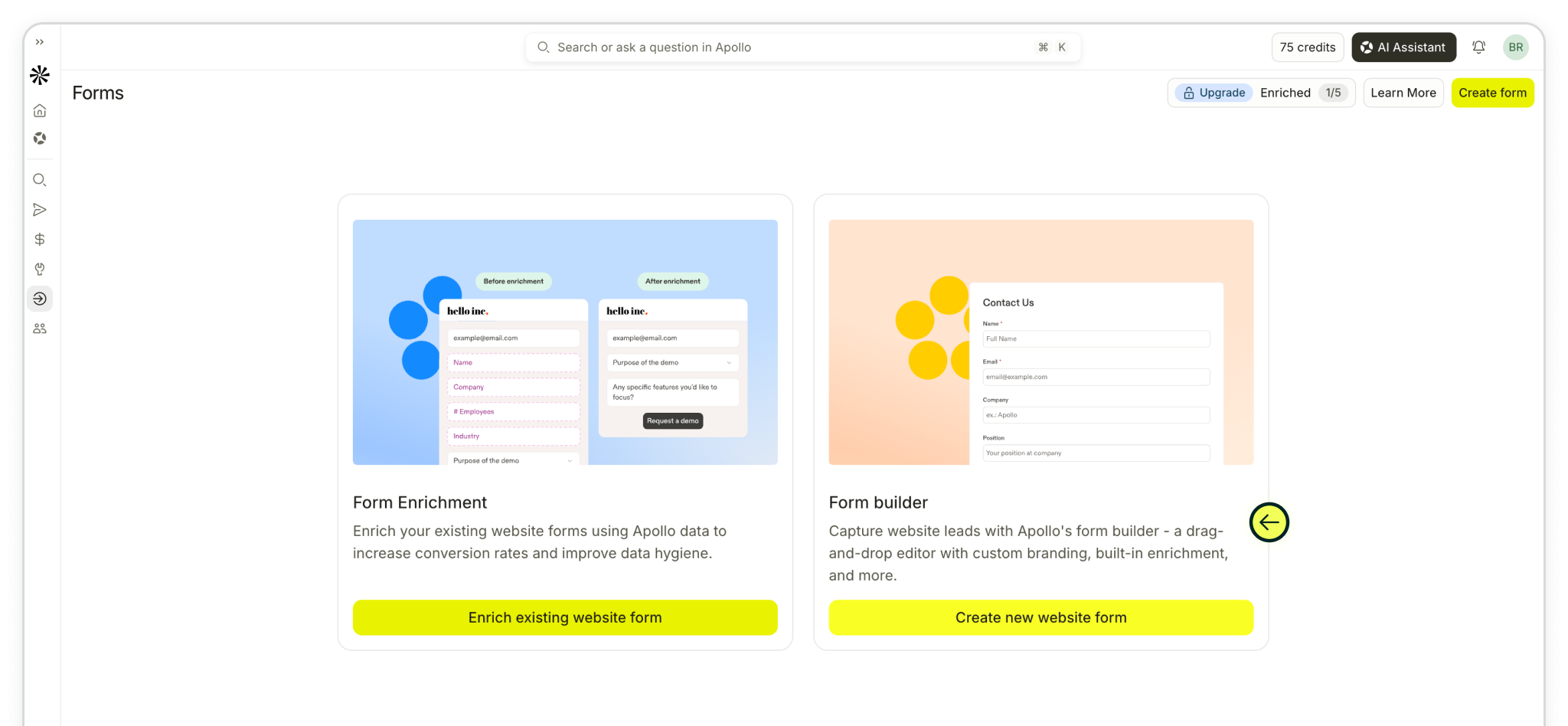
Step 1: Go to Forms and open an existing form built in Apollo’s Form Builder. To start from scratch, click Create form, then select Create new website form. Add the contact fields and questions you want visitors to complete.
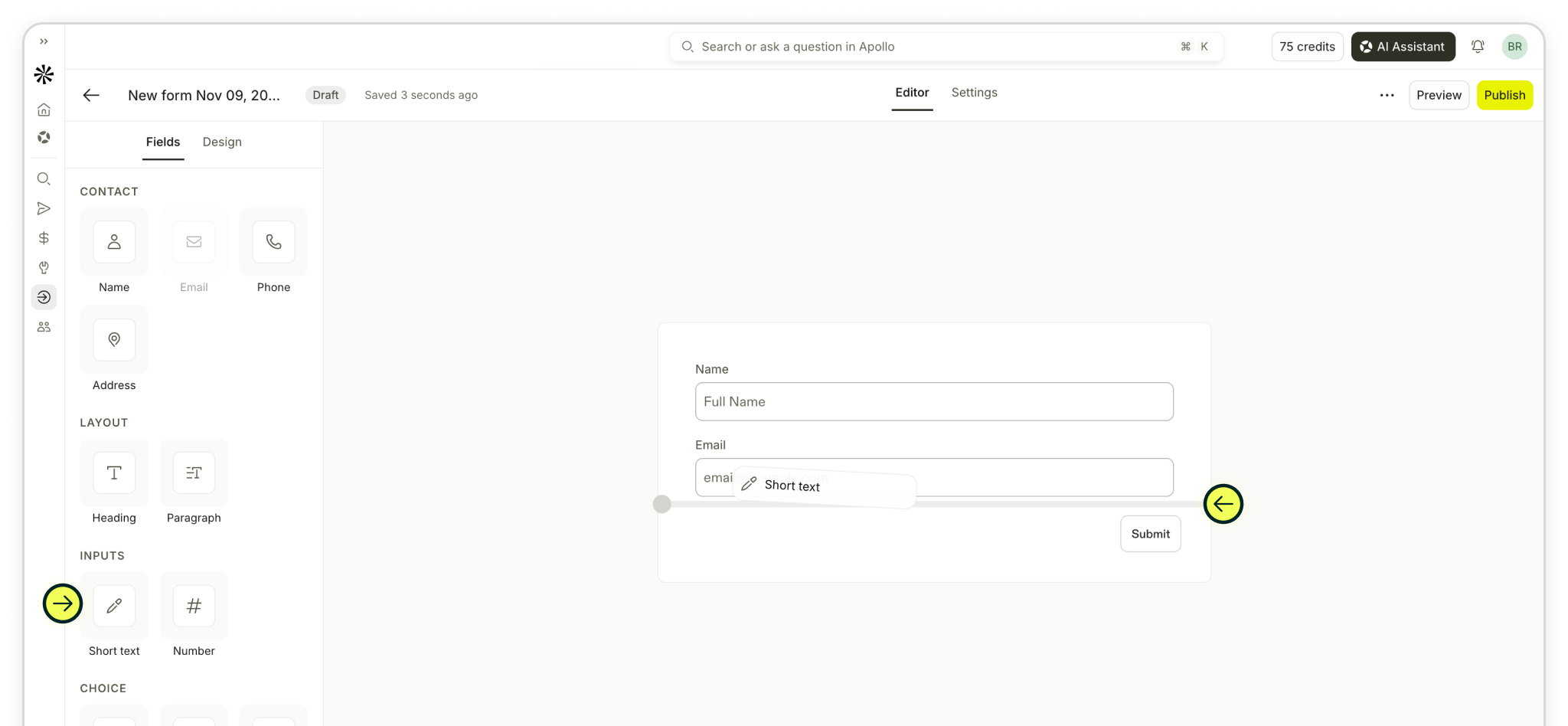
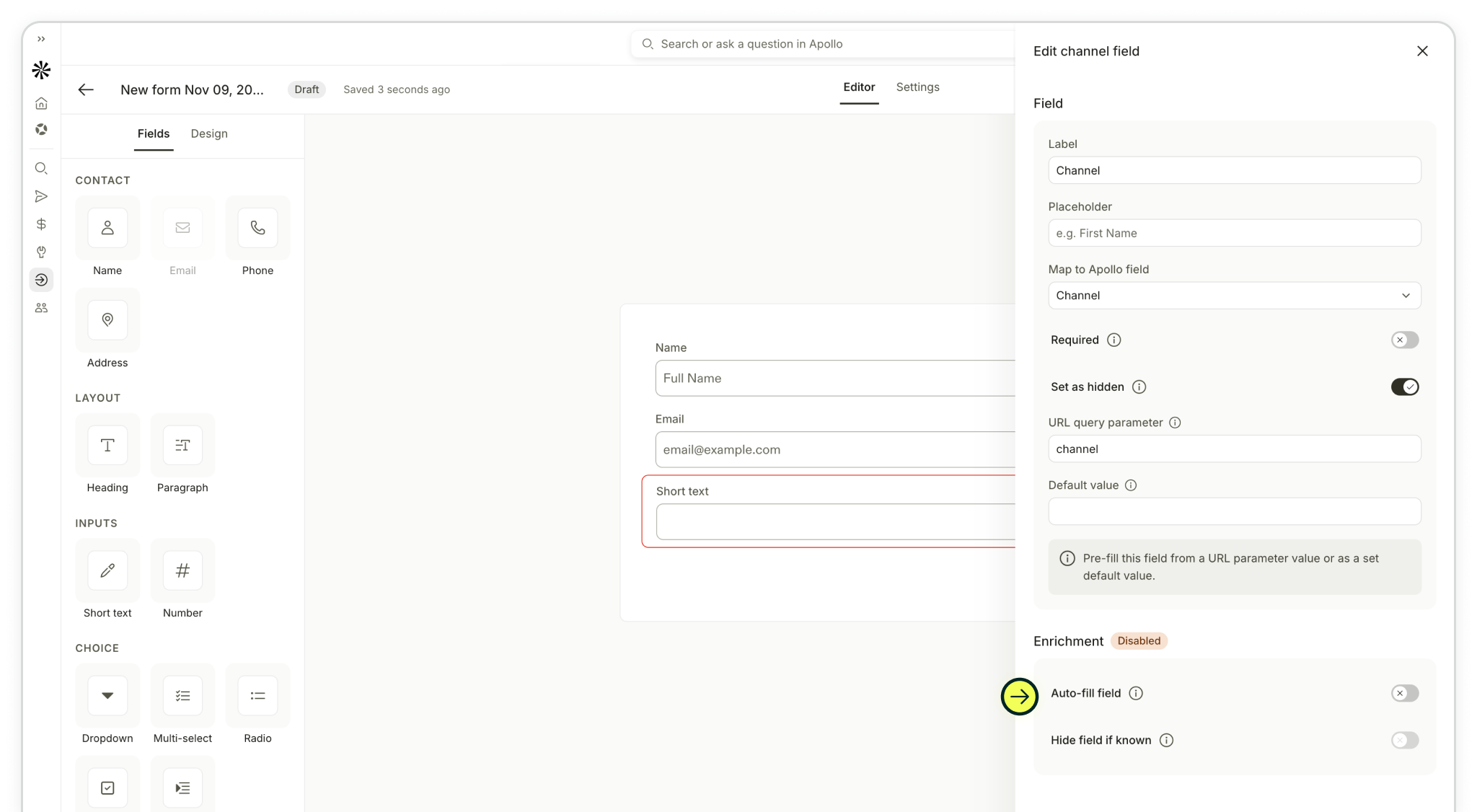
In the form editor, drag a Short text field from the Inputs section onto your form. Click the new field to open its settings. In the next step, you’ll use Map to Apollo field to choose where Apollo stores the attribution value and Set as hidden to keep the field out of view.
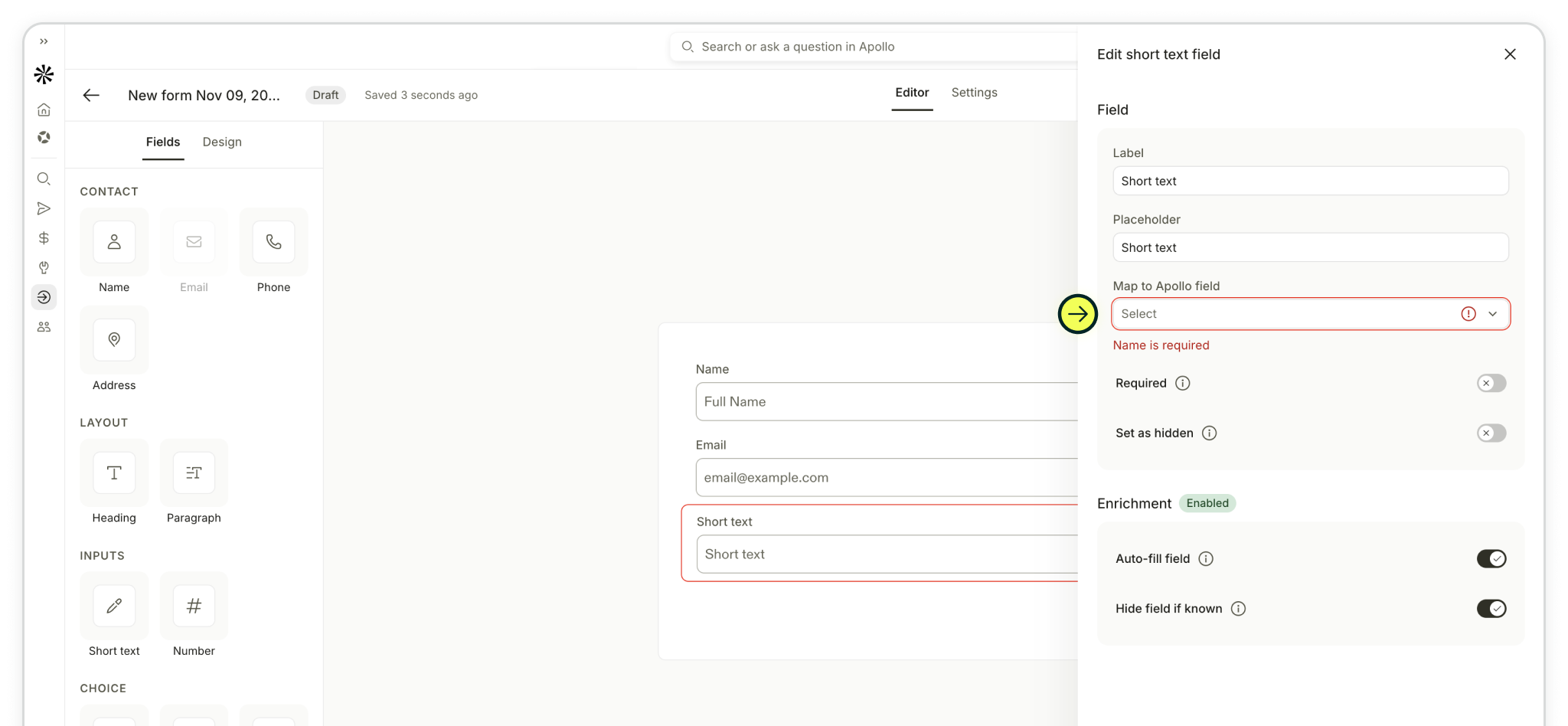
Step 2: Add seven fields to receive the marketing channel, campaign details, and landing page data captured by Madlitics. Each form field needs an Apollo custom field to store the value on the contact record and a URL query parameter to receive it.
Start with the Short text field you added in the previous step:
channel.Add six more Short text fields (for each remaining Madlitics field) and repeat this setup for segment1, segment2, segment3, segment4, lp, and lpg.
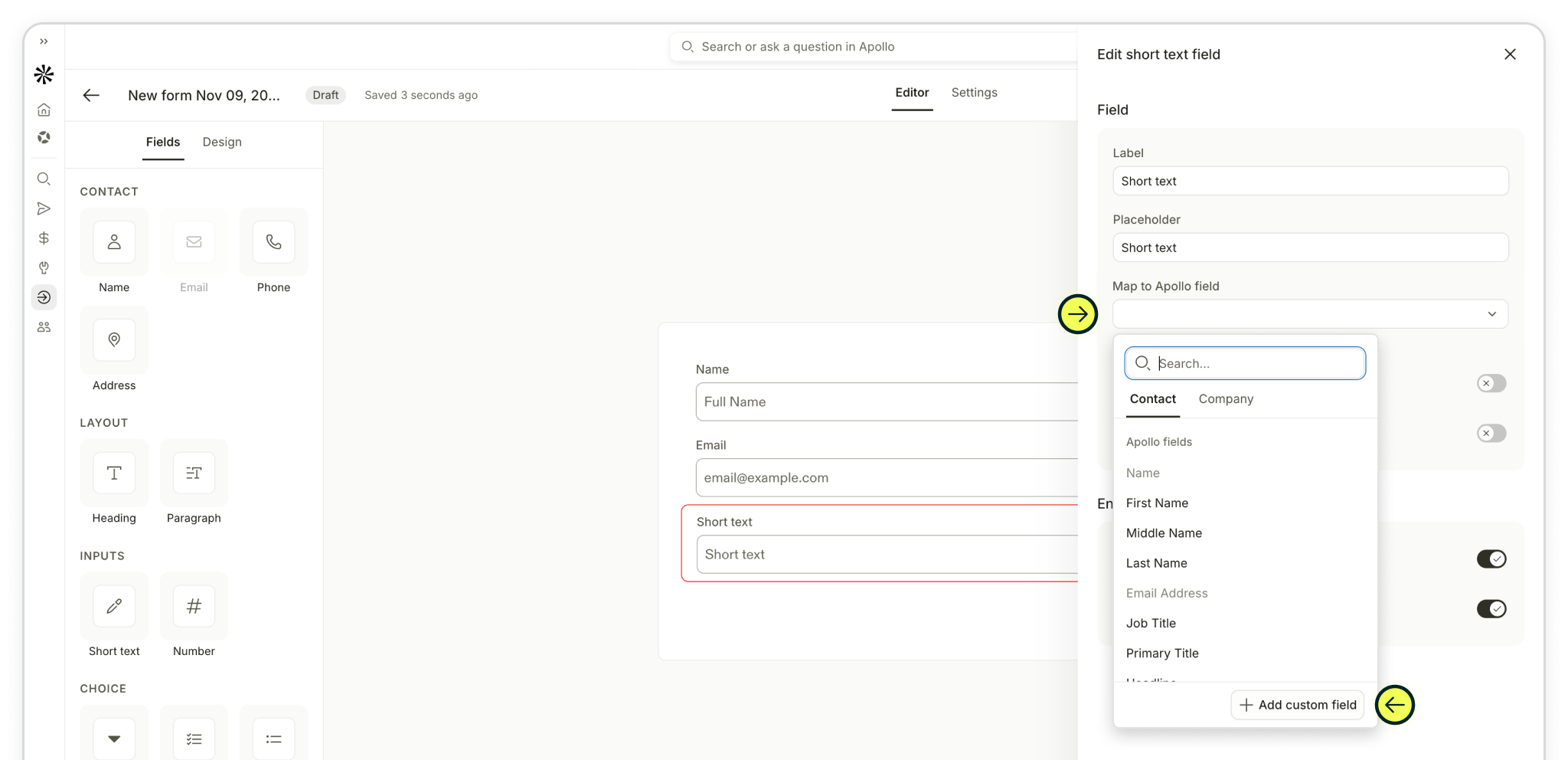
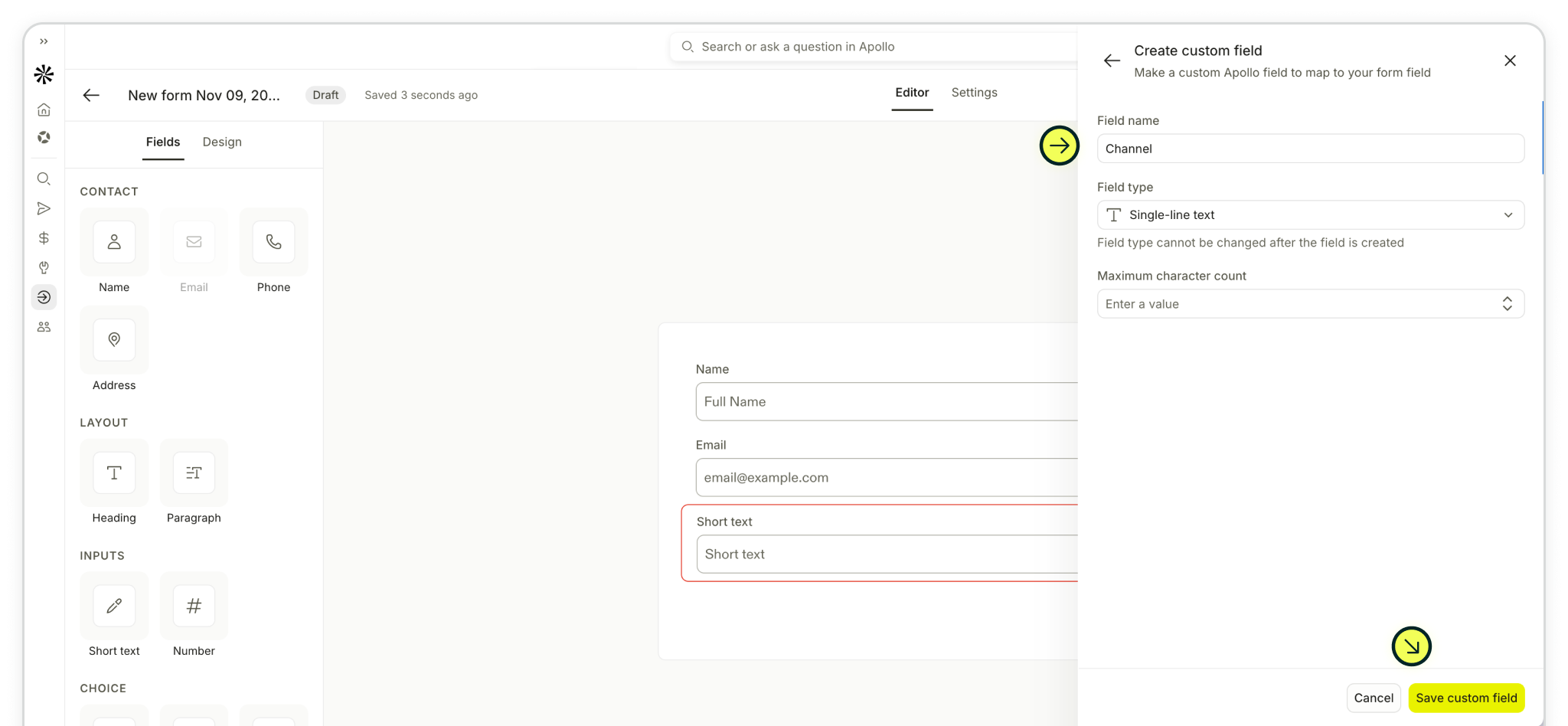
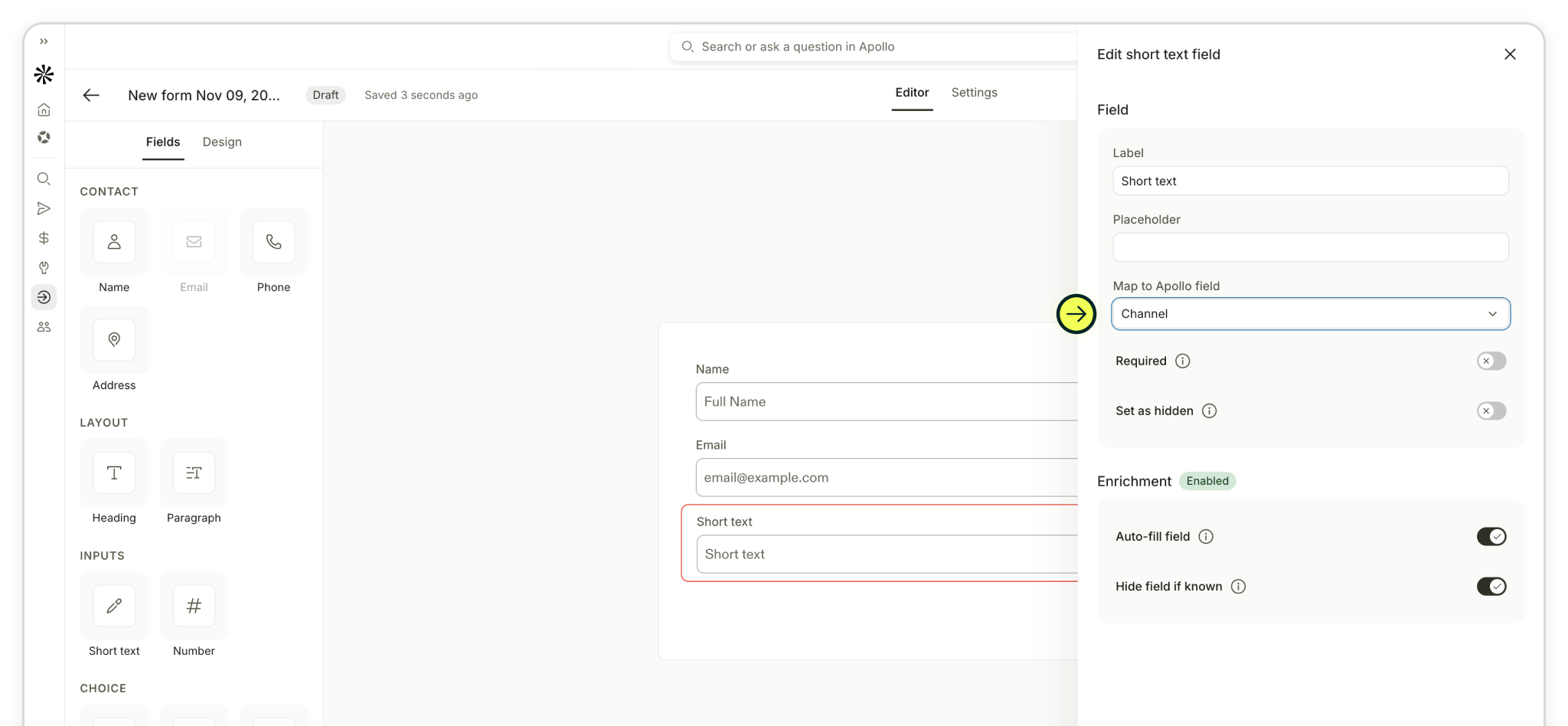
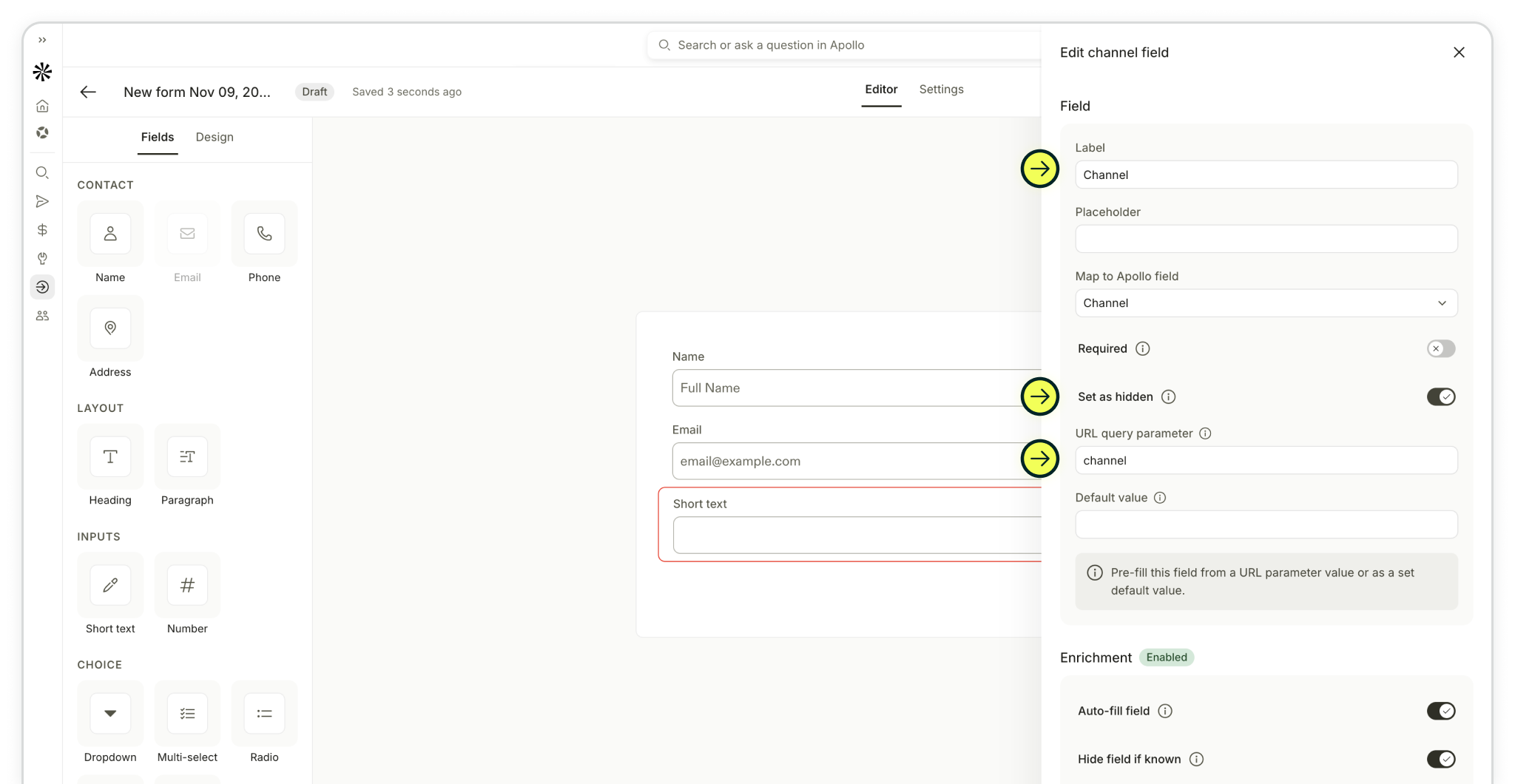
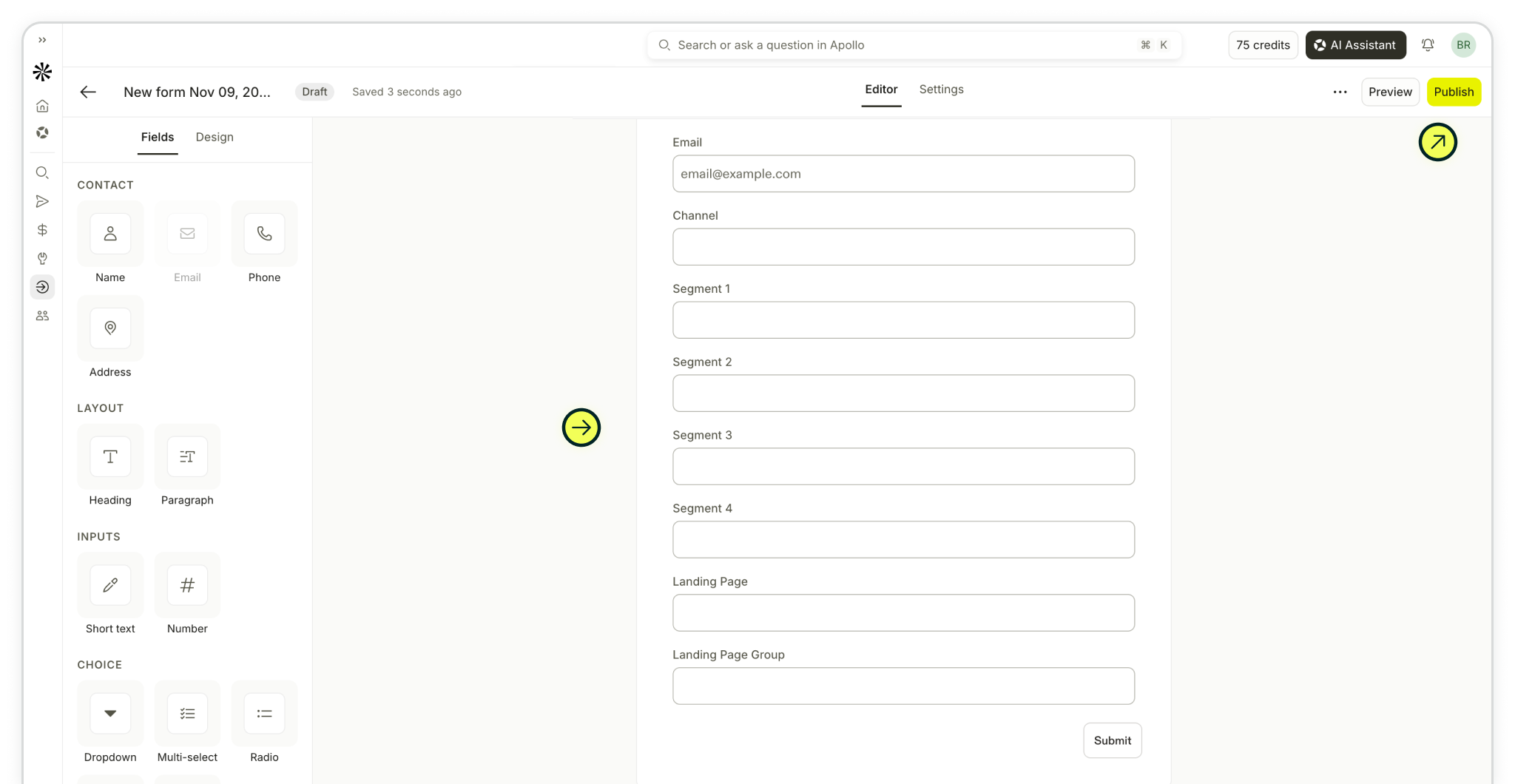
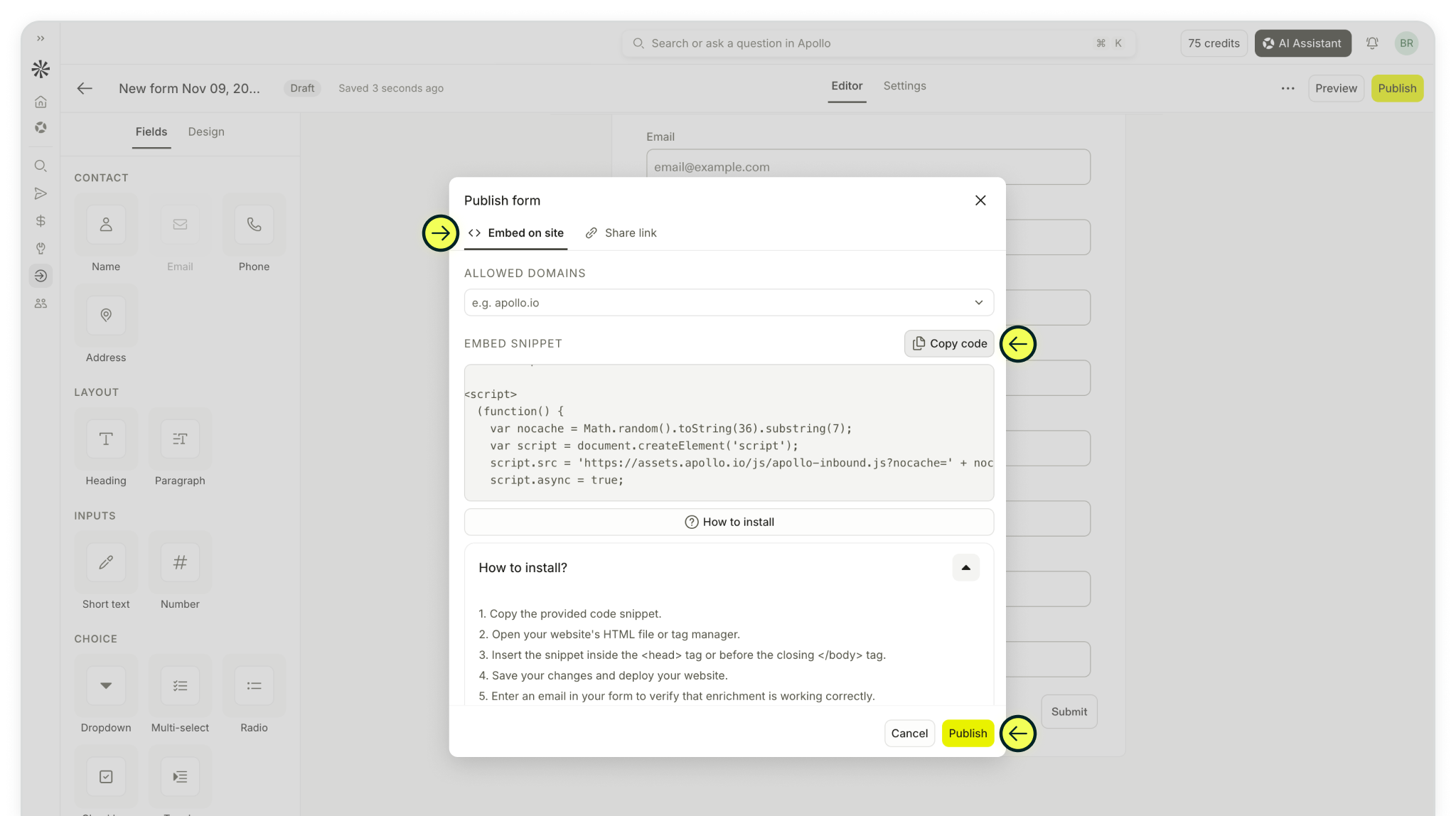
Step 3: Click Publish in the form editor and select Embed on site. Update Allowed domains as needed, then click Copy code.
Follow Apollo’s How to install instructions to add the snippet to your website. Click Publish in Apollo, then save and publish your website changes. Make sure Madlitics is installed on the website where the form will appear. Madlitics captures attribution on your website and passes it into the embedded form.
Use the embedded form for this setup. Apollo’s Share link option won’t receive the attribution Madlitics captures on your website.
Step 4: When a visitor submits your form, open the form’s Analytics tab and select Contacts to review the captured attribution. Open a contact record to see the mapped custom fields. If they aren’t visible, update/configure the fields displayed in the record.
These fields show the original marketing channel, campaign segments, landing page URL, and landing page group alongside the lead’s contact details. For campaign-tagged visits, the segments contain the source, campaign, term, and content values supplied through your UTMs. Available values depend on the traffic source and tags used.
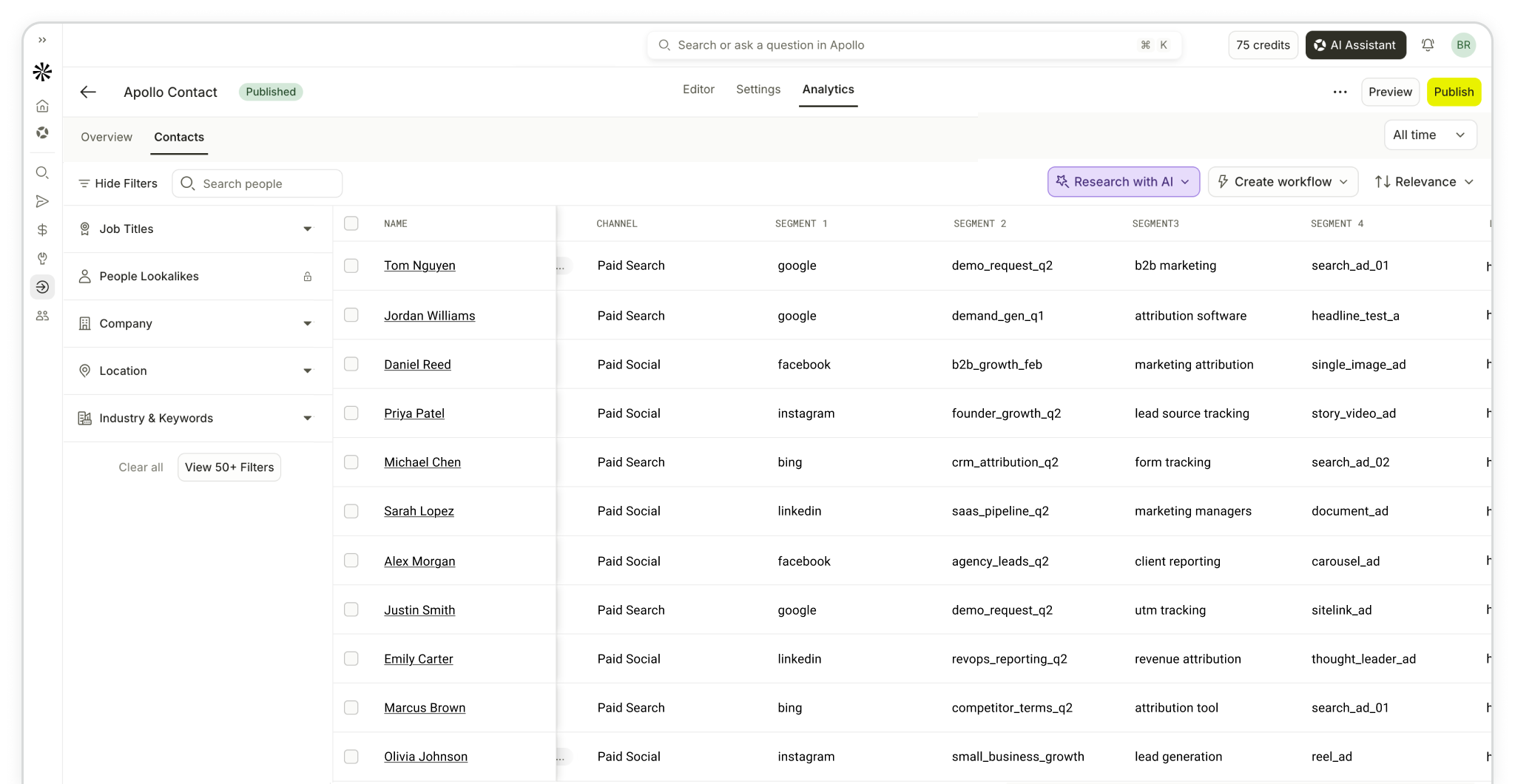
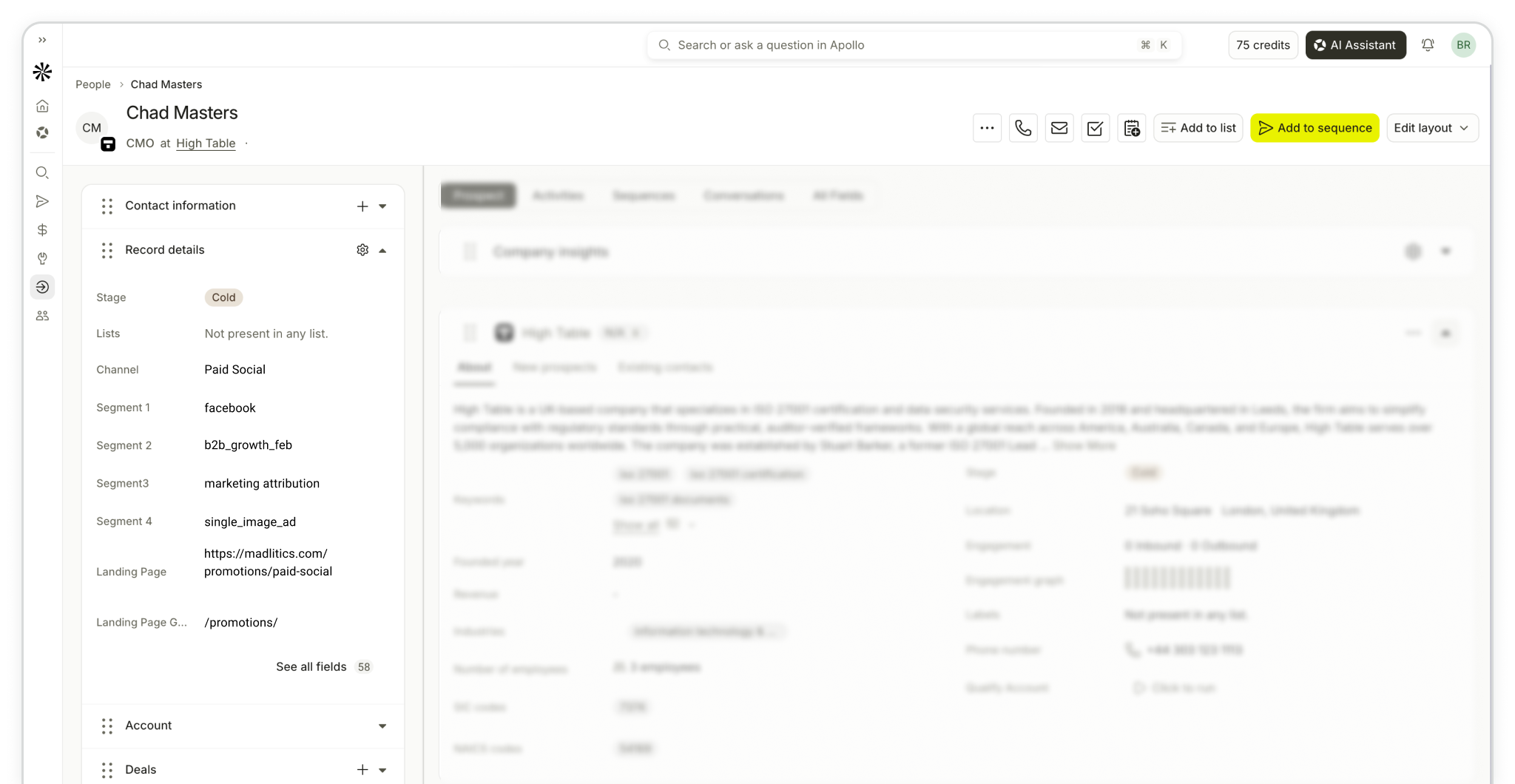


With Madlitics set up, your Apollo form submissions include the original marketing channel, available UTM values, and landing page alongside the lead’s contact details. Open the contact record to review those fields and compare which campaigns and landing pages bring in leads. For tagged campaigns, the segment fields show the source, campaign, term, and content values included in your UTMs.
If you sync Apollo contacts to a CRM, map the attribution fields there too. Combined with your CRM’s opportunity and revenue data, they help you see which sources bring in leads that become customers. A campaign that generates fewer submissions may still deserve more budget if those leads consistently turn into qualified opportunities and paying customers.
Answers about setting up Apollo forms to capture Madlitics attribution data.