
Digital Marketing
How to Capture Microsoft Ads Data in Gravity Forms
Connect original Microsoft Ads campaign data to your Gravity Forms leads, then follow their progress into customers and revenue inside your CRM.
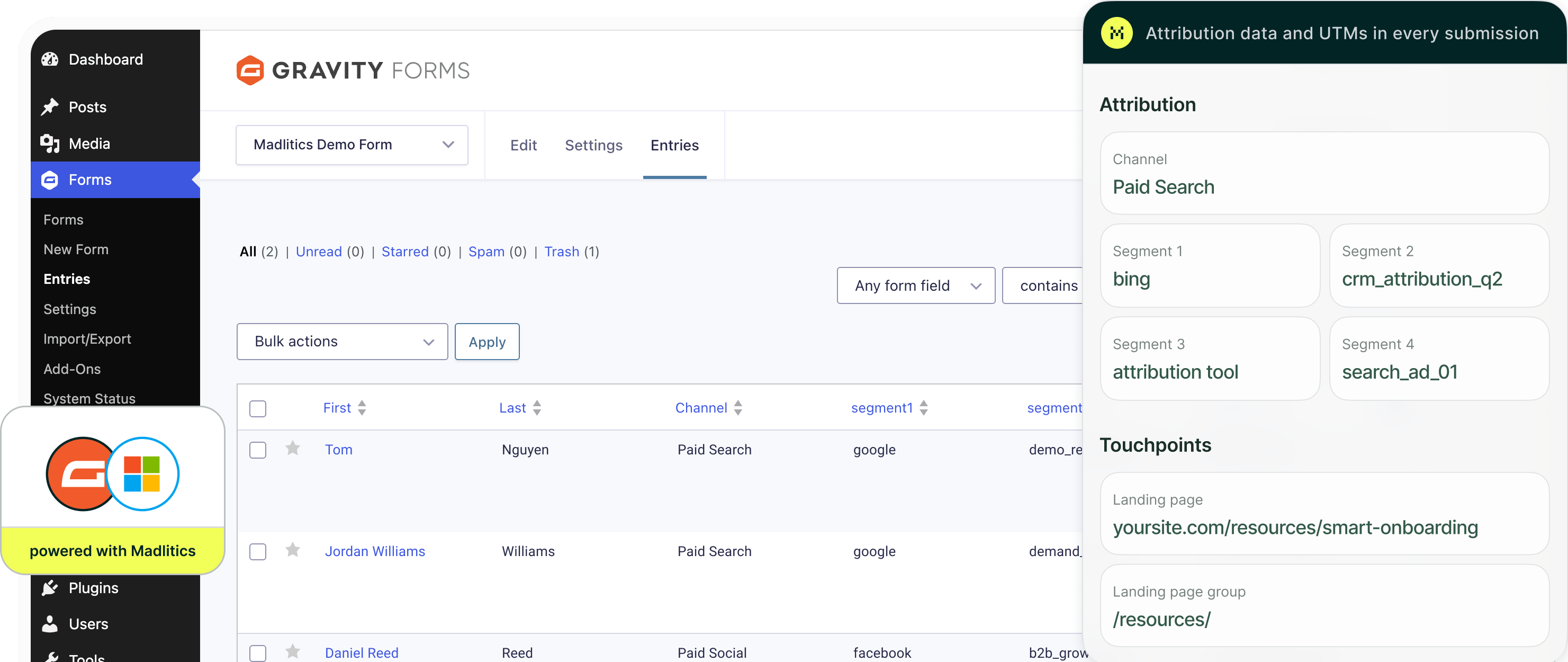
A potential customer clicks your Microsoft ad, explores your website, and returns later to submit an inquiry. Without the original campaign details attached to their Gravity Forms entry, your team loses the connection between that lead and the advertising that introduced them.
Madlitics captures their original attribution, preserves it as they browse and return, and writes it into your configured Gravity Forms fields. Source, campaign segments, original landing page, and available click IDs can then travel alongside the lead into your CRM.
This guide explains how to capture Microsoft Ads data in Gravity Forms and use it to compare which campaigns bring qualified leads, opportunities, and revenue.
Clicks and form submissions don’t tell you which Microsoft Ads campaigns generate customers. Connecting campaign attribution from Gravity Forms to your CRM reveals how those leads translate into revenue. This illustrative example shows how campaign performance changes when you look beyond traffic.
Microsoft Ads Campaign Performance Based on Traffic Metrics
Based on traffic alone, Search Retargeting looks strongest: it brings the most visitors at the lowest cost per visit. Connecting those visits to leads, customers, and revenue reveals a different picture.
Microsoft Ads Campaign Performance Connected to Leads, Customers, and Revenue
The Demo Requests campaign generated 17 customers and $126,000 in revenue from $2,600 in ad spend. Search Retargeting brought more visitors and leads, but produced only three customers and $11,000 in revenue.
That translates to approximately $153 in ad spend per customer versus $1,300. Capturing original Microsoft Ads attribution in Gravity Forms and passing it into your CRM helps you identify those differences and allocate budget using customer outcomes.
Tag your ads, configure Madlitics and Gravity Forms, and receive original Microsoft campaign attribution alongside each lead.
Add consistent UTM parameters to your Microsoft Ads destination links. Use them to identify the source, campaign, and ad group or creative details you want to compare in your reports.
Example campaign URL: https://example.com/demo?utm_source=microsoft&utm_medium=cpc&utm_campaign=demo_requests&utm_term=marketing_teams&utm_content=video_a
Here, microsoft identifies the source and demo_requests identifies the campaign, marketing_teams records the chosen ad group and video_a identifies the creative variation.

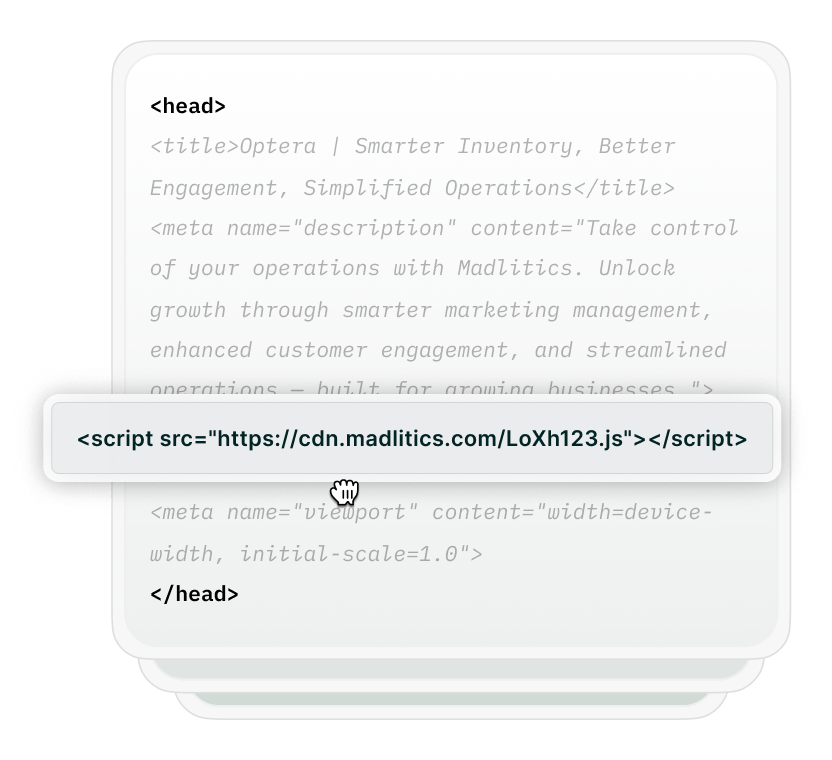
Add the Madlitics script across your website so it captures attribution when visitors first arrive from your ads.
Madlitics preserves the original campaign context as visitors navigate and return, keeping it available when they submit a form on another page.
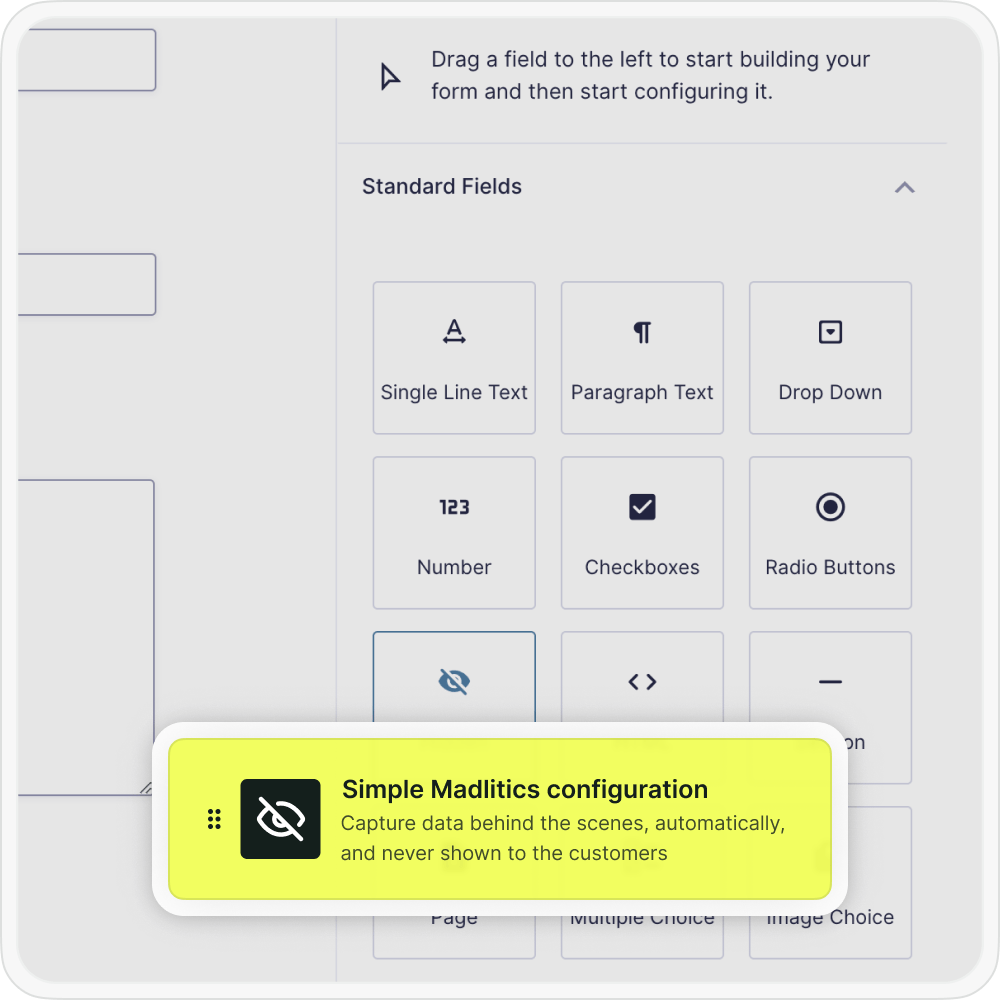
Add the default Madlitics hidden fields to your new or existing Gravity Form. These receive the marketing channel, campaign segments, original landing page, and landing page group without adding questions for visitors to complete.
For tagged campaigns, Segment 1 records utm_source, Segment 2 records utm_campaign, Segment 3 records utm_term, and Segment 4 records utm_content. Configure additional fields if you want to include supported click IDs such as msclkid.
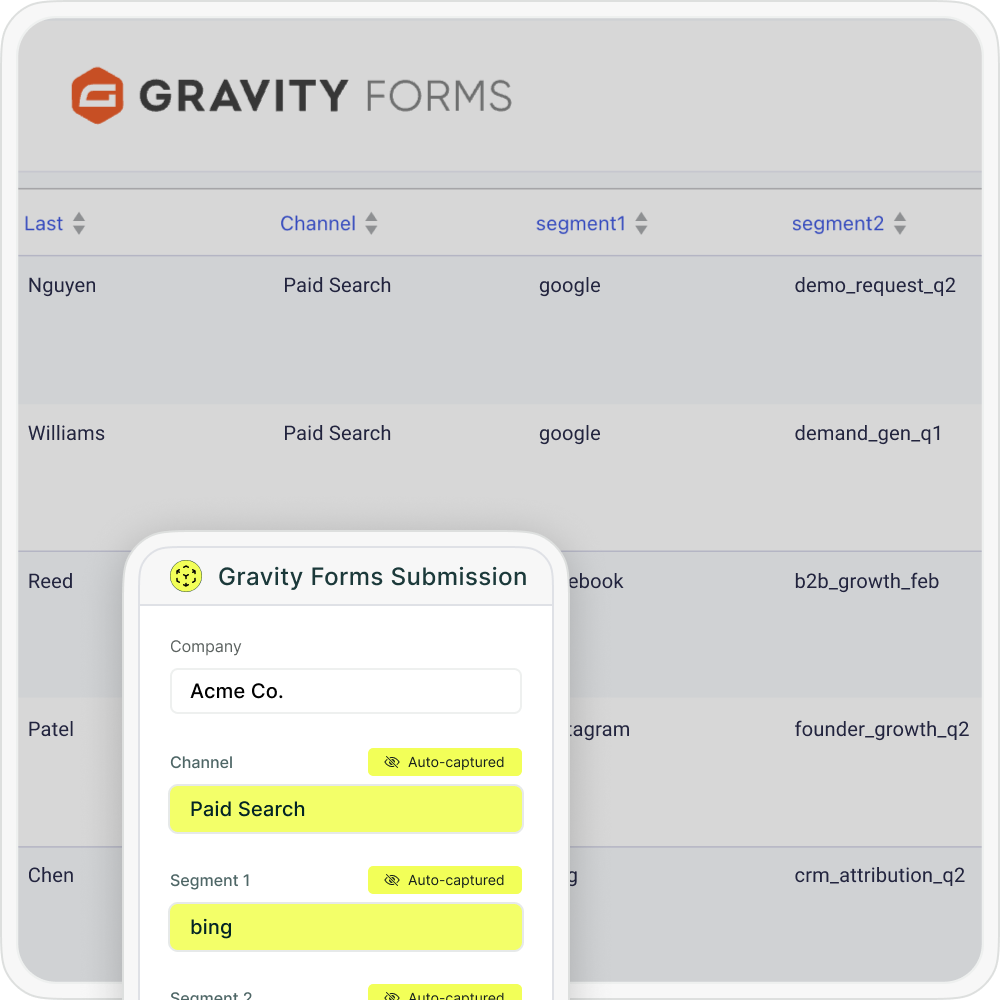
When a visitor submits, Madlitics populates the configured fields with their saved attribution. Open Forms → Entries to see the original campaign details alongside their contact information.
Map those fields into your CRM through your Gravity Forms integration, webhook, or automation workflow. As leads become opportunities and customers, their original campaign attribution remains available for reporting in the connected system.
Connect captured Microsoft campaign data to your CRM records to compare which campaigns bring qualified leads, customers, and revenue.
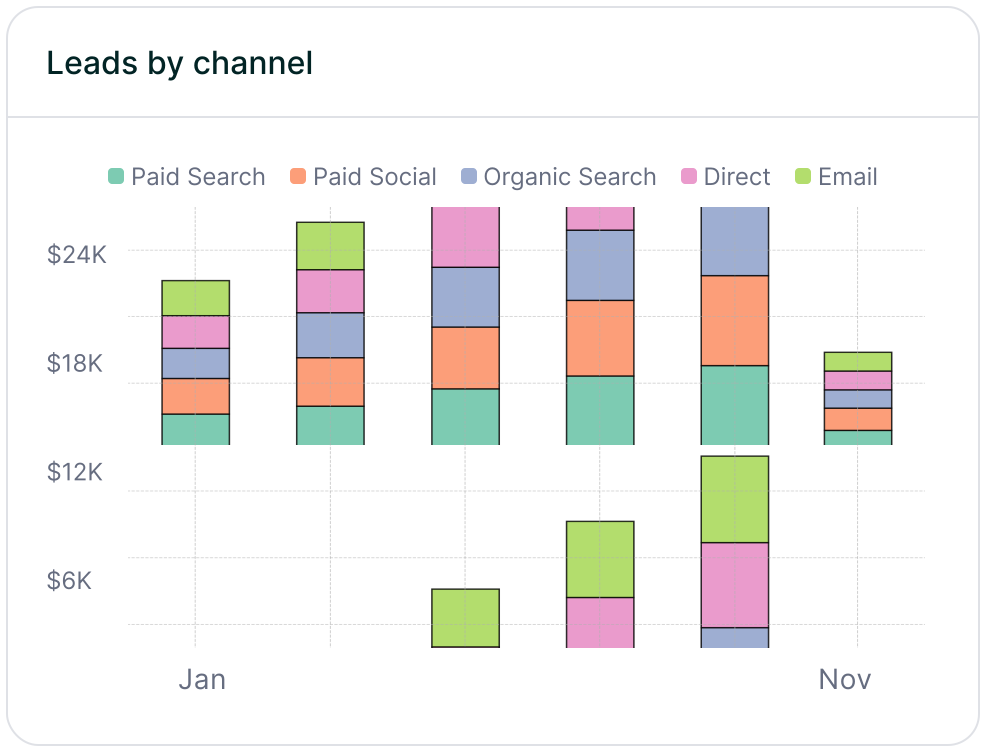
Leads by channel
Compare lead generation across Paid Search, Paid Social, Organic Search, Email, Referral, and Direct traffic, and more.
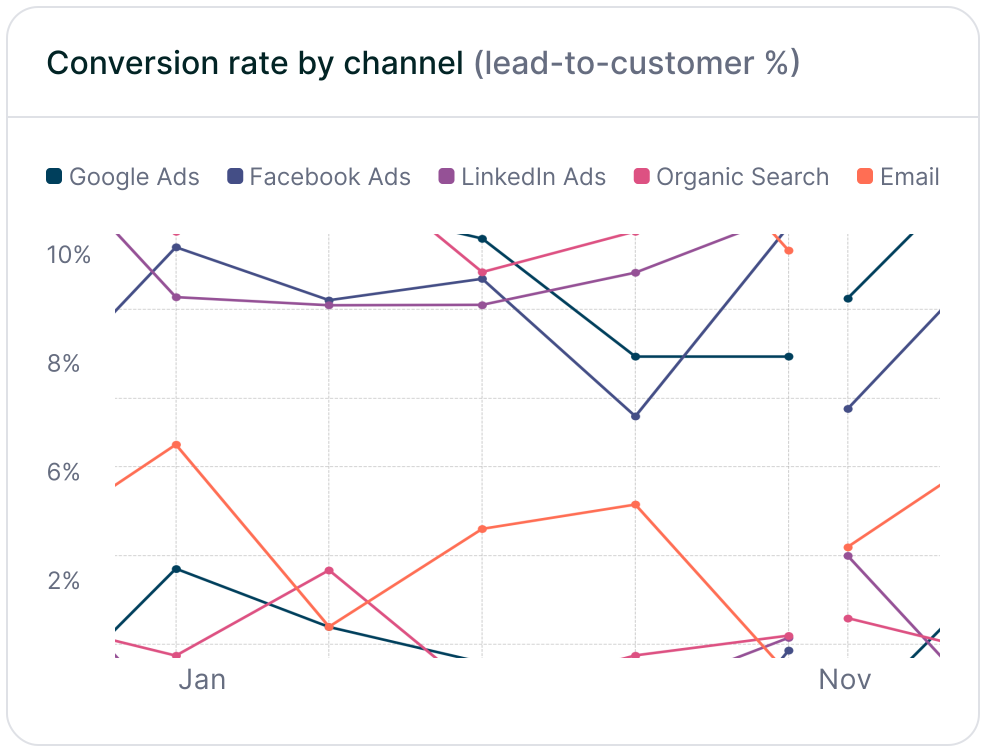
Conversion rate by channel
Measure which traffic sources convert leads into paying customers and see which channels consistently produce high-value customers and stronger revenue performance.
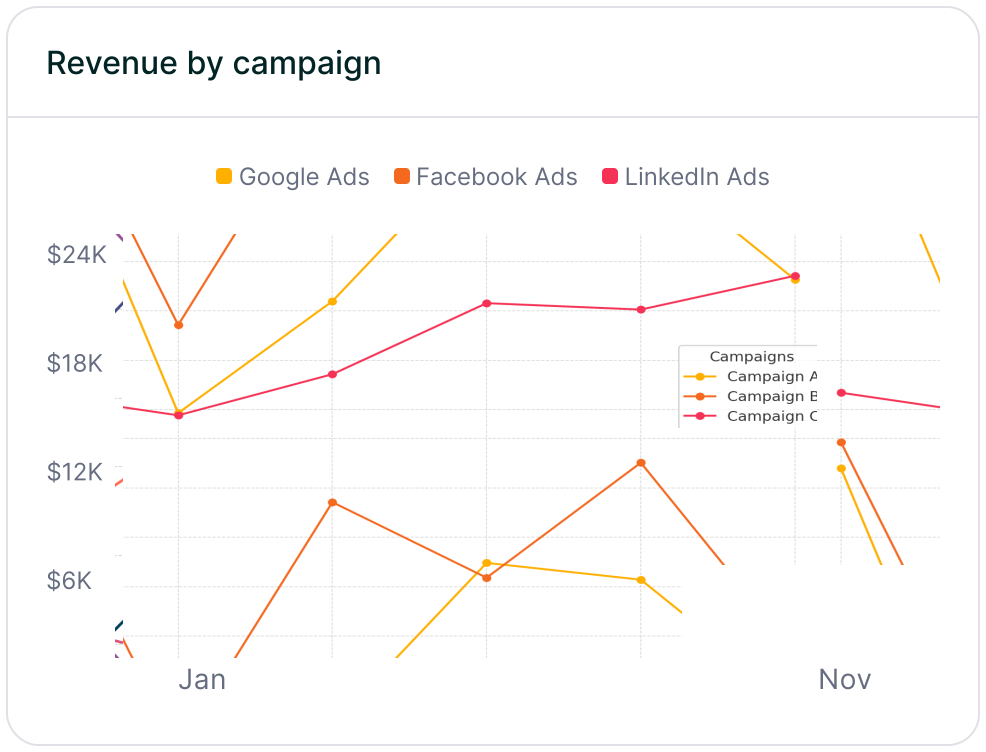
Revenue by campaign
Connect attribution data to customer and revenue outcomes to identify which Microsoft Ads campaigns are driving actual business growth.
Keep original Microsoft Ads campaign details alongside your leads, from Gravity Forms submission through to reporting in your CRM.
Follow the Gravity Forms setup guide to configure your fields, or explore UTM tracking in Gravity Forms for parameter mapping and tagging examples.
See which campaigns drive real business results.
Revenue-focused reporting
Create reports showing which campaigns generate leads, customers, and revenue beyond traffic metrics.
Send data to your tools
Pass campaign and landing page data into ActiveCampaign, HubSpot, Zoho and existing workflows automatically.
Landing page conversion
Identify which landing pages, offers, and content generate the highest-quality leads and customers.
Persistent session data
Keep attribution attached to the lead even when visitors browse multiple pages or convert later.
Answers to common questions about Microsoft Ads tracking with Madlitics and Gravity Forms