Support

Setting up Zoho forms for Marketing Attribution and capturing UTM parameters

Step-by-step setup to add Madlitics fields to Zoho Forms to see which channels bring in your customers.
Start capturing attribution →
Attribution is broken

Zoho Forms is a versatile online form builder designed to help you collect, manage, and act on data with ease. Whether you're capturing leads, running surveys, or building detailed workflows, Zoho Forms offers a drag‑and‑drop interface, powerful logic rules, and seamless integrations with the Zoho ecosystem and beyond. It’s built to handle everything from simple forms to more advanced, automated data collection processes.

By pairing Zoho Forms with Madlitics, every submission is automatically enriched with marketing attribution data. This helps you understand exactly where your leads are coming from without adding any extra steps for people filling out your form.

In this guide, we’ll walk through creating a form in Zoho Forms, adding Madlitics fields to capture data, and publishing it so you can start collecting clean, actionable attribution data.

With this setup, you can:

  • Connect each lead to the channel, campaign, segments, and landing page that drove them.
  • Persist and normalize attribution data across sessions and touchpoints.
  • Push clean attribution into your CRM and marketing tools so reporting and campaigns align.
  • Make smarter decisions about where to invest your budget, based on real performance.

💆 Heads-up: Make sure Madlitics is installed on the domain that hosts your Zoho Forms. The form alone won’t capture attribution data; Madlitics needs to be active on the page to pass visitor details into submissions.

1. Create your Zoho Form

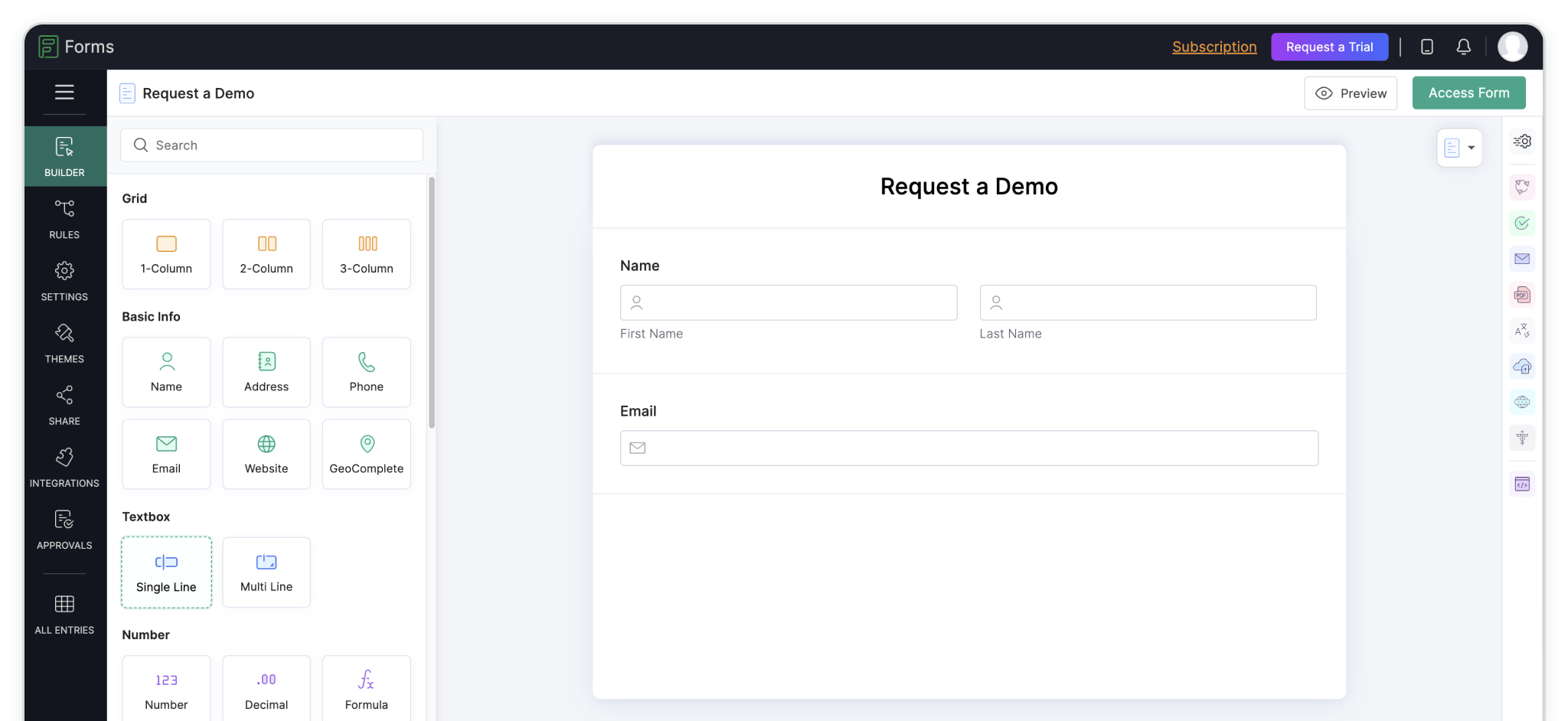
From your dashboard, click “+ New Form” to get started. You can build your form from scratch, use a template, or even let Zoho’s AI generate one, whatever works best for you.

Give your form a name, then add the fields you need just like you normally would.
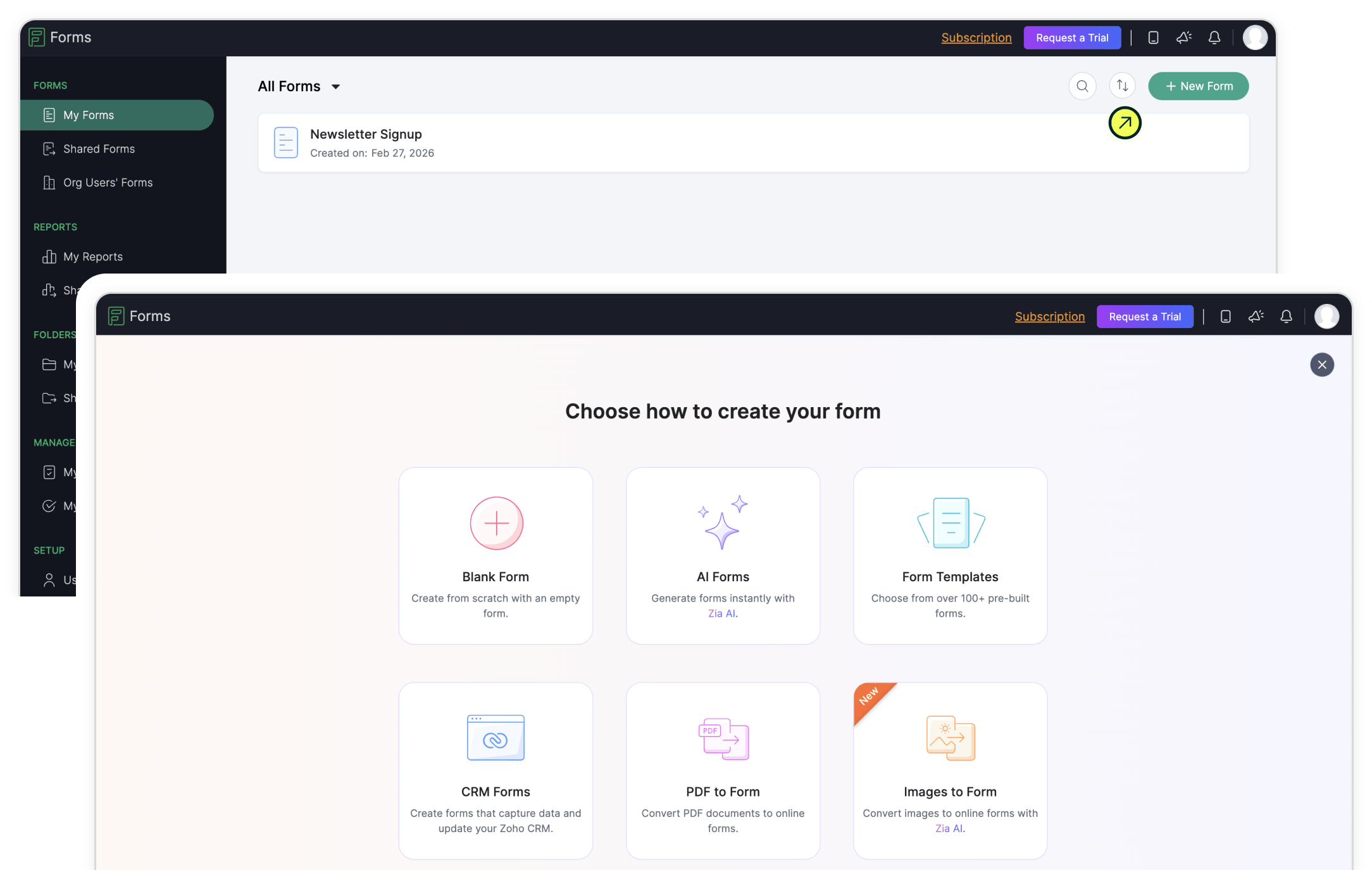
Once your form is set up, you’re ready for the next step. We’ll add the Madlitics fields to automatically capture attribution data.

Use a new or existing form and set it up as you normally would

Build forms and add fields as usual

2. Add Madlitics attribution fields

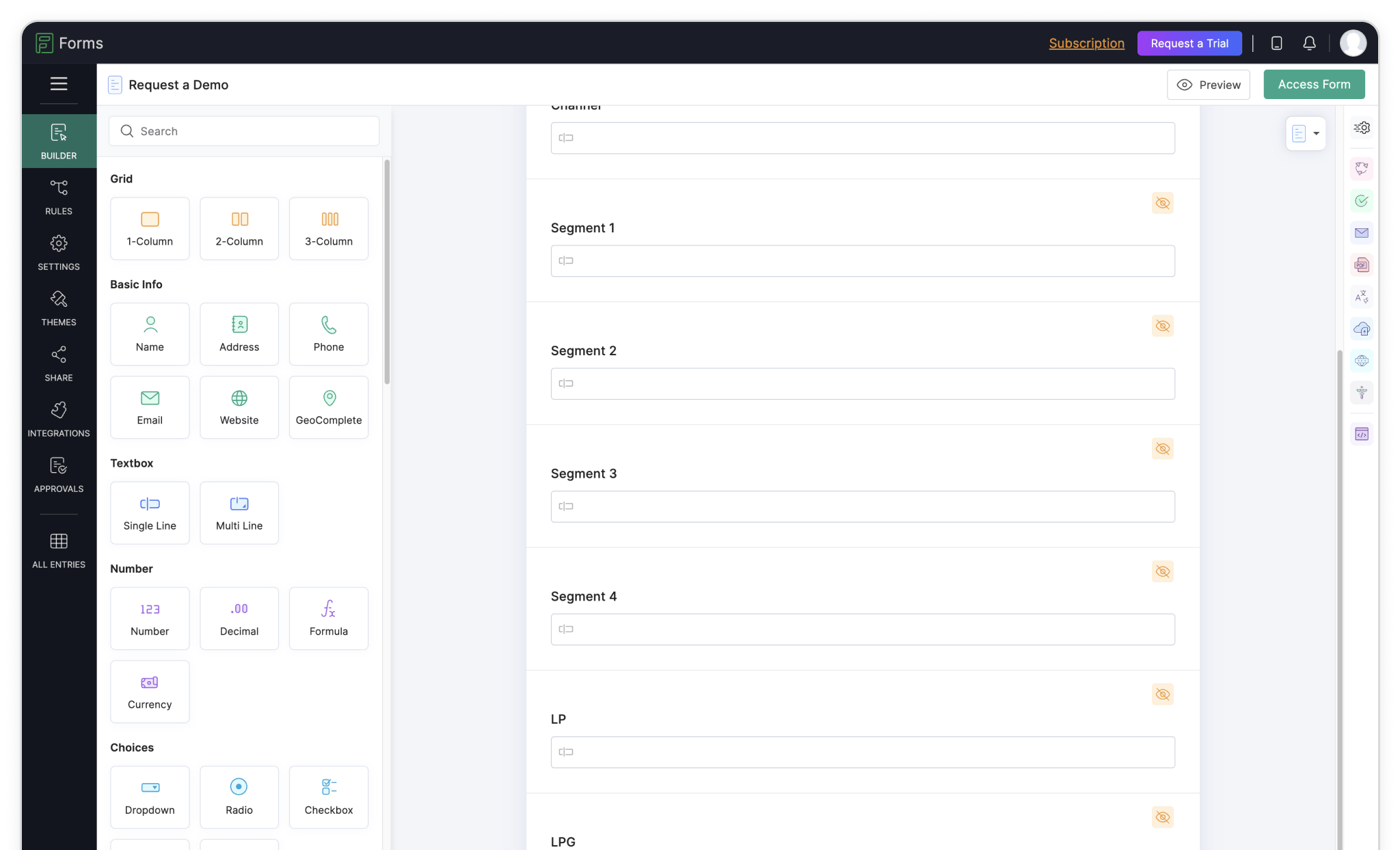
Once you’ve built your form, it’s time to add the fields Madlitics will use to write attribution data. In Zoho Forms, add a 'Single Line' textbox field. Put this field just before the submit button; don't worry, these fields won't be shown to customers.

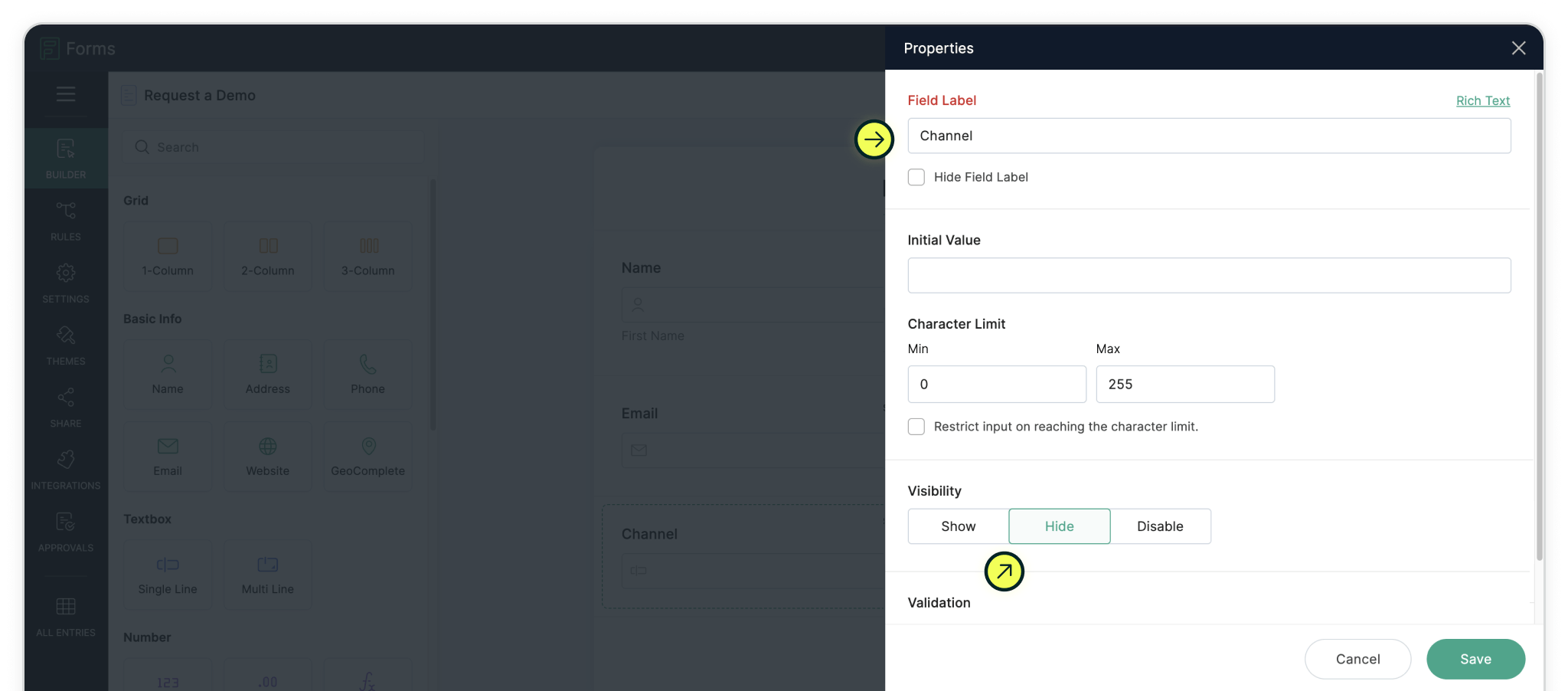
Hover over the field to view the field options, and access and configure the field 'Properties'. Name this first field channel, set the Initial Value to [channel], and set the visilibility to 'Hide'. This channel field tells Madlitics where to store the visitor’s source data.

Repeat this process for the six additional Madlitics fields: segment1, segment2, segment3, segment4, lp, lpg.

Once these are in place, every Zoho Form entry will automatically include both your lead information and the attribution data from Madlitics. Configure additional Madlitics field value pairs for deeper customization and richer insights.
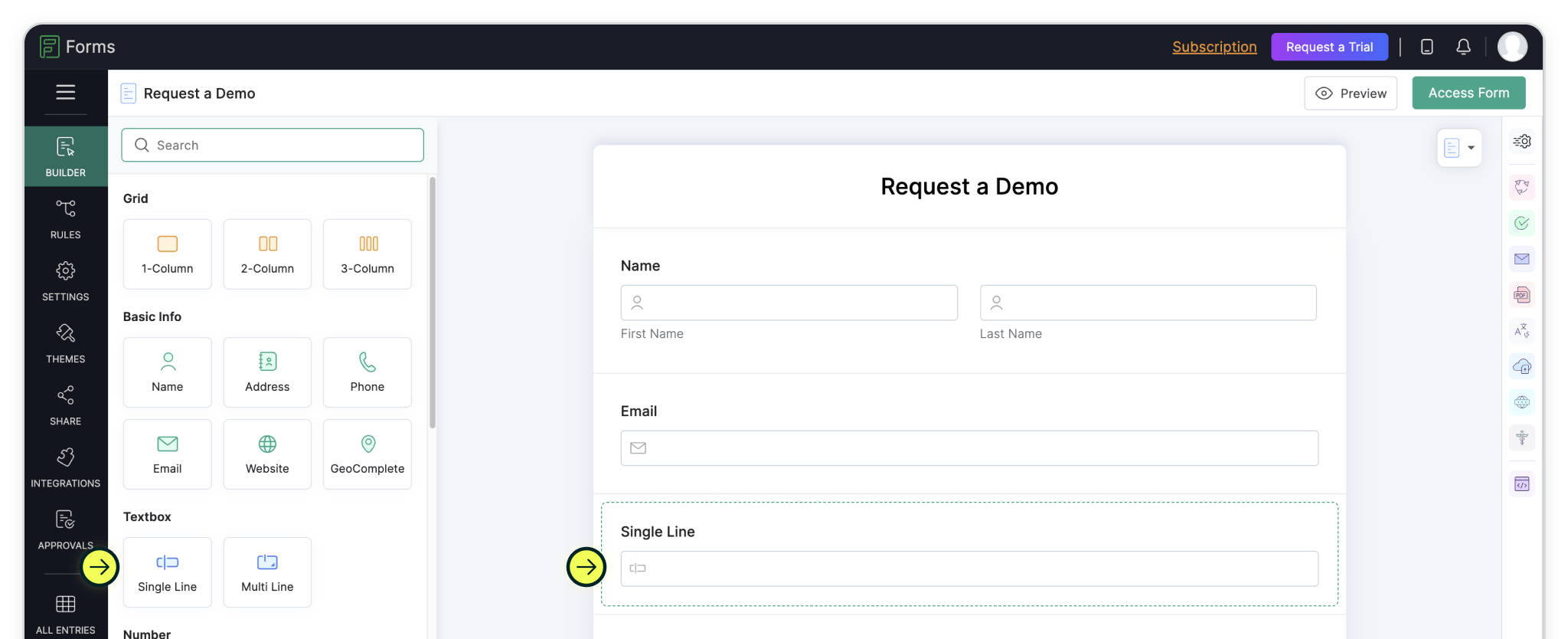
Add Single Line Textbox fields to capture attribution data

Customize field properties: Field Label, Initial Value, and Visibility

Once these are in place, click Publish to get the embed code

Madlitics field values

Field

Field Label

Initial Value

Visibility

Single Line Textbox

Channel

[channel]

Hide

Single Line Textbox

Segment 1

[segment1]

Hide

Single Line Textbox

Segment 2

[segment2]

Hide

Single Line Textbox

Segment 3

[segment3]

Hide

Single Line Textbox

Segment 4

[segment4]

Hide

Single Line Textbox

LP

[lp]

Hide

Single Line Textbox

LPG

[lpg]

Hide

Field Label

Initial Value

Visibility

Channel

[channel]

Hide

Segment 1

[segment1]

Hide

Segment 2

[segment2]

Hide

Segment 3

[segment3]

Hide

Segment 4

[segment4]

Hide

LP

[lp]

Hide

LPG

[lpg]

Hide

3. Map fields using Field Alias

Now let’s connect your form fields so they can automatically capture Madlitics attribution data.

From your form builder, click 'Settings' in the left‑hand sidebar to open the form settings panel.

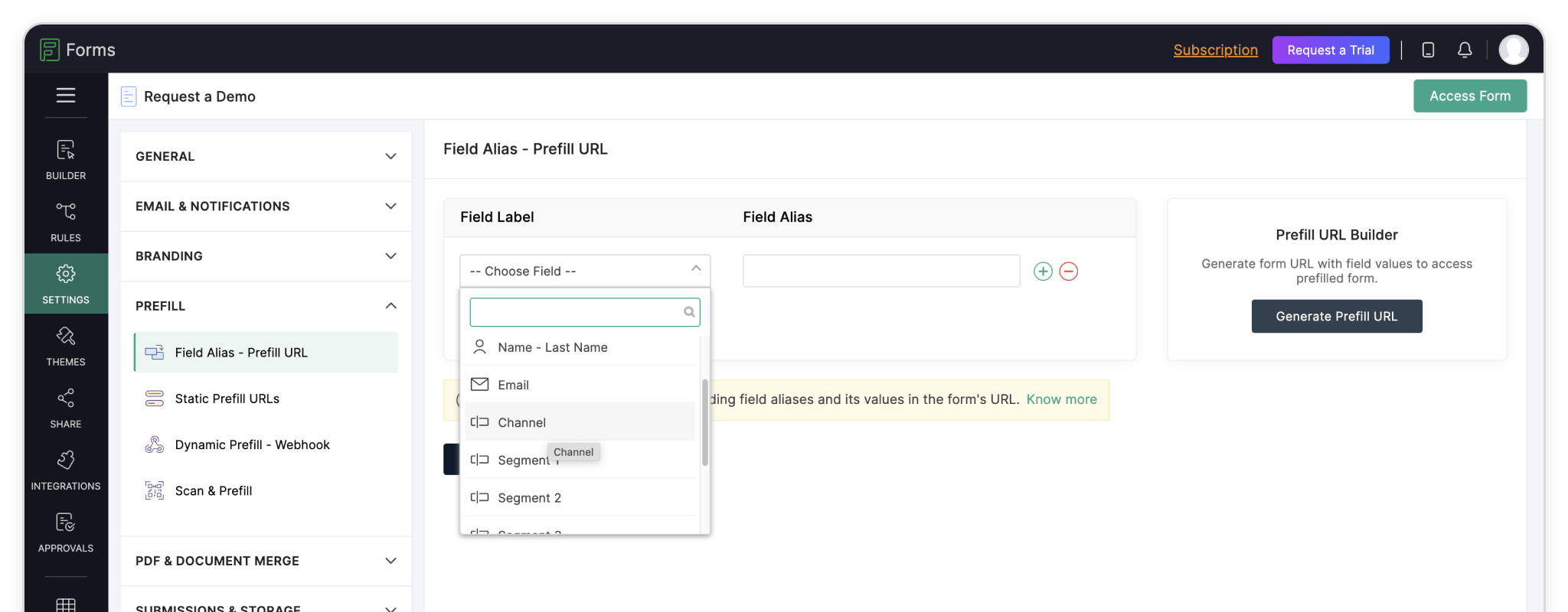
In the Prefill section, choose the option 'Field Alias - Prefill URL'.

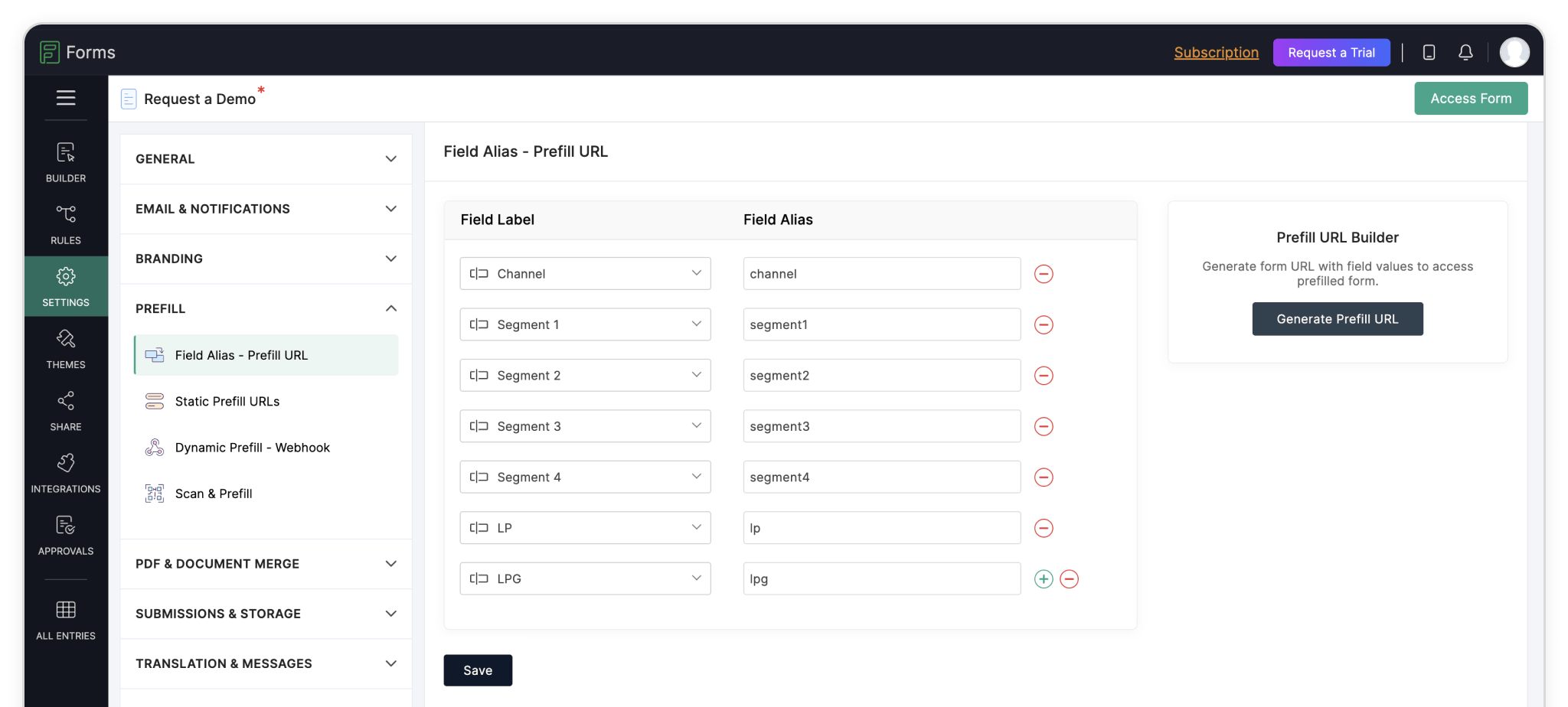
For the first Field Alias, under Field Label, select the Channel field from the dropdown, click it, and set the field alias to channel.

Do the same for the other Madlitics fields, selecting each field (Segment 1, Segment 2, etc.) and assigning the matching alias segment1, segment2, segment3, segment4, lp, and lpg. Once all the field aliases are set, click Save, then return to the form builder.
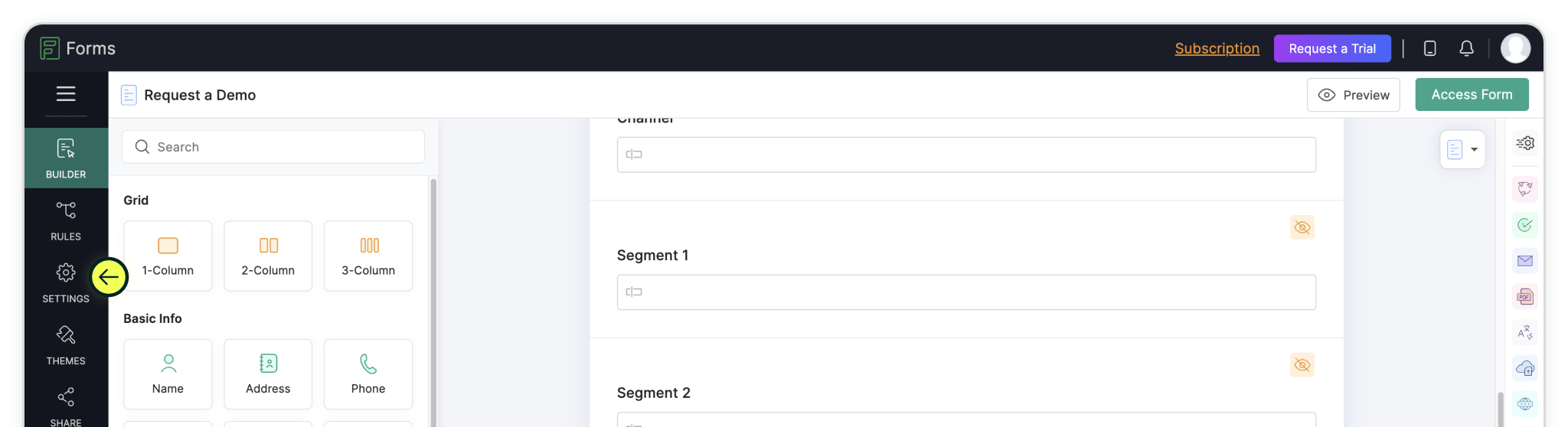
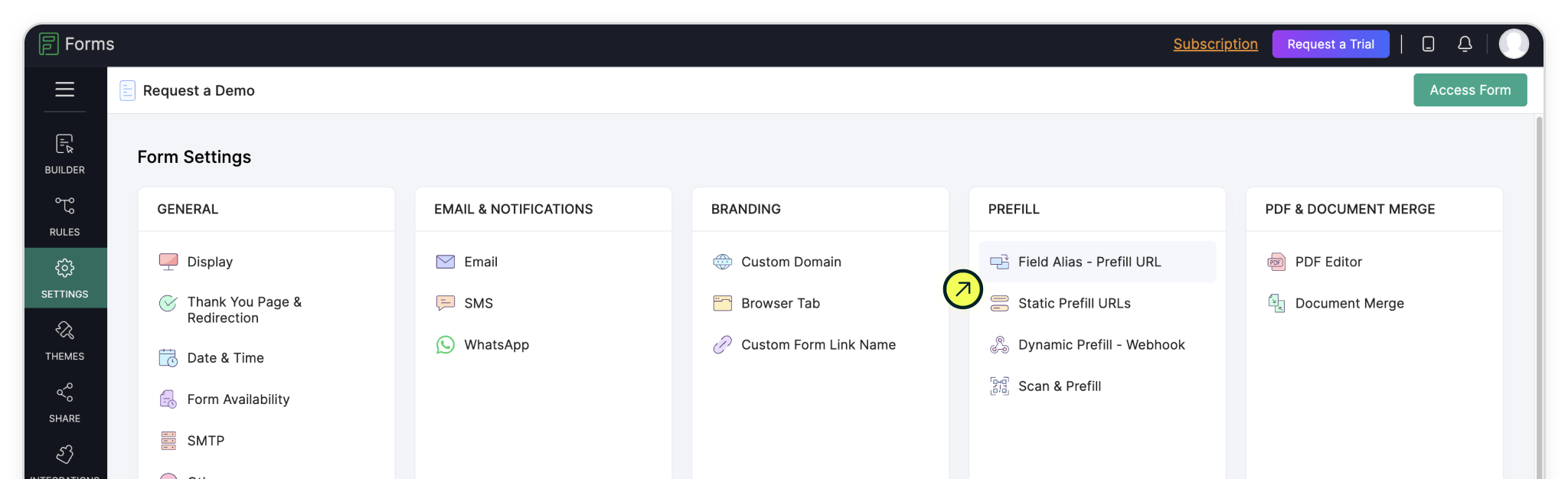
Access the form 'Settings' from the left-hand sidebar menu

Select 'Field Alias - Prefill URL'

Choose 'Channel' for the first Field Label, and give it an Alias of channel

Repeat for the remaining Madlitics fields

Field Alias values

Field Label

Field Alias

Channel

channel

Segment 1

segment1

Segment 2

segment2

Segment 3

segment3

Segment 4

segment4

LP

lp

LPG

lpg

Field Label

Field Alias

Channel

channel

Segment 1

segment1

Segment 2

segment2

Segment 3

segment3

Segment 4

segment4

LP

lp

LPG

lpg

Your form is ready to automatically plug the Madlitics attribution into the right fields whenever someone submits. Now we need to publish the form so customers/leads can access it!

4. Embed the form on your website

Once your form is ready and the field aliases are set up, it’s time to embed it so visitors can fill it out and Madlitics can capture attribution data.

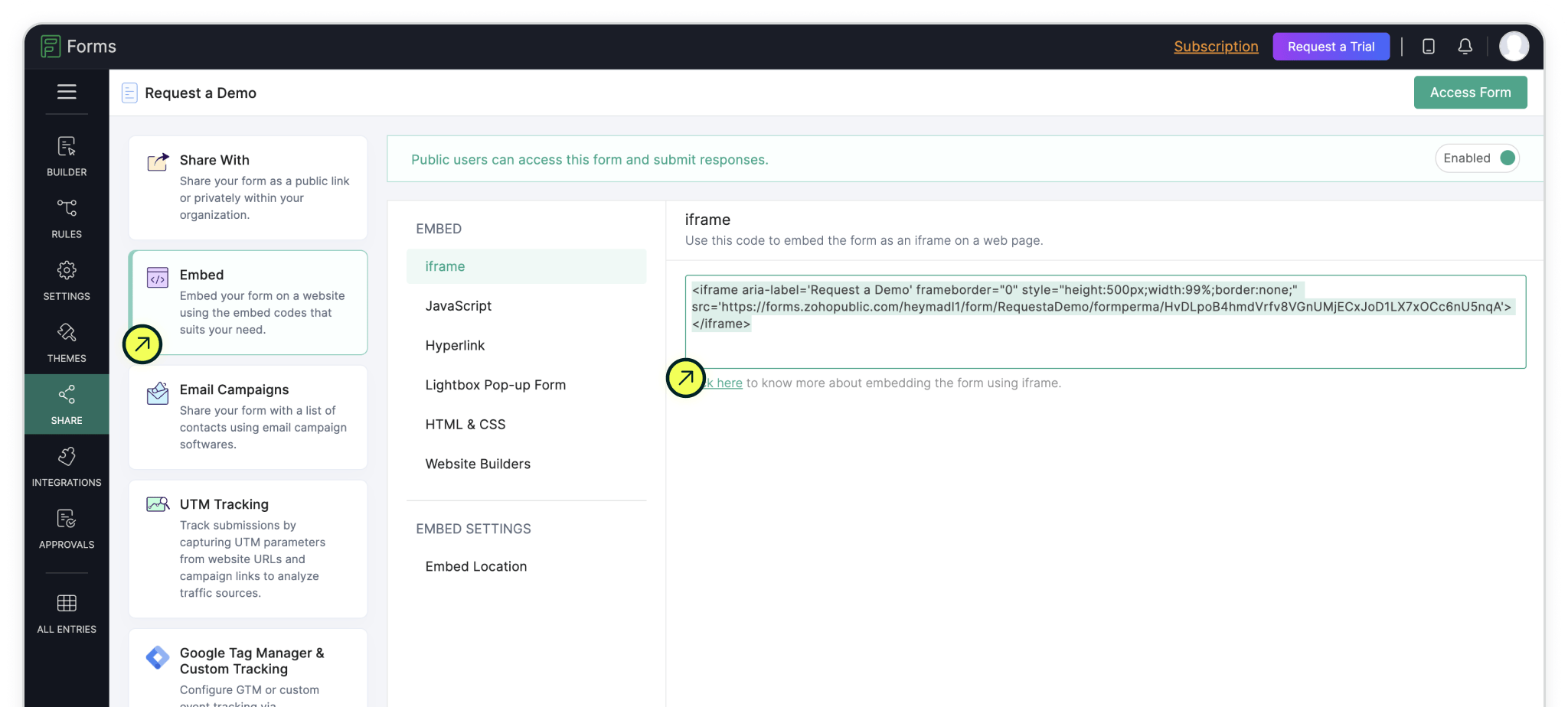
Click the 'Embed Form' option in the icon menu on the right side, and choose your preferred embed type. Zoho Forms supports several options such as iframe, JavaScript, HTML/CSS, and mroe.

Copy the embed code and paste it into your website where you want the form to appear, then publish or launch your site.

Your form will be live and will automatically collect Madlitics attribution data with every submission.
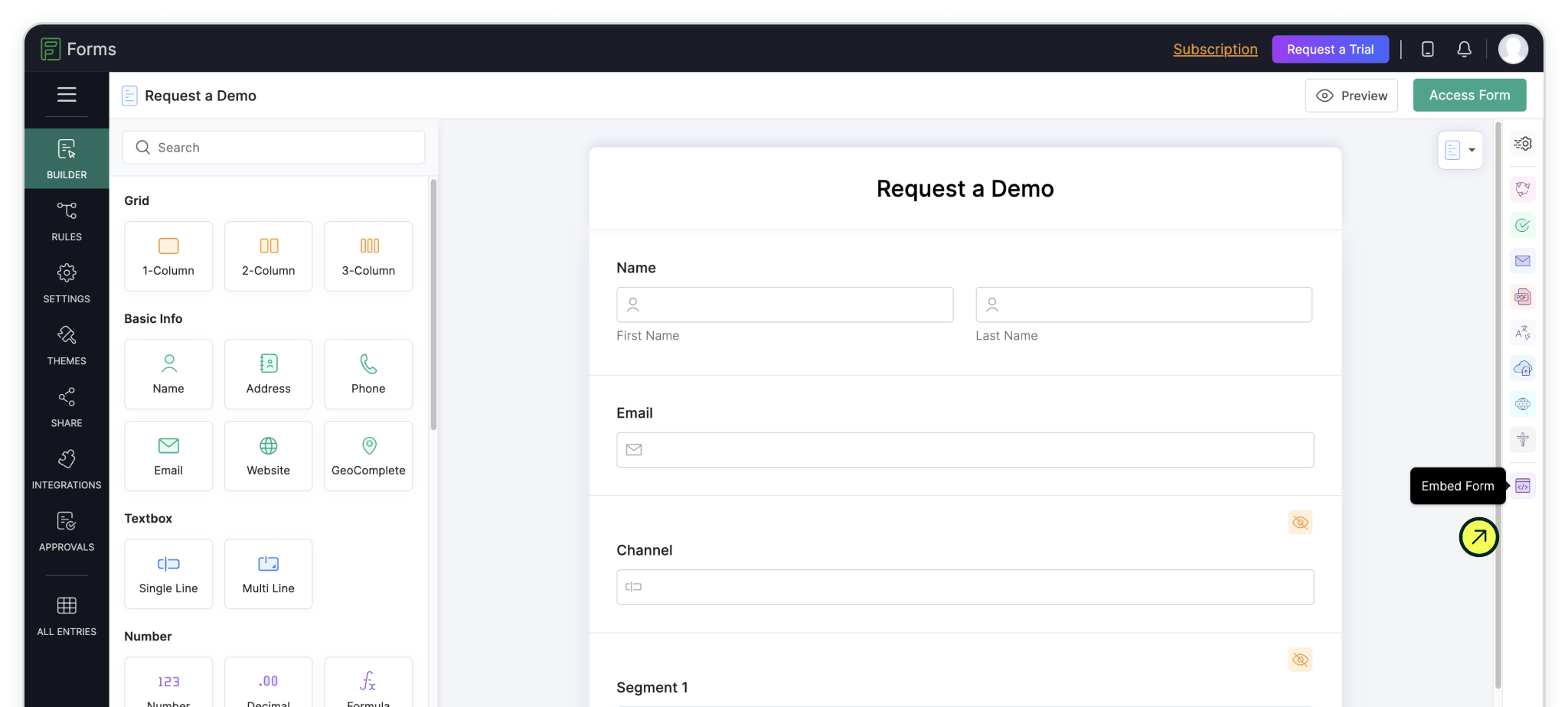
Access the Form Embed options

Select the embed type. Copy and paste it into your website where you want the form to appear

Attribution requires Madlitics to be installed

Make sure Madlitics is installed on the domain where your Zoho Form is hosted. If Madlitics isn’t installed, the attribution fields in your form won’t receive any data.

5. Zoho Forms captures marketing data

Test your form by visiting your site, using a url with unique utm parameters. Captured attribution data will populate in your Zoho Forms entries page which can then be passed to CRMs, Intelligence tools, etc. for advanced reporting.
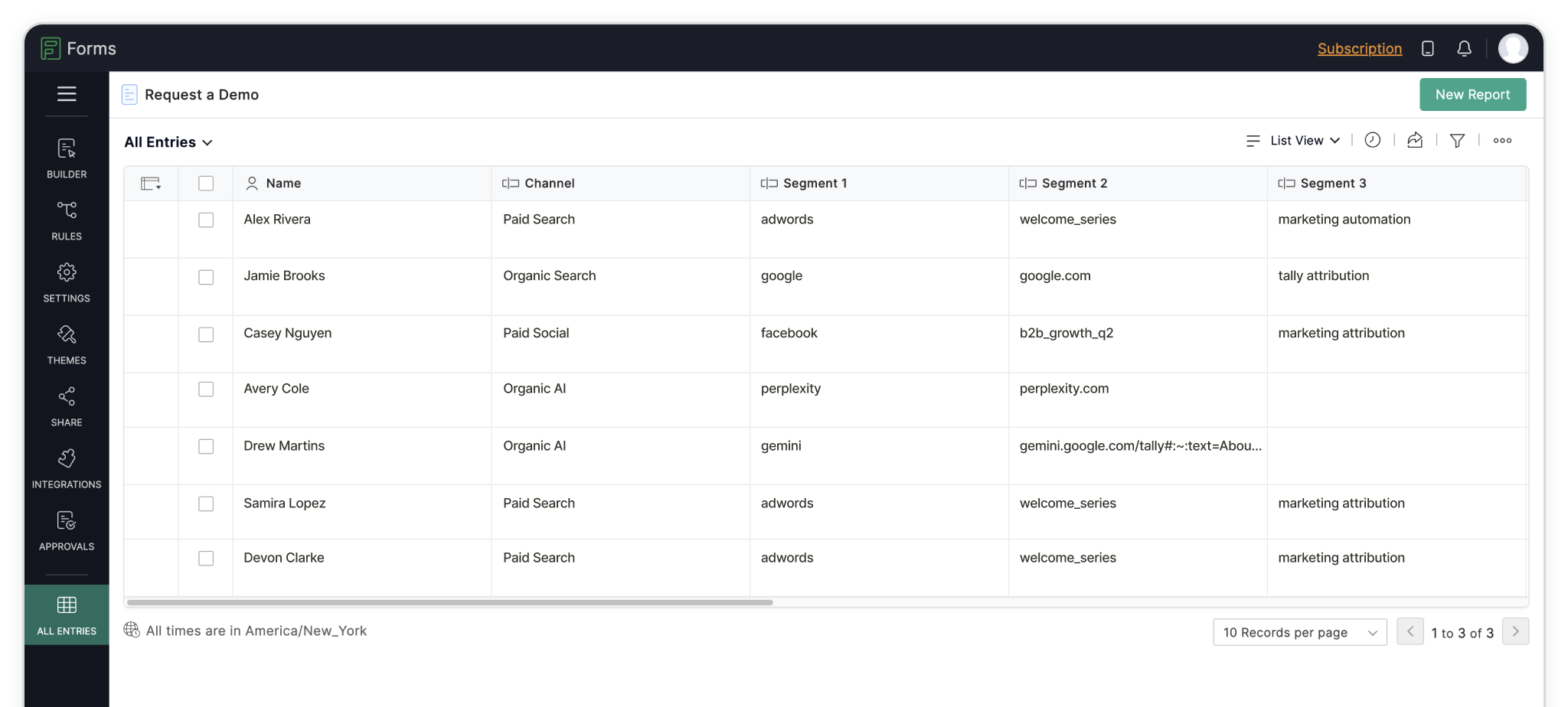
Captured attribution data will populate in your Zoho Form entries page
Madlitics multi-channel attribution visualization, showing marketing platforms like TikTok, Instagram, Google, and Facebook. The graphic highlights how different sources contribute to high-performing marketing channels.
1. Add UTM parameters to all inbound links
Any marketing effort that drives traffic — whether it’s a paid ad, an email campaign, or an organic post — should have properly structured URLs that clearly define the visitor’s origin. Setting it up is a straightforward process that starts with ensuring all inbound links include UTM parameters.

A LinkedIn campaign, for example, might link to:
https://yoursite.com/?utm_source=linkedin&utm_medium=paidsocial&utm_campaign=q1_promo
Screenshot of a form builder interface with a highlighted 'Hidden Input' field. Accompanied by text explaining how to install and set up Madlitics by adding hidden fields to capture marketing attribution data.
2. Add hidden fields
Once you’ve added UTM tracking to your inbound links, the next step is to install Madlitics on your site and update your Framer Forms to include hidden fields that will store attribution data when a visitor submits a form automatically. Hidden fields to include:
• Channel (e.g., Paid Search, Organic Social, Direct)
• Segment 1 (Platform name: Google, LinkedIn, Twitter)
• Segment 2 (Campaign name)
• Segment 3 (Ad group, offer name, or post type)
• Segment 4 (Creative type or ad variation)
• Landing page/group (Tracking & first-touch attribution)
CRM interface showing a detailed view of captured attribution data, including marketing channels, segments, and landing pages. A business profile of a lead is displayed, highlighting how Madlitics enriches lead data for sales and marketing teams.
3. Utilize attribution data
With the setup complete, every form submission in Framer now carries full attribution data, ensuring accurate insights into where leads originate. Pass this data to your CRM, analytics tools, or marketing automation platforms to track performance, refine campaigns, and optimize marketing efforts with precision.

With Madlitics now activated and your Zoho Forms ready to accept marketing attribution data, you can start tracking valuable insights immediately, and pass attribution data into your CRM, email marketing platform, business intelligence tool or more for advanced reporting.

Related articles to get you started with Madlitics

Visualizing your marketing impact
See how attribution data translates into actionable insights.
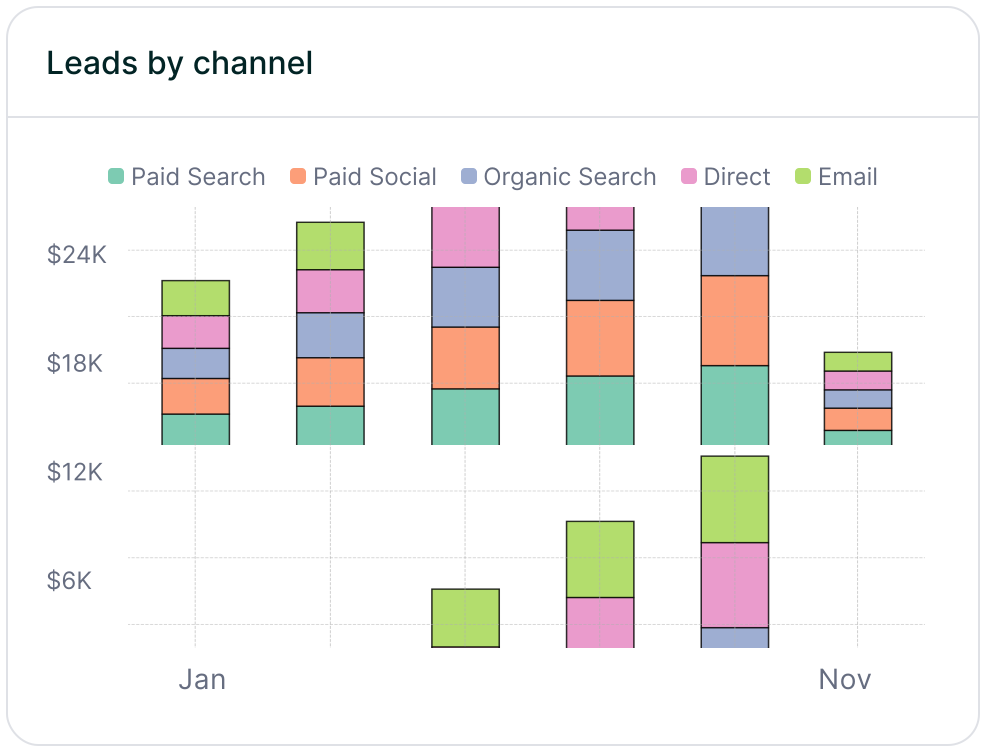
Stacked bar chart showing lead generation by marketing channel over time, comparing sources like Paid Search, Paid Social, Organic Search, Direct, and Email. Helps visualize which channels drive the most traffic.
Leads by channel
See how different marketing channels contribute to lead generation over time. Understand which ones drive the most traffic and whether your marketing mix is balanced. Shift your budget toward the highest-performing channels to maximize results.
Stacked bar chart illustrating lead volume across different marketing campaigns, including Black Friday, Retargeted, Spring Promo, Referral, and SEO. Highlights trends in campaign effectiveness.
Leads by campaign
Track inbound leads across all campaigns, whether or not they have UTM parameters. Ensure every lead is categorized correctly, including Organic and Referral traffic. Use this insight to refine messaging, targeting, and budget allocation for better performance.
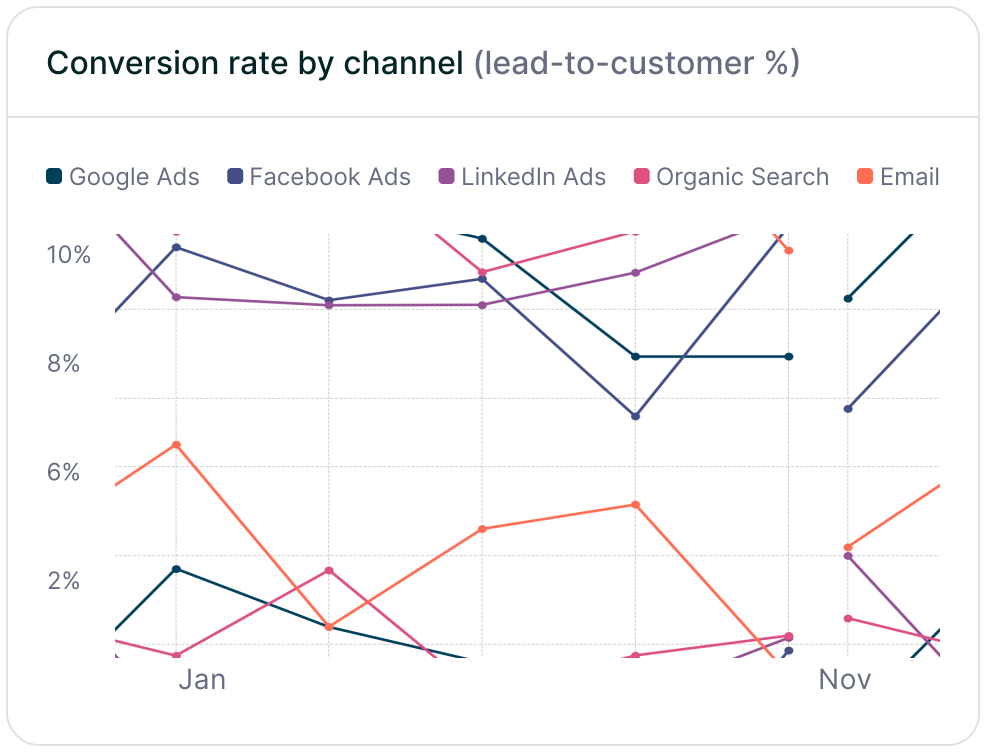
Line chart displaying lead-to-customer conversion rates by channel, comparing Google Ads, Facebook Ads, LinkedIn Ads, Organic Search, and Email. Shows how different sources drive qualified leads over time.
Conversion rate by channel
See which channels convert leads into paying customers. Some bring buyers, while others generate unqualified leads. Focus your budget on what drives revenue.
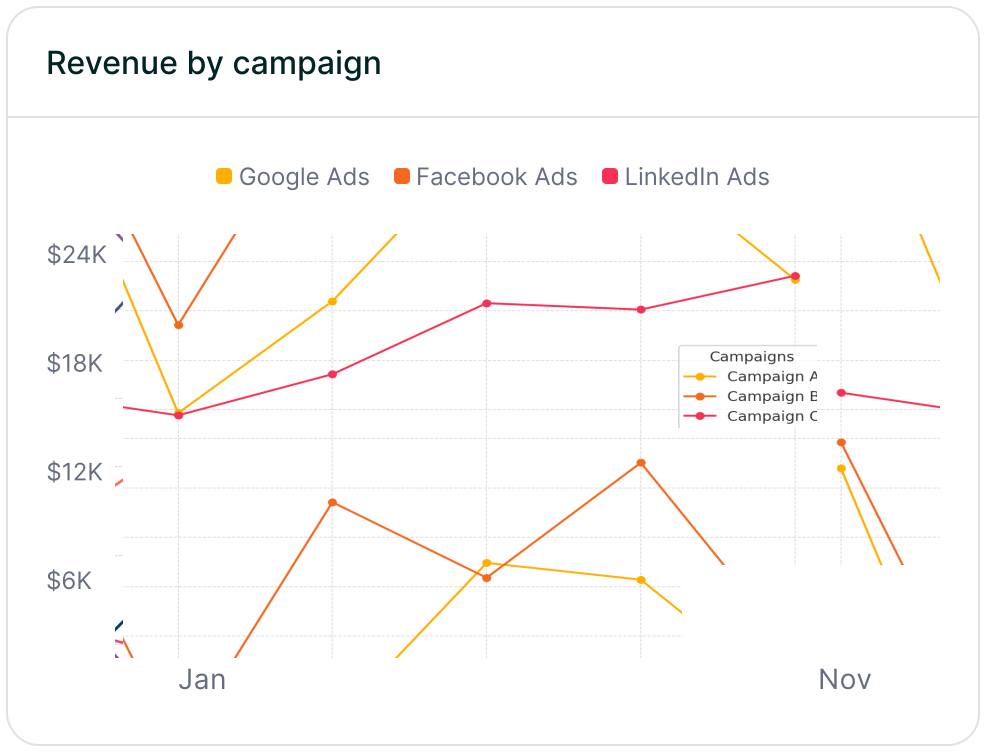
Line chart showing revenue performance by marketing campaign, comparing Google Ads, Facebook Ads, and LinkedIn Ads. Helps identify top-performing and underperforming campaigns.
Revenue by campaign
Focus your budget on campaigns that drive revenue, not just leads. Identify top performers and optimize underperforming efforts to maximize profitability.

Frequently asked questions

Answers to your top questions about our UTM parameters
Put attribution data to work
Sync, analyze, and automate — turn insights into action.
Automation icon indicating hands-free marketing attribution and data flow.
Sync with your CRM
Pass UTM parameters into Salesforce, HubSpot, or ActiveCampaign so your sales team knows exactly where every lead came from — no more guessing.
Analytics report icon, indicating data insights and reporting.
Built smarter reports
Use Google Sheets, Looker Studio, or Airtable to create data-driven reports that reveal which campaigns drive real revenue — helping you make informed budget decisions.
Impact measurement icon, symbolizing marketing effectiveness.
Track revenue impact
Sync UTM data with Stripe, PayPal, or Chargebee to see which campaigns generate paying customers, not just leads — so you can scale what works.
Personalization icon, representing customization features.
Personalize email campaigns
Trigger personalized email flows in Klaviyo, Mailchimp, or ConvertKit based on a lead’s original source — ensuring the right message reaches the right audience.
Everything you need for reliable lead attribution
Accurate, persistent, and automated tracking — so your campaigns perform at their best.
Performance icon symbolizing marketing campaign effectiveness and results tracking.
Outperforms basic UTM tracking
Madlitics captures, categorizes, and persists attribution data across sessions, giving you a complete, structured view of what’s working in your marketing. Say goodbye to losing attribution when users navigate your site, struggling with formatting inconsistencies, and ingored non-UTM traffic.
Capture icon indicating data collection from various marketing channels and sources.
Capture all traffic
Madlitics categorizes all inbound leads — whether they have UTM parameters or not — so every conversion is accounted for, and you won't miss out on Organic Search, Organic Social, and Referral traffic.
Routing icon representing the flow of marketing data and attribution pathways.
Attribution across pages and sessions
A LinkedIn ad click should be attributed correctly—even if the visitor signs up on a different page later. If someone clicks an ad, browses multiple pages, then submits a form later, Madlitics persists attribution data across sessions, ensuring your reports reflect true performance.
List icon representing structured marketing data, reports, or campaign breakdowns.
Cleaner, more reliable data
Duplicate UTMs and inconsistent formatting break reports and mislead teams. Madlitics cleans and organizes attribution data before sending it to your CRM, giving you accurate insights.
Target icon symbolizing precise audience targeting and marketing campaign focus
See which content converts
Attribution isn’t just about where visitors came from—it’s about what convinced them to convert. By capturing landing page data alongside UTM parameters, Madlitics shows you which blog posts, case studies, or pricing pages drive the most revenue, helping you scale content that works.
Action icon representing campaign execution, optimization, and engagement.
Transform form submissions into actionable insights
Madlitics connects marketing touchpoints to lead generation, ensuring every form submission is fully attributed — optimize ad spend by identifying high-ROI channels, refine messaging based on what content drives engagement, make data-driven decisions with clean, structured reports, and more.