
Support
Set up HighLevel forms to capture UTM parameters and marketing attribution
Add Madlitics attribution fields to your HighLevel forms so submissions include the original marketing channel, campaign details and landing page.

Madlitics captures first-touch attribution when someone arrives on your website and preserves it as they browse. With your HighLevel form configured to receive that data, the original channel, campaign details and landing page can be recorded alongside the lead’s contact information.
This guide walks through adding the attribution fields to a new or existing HighLevel form, placing the form on your website and reviewing the captured data in HighLevel.
Before you begin, install Madlitics on the website, where you’ll embed your HighLevel form. This guide covers forms built with HighLevel's Form Builder and embedded on your website.
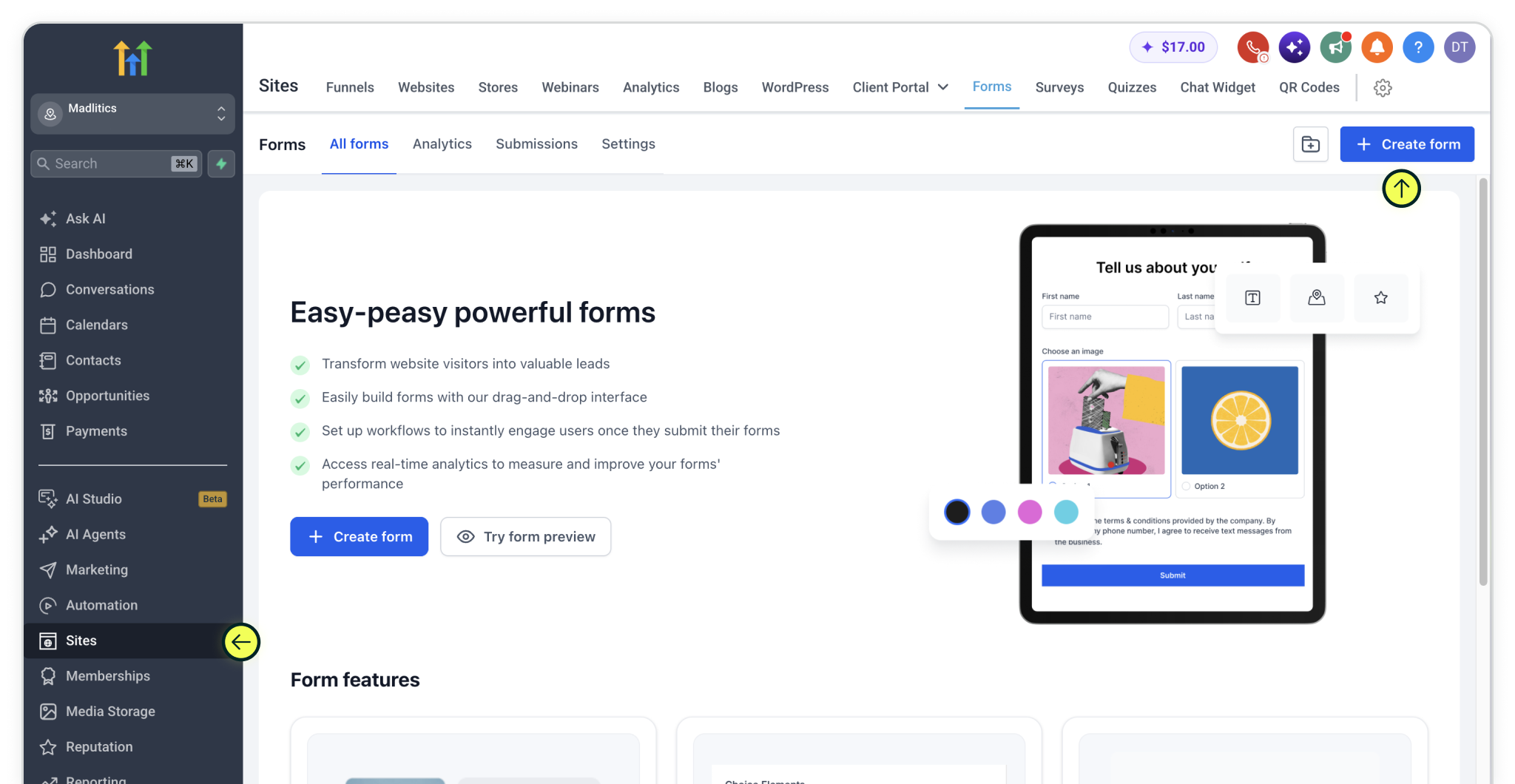
Step 1: In HighLevel, go to Sites → Forms → All forms and open the form you want to use.
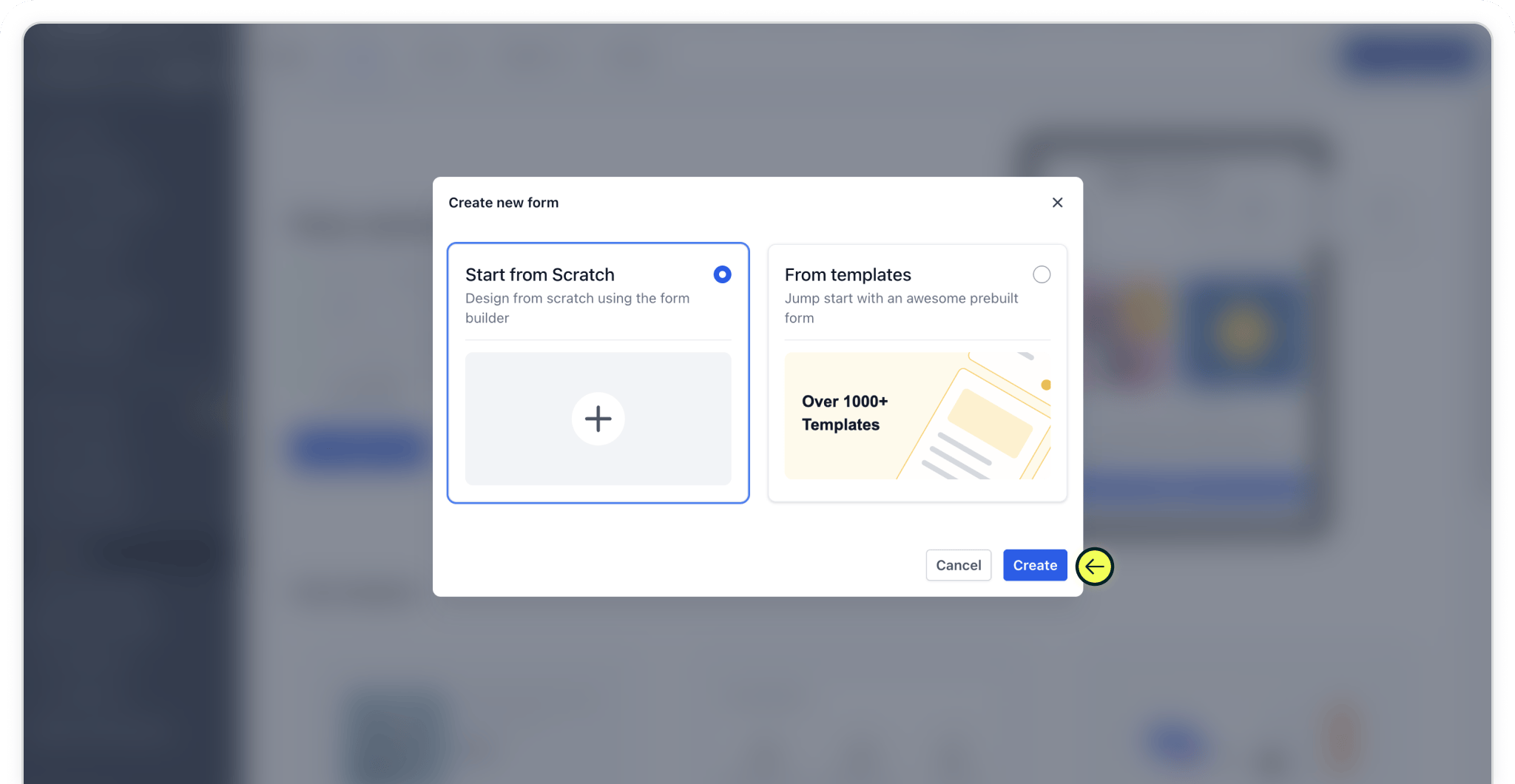
To create a new form, click Create form, then choose Start from Scratch or From templates. Click Create to continue to the form builder.
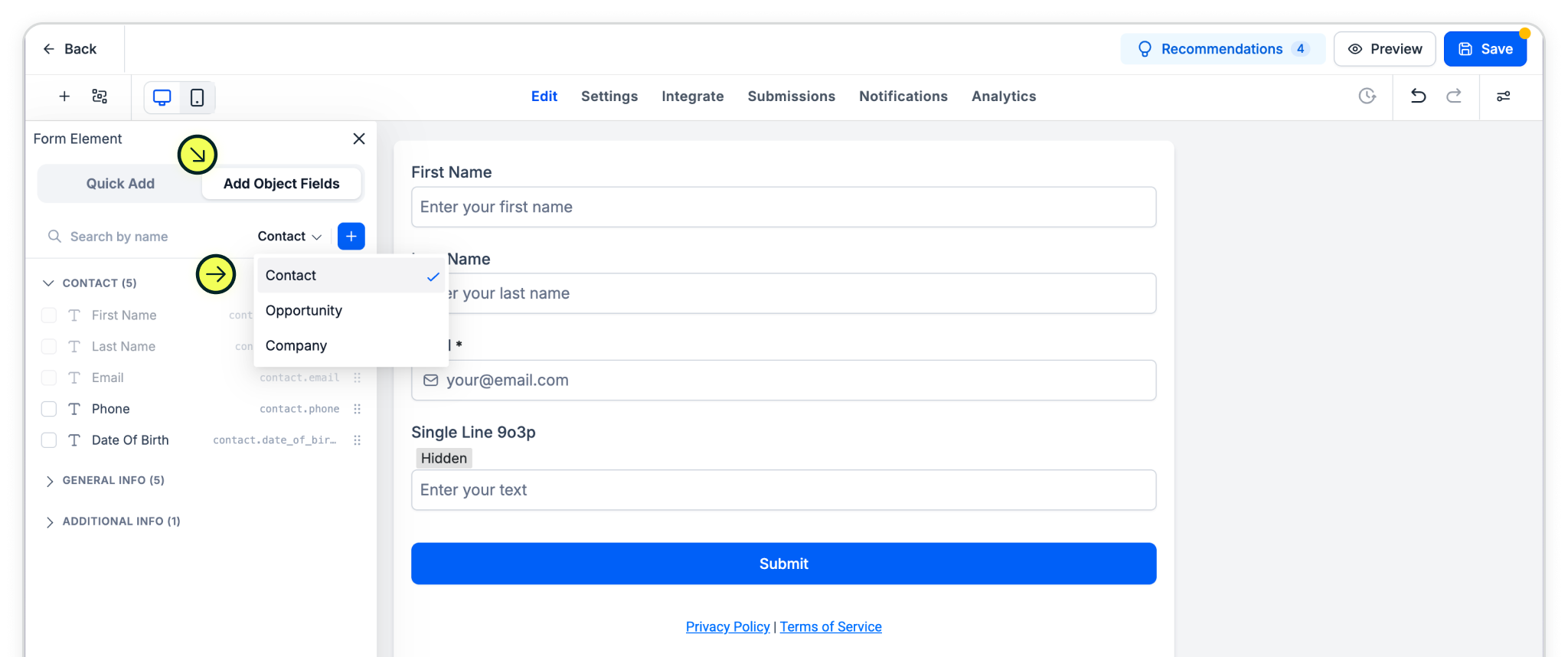
Step 2: We’re going to connect the attribution fields to your HighLevel contact records.
Start by opening the Add Object Fields tab in the form elements sidebar. Select Contact from the object dropdown, then click the + button.
In the Create custom field panel
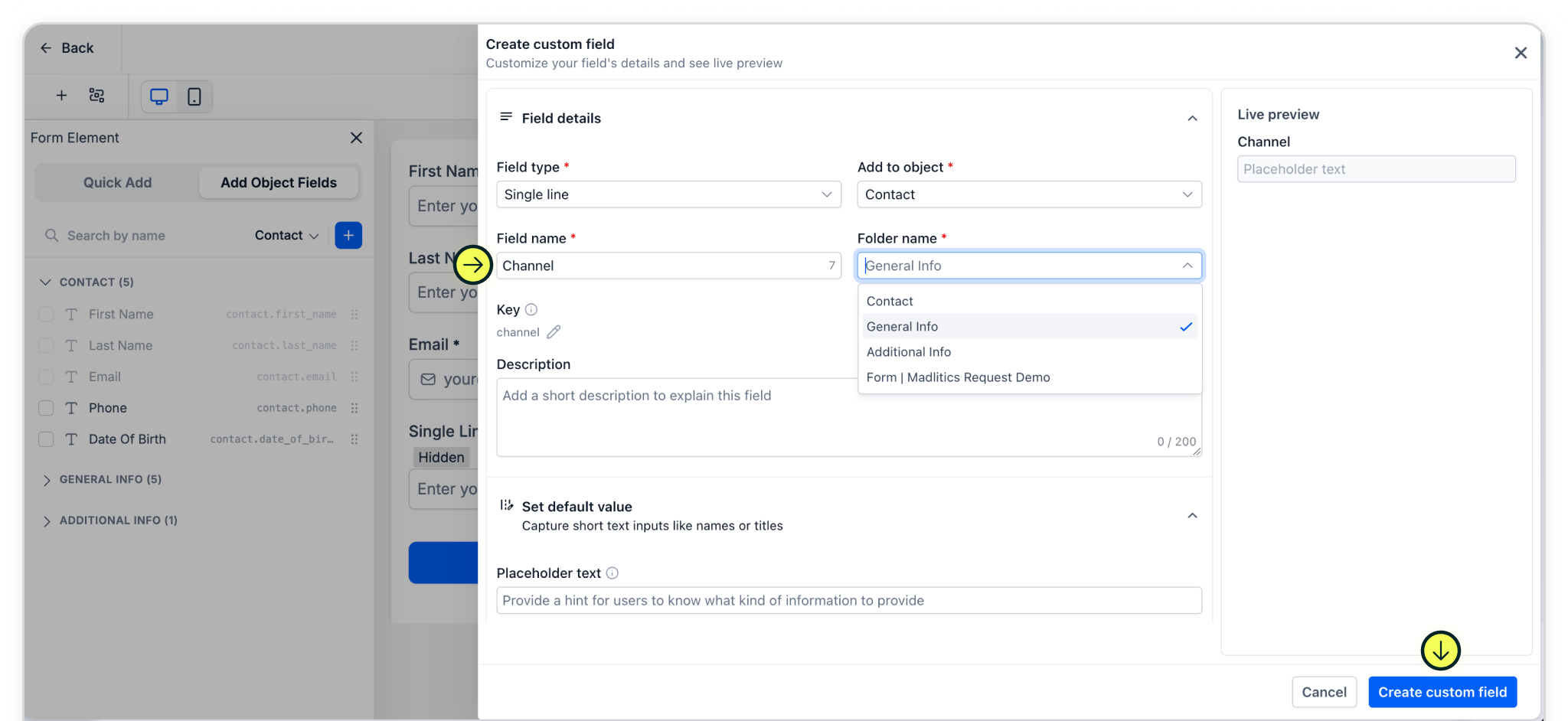
Add the new custom field to your form from the General Info folder in the Object Fields tab and open its settings from the gear icon.
In the field setting panel
channel. Query Keys should always be lowercase, with no spaces or underscores.
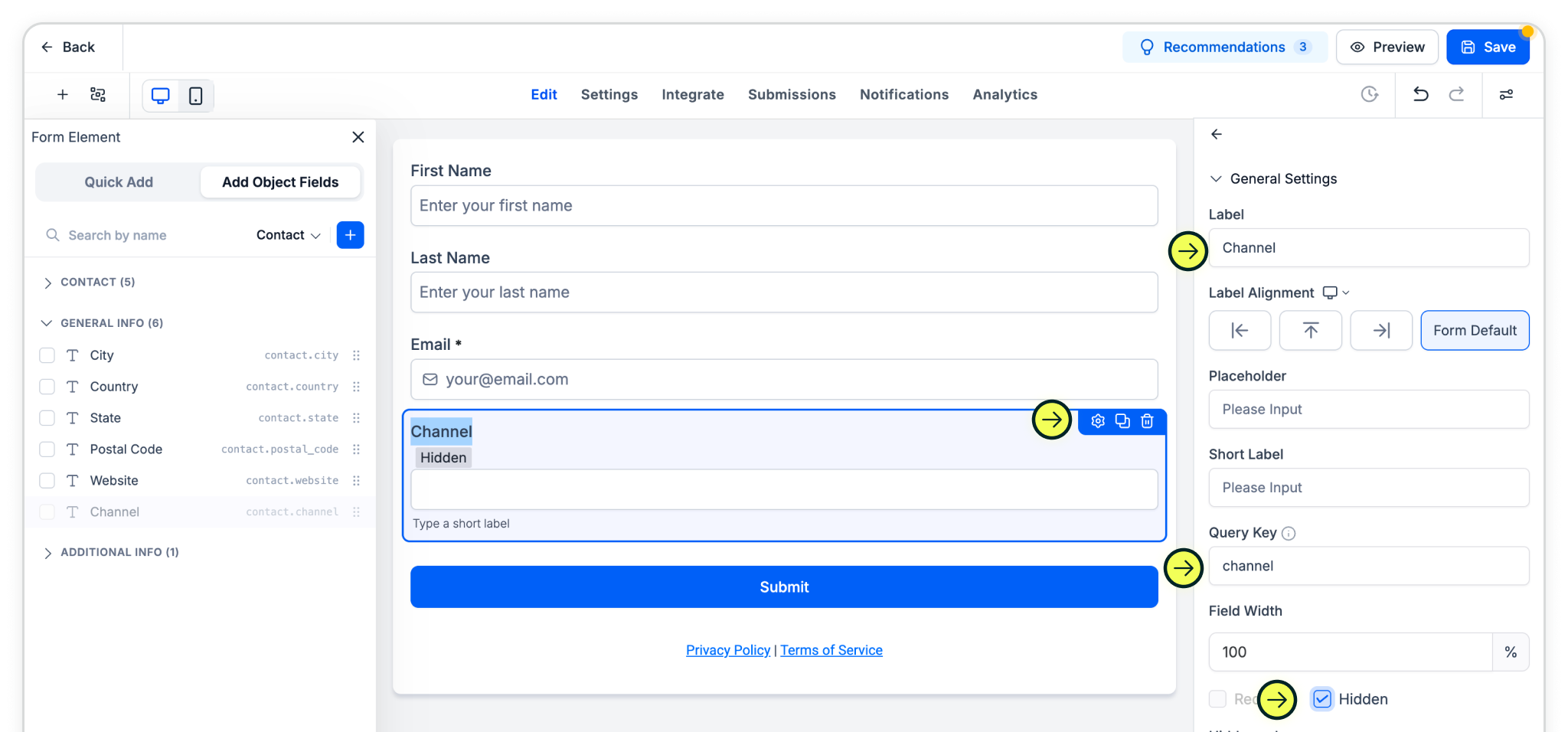
channel, and turn Hidden on.
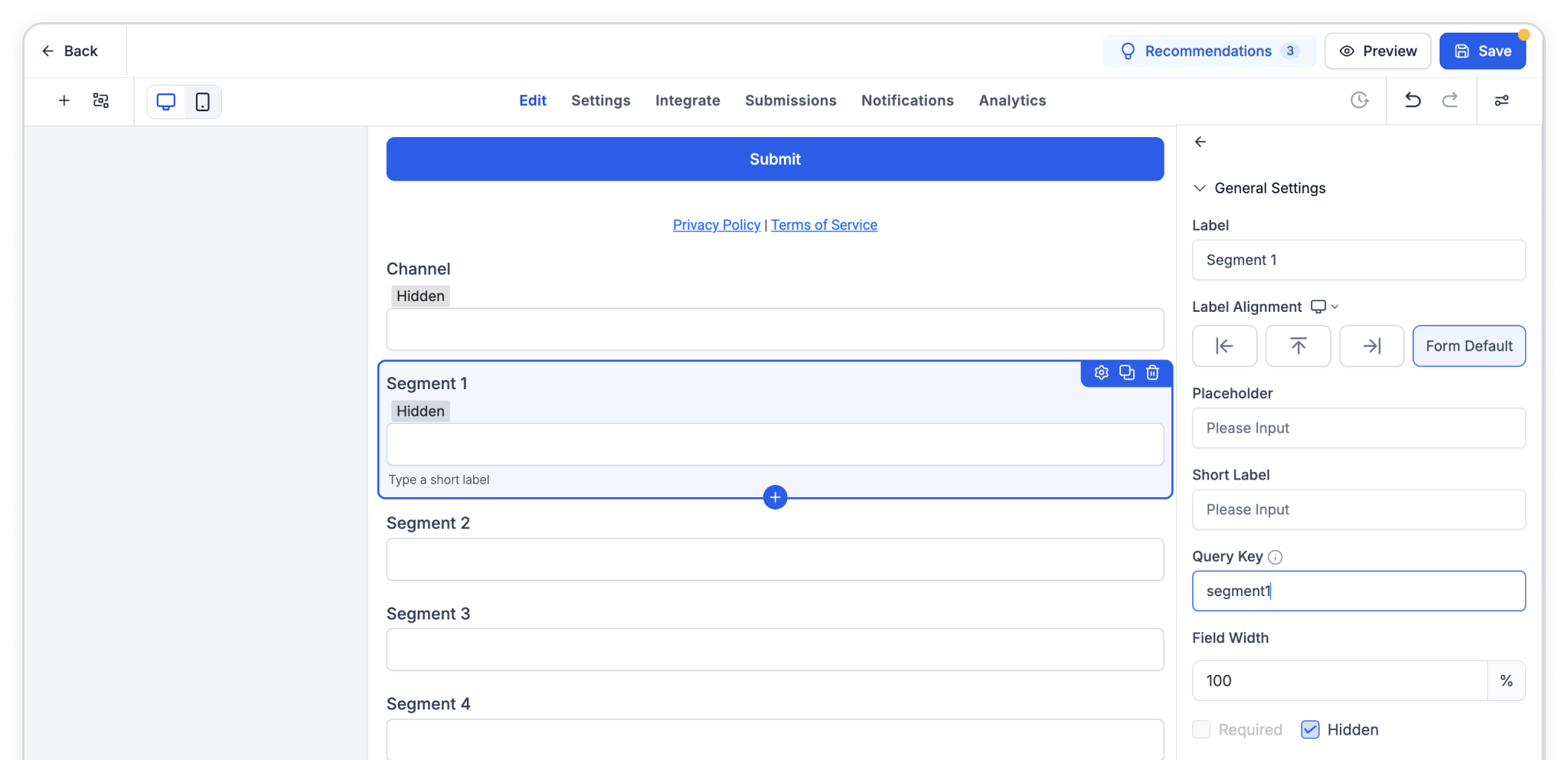
segment1, Hidden on.
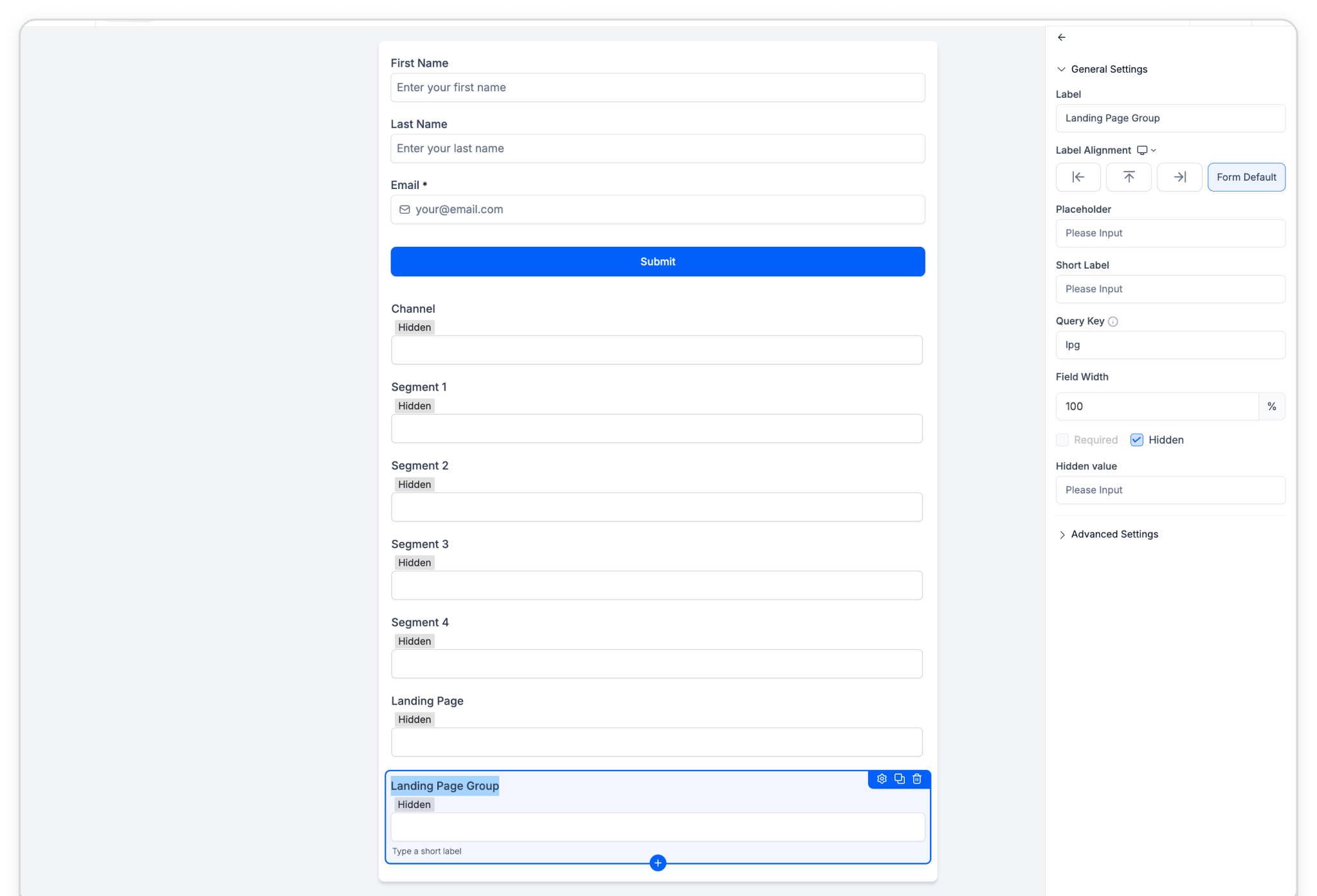
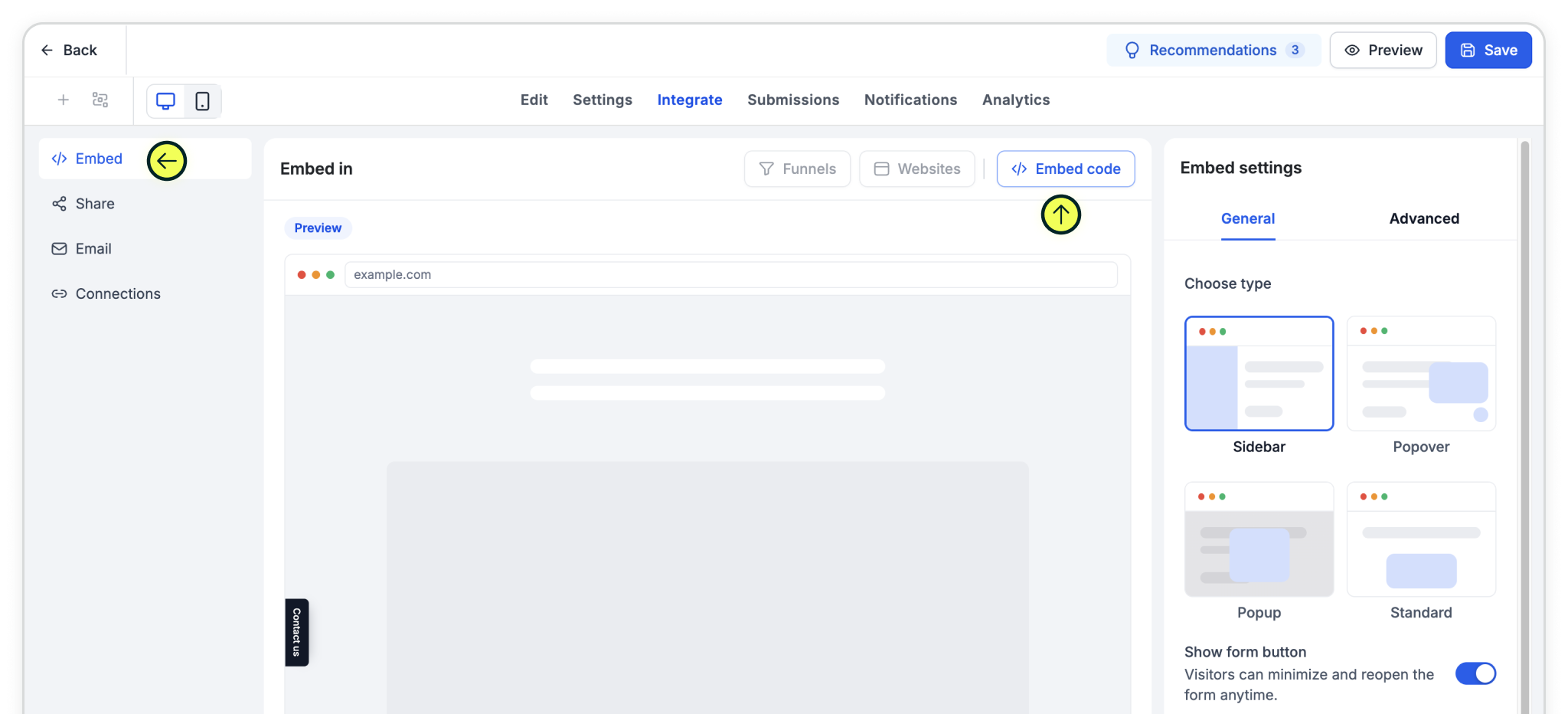
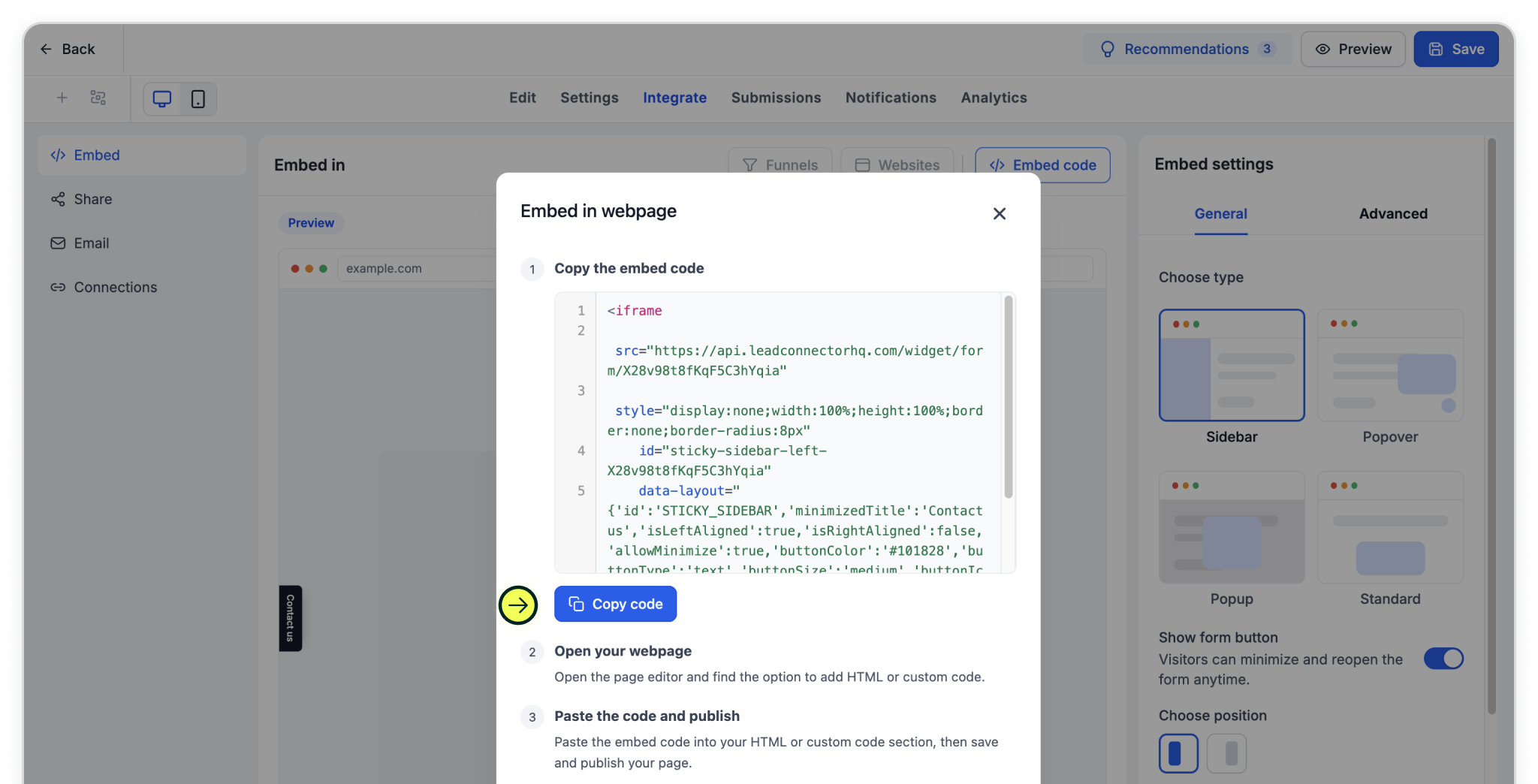
Step 3: With your attribution fields configured, save your form and open the Integrate tab. Select Embed and choose your preferred layout, then click Embed code. In the popup, click Copy code, then follow HighLevel’s instructions to embed the form on your website.
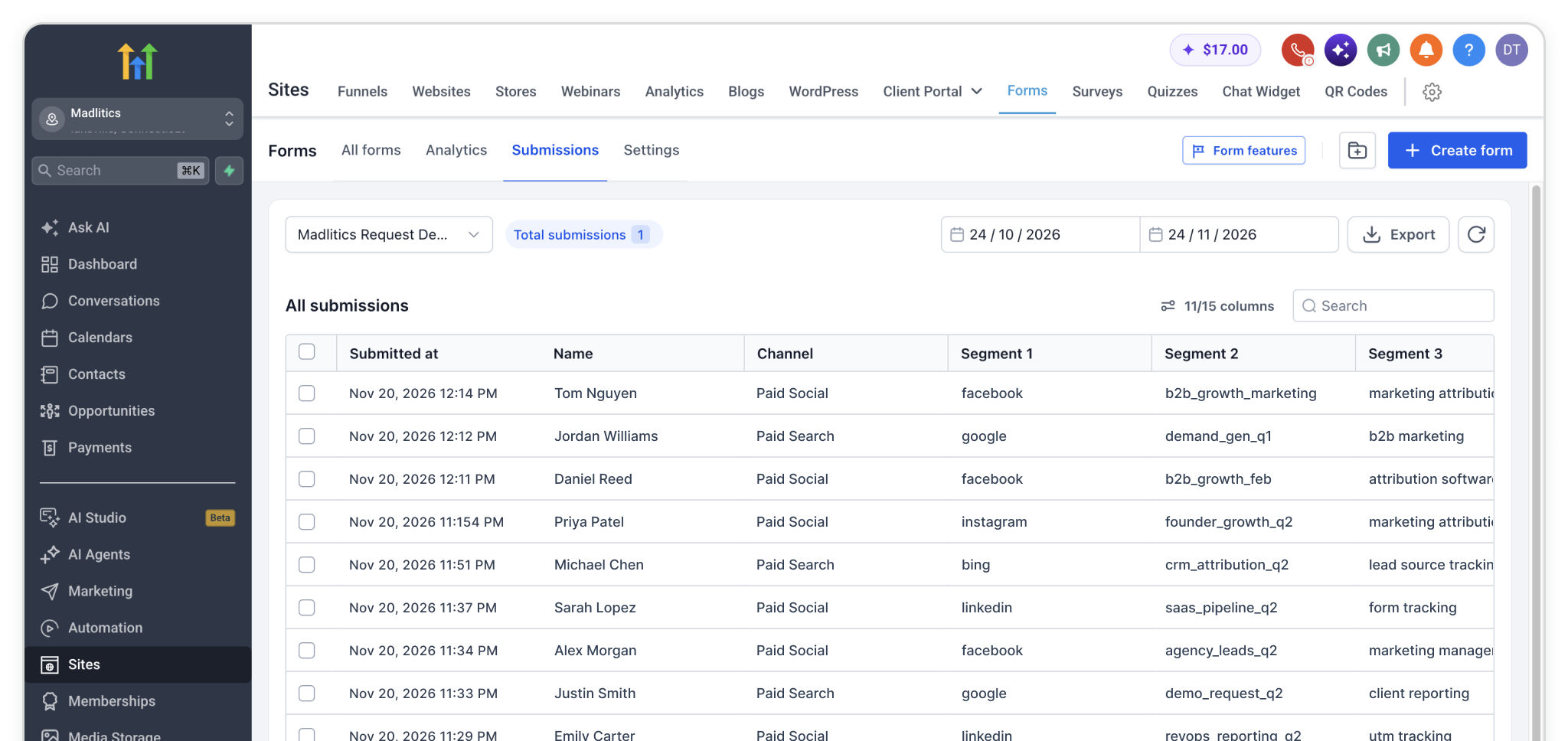
Step 4: Open Sites → Forms → Submissions, select your form and review the captured attribution alongside each lead’s contact details. Adjust the visible columns to show Channel, campaign segments and landing page data. Open the corresponding contact under Contacts to see the values stored in the custom fields you created. In this walkthrough, those fields are in General Info.
To send attribution to another tool, include the custom fields in your configured HighLevel integration or outbound workflow webhook, then map them to fields in the destination.
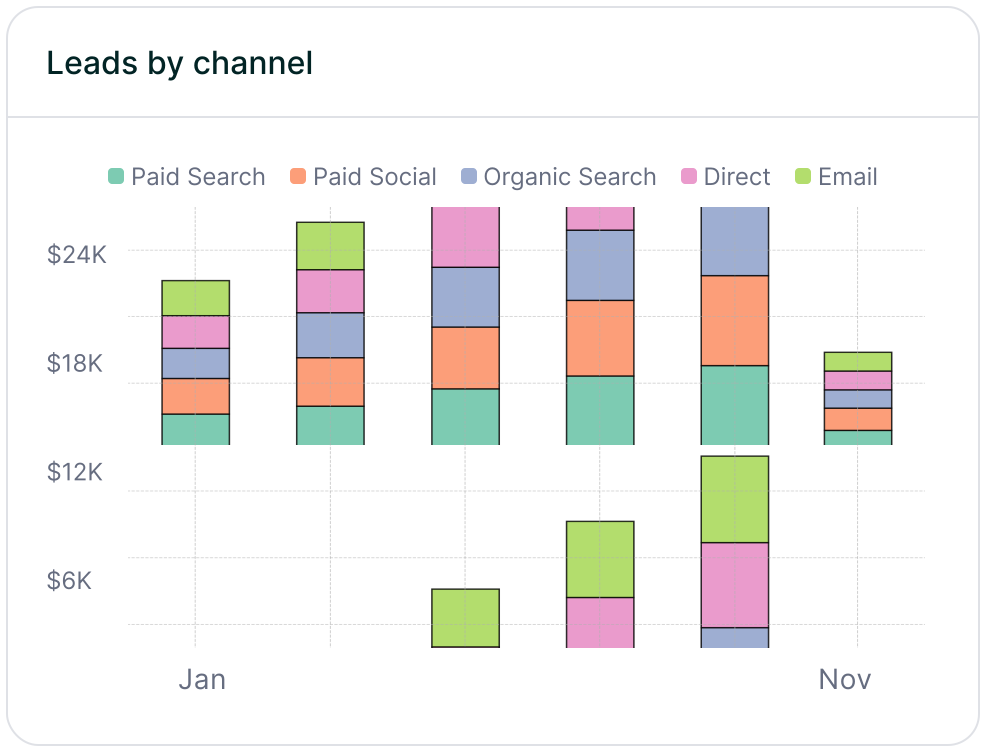
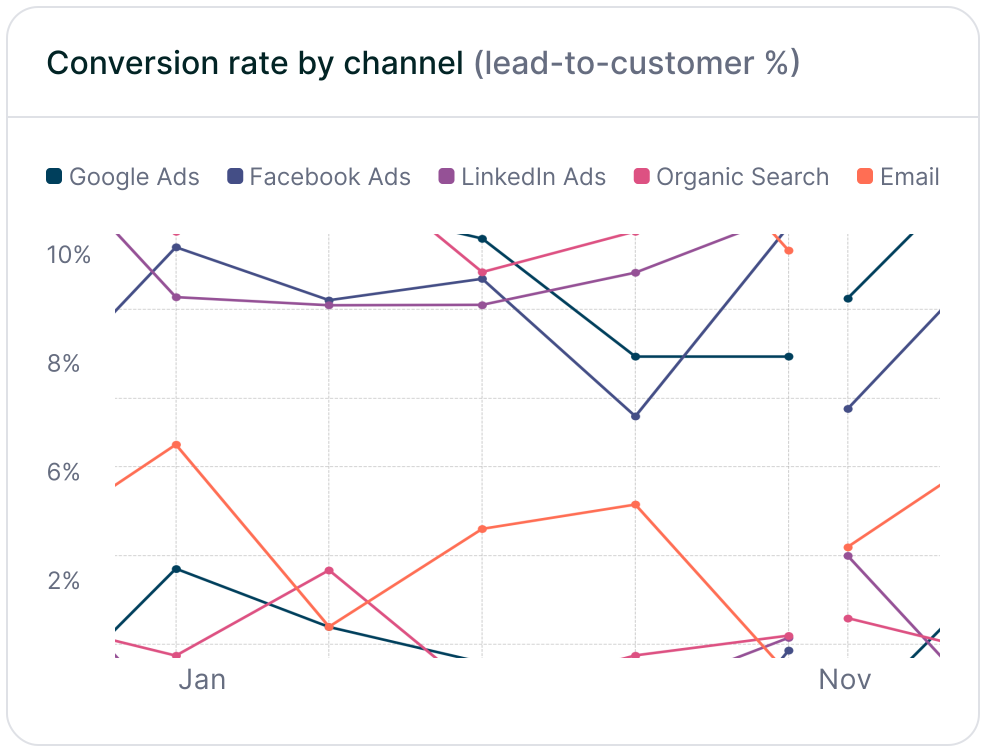
With Madlitics configured, your embedded HighLevel forms can carry the original marketing source into the same records your team uses to manage leads. That gives sales useful campaign context and gives marketing a consistent basis for comparing which sources and landing pages bring in inquiries.
Connect those attribution fields with the associated opportunity stages and deal values in a report that supports both datasets, or in your reporting tool. You can then compare lead volume with qualified opportunities and won business. A campaign that produces fewer submissions may still deserve more budget if those leads are more likely to become customers.
Answers about configuring embedded HighLevel forms to capture and use Madlitics attribution data.