
Support
Set up Forminator for UTM Tracking and marketing attribution
Step-by-step setup to capture marketing channel, campaign, and landing page attribution with Forminator
Start a free trial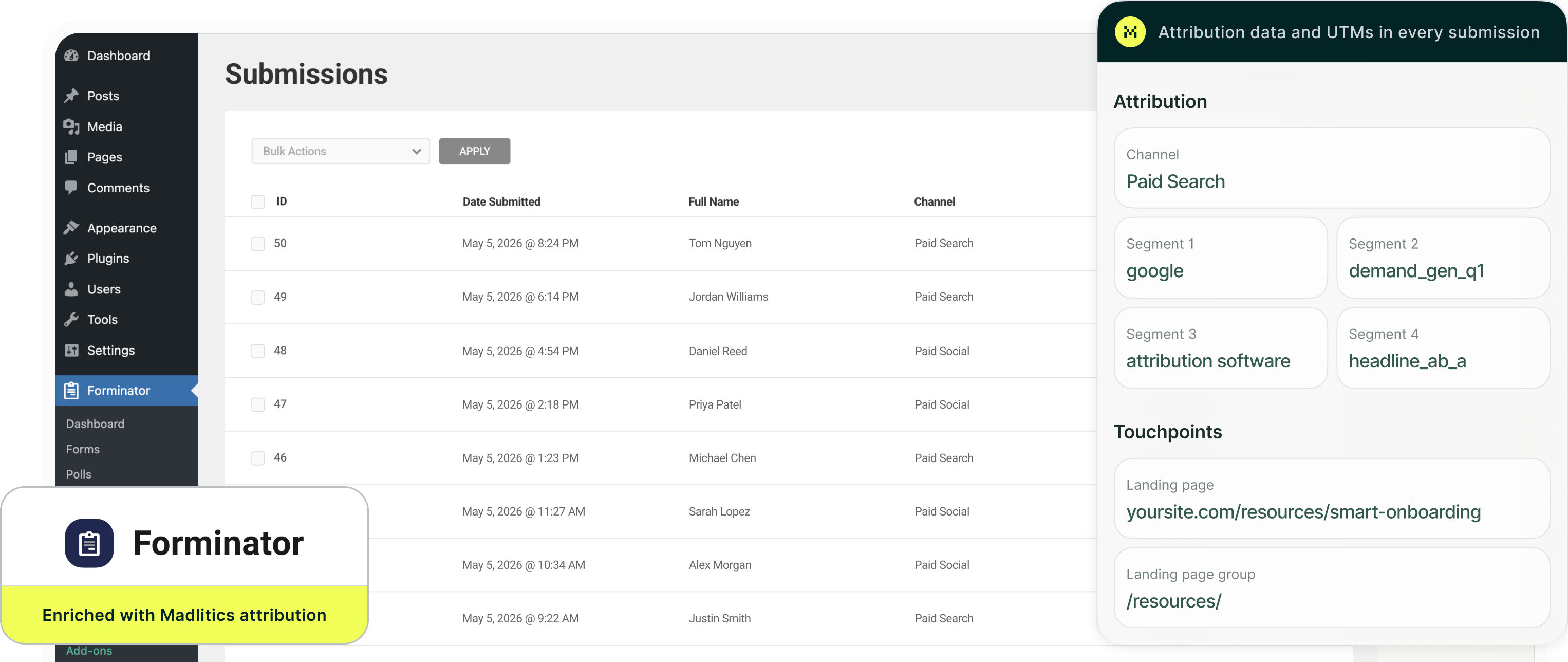
Forminator is a fast, flexible WordPress form builder with a clean drag‑and‑drop editor and both free and paid tiers to collect attribution, making it a strong choice for teams of any size. On its own, Forminator does not track full marketing attribution or persist UTM parameters across a visitor’s session.
Madlitics fills that gap by automatically capturing attribution data (like first-touch channel, campaign, source, and landing page) and writing it into your Forminator forms, making it easy to see which marketing efforts generate high‑quality leads, without changing your existing forms or workflows.
In this guide, you’ll learn how to:
Make sure Madlitics is installed on the site where this Forminator lives (ie. Wordpress). The form alone won’t capture attribution data, and needs Madlitics running on your site to pass lead data into your submissions.
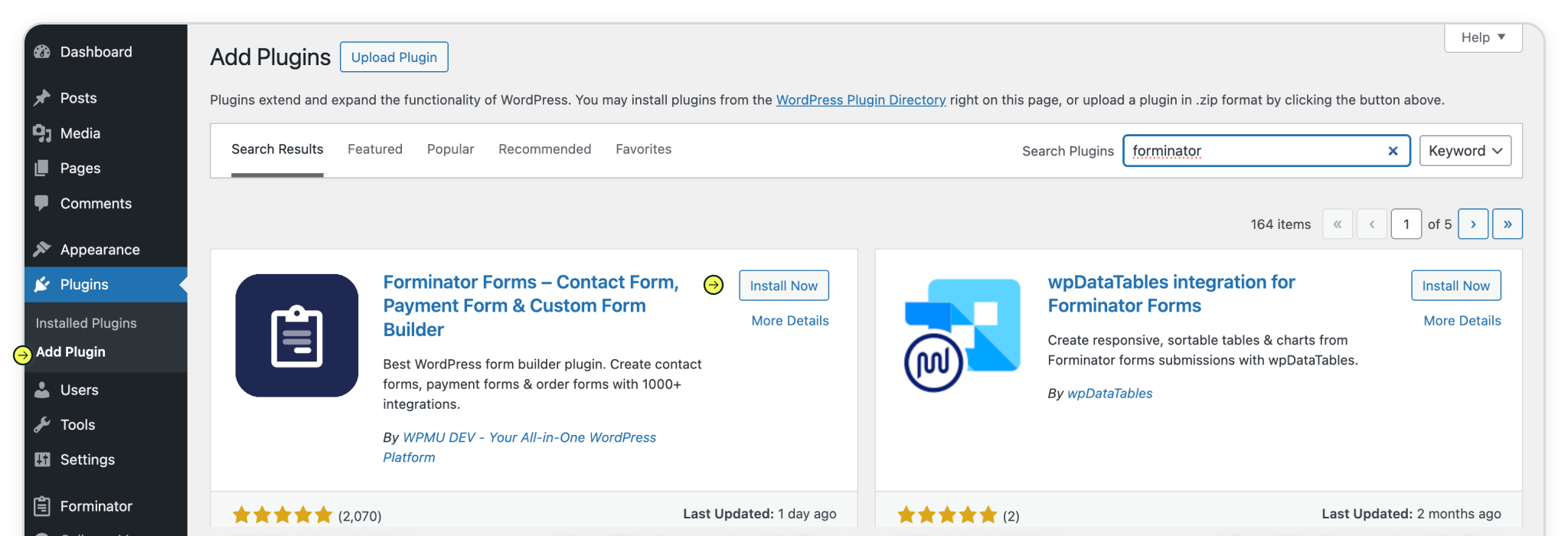
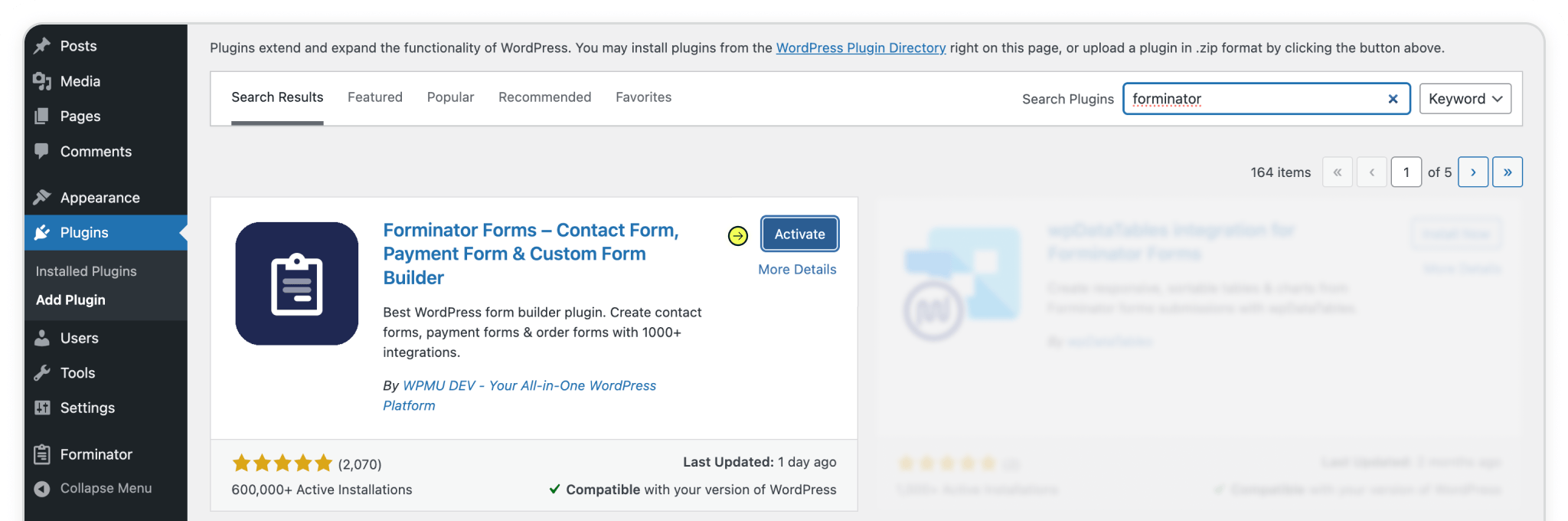
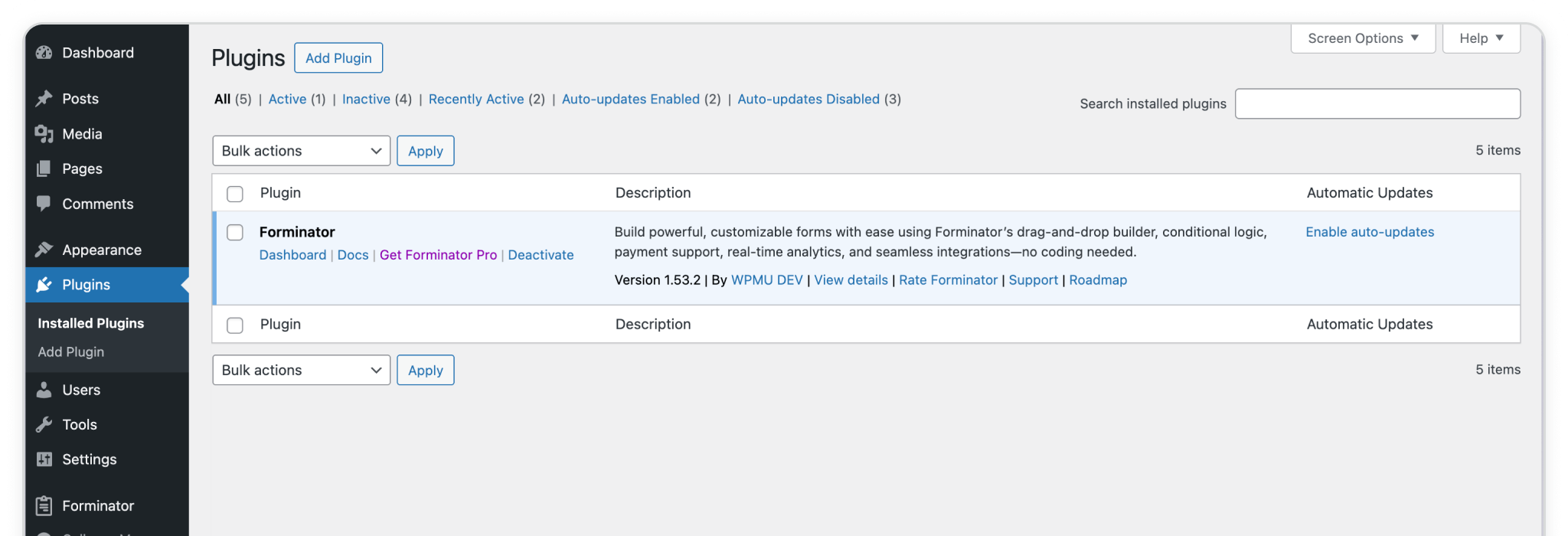
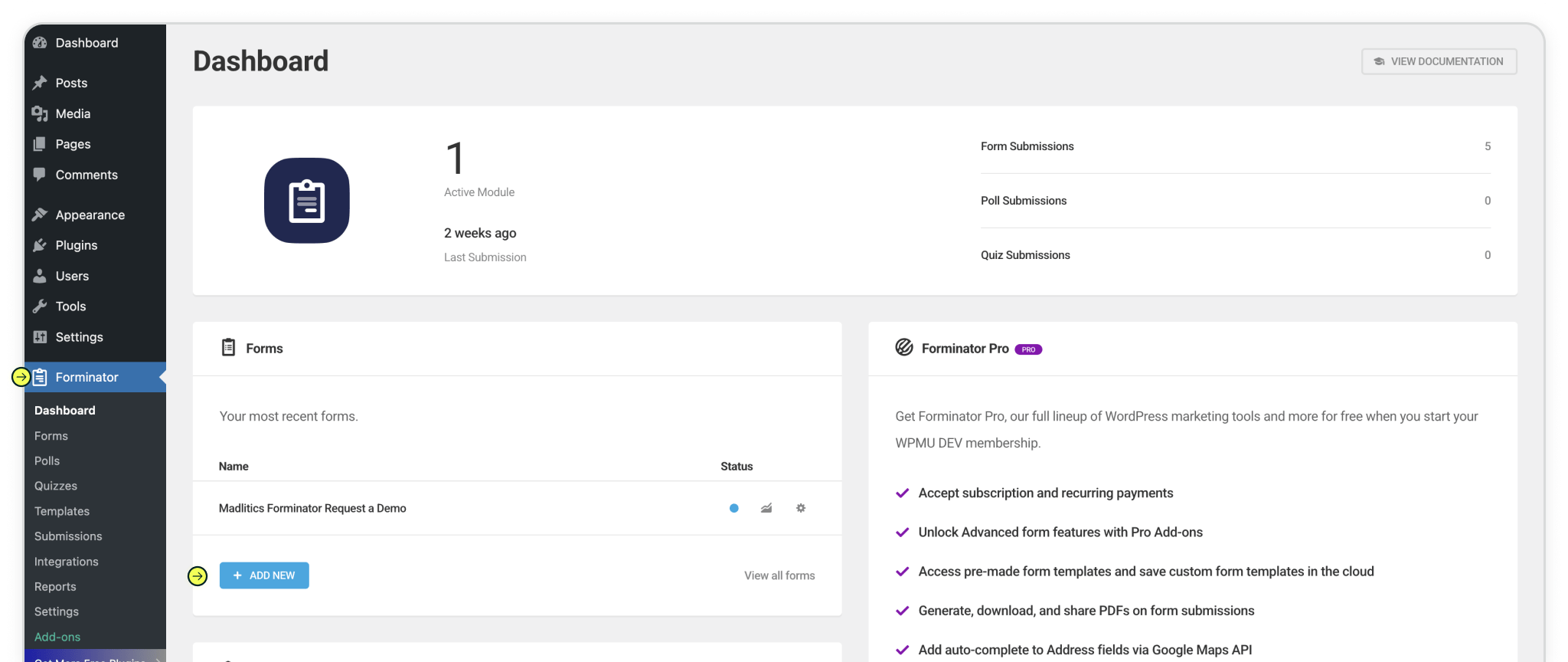
Step 1: Forminator is available directly from the WordPress plugin directory, making it easy to get started. From the WordPress dashboard, head into the Plugins section and select Add New. Search for Forminator in the directory, then click Install Now. Once installation finishes, hit Activate to turn it on.
You’ll know everything worked when a new Forminator menu appears in your WordPress sidebar; That’s your hub for creating and managing forms.
Plugins > Add Plugin > Install > Activate
Step 2: With Forminator active, you’re ready to build a form that captures both your lead details and Madlitics attribution data. Head over to the Forminator menu in your Wordpress dashboard and click '+ Add New' form.
You can start fresh with a New Blank Form if you want full control, or pick from one of the built-in templates to speed things up. Either way, the form will work seamlessly with Madlitics once you’ve added the hidden fields in the next step.
If you already have a form set up, no problem — just open it from your Forms list and click Edit to start configuring for Madlitics fields.
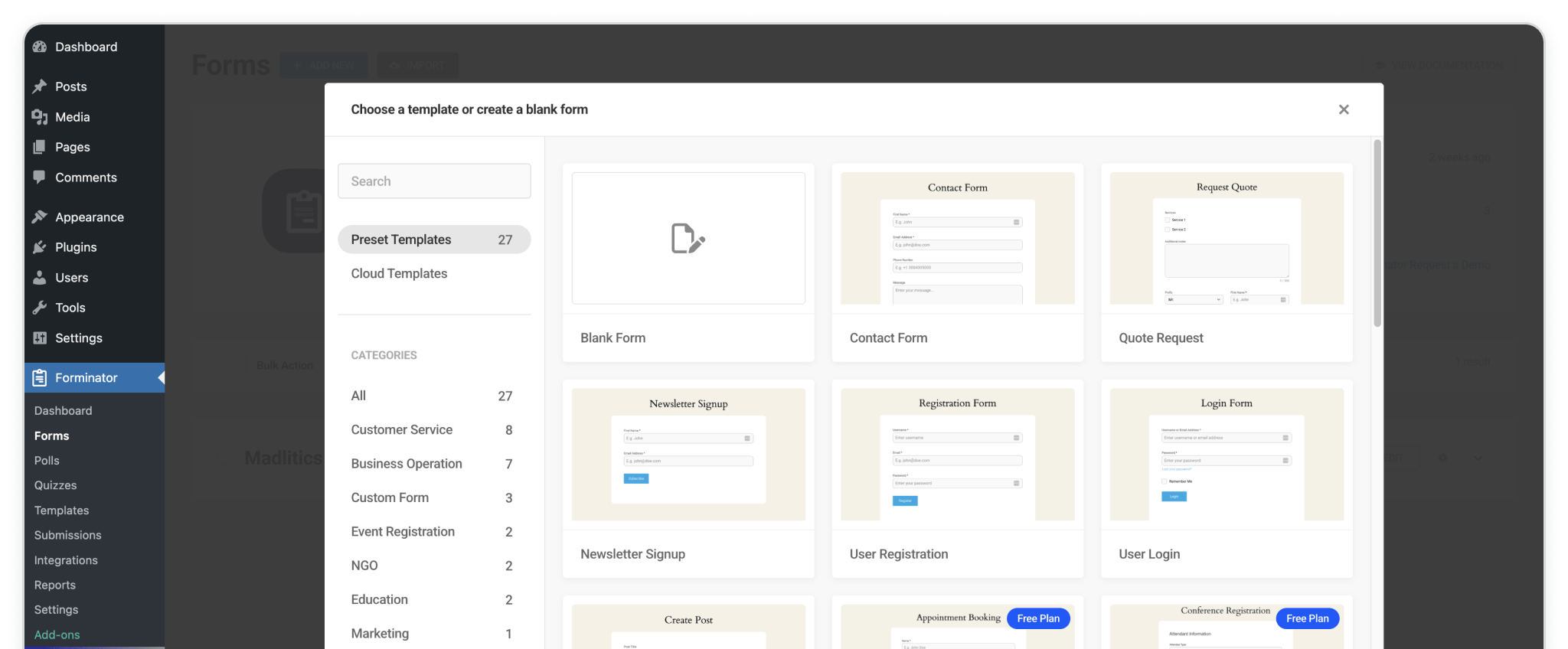
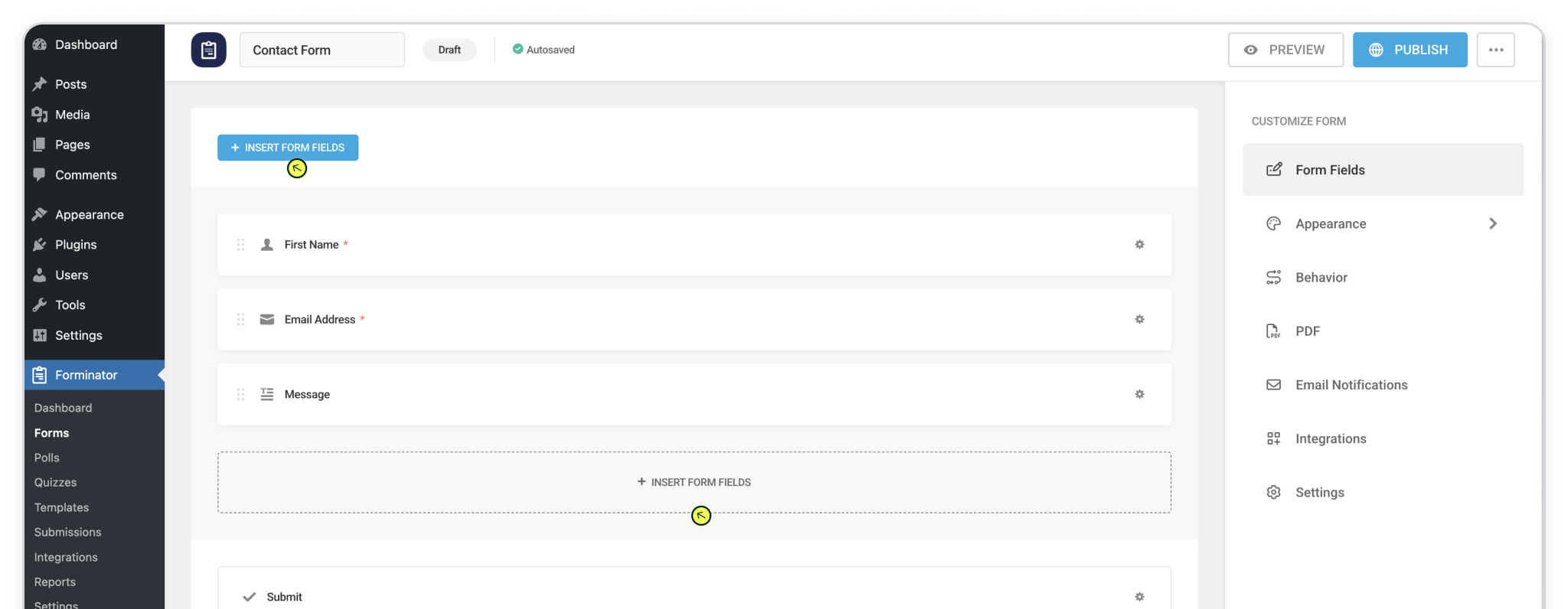
Build your form however you like — whether that’s a simple contact form or something more advanced. To capture attribution data with submissions, you’ll need to drop in seven (7) fields powered by Madlitics.
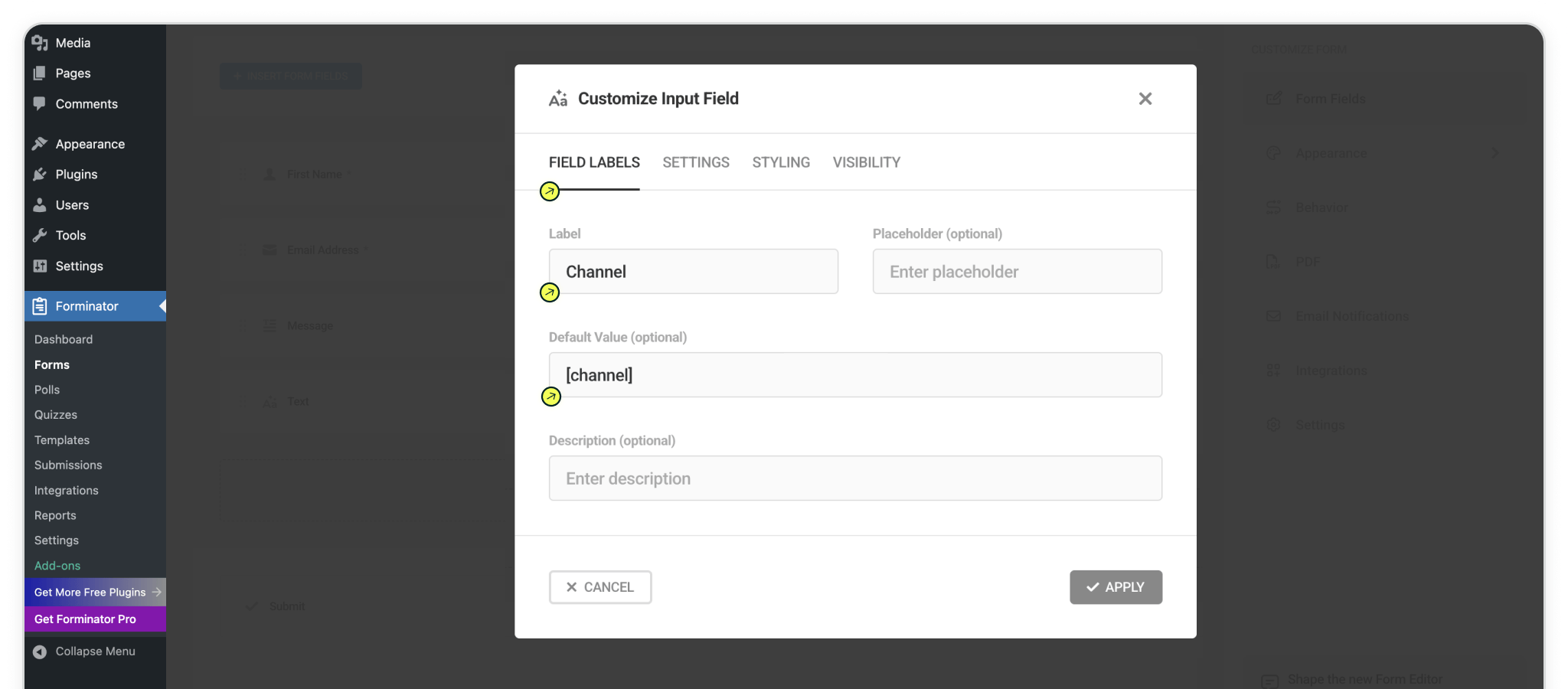
Step 3: From the form editor, click a '+ Insert Form Fields' into your form, and select an 'Input Field'. In the 'Customize Input Field panel', update the Label and Default Value so they line up with a Madlitics field. For example, to configure Madlitics Field 1, set the Label to Channel and the Default Value to [channel].
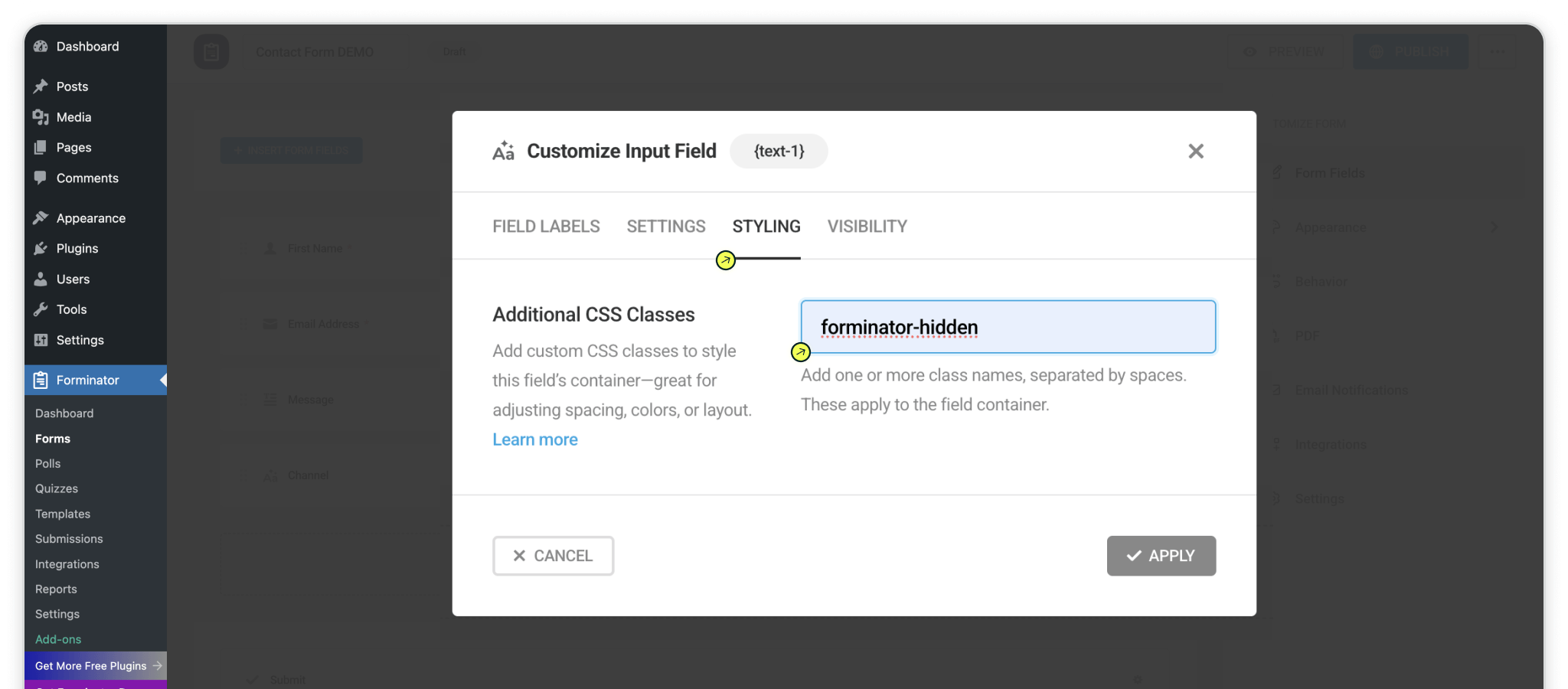
In the same modal, click the 'Styling' tab and add a css class to the field 'forminator-hidden'. Click Apply to save your changes.
Repeat this process for all of the Madlitics fields. Once you’ve got all the Madlitics fields in place, publish your form to start capturing attribution data alongside your lead details.
Configure additional Madlitics field value pairs for deeper customization and richer insights.
[channel])
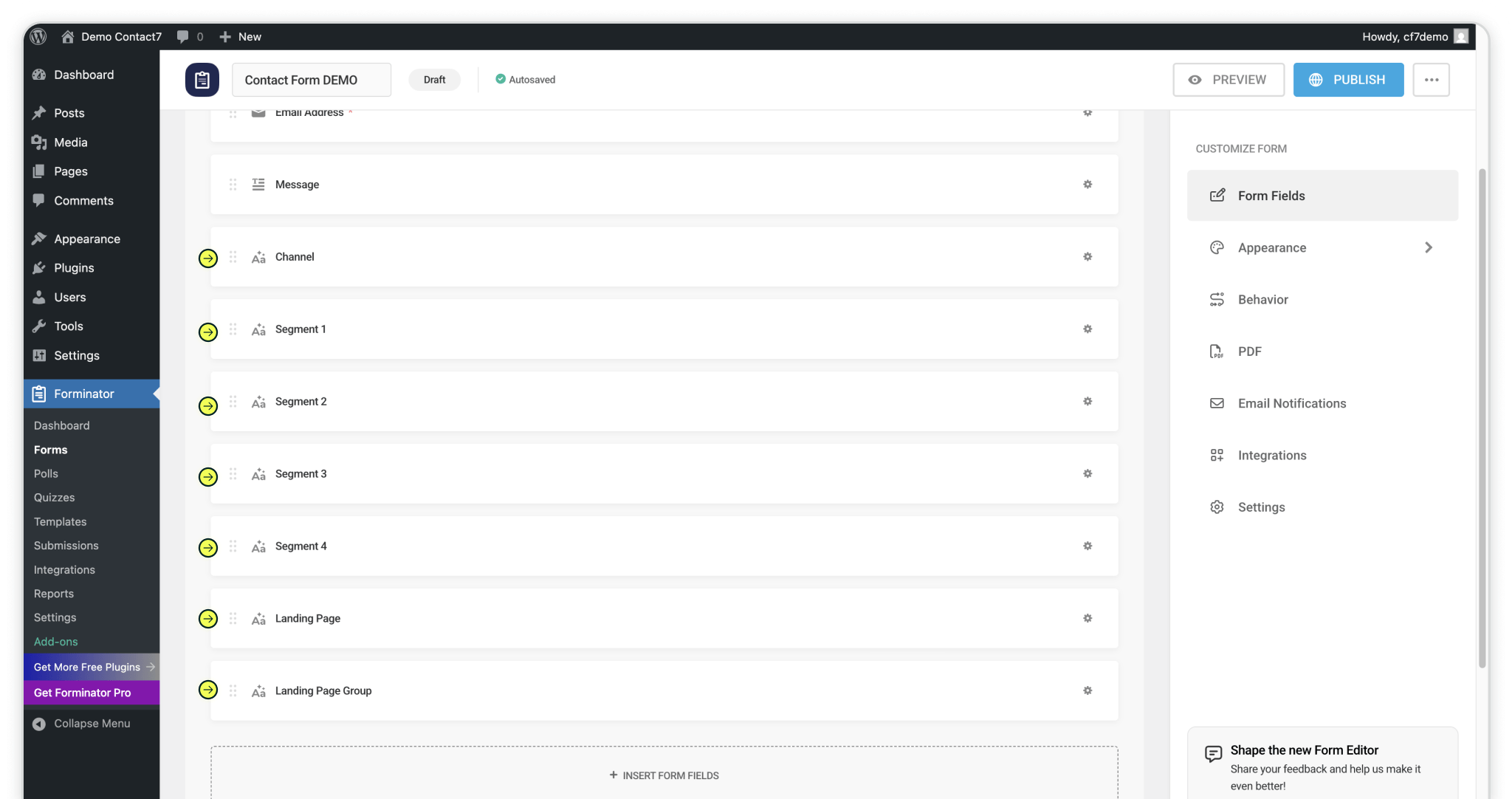
Marketing Channel Category
Categorizes the visit’s marketing channel based on multiple signals, including traffic type, referring domain, and known platforms.
Admin Field Label: Channel
Default value: [channel]CSS Class: forminator-hidden
Segment 1
Captures the source of the traffic, identifying the specific platform, publisher, or partner that sent the visitor to your site; for paid traffic, this field records the utm_source, for organic traffic the platform, for referrals the referring domain, and for direct traffic no value is captured.
Admin Field Label: Segment 1
Default value: [segment1]CSS Class: forminator-hidden
Segment 2
Captures the campaign-level details associated with the visit, identifying which campaign, promotion, or initiative led the visitor to your site; for paid traffic, this field records the utm_campaign, for organic traffic the referring domain, and for direct traffic no value is captured.
Admin Field Label: Segment 2
Default value: [segment2]CSS Class: forminator-hidden
Segment 3
Captures the keyword, creative variation, or content-level detail that influenced the visit, such as a paid search term, specific ad, post type, or format; for paid traffic, this field records the utm_term, for organic traffic the full referring URL when available, and for direct traffic no value is captured.
Admin Field Label: Segment 3
Default value: [segment3]CSS Class: forminator-hidden
Segment 4
Captures the audience, ad group, or offer associated with the visit, showing how the traffic was segmented within a campaign; for paid traffic, this field records the utm_content, and for organic and direct traffic no value is captured.
Admin Field Label: Segment 4
Default value: [segment4]CSS Class: forminator-hidden
Landing Page
Captures the exact page where the visitor first entered your site, recording the original entry point of the session.
Admin Field Label: LP
Default value: [lp]CSS Class: forminator-hidden
Landing Page Group
Captures the category or logical grouping of the landing page, allowing multiple related entry points to be analyzed under a shared identifier.
Admin Field Label: LPG
Default value: [lpg]CSS Class: forminator-hidden
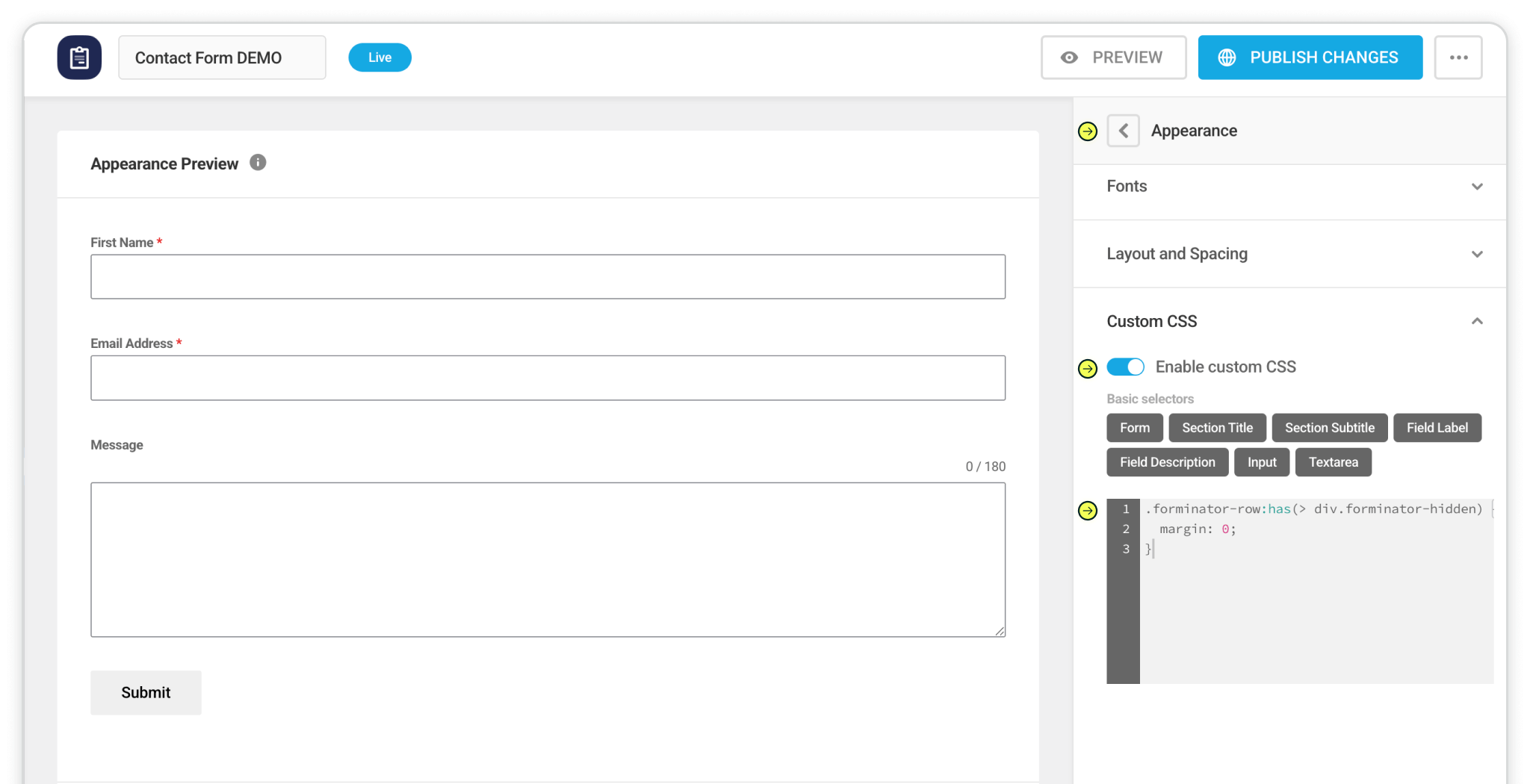
.forminator-row:has(> div.forminator-hidden) { margin: 0;}
🚨 CSS Update
Wordpress may add whitespace to the.forminator-hiddenfields that we can add quickly remedy. Within the 'Customize Form Panel', Select Appearance -> Custom CSS -> Toggle ON 'Enable Custom CSS'. Copy and paste the following code into the css input area:
.forminator-row:has(> div.forminator-hidden) { margin: 0;}.
Now that your form includes the Madlitics fields, add it to a live page so visitors can submit.
Click 'Publish Changes' on your form to save your updates.
Open the WordPress page or post where you want the form to appear, and add the Forminator block (or use the shortcode) to embed your form, then publish the page to make it live.
Once published, every form submission will automatically include marketing attribution data and UTM parameters, so you can see exactly how customers found you.

Test your form by visiting your site, using a url with unique utm parameters. Captured attribution data will populate in your Forminator entries page which can then be passed to CRMs, Intelligence tools, etc. for advanced reporting.
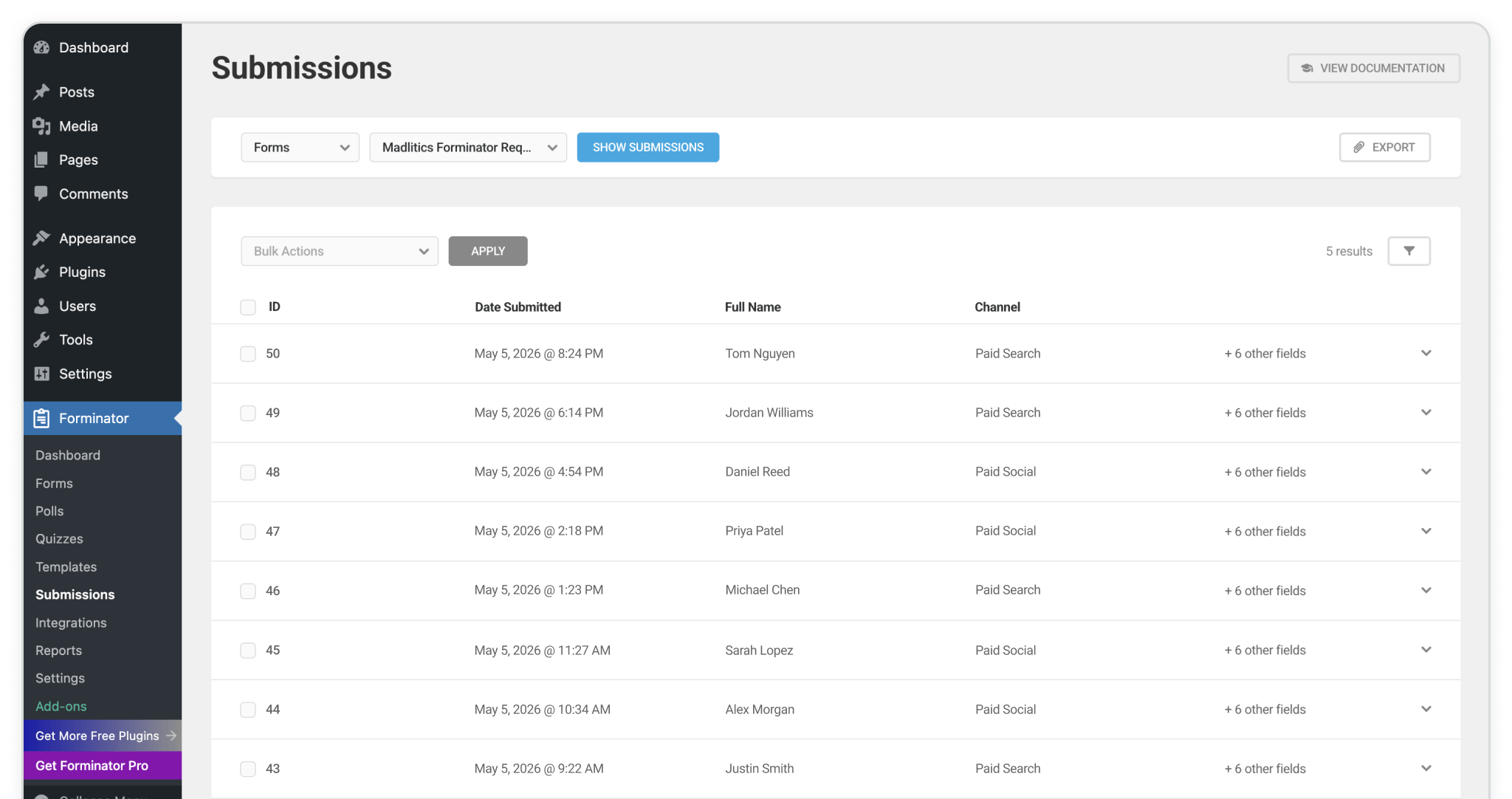
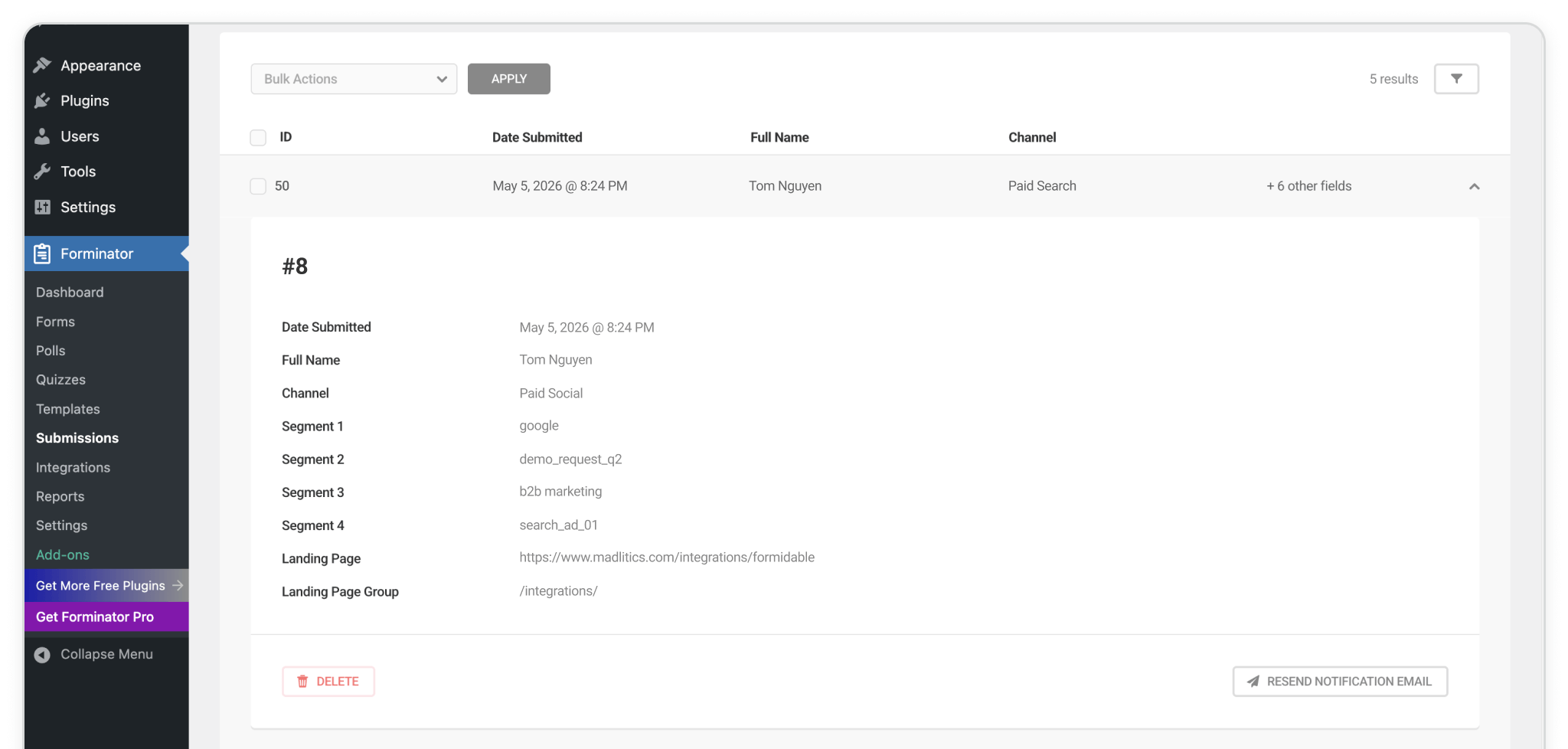
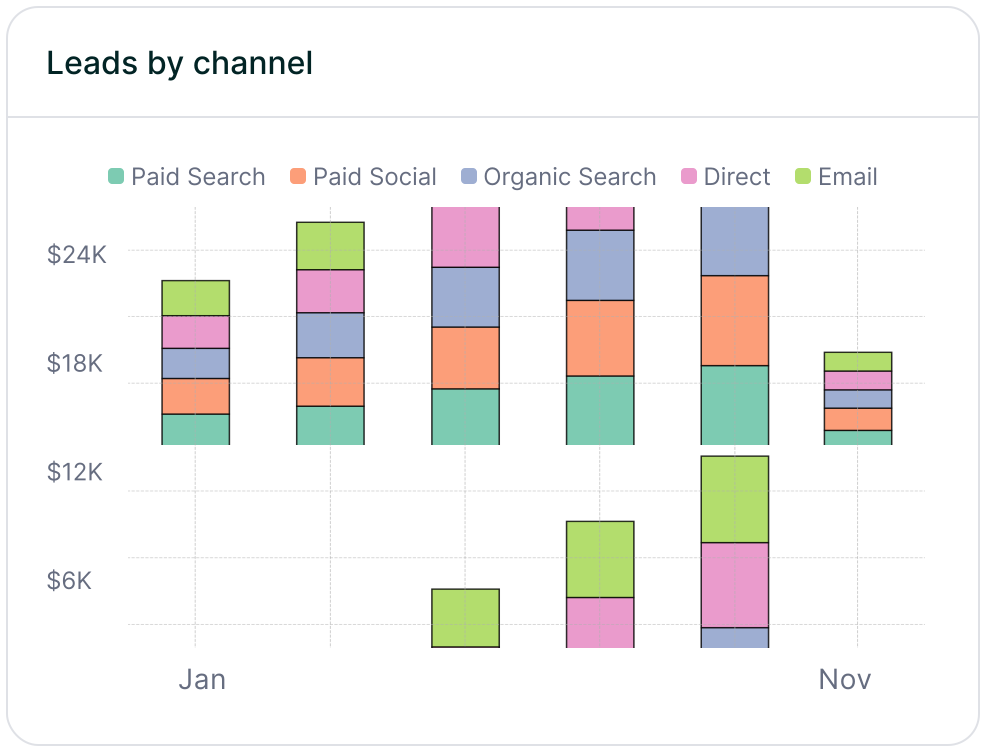
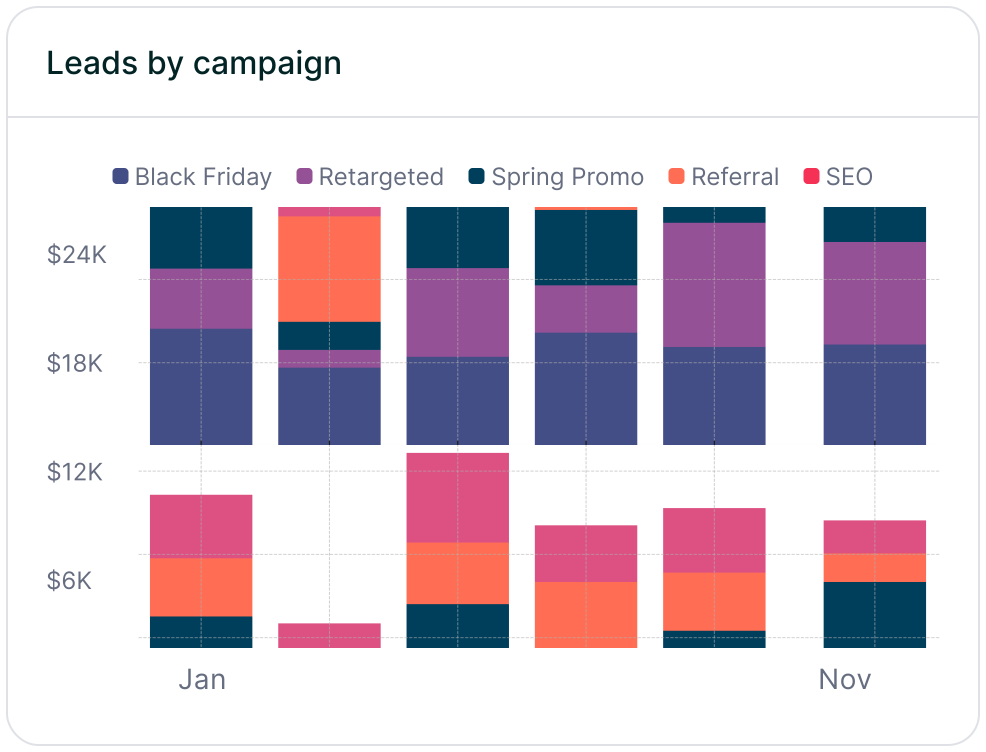
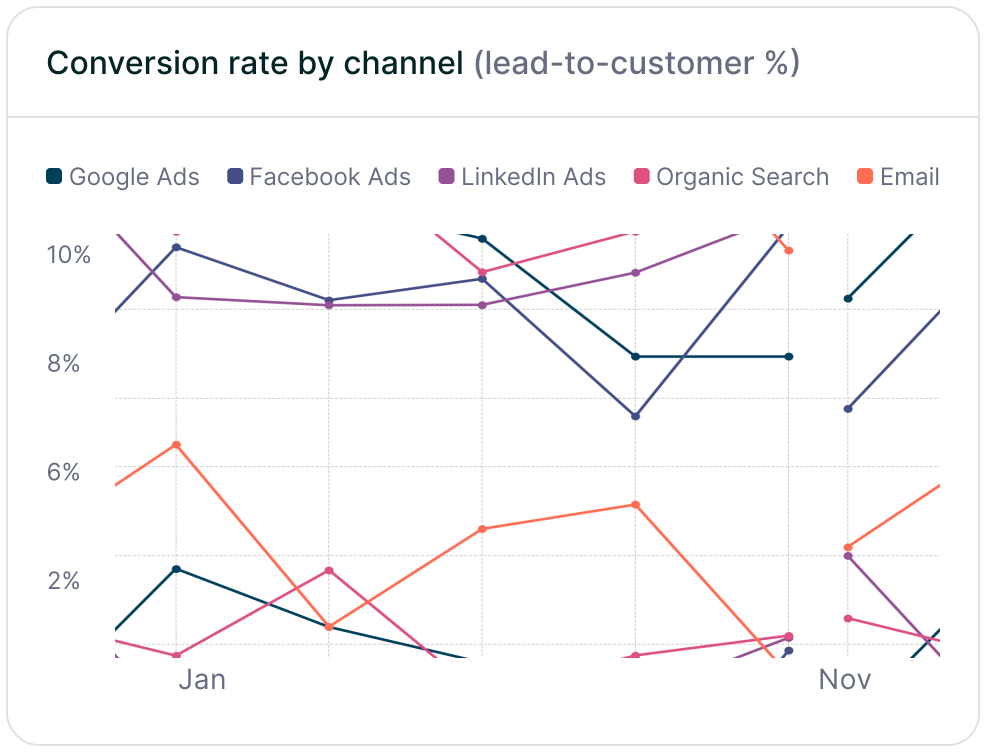
With Madlitics now activated and your Forminator forms ready to capture marketing attribution data, every new submission will include the full context — channel, campaign, source, and landing page. See what's really driving leads and pass attribution data into your CRM, email platform, or business intelligence tool for advanced reporting and ROI analysis.
Answers to common questions about UTM tracking with Madlitics and Forminator